Families arranging regular calls
Check the home’s connection, charging and storage arrangements before choosing a personal tablet. Carehome.co.uk advises asking whether staff can help set up a supplied device and show the resident how to use it.


Start with the resident and the care home: check whether a personal tablet is welcome, whether Wi-Fi works where calls will happen, and who can help with charging and calls. An around 11-inch Wi-Fi tablet on a stable stand is a sensible option for calls in the home when that connection is usable; consider cellular connectivity when calls need to happen elsewhere or a separate connection is needed. Set up the calling app and practise with the resident before depending on the routine.
The right setup depends on where the resident calls from and how much help they want with the device.
Check the home’s connection, charging and storage arrangements before choosing a personal tablet. Carehome.co.uk advises asking whether staff can help set up a supplied device and show the resident how to use it.
A larger screen, adjusted text and hands-free positioning are worth trying together. Age UK notes that vision, hearing or mobility difficulties can make devices harder to use; a bigger display alone does not settle whether the calling controls are manageable.
A cellular tablet is an option if the resident will call elsewhere or cannot use Wi-Fi at the agreed calling spot. Check mobile coverage and who will manage the SIM and data plan before choosing that route.
Ask the home about its existing call arrangements first, then try the proposed device in the place and position where the resident would use it.
Consider when: The home offers a device or booked calls that the resident can use.
Allow for: Access times and practical help depend on the home’s arrangements; it may not give the resident a familiar, personally configured tablet.
Consider when: Calls usually take place in the home and Wi-Fi works at the agreed calling spot.
Allow for: The family and home still need to agree how the tablet connects, is charged and is kept ready for calls.
Consider when: Calls are needed away from the home or there is a confirmed need for a separate connection.
Allow for: Mobile coverage, a suitable data plan and someone to manage the account; cellular does not resolve handling or support needs.
| Priority | What to check | Your needs |
|---|---|---|
| Connection and routine | Test Wi-Fi at the intended calling spot. Ask whether personal devices can connect and who can help with setup, charging and storage. | I want calls to work from the resident’s usual seat, with a routine the home and family can realistically maintain. |
| Usable controls | Try the calling app with adjusted text and display settings. Check whether the resident can answer, end and recover from a call, with agreed help if needed. | A bigger picture matters to me, but the resident also needs to recognise and use the call controls. |
| Hands-free position | Check the tablet’s size and weight against a stand’s stated limits, with the case fitted. Make sure the case leaves the camera, microphone and charging port accessible. | I would rather position the tablet securely than ask the resident to hold it throughout a call. |
| Privacy and support | Agree a quiet calling place, who may be in view or overhear the conversation, and who will help if a call does not start. Scottish Care advises a practice call and equipment suited to the person. | Calls should happen when the resident wants them, without unexpectedly including other people in the room. |
A mobile connection may add account and data-plan management without helping a call made over usable local Wi-Fi. Age UK also cautions that video calls use substantial data.
Test Wi-Fi where the resident will sit. If a separate connection is needed, check coverage and the plan’s data allowance.
A larger picture does not make touch controls, sound or holding the tablet comfortable for every resident. Age UK highlights vision, hearing and mobility as relevant to device use.
Try the actual calling app with adjusted controls and a stand; watch whether the resident can manage the steps they will need to do.
A poorly matched accessory can obstruct a port or camera, or fail to support the tablet securely. Charger inclusion can also vary by configuration: Lenovo distinguishes its Tab M11 bundle from its standard tablet package.
Match the case to the complete model, check the stand with the case fitted and confirm the charging equipment included with the chosen package.
A working tablet is not enough if the resident does not want a call then, others can be seen or overheard, or nobody knows how to help when something goes wrong. Scottish Care advises attention to personal choice, privacy and a practice call.
Agree the calling place, timing, helper and charging routine with the resident and home, then make a practice call from that location.
These are features of particular tablet lines and configurations, not a substitute for checking the resident’s needs or the home’s arrangements.
The iPad 11-inch (A16) is a route to consider if the family wants an 11-inch iPad and a way to limit a calling session to one app.
The Galaxy Tab A9+ 5G is an Android option to examine when mobile-network connectivity is genuinely useful.
A Tab M11 bundle is worth examining if the family wants to assess the tablet, folio case and charging equipment as one configuration.
These tablets offer Wi-Fi options for calls in the home and models with cellular connectivity for a confirmed need to call elsewhere or use a separate connection. Each still needs a suitable hands-free setup and agreement with the care home.
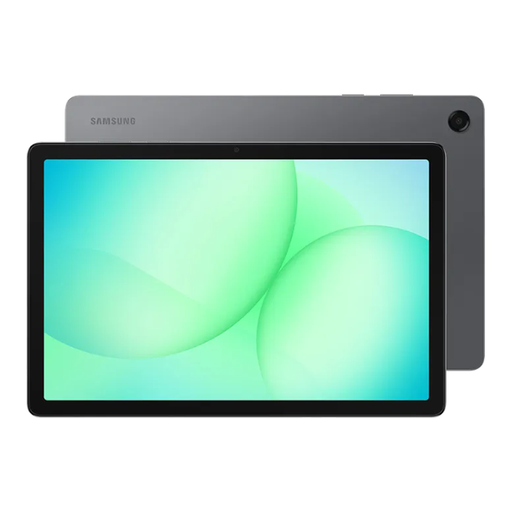 No image available
For calls over the home’s Wi-Fi, provided it works where the resident will sit. The listed configuration has an 11-inch display and 128GB storage; check a model-matched case and stable stand for hands-free use.
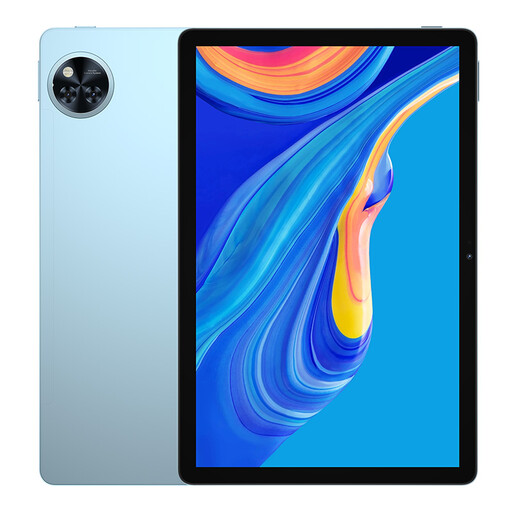 No image available
Another option for calls using confirmed care-home Wi-Fi. Its title specifies an 11-inch display, 128GB storage and 5 GHz Wi-Fi; try the calling interface with the resident and check stand and case fit.
 No image available
Consider its 4G option only if calls need a separate mobile connection; check SIM service and coverage for that use. The title also lists 5G Wi-Fi, which is a Wi-Fi specification, not 5G mobile service. Confirm the exact software configuration, charging equipment, case and stand before buying.
 No image available
The 12.7-inch display is worth trying if the resident wants more viewing area than an approximately 11-inch model. Its title lists dual-SIM 4G LTE and 5G Wi-Fi; check the tablet’s weight, case fit and stand stability before planning hands-free calls.
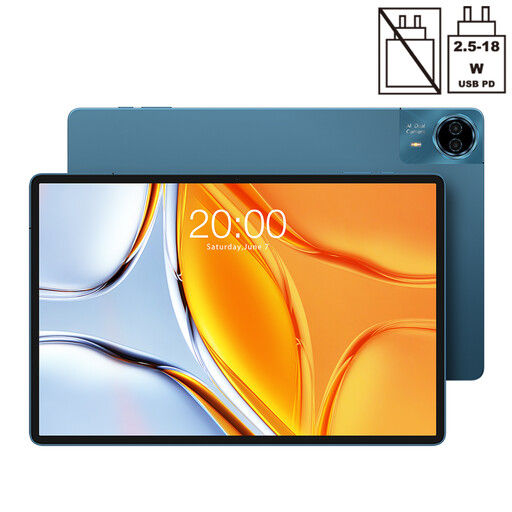 No image available
Trial this larger display in the intended calling position rather than choosing by screen size alone. The title lists a 14-inch 1920 × 1200 display, dual-SIM 4G LTE and 5G Wi-Fi; the listing gives a weight of 960 g. Check that a stand securely supports the tablet with its chosen case fitted.
Yes. Ask whether personal tablets can be used, whether Wi-Fi works at the intended calling spot, and how charging, storage and practical help would work. Carehome.co.uk also advises checking whether the home has its own device and when calls are convenient.
Not when usable Wi-Fi covers the calling location. Consider cellular for calls away from that connection or a confirmed need for a separate one, then check coverage and the data allowance. Age UK cautions that video calling uses substantial data.
Set up the chosen calling app and contacts, adjust the display to the resident’s preferences, and practise answering and ending a call together. Apple Support says Guided Access can temporarily keep an iPad in one app, but someone still needs to manage the setup and help when required.
Arrange calls around the resident’s wishes and choose a position where other people will not unintentionally be seen or overheard. Scottish Care advises treating participation as a personal choice, seeking consent on each occasion as good practice and checking the calling location beforehand.
Make a full practice call from the intended spot, with the tablet on its stand and in its model-matched case. Check the connection, controls, camera and microphone access, stand stability and charging routine with the resident and whoever has agreed to help.