Families setting up a first calling tablet
A dedicated tablet may suit scheduled family calls when someone can set up the account and the care home confirms room Wi-Fi, permitted apps and day-to-day support arrangements.


Choose a Wi-Fi tablet if the care home confirms reliable coverage in the resident’s room, permits the chosen calling app and can accommodate a stable hands-free setup. Consider cellular when room Wi-Fi is unsuitable or a separate connection is wanted; in either case, test the calling controls with the resident and agree who will manage accounts, charging and privacy.
A dedicated tablet may suit scheduled family calls when someone can set up the account and the care home confirms room Wi-Fi, permitted apps and day-to-day support arrangements.
Apple Support documents favourite contacts in Assistive Access Calls. Google documents Android display and magnification controls, although the available features and the calling-app experience depend on the device and setup.
A cellular-capable tablet is worth considering if the home cannot provide a suitable connection in the resident’s room, or the family wants connectivity independent of the home’s network.
Decide how the tablet will connect, then check the calling app, controls and hands-free position on the exact setup the resident will use.
Choose when: The care home confirms usable room Wi-Fi and allows the selected device and calling app.
Trade-off: Calls depend on the home’s network and any sign-in process.
Choose when: Room Wi-Fi is unsuitable or the family specifically wants a separate connection.
Trade-off: A data plan and its account need managing; cellular does not replace the home’s charging and device-use arrangements.
| Priority | What to check | Your needs |
|---|---|---|
| Room connection | Test Wi-Fi in the resident’s room at likely calling times. Ask whether sign-in must be repeated; for cellular, check coverage and the data-plan arrangements. | I want calls to work where the tablet will actually be used, without taking on a separate connection unless it serves a purpose. |
| Calling app and account | Confirm that the chosen app installs, signs in and makes a test call on the exact tablet. Agree who will handle account recovery and updates. | Our family needs to reach the resident through an app we can all use, with someone available if a login stops working. |
| Simple controls | Try answering and ending calls with the resident. Apple Support documents favourite contacts in Assistive Access Calls; Google documents Android display controls and Action Blocks, with availability dependent on the device. | Familiar contacts and clear controls matter more to me than a long list of tablet features. |
| Hands-free position | Match a case to the exact model and generation. Test stand stability, camera framing and access to speakers and the charging port. | The resident should be able to see the screen during a call without holding the tablet throughout. |
| Home arrangements | Ask where the tablet can be charged, what help staff can offer and how the home handles photographs or recording. Agree contacts with the resident where practical. | I want family calls to fit the resident’s preferences and the home’s privacy and device-use arrangements. |
| Refurbished devices | Check the exact model, operating-system version, battery condition, charger and seller’s return terms. Install and test the intended calling app before the return window ends. | An older tablet could suit us if the app still works and the device’s condition and support are clear. |
A separate mobile connection may be unnecessary if the home’s Wi-Fi works reliably for the chosen app in the resident’s room.
Ask about coverage and sign-in, and make a test call on Wi-Fi before deciding whether cellular is needed.
Using cellular also means arranging and managing a mobile-data plan.
Contacts, alerts and sign-in prompts can still make a call difficult to start or answer.
Set up familiar contacts and make repeated trial calls with the resident, using the simplest controls they can manage with the agreed support.
A case for a different model or generation may not hold the tablet in the intended call position or leave its controls accessible.
Check exact-model compatibility, then try the stand in the planned position with the camera and charging port in use.
Recording or livestreaming a room is a different use from a family video call and raises privacy and confidentiality concerns. The Care Quality Commission emphasises privacy and dignity in adult social care; the Information Commissioner’s Office advises organisations to consider data protection for recording and livestreaming.
Keep the setup focused on agreed family calls. Discuss any proposed recording or monitoring arrangement separately with the care home before setting it up.
These platform examples illustrate features to check; they do not establish that a particular tablet or calling app will suit every resident.
An iPad route for families already using Apple accounts or FaceTime, particularly where familiar contacts and fewer calling choices would help.
An Android tablet route for families considering the Galaxy Tab A9+ alongside Android accessibility settings.
A Fire HD 10 route to consider when the exact calling app works on the chosen generation and the family can manage its account.
These Wi-Fi and cellular-capable tablets offer screen-size and connection options for room-based calls. Check the chosen calling app and a suitable hands-free position for each exact model before deciding.
 No image available
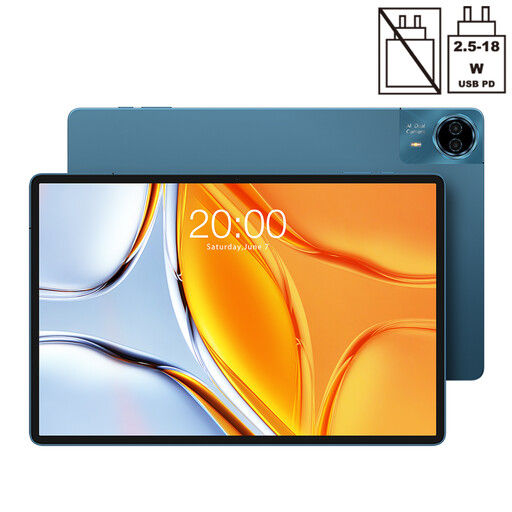
A Wi-Fi tablet to consider for room-based calls if the chosen app works on the supplied device and a stand holds it securely. The title specifies a 10.1-inch display, T606 octa-core processor and 256 GB storage. Confirm the supplied Android version and test the stand’s position, camera view and charging access.
 No image available
Consider its larger screen if there is space for a stable hands-free position, or its cellular option if room Wi-Fi is unsuitable. The title specifies a 14-inch 1920×1200 display and dual-SIM 4G LTE alongside Wi-Fi. Check the supplied Android version, calling-app compatibility, local mobile coverage and an exact-model stand or case.
 No image available
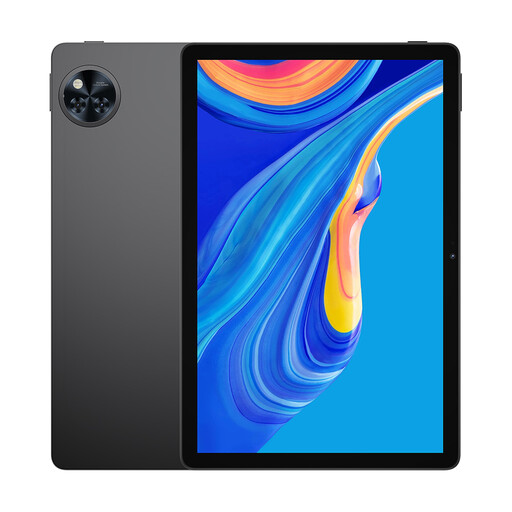
An 11-inch option to assess where the family wants a choice between Wi-Fi and a separate mobile connection. The title specifies dual 4G SIM connectivity, Wi-Fi and 256GB storage. Confirm the supplied Android version, test the calling app and check mobile coverage and exact-model stand compatibility if those features matter to the setup.
 No image available
A Wi-Fi option for a larger call view if the resident can use the selected app and the tablet can be positioned hands-free. The title specifies an 11-inch 90Hz IPS screen, 256GB storage and a 13MP+5MP camera pair. Test the calling app and check any case or stand against the U11 PRO model, including camera and charging-port access.
 No image available
A Wi-Fi tablet to consider for room-based calling once the chosen app and hands-free setup have been tested. The title specifies an 11-inch display, 128 GB storage and 5 GHz Wi-Fi. Confirm the supplied processor specification and choose a stand or case made for the U11 model rather than assuming a U11 PRO accessory will fit.
Start with Wi-Fi if the home confirms reliable coverage in the resident’s room, permits the calling app and has a manageable sign-in process. Choose cellular if those conditions cannot be met or the family wants an independent connection, allowing for a data plan and someone to manage it.
Ask whether personal tablets and the chosen app are permitted, how room Wi-Fi sign-in works, where the tablet can be charged and what help staff can offer. Discuss the resident’s preferences and the home’s approach to privacy, photographs and recording as part of the setup.
Set up the chosen app and agreed contacts, then practise answering and ending calls with the resident. Apple Support documents favourite contacts in Assistive Access Calls; Google documents Android accessibility controls and Action Blocks, which should be tested on the exact device and app.
For hands-free room calls, use a fitted case with a stable stand or check that a separate stand holds the cased tablet securely. Match the case to the exact model and generation, and test camera framing, speaker and button access, and charging in the intended position.
Check the exact model, operating-system version, battery condition, included charger and seller’s return terms, then install and test the calling app before the return window ends. App support can vary on older devices, so a working screen alone is not enough for this use.