Families setting up calls in one room
If the tablet will normally stay beside the resident, focus on a connection that works in that room, a safe charging position and a stand that lets them call without holding the device.


For a tablet that will usually stay in one care-home room, choose Wi-Fi if the home confirms that a personal device can use a workable connection where the resident sits. Consider cellular if that connection is unsuitable or the tablet will regularly leave the home, but check local coverage and the data-plan arrangements. Whichever route you choose, an exact-fit stand case, accessible call controls and compatibility with the family’s calling app matter more to this setup than specifications unrelated to calls.
If the tablet will normally stay beside the resident, focus on a connection that works in that room, a safe charging position and a stand that lets them call without holding the device.
A conventional home screen may be harder to navigate than a short list of familiar contacts. Apple’s Assistive Access and Android’s Action Blocks offer different ways to simplify a compatible calling setup; try the chosen controls with the resident before relying on them.
A cellular model calls for a check of the network in the places the tablet will be used. With a refurbished model, identify the exact device and check its software support, calling app, condition and supplied charger.
Settle where calls will take place and how the resident will start them before comparing tablet specifications.
Choose when: The tablet will stay mainly in the room and the home confirms usable Wi-Fi for the resident’s personal device there.
Bear in mind: Calls depend on that connection and the home’s arrangements for connecting and keeping the device charged.
Choose when: In-room Wi-Fi is unsuitable or the tablet will regularly be used away from the home.
Bear in mind: It needs a suitable mobile-data arrangement and coverage where calls actually take place; a cellular specification alone cannot establish that coverage.
| Priority | What to check | Your needs |
|---|---|---|
| Connection and charging | Ask about personal-device access and Wi-Fi in the intended room, not just communal areas. For cellular, check the chosen network at the calling location. Confirm where the tablet can charge. | I want calls to work from the chair or bedside where the tablet will normally sit, without moving it elsewhere to connect or charge. |
| Call controls | Try receiving, starting and ending a call with the resident. Check whether selected contacts, larger controls or compatible home-screen shortcuts make those steps easier. | A short route to familiar people matters more to me than a screen full of apps the resident will not use. |
| Hands-free position | Check that a protective stand case fits the exact model and leaves its camera, speakers and charging port usable. Try the viewing angle and volume in the intended room. | During a family call, the resident should be able to see and hear without holding a small phone or balancing a tablet. |
| Calling app and account | Check the chosen app against the exact tablet and operating-system version. Establish who will set up and maintain its account and contacts; Apple says FaceTime requires an Apple Account sign-in. | Our family needs the same calling service to work on both ends, with someone available to help if a sign-in or update interrupts it. |
| Refurbished condition | Get the full model identifier and check its manufacturer’s update information. Confirm battery condition, charger inclusion, warranty and the seller’s return terms for that device. | If I choose a refurbished tablet, I want to know that its condition and software still fit our calling routine. |
A home’s use of digital services does not establish that a personal tablet can join a workable connection beside the resident.
Ask the home about room-level access, the sign-in process, device rules, charging and who can help reconnect the tablet.
Samsung says 5G service requires an enabled location and speeds vary with the carrier and environment. A mobile-capable tablet is therefore no guarantee of a workable call at the resident’s usual seat.
Check the intended network at the care-home address and, where possible, try it in the calling location. Confirm the home permits the arrangement.
A separate mobile-data plan also adds an ongoing arrangement for the family to manage.
More viewing space does not by itself make contacts, alerts or call buttons easier for a particular resident to use.
Set up a small group of familiar contacts and try receiving and ending a call together. Consider Apple Assistive Access or, on a compatible Android device, Action Blocks if those controls suit the resident.
Software support is model-specific. Lenovo says products absent from its Android upgrade matrix have no upgrade plan listed there; cosmetic condition does not answer whether the family’s app will run.
Check the full model identifier, its update path and the chosen app’s compatibility, then examine the seller’s battery, charger, warranty and return details.
These brand examples illustrate features to check on an exact model; they do not indicate which brands appear in the Joybuy options below.
An iPad may suit a resident who benefits from a more focused calling interface, provided the family’s calling service and account setup fit.
Samsung’s Galaxy Tab A9+ provides an example of an 11-inch tablet offered in Wi-Fi and 5G forms, making the connection choice relevant to the exact variant.
Lenovo’s Tab M11 is an 11-inch Android example to consider alongside the room’s viewing and audio needs.
These tablets include Wi-Fi options for a room-based setup and models with 4G mobile connectivity. Choose the connection with the home first, then check an exact-fit stand case, the family’s calling app and any controls the resident needs.
 No image available
A Wi-Fi option for calls from one room once the home confirms personal-device access there. Check that the family’s calling app works on this configuration and find an exact-fit protective stand case for hands-free use.
 No image available
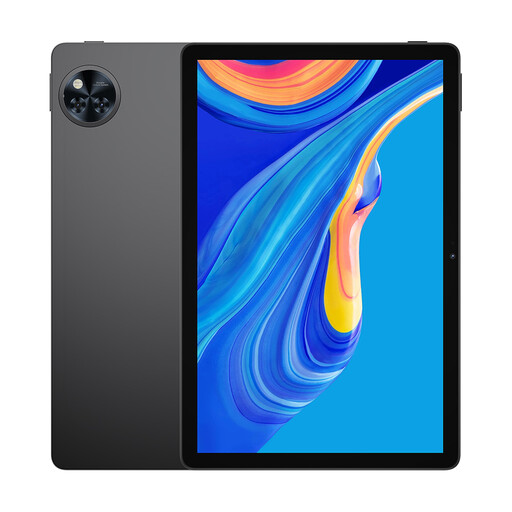
The stated 11-inch screen gives this model a larger viewing area than the small phone in this scenario. Its title also lists 30GB RAM and a 3.5mm jack. Check Wi-Fi access in the room, the chosen calling app and a stand case made for the U11 PRO.
 No image available
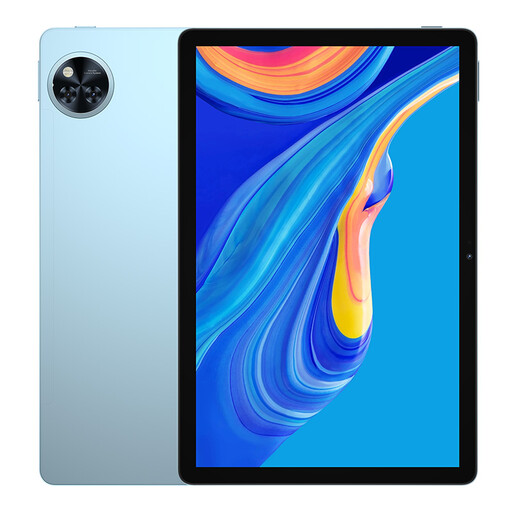
Its title states an 11-inch screen, Android 15 and 5 GHz Wi-Fi for a potential room-based calling setup. Confirm that the home’s connection and the family’s calling app work with this model, and check U11-specific stand-case fit.
 No image available
Dual 4G SIM connectivity makes this a model to examine if calls need mobile data; the title separately lists 5G Wi-Fi, not 5G cellular. Check the chosen network in the calling location, arrange a suitable data plan and confirm app compatibility and W90 stand-case fit.
 No image available
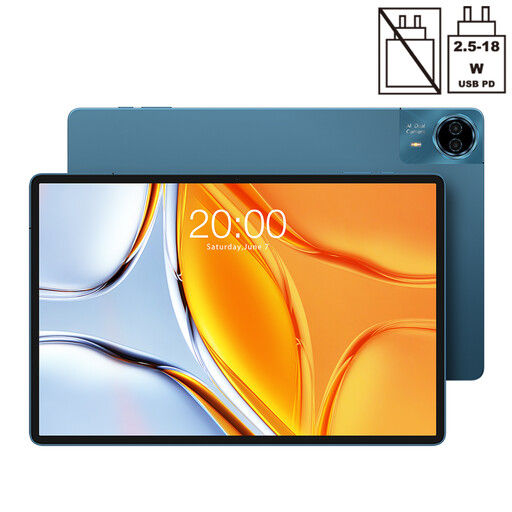
The title lists a 14-inch display and 4G LTE for a setup that may use mobile data. Check the supplied Android version and the family’s app before buying, as the version details conflict. The listed 960 g weight also makes a stable, exact-fit stand worth checking for room-based calls.
Start with Wi-Fi if the home confirms that a personal device can connect reliably where the resident will call. Consider cellular when that connection is unsuitable or the tablet will regularly leave the home; check the selected network’s coverage and arrange a suitable data plan.
Ask about personal-device Wi-Fi access in the room, charging and storage, help after disconnections, and whether a stand may remain in place. The Care Quality Commission’s guidance on service-user guides concerns information about an individual provider’s service; it does not establish one Wi-Fi or device arrangement for every home.
It can if the exact model supports the household’s calling app and its condition suits regular use. Check the manufacturer’s model-specific software information, then confirm the battery condition, charger, warranty and seller’s return terms rather than judging by the brand or appearance alone.
Set up a short list of familiar contacts and practise starting, answering and ending a call with the resident. Apple’s Assistive Access offers a more focused iPad interface and configurable Calls app; on a compatible Android device, Action Blocks can provide simpler home-screen actions. Choose controls the resident can use, with someone available to maintain the setup.
Do not assume that a tablet set up for live family calls can also be used for recording or surveillance. The Care Quality Commission highlights consent, privacy and the rights of other people when surveillance equipment is placed in a care setting; discuss any proposed recording or monitoring with the provider first.