Who is this setup for?
For a resident who cannot comfortably hold a device throughout a call, the stand, calling location and help with setup are part of the decision—not afterthoughts.
Families arranging hands-free calls
A tablet on a table or tray may suit a resident who cannot hold a phone during regular family calls. Check the viewing angle, charging position and whether the home permits the proposed placement. NHS England’s care-home digital-technology case study describes staff training to help set up and use devices.
Residents needing a simpler call screen
If navigating between apps is difficult, try the chosen calling app with the resident before settling on a device. Apple Support says Guided Access can temporarily restrict an iPad to one app; Google documents Android accessibility controls, although names and availability can vary by device.
Families planning calls away from the home’s Wi-Fi
A cellular-capable tablet is worth considering for outings or if permitted Wi-Fi does not work in the calling location. Check the exact cellular variant, suitable service and mobile signal where calls will take place; cellular capability alone does not establish indoor coverage.
What should you check before choosing?
Decide where calls will happen and test the chosen app there. Then choose the screen, stand and interface around the resident’s ability to see, hear and answer a call.
Wi-Fi tablet and stand
Choose when: The home permits access and a test call works in the resident’s usual calling spot.
Trade-off: Calls depend on that network and its sign-in arrangements; a Wi-Fi-only tablet needs another connection away from it.
Wi-Fi and cellular tablet
Choose when: Calls must also work on outings, or permitted Wi-Fi proves unusable in the intended room.
Trade-off: Cellular use needs a suitable data arrangement and adequate signal where the tablet will be used.
| Priority | What to check | Your needs |
|---|
| Connection |
Ask whether resident-owned devices may join Wi-Fi, how sign-in works and whether a call connects in the intended room. For cellular use, check the exact model, service and signal at the places calls will happen. |
I want calls to connect in the resident’s room without repeated help getting online. If calls will happen on outings, I also need a connection there. |
| Placement |
Check that a case fits the exact tablet or that a separate stand sits securely on the permitted surface. Try the camera angle, cable route and charging access in that position. |
The resident should be able to see family and appear on camera without gripping the tablet throughout a call. |
| Calling app |
Confirm that the exact tablet and software version support the family’s chosen app. Install it and practise starting, answering and ending a call. |
Our family needs the same calling service to work on both sides, with a routine the resident and anyone helping them can follow. |
| Controls |
Try text and display adjustments, audio controls and any app restriction the resident needs. Apple Support documents Guided Access on iPad; Google notes that Android accessibility features can vary by device. |
If the usual screen is hard to navigate, I want the call controls to be manageable for the resident—not merely available in a settings menu. |
| Video and sound |
Position the front camera at a usable angle and try the speakers and microphone with the chosen app. Check whether the stand or case obstructs either the camera or controls. |
I need both sides of a call to see and hear one another from the tablet’s normal position, so a trial call matters more than camera figures alone. |
Relevant brand references
These examples illustrate features to compare on the exact model and configuration; they do not establish how a tablet will perform on a particular care-home network.
Apple
For families using FaceTime, Apple UK specifies a landscape 12MP Centre Stage front camera on the iPad (A16). Apple Support also documents Guided Access for temporarily keeping an iPad in one app.
- The documented camera position is relevant when the tablet sits horizontally in a stand.
- Check the chosen app and model. Apple says FaceTime Live Captions are not available in every language or region, and caption accuracy can vary.
Samsung
Samsung Business UK documents an 11-inch Galaxy Tab A9+ Wi-Fi model and a separate 5G variant. The distinction matters when choosing how calls will connect.
- The documented Wi-Fi and 5G variants allow families to check the connectivity route they intend to use.
- Confirm the exact regional model, calling app and included equipment; specifications for one variant should not be assumed for another.
Lenovo
Lenovo UK lists an 11-inch Tab M11, while its Tab M11 Essentials Bundle documentation describes an 8MP front camera and a folio case with stand mode.
- The documented stand-mode folio provides a model-specific accessory to consider for positioned calls.
- Confirm the exact bundle contents and stand arrangement; the Essentials Bundle description does not apply to every Tab M11 configuration.
Joybuy tablet options
These Android tablet options include Wi-Fi configurations and models listing 4G LTE for calls beyond Wi-Fi. For any of them, confirm the calling app, care-home connection and a compatible hands-free stand before choosing.
 No image available
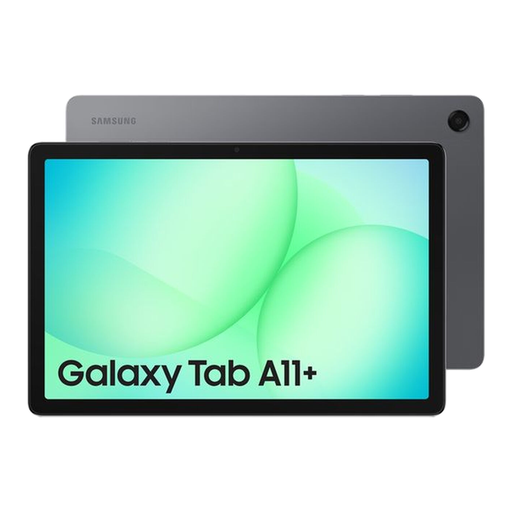
Samsung Galaxy Tab A11+ 8GB/256GB Wi-Fi, Grey
A Wi-Fi option to consider if the home permits a usable connection where the resident will call. Check the chosen app and a compatible stand; confirm whether a charging adapter is needed for this configuration.
View on Joybuy
 No image available
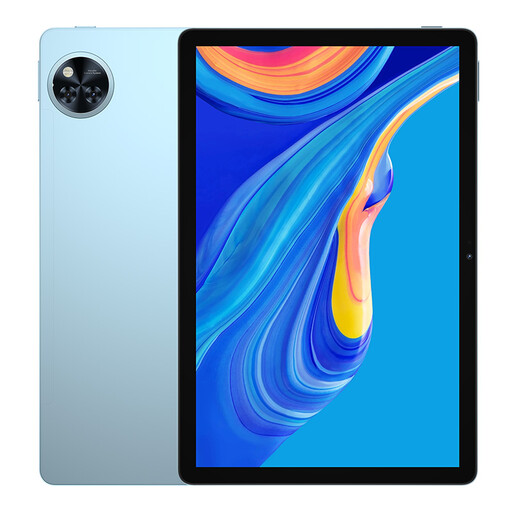
DOOGEE U11 11-inch Android 15 tablet, Blue
The listed 11-inch screen and 5 GHz Wi-Fi are relevant to a positioned call setup where the home’s network can be used. Check stand fit and the exact configuration before purchase; the supplied product details conflict on some processor and rear-camera information.
View on Joybuy
 No image available
TABWEE W90 11-inch 4G LTE tablet
The listed 4G LTE option is relevant if calls must also work away from Wi-Fi. Check mobile signal, SIM requirements, stand fit and the exact software configuration; the supplied product details conflict on the Android version and some other specifications.
View on Joybuy
 No image available
TECLAST ArtPad Pro 12.7-inch Android 15 tablet
The listed 12.7-inch display gives this model a different placement requirement from the 11-inch options. It lists dual-SIM 4G LTE; check suitable service and signal for calls away from Wi-Fi, as well as a stand that fits the tablet and intended surface.
View on Joybuy
 No image available
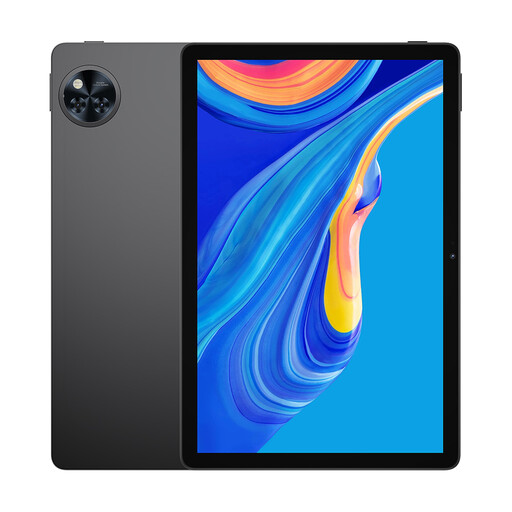
DOOGEE U11 Pro 11-inch tablet, Black
This listed Android tablet has an 11-inch screen and 256GB storage. For care-home calls, check that the chosen app works as needed, the permitted Wi-Fi reaches the calling spot and a compatible stand provides a stable position. Confirm the accessories included with this configuration.
View on Joybuy
Frequently asked questions
Should a care-home video-call tablet have cellular connectivity?
Choose Wi-Fi-only if the home permits it and a call works where the resident will use the tablet. Consider a cellular model for outings or if permitted Wi-Fi does not work there, but check the exact model, mobile signal and data arrangement before relying on it.
What should I ask the care home before buying?
Ask whether a resident-owned tablet can use Wi-Fi, how sign-in works, where calls and charging are permitted, and whether staff can help with setup or scheduled calls. Also check that the proposed stand can be used on the intended surface. NHS England’s care-home digital-technology case study describes staff training as part of device setup and use.
Can the tablet stay on the calling app?
An iPad can use Guided Access to restrict it temporarily to one app, according to Apple Support. Android offers app pinning, but controls and availability can vary by device; rehearse answering and ending calls with the resident before depending on either arrangement.
Does a stand case mean the tablet is protected against falls?
No. Stand mode describes how a case supports the tablet for viewing, not a drop-protection rating. Check the exact case documentation for any protection claim, and test whether it stays stable on the surface where calls will take place.
How should we handle other people’s privacy during calls?
Agree a suitable calling location with the care home and keep other residents and staff out of the camera view where possible. If recording or ongoing monitoring is contemplated, discuss it with the home first; Care Quality Commission guidance on surveillance equipment placed by relatives highlights the potential impact on other people’s privacy and rights.


