Families arranging regular calls
If a relative will use the tablet mainly in a care home, establish where calls can take place, how the device will connect and charge, and who can help if a call does not start.


For calls mainly from a care-home room, start by confirming that the home permits the intended calling app and has workable Wi-Fi where the resident will sit. Then choose a tablet the resident can see and operate, with a stand case made for that exact model; cellular connectivity is worth considering when calls will regularly happen away from usable Wi-Fi, but it also needs a mobile data arrangement.
The right tablet setup depends as much on the resident's handling needs and available help as it does on the device.
If a relative will use the tablet mainly in a care home, establish where calls can take place, how the device will connect and charge, and who can help if a call does not start.
A larger screen may be easier to position for a call, but the tablet also needs a suitable stand. Check that its case fits the exact model and holds the front camera at a useful angle without the resident gripping the device.
Someone may need to configure the network, calling app and contacts, then practise the same call routine with the resident. Age UK identifies skills, trust and access to adequate equipment or broadband as barriers to internet use among people aged 65 and over in England.
Confirm the calling location and app first, then work through positioning and day-to-day operation. Those checks help determine whether Wi-Fi alone is enough.
| Priority | What to check | Your needs |
|---|---|---|
| Connection and app | Ask the home which network residents can use, how login works and whether the intended app is permitted. Check the signal at the calling spot and test the app on the exact tablet. | I want calls to work from the place my relative normally sits, without a login step they cannot manage alone. |
| Hands-free position | Check the screen size against the resident's viewing and handling needs. Match any stand case to the full tablet model, then test its angle, camera view and access to controls. | Holding a device throughout a call is difficult, so a stand that keeps the tablet in position matters alongside screen size. |
| Simple call routine | Put the calling app somewhere easy to find and practise starting and ending a call. If considering restricted controls, check who will set them up and restore access when needed. | A short, repeatable set of steps would help my relative make calls when the person who configured the tablet is not there. |
| Calls away from Wi-Fi | Establish how often the tablet will leave the home and whether usable Wi-Fi will be available. For cellular use, confirm the exact model's capability and who will manage its mobile data plan. | For calls on trips or visits, I may need another way to connect; for calls in one room, I would check that room's Wi-Fi before choosing cellular. |
| What comes with it | Read the exact listing for its charger, cable and case contents. Check the charging arrangement with the home and confirm that any separately chosen case fits. | I need the tablet to be ready for its regular charging spot, with a stand that suits the person using it. |
A Wi-Fi tablet depends on a connection where calls will happen. Department of Health and Social Care guidance addresses internet setup for adult social care providers, but it does not tell you what access an individual home offers residents.
Ask the home about resident Wi-Fi, login steps, signal at the calling spot, app and device rules, charging, and help with reconnecting.
A case made for a different tablet may obstruct a camera, speaker or control, or fail to hold the chosen viewing position. The Targus Click-In case described by Joybuy is specifically for the Galaxy Tab A9+; its stated positions do not establish how another case will behave.
Match the case compatibility statement to the complete tablet model. Try the call angle and front-camera framing with the tablet supported before leaving it with the resident.
Cellular can provide a connection away from usable Wi-Fi, but it requires a suitable mobile data arrangement and does not resolve the home's app or device rules.
Decide where calls will normally take place and who would manage mobile data before choosing a cellular variant.
A bundle, a standard tablet package and a refurbished unit can have different contents. Lenovo's UK Tab M11 materials, for example, distinguish a bundle from the standard items listed with the tablet.
Check the individual listing for its charger, cable and case, then confirm what the home can accommodate at the charging location.
These model families provide useful reference points for screen, connectivity and setup choices; a brand name alone does not establish app access or suitability at a particular home.
Apple's UK specification for the iPad 11-inch (A16) lists a landscape 12MP Centre Stage front camera and Wi-Fi 6; Wi-Fi + Cellular variants have mobile data capability.
Samsung's UK Galaxy Tab A9+ materials identify an 11-inch Android tablet family, with connectivity and other specifications dependent on the variant.
Lenovo's UK Tab M11 4GB/128GB bundle specification lists an 11-inch 1920 × 1200 anti-glare IPS display, an 8MP front camera and Wi-Fi.
These tablets offer larger screens for family calls: the TECLAST and TABWEE listings also specify 4G LTE for possible use away from Wi-Fi. For any of them, check the intended calling app and arrange a stand case for the exact model before handover.
 No image available
The 12.7-inch screen is an option to consider when a larger call view is wanted, provided the tablet can remain supported at a comfortable angle. The listing specifies 4G LTE and 5 GHz Wi-Fi; test the intended calling app, confirm an exact-fit stand case and check who would manage mobile data for calls away from Wi-Fi.
 No image available
Its 11-inch format may suit calls from a regular, supported position, while 4G LTE offers an option for use away from Wi-Fi. The listing also specifies 5 GHz Wi-Fi. Confirm the exact Android version and battery specification, which differ within the listing, and test the calling app and an exact-fit stand case before handover.
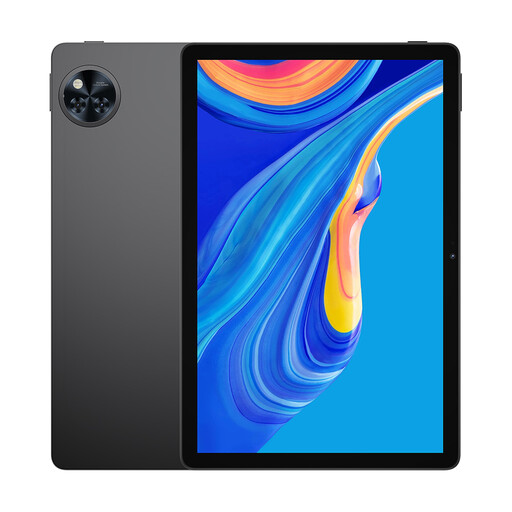 No image available
Consider this model for calls on a confirmed Wi-Fi connection, with a separate stand if holding the tablet is difficult. The listing identifies an 11-inch IPS screen and 256GB storage. Check the calling app and exact-fit case, and confirm the weight if the resident will need to move it; the listing gives differing weight figures.
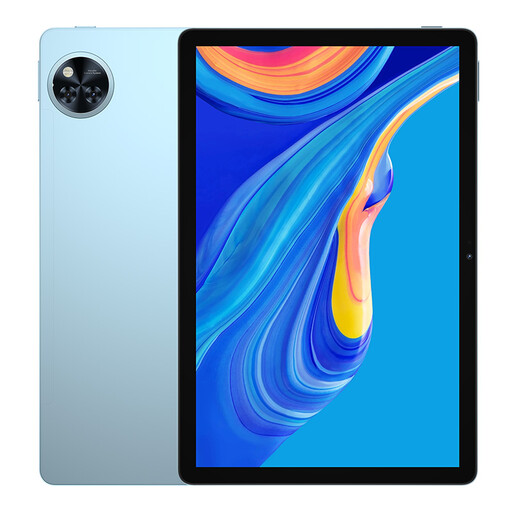 No image available
This is another 11-inch option to assess for calls over the home's Wi-Fi. Its title specifies Android 15, 128GB storage and 5 GHz Wi-Fi. Check that the intended app works on this exact tablet and that a compatible stand case can hold it at the required call angle.
Ask whether a resident's personal tablet can use the home's network and the intended app, then check the login process, signal where calls will take place and who can help if the device disconnects. Department of Health and Social Care guidance covers provider internet setup, but arrangements for a particular resident and app need to be confirmed with the home.
WhatsApp's UK App Store listing identifies iPad compatibility, device linking and video calls. Set up the account and complete a call on the chosen iPad before giving it to the resident; also confirm that the home permits the app and that its connection works at the calling spot.
Consider cellular when calls will regularly happen away from usable Wi-Fi, or after confirming that the home's Wi-Fi cannot support the intended calls. Check the exact tablet variant and arrange someone to manage its mobile data plan; cellular does not replace app setup or the home's device checks.
Have a helper configure the connection, contacts and app, put the app in an obvious home-screen position and practise a complete call with the resident. Apple Support says Guided Access can temporarily limit an iPad to one app and restrict selected controls; use it only when a helper can manage its settings and exit process.
If the resident finds holding a device difficult, include a stable stand in the setup from the outset. Choose a case explicitly compatible with the complete tablet model, then test the viewing angle, camera framing and access to charging before relying on it for calls.