Families setting up a calling tablet
If a relative will mainly use the tablet for scheduled video calls, start with the service the family uses. Agree who will manage the account, then test a call on the connection available in the resident’s room.


Choose the calling service and account setup before the tablet, so the resident and family can join the same calls. A Wi-Fi tablet suits a care-home room where the service is permitted and a test call works; consider cellular if Wi-Fi is unavailable or unreliable, after checking coverage in the room and arranging a data plan. A stand or compatible case can support hands-free calls, while app-limiting settings need someone trusted to set them up and manage access.
If a relative will mainly use the tablet for scheduled video calls, start with the service the family uses. Agree who will manage the account, then test a call on the connection available in the resident’s room.
A stand or stand-style case can hold a larger tablet during a call. Where the device supports them, focused-interface or app-pinning settings can limit onscreen choices, but a trusted person will need to manage setup and recovery.
A cellular tablet is worth considering if the home cannot provide usable Wi-Fi for calls. Ofcom’s postcode checker can help compare providers, but coverage must still be tested in the resident’s usual room.
Agree how calls will work, test the room’s connection, then check how the tablet will be positioned and operated. If you are considering a refurbished device, check its exact model and condition against those same requirements.
| Priority | What to check | Your needs |
|---|---|---|
| Calling service | Confirm that the chosen app works on the exact tablet and that both sides can use it. Agree who will sign in, manage permissions and keep recovery details. | I want calls with the people my relative already speaks to, without leaving them to resolve account problems alone. |
| Room connection | Ask whether the home permits the service on its Wi-Fi and make a test call in the usual room. For cellular, compare providers at the postcode and test indoor reception; Ofcom’s coverage predictions are guidance, not a guarantee. | If Wi-Fi does not work where the tablet will be used, I need a cellular option with a usable local network and a managed data plan. |
| Position and controls | Check that a model-specific case or stand is stable on the usual surface and leaves the camera and charging port usable. Check the device’s app-limiting settings and how to exit them. | Holding a tablet throughout a call may be awkward; I would rather place it securely and keep the calling controls straightforward. |
| Refurbished or regional model | Identify the exact generation, region and connectivity variant. Confirm the calling app’s software requirements, device condition, included accessories, warranty and seller’s return terms. | I can consider a refurbished tablet if its condition and support are clear and it will run the family’s calling service. |
A larger display will not help if the resident cannot join the calls the family makes. Google Meet, for example, has account, connection and device requirements; other services have their own setup rules.
Agree on a service and who will maintain the account. Test video and audio with a regular caller on the intended connection.
A postcode coverage result does not establish that a call will work in the resident’s room. Ofcom describes its in-home coverage results as guidance.
Compare providers for the care-home postcode, then test a suitable network from the usual calling location before relying on a data plan.
A cellular setup also needs a data plan and someone to manage it.
A case made for another tablet can obstruct the camera, controls or charging port. The Targus Click-In case listing names the Galaxy Tab A9+ 11-inch specifically; that fit cannot be assumed for other models.
Match accessories to the full tablet model, and check the calling angle and stability on the resident’s usual table or tray.
Connectivity variants and regional versions need separate checks. For example, a Joybuy Galaxy Tab A9+ listing identifies an HK Version; that description alone does not establish equivalence with Samsung’s UK Wi-Fi or 5G configurations.
For a refurbished or regional device, confirm the exact model, calling-app compatibility, supplied charger, condition, warranty and return terms before ordering.
These brand examples illustrate features and variants to check; they do not establish that every model has the same setup or is suitable for a particular resident.
Apple’s 11-inch iPad (A16) is a reference point for families using FaceTime. Apple lists Wi-Fi and cellular configurations and documents focused iPad controls.
Samsung’s UK Galaxy Tab A9+ information describes an 11-inch Android tablet available in Wi-Fi and 5G variants.
Lenovo’s UK Tab M11 Essentials Bundle provides an example of a specified 11-inch Wi-Fi tablet configuration.
These options include tablets to assess for Wi-Fi or cellular calling and a case for a specifically compatible Galaxy Tab A9+. Confirm the calling app, room connection and any accessories needed for the device you choose.
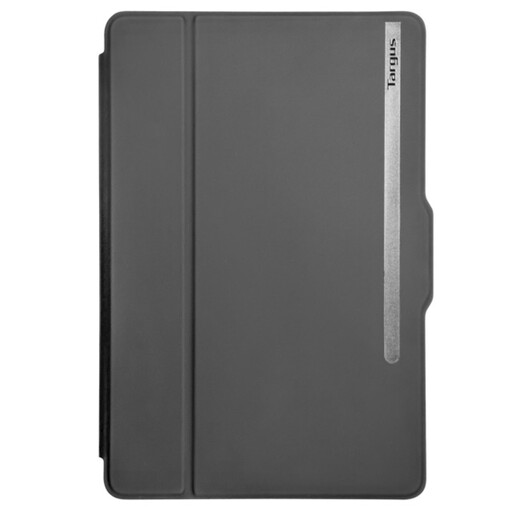 No image available
For hands-free positioning of a compatible Galaxy Tab A9+ 11-inch, this case has a stand function. It is an accessory, not a tablet: check the exact model fit and stand stability on the surface where calls will take place.
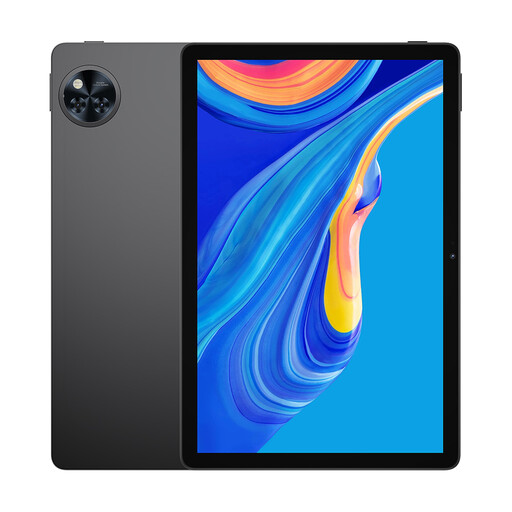 No image available
Consider this 11-inch tablet for a setup using the care home’s Wi-Fi only after confirming the calling app and testing a call. Its product name lists a 90Hz IPS screen and 13MP+5MP cameras; check microphone details and whether a suitable stand or case is included.
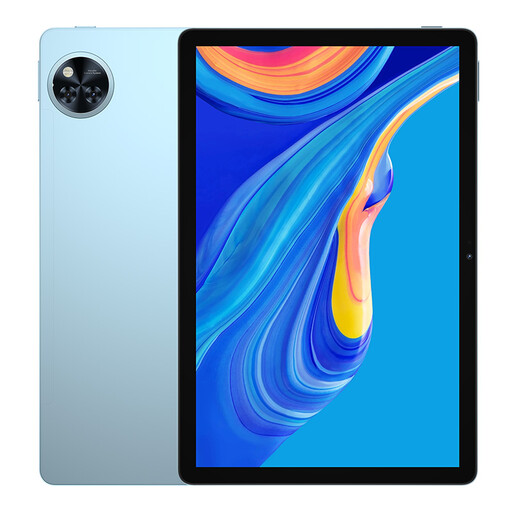 No image available
For a Wi-Fi calling setup, check that the family’s app works on this tablet and make a test call in the resident’s room. The product name specifies an 11-inch screen, 5 GHz Wi-Fi and 128GB storage; confirm microphone details and any stand or case arrangements separately.
 No image available
This is a cellular option to assess if care-home Wi-Fi cannot support calls. The product name lists an 11-inch screen, dual 4G SIM support and 5G Wi-Fi; 5G Wi-Fi does not establish 5G mobile connectivity. Check the exact software version and calling app, then test a suitable mobile network in the room.
 No image available
This Wi-Fi iPad Air is an option where the home permits the chosen calling service and a room test succeeds. The product name specifies an 11-inch display and 128GB storage; confirm app and account setup, microphone details and a compatible hands-free support arrangement.
They need a way to join the same call, so agree on a service everyone can access and test it before relying on the tablet. Google says Meet requires an account to use the service, along with a compatible device and internet connection; Apple describes FaceTime video between FaceTime-enabled devices for its specified iPad setup. Check the chosen service’s current sign-in and joining requirements.
Consider cellular when the resident cannot use suitable care-home Wi-Fi or a call fails on it in their usual room. Ofcom’s checker shows provider coverage by postcode, but its indoor predictions are guidance. Test the network in the room and arrange a suitable data plan before depending on it.
Some devices offer controls for this, but someone must set them up and retain the way out. Apple’s Guided Access can temporarily restrict an iPad to one app; Android Help describes app pinning that keeps an app on screen until it is unpinned using the device’s security credentials. Apple also documents Assistive Access as a more focused iPad interface with larger onscreen items.
Ask the home what help it can provide and agree who will manage account access and the resident’s privacy. The Care Quality Commission says providers may need consent when technology is used as part of someone’s care and must meet data-protection requirements when handling personal information. This matters particularly if staff will operate calls or access account details.