Detail-focused simulator players
If route maps and bridge instruments are your priority, compare 27-inch QHD screens with the resolution and connection your PC can actually use. LG, Dell and ASUS each provide 27-inch QHD model examples.


For PC-based cargo-ship simulation, start by checking whether a 27-inch QHD IPS monitor fits the shared desk and whether your PC can run the game at its native resolution. A 24-inch Full HD screen makes more sense when desk clearance is the priority; consider a QHD OLED or other high-contrast display when dark scenes and faster secondary games matter enough to warrant model-specific screen-care checks.
If route maps and bridge instruments are your priority, compare 27-inch QHD screens with the resolution and connection your PC can actually use. LG, Dell and ASUS each provide 27-inch QHD model examples.
If the desk also serves another person or purpose, measure the space left for a keyboard, mouse and cables. Stand positioning and reflections matter alongside screen size; the Health and Safety Executive advises arranging desk space, screens and lighting to limit glare.
If you also play faster games or switch between a PC, console and second computer, check each input’s supported mode and whether adaptive sync, headphone output or a KVM would be useful. Dell, ASUS and BenQ provide examples of these differing features.
For a cargo-ship simulator on a shared-bedroom desk, settle the screen size and resolution you can accommodate before comparing connection modes and specialist panel features. The needs below concern consumers choosing one monitor for this setup.
| Concern | What to check | Who this matters to |
|---|---|---|
| Readable simulator detail | Check the native resolution against your PC’s graphics capability; QHD is 2560 × 1440, while Full HD has fewer pixels to render. | I want to read maps and bridge instruments without choosing a resolution my PC struggles to run. Around 40% of consumers put this balance first. |
| Desk fit and reflections | Measure usable width, depth and stand footprint; check adjustment or VESA mounting and the room-light position. | If the screen crowds a desk used for other activities, positioning matters more to me than an extra-large display. Roughly 30% of consumers make room fit their primary concern. |
| Connections and motion | Match the PC or console to the exact HDMI or DisplayPort mode; check adaptive-sync compatibility and whether USB-C or KVM switching is needed. | I switch devices or play faster games as well, so I need the inputs to support the modes I intend to use. About 20% of consumers prioritise this flexibility. |
| Dark-scene viewing | Compare the precise panel, glare treatment, screen-care guidance and warranty rather than relying on an OLED, mini-LED or HDR label. | Night passages are central to what I enjoy, but I also need to know how a display fits prolonged use of static simulator controls. Around 10% of consumers put this consideration first. |
The advertised maximum may depend on the port and cable. LG says the 200Hz overclock mode of its 27GS85Q-B requires DisplayPort 1.4 graphics support and a DisplayPort 1.4 cable; Dell lists up to 180Hz at QHD over DisplayPort but up to 144Hz at QHD over HDMI for its G2725D.
Check the mode available through the exact port you will use, then compare it with your source device’s output.
A diagonal size does not tell you how much space the stand and cables occupy. The Health and Safety Executive also identifies desk arrangement and lighting as considerations for comfortable display-screen use.
Measure the usable desk area and check how you can position the screen before deciding between 24 and 27 inches.
A monitor arm or longer cables may be needed if the intended position cannot be achieved with the supplied setup.
OLED and mini-LED describe different display approaches; a label alone does not establish how a particular monitor will handle reflections, brightness or static simulator controls.
For the exact model, compare its screen treatment, warranty and care guidance against your room lighting and typical game use.
An electrical monitor should not go in ordinary household rubbish. GOV.UK describes like-for-like retailer take-back when buying a new electrical product.
Ask the retailer how its take-back process works, or plan a visit to a household waste recycling centre.
LG’s 27GS85Q-B is a 27-inch QHD Nano IPS example with a 180Hz native mode and a 200Hz overclock mode.
Dell’s G2725D is a 27-inch QHD Fast IPS reference with DisplayPort 1.4, HDMI 2.1 inputs and a headphone output.
BenQ’s EX271Q is a 27-inch QHD 180Hz model with DisplayPort 1.4, HDMI 2.1, USB-C and a built-in KVM.
ASUS lists the TUF VG27AQL3A as a 27-inch QHD Fast IPS monitor with 180Hz refresh and variable-refresh support.
Samsung’s Odyssey OLED G6 G60SD is a 27-inch QHD QD-OLED example with a stated 360Hz refresh rate.
These options cover a compact Full HD screen, QHD IPS and OLED models, and a 27-inch 4K display. Compare their size and native resolution with your desk and source device before giving a high refresh rate priority.
 No image available
Consider this for a 27-inch QHD simulator screen if an OLED display also suits your other games and usage habits.
The product name specifies a 240Hz refresh rate and 0.03ms response time. Check the exact warranty and guidance for prolonged static interfaces, as well as the mode your PC or console can output.
 No image available
Its 26.5-inch QHD format is another option for simulator detail when the desk can accommodate a screen of roughly this size.
The product name specifies 2560 × 1440 resolution, 240Hz, HDMI 2.1 and DisplayPort 1.4. Check the stand footprint, screen treatment, warranty and OLED care guidance for this exact model.
 No image available
Consider this 4K alternative if fine image detail matters and your PC can support the resolution you intend to use.
The product name lists dual 240Hz and 480Hz modes, DisplayPort 2.1 and HDMI 2.1. Confirm the resolution and connection conditions for each mode, and measure the stand footprint for the shared desk.
 No image available
This is a conventional 27-inch QHD route for consumers prioritising map and instrument detail.
The product name specifies 2560 × 1440 resolution and 220Hz. Its listed glossy finish makes window and lamp placement worth checking; also confirm stand adjustment and the refresh limit of the input you plan to use.
 No image available
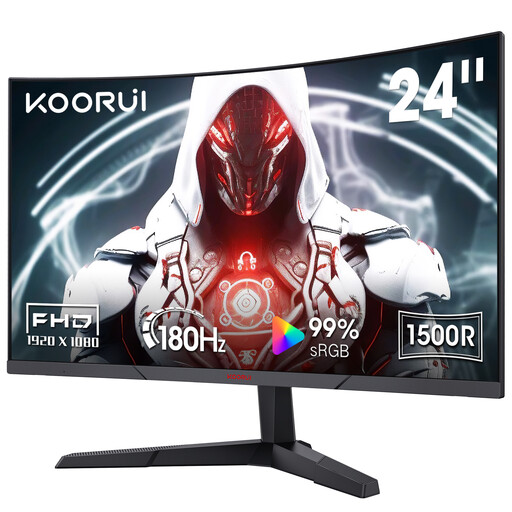
The smaller screen is worth considering when desk clearance takes priority over the extra interface space of QHD.
The product name specifies 1080p, 180Hz, a 1500R curve, tilt adjustment and VESA compatibility. Confirm the HDMI input count and each input’s refresh limit before connecting more than one device.
Yes, if a 27-inch monitor fits the desk and your PC can run the simulator comfortably at 2560 × 1440. LG, Dell and ASUS provide QHD model examples, but the PC’s output and the monitor’s native resolution matter more to this decision than its maximum refresh-rate figure.
Measure the desk, including the space needed behind the stand for cables, then check whether its adjustment or a compatible VESA mount permits the position you need. The Health and Safety Executive advises arranging screens and lighting to avoid reflections and glare.
Not necessarily: those modes are more relevant if you also play faster games and your device can produce and transmit the intended output. Check the game’s frame rate and the exact connection, since Dell and LG specify different limits or conditions for particular QHD modes.
Check the seller’s change-of-mind policy and the exact monitor’s manufacturer warranty separately, and keep your proof of purchase. Coventry City Council Trading Standards says most online purchases have a change-of-mind cancellation period of up to 14 days after receipt, subject to exceptions; remedies for faulty goods are a separate matter from changing your mind.