Sunlit-desk cash-flow planner
You regularly read figures beside a bright window. Screen placement and control of reflections matter alongside the computer itself, as the Health and Safety Executive advises in its display-screen guidance.


For monthly cash-flow forecasting, choose a desktop that can accommodate your spreadsheets and concurrent applications, then give equal attention to a monitor you can position away from window reflections. A tower offers a route to physical expansion, while a mini desktop preserves desk space; with either, check the display connections and what comes in the package before choosing a screen.
You regularly read figures beside a bright window. Screen placement and control of reflections matter alongside the computer itself, as the Health and Safety Executive advises in its display-screen guidance.
You keep a forecast open alongside banking or accounting pages, email and other workbook windows. Check memory, storage and display workspace against the applications and files you actually use.
You have limited room for a desktop and paperwork but want to choose a monitor separately. Lenovo’s ThinkCentre Tiny examples show this form-factor route; check the accessories included with any particular PC.
Start with where the screen can sit relative to the window, then decide how much display workspace and desk space your forecast requires. Treat future expansion as a separate choice rather than assuming that a faster processor will resolve a reflective screen.
| Concern | What to check | Who this matters to |
|---|---|---|
| Readable figures beside the window | Check the monitor’s surface and brightness controls, and whether its stand lets you angle the screen away from reflections. The Health and Safety Executive advises arranging the desk and screen to avoid glare from windows or bright lights. | If window reflections make dates and figures difficult to read, I need to move or adjust the screen rather than rely on the PC specification. Around 33% of consumers would put glare control first. |
| Workspace for forecasts and other windows | Compare monitor size and resolution for the way you work; if using more than one display, confirm the exact PC’s outputs and each monitor’s inputs. | When my forecast, accounts and browser pages need to remain visible together, I value screen space over an elaborate PC configuration. Around 25% of consumers would make workspace their primary concern. |
| Room on the desk | Measure space for the PC, monitor, keyboard and documents. With a mini desktop, check the package contents and any mounting requirements. | I have to leave room for paperwork as well as the screen, so the computer’s footprint shapes my choice. For around 25% of consumers, conserving desk space comes first. |
| Expansion and operating-system support | Check the exact machine’s storage and expansion options and its installed operating system. Microsoft says Windows 10 support ended on 14 October 2025. | If I expect to add storage or displays later, I want to understand the upgrade path before committing to a compact case. Around 17% of consumers would prioritise expansion and support. |
A desktop’s specifications cannot tell you whether its display will be comfortable to read beside your window. Lenovo states that the monitor, keyboard and mouse are separate for the cited ThinkCentre M70q Gen 3 Tiny configuration.
Plan the monitor position and check its connections against the desktop before choosing the complete setup.
Depending on the package, you may also need a display cable or adaptor, keyboard and mouse.
Direct reflections can remain troublesome even with an adjustable or brighter monitor. The Health and Safety Executive advises positioning the desk and screen to avoid glare from windows and bright lights.
Try a position away from direct reflections, adjust the screen angle and brightness, and use blinds or curtains where needed.
Microsoft’s 4 GB RAM and 1280 × 768 display figures are minimum requirements for Microsoft 365 for home use, not a measure of how comfortably several workbooks and browser tools will fit into your workflow.
Check your accounting software’s requirements, the size of your files and the applications you keep open together when choosing memory and display space.
Microsoft says Windows 10 support ended on 14 October 2025, which matters when selecting a Windows desktop for ongoing work.
Confirm the operating system on the exact listing and, if necessary, whether that machine supports Windows 11.
A business-tower example for a Windows workstation with a separately chosen display.
A tower route for physical expansion, alongside a separately selected monitor.
A Tiny desktop route when the PC itself needs to occupy little desk space.
These mini desktops and a tower offer different ways to build a cash-flow workstation. Choose a compatible monitor and plan its position beside the window separately; a PC’s processing specification does not establish how the screen will handle reflections.
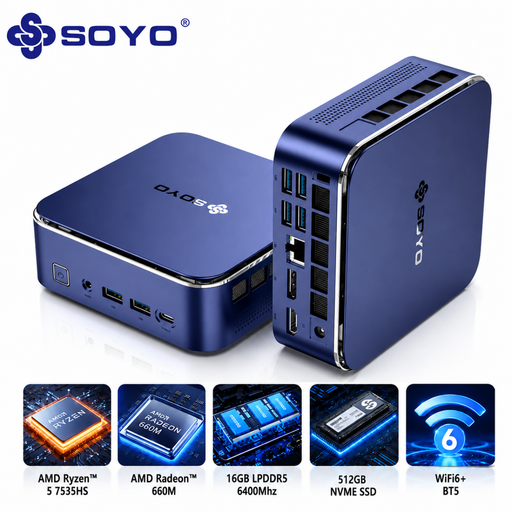 No image available
Consider this mini desktop when you want a compact PC for a forecast-and-browser setup, with the monitor chosen separately.
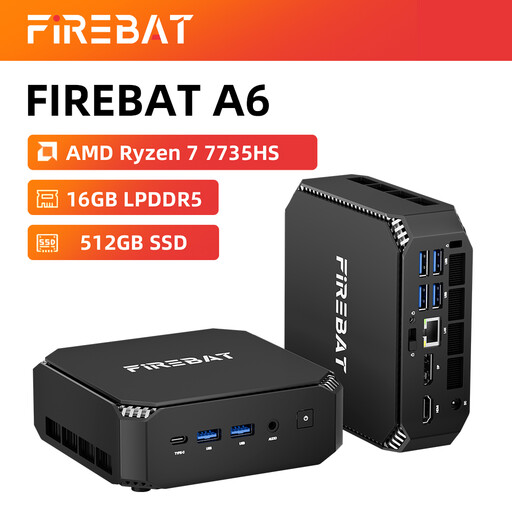 No image available
This mini desktop is worth checking if you want a compact PC and are planning a workspace with more than one display.
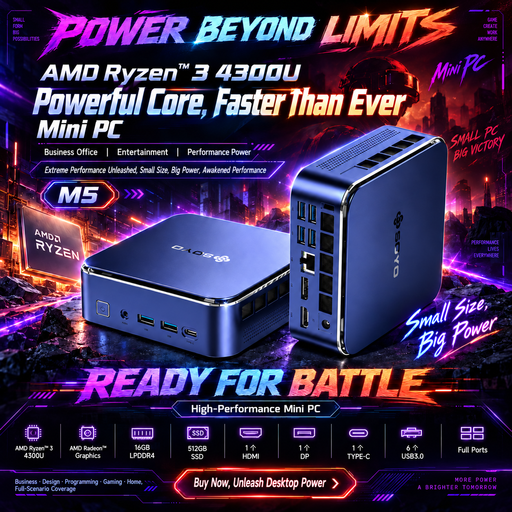 No image available
Consider this mini desktop where desk space is limited but you still want to select the display for your window-facing workspace.
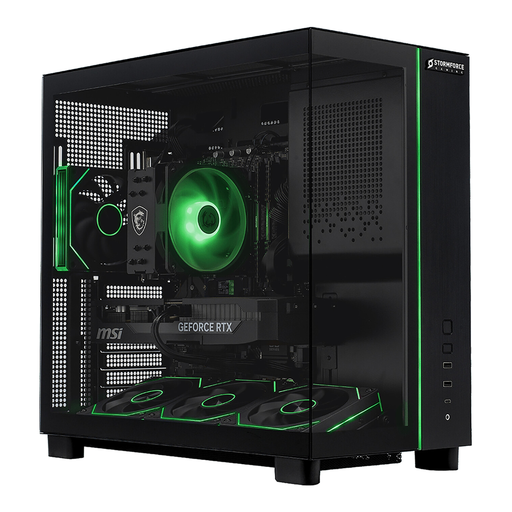 No image available
This tower is an option to examine if you have space for a larger PC and want the listed memory and storage capacity for your workstation.
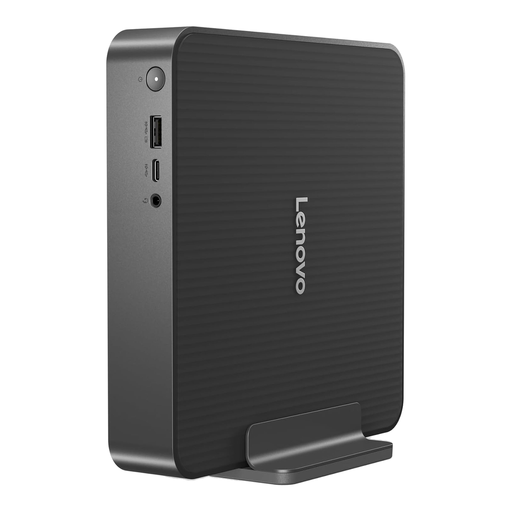 No image available
This compact desktop is relevant when you want to keep the PC small while choosing a separate screen for spreadsheet work.
Not necessarily: choose the PC for your actual workbook sizes and the applications you use at the same time. Microsoft’s minimum requirements for Microsoft 365 for home use include 4 GB RAM and a 1280 × 768 display, but minimum requirements do not tell you how much screen space or memory your particular multitasking workflow will need.
Brightness alone will not resolve direct reflections. The Health and Safety Executive advises arranging the desk and screen to avoid glare from windows or bright lights; check whether the monitor’s stand and controls let you make those adjustments, and consider blinds or curtains where needed.
For a UK workstation covered by the Health and Safety (Display Screen Equipment) Regulations 1992, the applicable schedule calls for screen brightness and contrast that can be adjusted and a screen that swivels and tilts freely. Check the monitor as well as the PC, and arrange the workspace to avoid uncomfortable reflections.
For a new Windows workstation, check the installed version and whether the exact machine supports Windows 11. Microsoft says support for Windows 10 ended on 14 October 2025.