Choose the screen as part of the desktop setup, not as an afterthought: beside a bright window, its position, surface and colour modes matter alongside the computer running the catalogue software. An all-in-one suits a single-screen workspace, while a compact desktop lets you select the monitor independently. Consider a configurable workstation if the project also involves demanding rendering, video or several heavy applications.
Who each setup suits
Colour-conscious catalogue designers
If you work with photographs and colour-managed catalogue assets, selecting the display independently gives you control over its resolution, colour modes, surface and position. BenQ lists these characteristics for its PD2706UA monitor; the computer and proofing workflow still need separate consideration.
Space-limited single-screen creators
If you mainly assemble 2D pages and want fewer separate components, an all-in-one is worth considering when its fixed screen meets your needs. Apple lists a 24-inch 4.5K P3 display for its iMac, but that screen size and panel are part of the chosen system.
Mixed-media production teams
If catalogue production also involves substantial rendering, 3D assets, video or several demanding applications at once, compare configured desktops for the memory, storage and graphics those tasks require. Dell and HP describe professional desktop ranges for such workloads; specifications vary by model.
What to check before choosing
For a bright-window catalogue desk, decide how much control you need over the display, then check the exact computer configuration against your software and any heavier production work.
All-in-one desktop
Choose it when: One integrated screen meets your layout needs and reducing separate equipment matters.
Accept: The primary screen’s size and panel choice are tied to the desktop.
Compact desktop and separate monitor
Choose it when: You want to select and position a colour-oriented screen independently of the computer.
Accept: The monitor, its connections and its place on the desk need separate planning.
Configurable Windows workstation
Choose it when: The project includes confirmed rendering, 3D, video or concurrent heavy applications.
Accept: Its configuration needs closer scrutiny and its expansion capacity may go unused in ordinary 2D layout work.
| Concern |
Buying checks |
Who this matters to |
| Screen and colour |
Check screen resolution, typical brightness, surface treatment and colour modes. Plan how to position it away from direct reflections. |
At a desk beside a bright window, I need to see page detail and supplied imagery without distracting reflections; around 42% of consumers put the screen and colour setup first. |
| Layout workflow |
Check the intended software version against the operating system and processor, then confirm installed RAM and SSD capacity. Adobe recommends 16 GB RAM for InDesign. |
When a catalogue contains linked images and exports, I need a computer suited to the files and applications I will actually use; for around 33% of consumers, layout workflow is the primary concern. |
| Heavier media work |
Identify any 3D, rendering, video or simultaneous heavy workloads before comparing exact graphics, memory, storage and expansion configurations. |
If the catalogue job also includes demanding media production, I need room to configure the desktop for those tasks; that is the first concern for around 25% of consumers. |
Buying pitfalls
-
Choosing the computer before considering the screen
A capable desktop cannot resolve distracting window reflections or make a poorly positioned display easier to use for catalogue pages.
Plan the screen’s position and check its surface, colour modes and connections against the chosen computer.
A separate monitor may also need desk space, suitable cabling or a mounting arrangement.
-
Treating minimum software requirements as a working target
Adobe lists 8 GB RAM as the minimum for InDesign and recommends 16 GB. Meeting the minimum alone does not establish how a particular catalogue project will run.
Check the intended InDesign version and size the configuration around your files, linked assets and other applications.
-
Choosing a workstation solely for 2D page layout
Dell and HP position professional desktop ranges for demanding graphics and media work, but that does not establish a need for workstation expansion in a straightforward catalogue layout job.
List any actual rendering, 3D, video or concurrent heavy workloads before deciding which configuration to compare.
-
Assuming a wide-gamut screen guarantees a print match
A monitor’s colour coverage and calibration information do not replace the catalogue’s agreed colour-management and proofing process.
Confirm the required colour space and proofing approach with the printer or production lead, then choose the relevant display mode.
Brands to consider
Apple
Relevant if you use macOS and are weighing an integrated iMac against a Mac mini with a separately chosen screen.
- Apple lists a 24-inch 4.5K, 500-nit P3 display for the iMac and support for up to three external displays for the Mac mini.
- The iMac fixes the primary display choice; a Mac mini setup requires you to select a compatible monitor. Check specifications for the configuration and creative software you intend to use.
Dell
Relevant to Windows buyers comparing configurable professional desktops for advanced-media work.
- Dell describes its Pro Precision and Pro Max ranges as offering graphics, memory and storage options for computationally and graphically intensive applications.
- Micro, slim and tower configurations differ; a workstation specification should not be assumed necessary for ordinary catalogue layout.
HP
Relevant to Windows teams comparing workstation configurations for graphics, rendering or video-related production.
- HP associates selected Z desktop configurations with graphic design, rendering and HD/4K video editing.
- Memory, storage, graphics and expansion options vary by model; intended uses for the range do not establish the capability of every configuration.
BenQ
Relevant when selecting a monitor separately for a bright, image-led catalogue workspace; a monitor is not itself a desktop computer.
- BenQ lists a 27-inch 4K matte IPS panel, 350-nit typical brightness, sRGB, Rec.709 and P3 coverage, and a factory calibration report for the PD2706UA.
- Check its connection requirements, physical fit and colour modes against the chosen computer and proofing workflow. Its specifications do not guarantee reflection-free viewing.
Desktop choices on Joybuy
These choices cover an integrated-screen desktop, compact PCs for use with a separately selected display, and tower PCs. Choose the screen and check software compatibility for the particular setup; the towers should not be treated as configured professional workstations.
 No image available
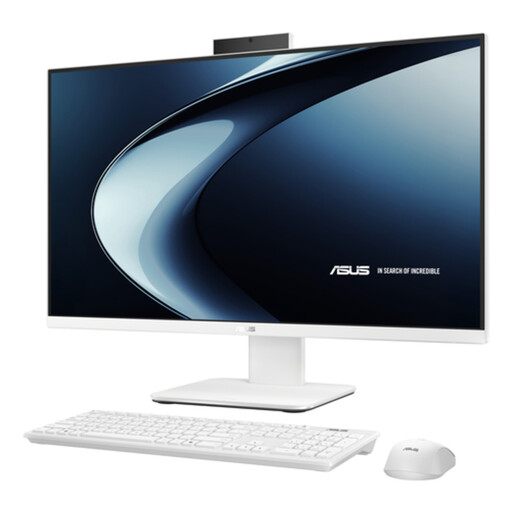
ASUS V400 AiO V470VAK-WPE032W, 27-inch Full HD
Consider this integrated-screen option if you want a single-screen desk and its Full HD resolution suits your catalogue pages.
Intel Core i7-13620H; 16 GB DDR5 RAM; 512 GB SSD; Windows 11 Home.
Check the display’s brightness and colour modes, the intended software’s processor requirements and how the screen sits relative to window light.
View on Joybuy
 No image available
SOYO M5 Mini PC, AMD Ryzen 4300U, 16 GB/512 GB
This compact desktop is a candidate when you want to choose the catalogue display separately.
Windows 11; 16 GB LPDDR4 memory; 512 GB SSD. Its title lists HDMI 2.0, Type-C and DisplayPort 1.4 video connections.
Confirm what is included, match the chosen monitor to the video connection and check compatibility with your intended InDesign version.
View on Joybuy
 No image available
FIREBAT F1 Mini PC, Ryzen 5 7640HS, 24 GB/512 GB
This mini PC suits a plan to select and position the catalogue screen independently.
24 GB LPDDR5 RAM; 512 GB PCIe 4.0 SSD; Radeon 760M graphics. The product title states support for triple-screen 4K output.
Confirm the operating system, included components, monitor connections and compatibility with the intended creative software before choosing a display.
View on Joybuy
 No image available
CyberPowerPC JOYB1013, Ryzen 7 9800X3D, RTX 5080
Consider this tower only against the requirements of your actual catalogue and any additional media workloads; its graphics specification alone does not establish a need for it.
NVIDIA GeForce RTX 5080 16 GB; 32 GB DDR5 RAM; 2 TB NVMe SSD; Windows 11 Home.
Select a monitor separately and check the intended software’s processor requirements and the space needed for both tower and screen.
View on Joybuy
 No image available
CyberPowerPC JOYB1010, Core Ultra 7 265KF, RTX 5070
This tower is an option to assess if your work calls for its configured hardware as well as a separately chosen catalogue display.
NVIDIA GeForce RTX 5070 12 GB; 32 GB DDR5 RAM; 1 TB NVMe SSD; Windows 11 Home.
Allow room for the tower and monitor, and check the processor against your intended software version before purchase.
View on Joybuy
Frequently asked questions
What should I check for InDesign catalogue work?
Check the requirements for the InDesign version and operating system you intend to use, not just the desktop’s headline specifications. Adobe lists 8 GB RAM as a minimum and recommends 16 GB; assess storage and other installed applications against the size of your catalogue project too.
Will a brighter screen solve reflections from the window?
Brightness alone will not remove direct reflections. Check how you can angle or move the screen and control window light, alongside its brightness, surface treatment, resolution and colour modes; a matte surface does not guarantee reflection-free viewing.
When does a separate monitor make more sense than an all-in-one?
Choose a separate monitor if its size, finish, positioning or colour modes need to be selected independently for catalogue work. An all-in-one is reasonable when its integrated screen meets those needs and a simpler single-screen arrangement matters more than replacing the display separately.
Where should I check how to dispose of an old desktop?
Ask your local authority or retailer about an applicable electrical-equipment collection or take-back route rather than assuming the desktop belongs in ordinary household rubbish. GOV.UK identifies the Waste Electrical and Electronic Equipment Regulations 2013, as amended, as the underpinning UK legislation.


