What matters when choosing?
Decide whether two separate panels are essential, check how the computer will connect them, then choose a readable size and an arrangement that fits the desk.
| Concern |
What to check |
Who this matters to |
| Two-display connectivity |
Confirm two independent displays at the intended resolution through the computer or dock. For daisy-chaining, check the exact ports and supported connection standard. |
If I need a ledger open while reviewing receipts, both external screens must work independently with my computer. Around 40% of consumers put connection certainty first. |
| Readable workspace |
Compare native resolution and screen size for the spreadsheets and documents you use; check that the computer supports the chosen resolution on both displays. |
Dense expense records are easier for me to review when figures and supporting documents can remain visible without constant window switching. Readable workspace is the primary need for around 30% of consumers. |
| Desk fit and flexibility |
Check the footprint of two stands or mounts. If considering an ultrawide, decide whether one panel can meet the need for two working areas. |
At a shared or home desk, I may need a second display that can be put away, while a single ultrawide will not meet a requirement for separate screens. Around 20% of consumers prioritise workspace flexibility. |
| Screen positioning |
Check stand adjustment or mounting options and whether the screens can be placed at a suitable height and viewing distance. |
For regular record work, I need to arrange the displays without repeatedly turning to a poorly positioned screen. Adjustability comes first for around 10% of consumers. |
Joybuy product choices
These monitors are choices to assess for a separate-screen expense-tracking desk. The ZenScreen is a portable second-display option; the other models are desktop monitors to assess individually for size, connections and desk fit. Check the computer’s support for the complete two-display arrangement before buying.
 No image available
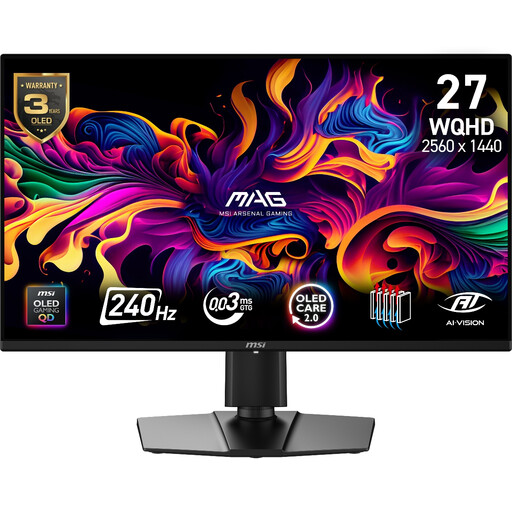
MAG 274QP QD-OLED X24 27-inch WQHD monitor
Consider this as one screen at a fixed desk where the ledger and supporting records need separate displays.
The named variant has a 2560 × 1440 WQHD QD-OLED display. Confirm the computer’s two-display output and the required connections.
View on Joybuy
 No image available
ASUS ProArt PA278CFRV QHD IPS monitor
Consider this model for a desk where one display holds expense records and another holds the documents being checked.
The product name specifies a QHD IPS display. Confirm the exact unit’s connections and your computer’s two-display support; check USB-C availability for the unit if that connection matters.
View on Joybuy
 No image available
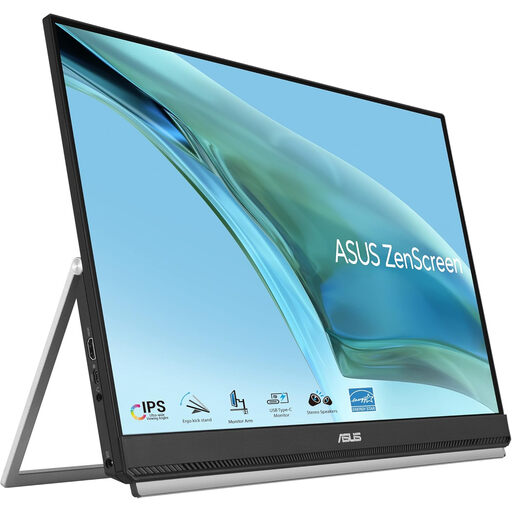
ASUS ZenScreen MB249C IPS USB-C monitor
Consider this as a second screen for an occasional or space-constrained expense-administration setup.
The product name identifies an IPS display and USB-C connection. Check that the intended computer can drive it alongside the other screen, and confirm the unit’s weight if it will be moved regularly.
View on Joybuy
 No image available
HKC G27H2DPro 27-inch QHD monitor
Consider this as one display in a permanent two-monitor workspace for records and receipts.
The named model has a 2560 × 1440 QHD Fast IPS display. Check the required inputs, your computer’s outputs and whether the stand or a mount permits the screen height you need.
View on Joybuy
 No image available
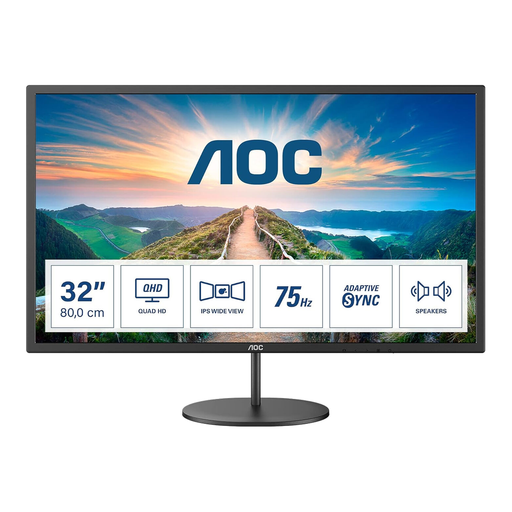
AOC Q32V4 31.5-inch IPS monitor
Consider this larger monitor only after checking that the intended two-screen layout fits the desk and viewing distance.
The product name specifies a 31.5-inch IPS display. Confirm its native resolution, stand or mounting arrangement, and the computer’s support for both screens before deciding.
View on Joybuy
Frequently asked questions
Do both monitors need to be the same model?
No. Matching monitors can make screen height, resolution and window scaling easier to align, but different models can work together. Check that both run at their intended resolution and that the computer can drive two independent displays.
Will one USB-C cable always run two external monitors?
No. A USB-C connector does not by itself establish multi-display support. Dell specifies Thunderbolt for its display daisy-chaining, and Lenovo documents a ThinkVision P27h-30 arrangement in which a second chained screen cannot reach its native resolution. Check the laptop, dock and monitor documentation for the exact connection and resolution.
How should I position two screens for regular record work?
Place the screen used most often directly in front of you and arrange the other to limit repeated twisting. The Health and Safety Executive advises positioning the top of a screen at about eye level and the screen roughly an arm’s length away.
Does charity record-keeping determine which monitor to buy?
It does not prescribe a particular monitor. For charities in England and Wales, the Charity Commission says trustees must ensure charity money is properly used and accounted for and advises comparing income and spending with the budget. Choose a display arrangement that lets staff review the relevant records; charities in Scotland or Northern Ireland should consult their respective regulator for applicable requirements.
Does display-screen guidance cover charity staff working from home?
Yes, home working is among the working arrangements covered by Health and Safety Executive guidance on display-screen equipment. Its guidance addresses workers who regularly use display-screen equipment as a significant part of their normal work; employers should assess the relevant workstation risks and individual needs.


