Charity bookkeepers with small desks
People entering expenses, checking receipts and working in spreadsheets while still needing room for a keyboard and paperwork.


A 23.8- to 24-inch Full HD monitor is a sensible starting point for tracking charity expenses, provided its stand fits the desk and its inputs match the computer. Consider QHD for dense spreadsheets, or a USB-C hub when a compatible laptop would benefit from its connections; an adjustable stand can help with positioning, but it does not replace an assessment of the whole workstation.
People entering expenses, checking receipts and working in spreadsheets while still needing room for a keyboard and paperwork.
People using a personal or shared laptop for expense records who need to match the monitor connection and any charging arrangement to that laptop.
For employees using display screen equipment daily as part of normal work for an hour or more continuously, the Health and Safety Executive says the employer must assess the workstation and address identified risks.
For a small expense-tracking desk, establish the space available for the stand and paperwork, then weigh screen detail, computer connections and positioning needs.
| Concern | What to check | Who this matters to |
|---|---|---|
| Desk fit | Measure usable width and depth against the exact monitor’s dimensions with its stand; leave room for paperwork and cables. | If receipts and a keyboard already fill my desk, the stand’s footprint is my first concern. Around 36% of consumers put desk fit first. |
| Spreadsheet detail | Compare Full HD at 1920 × 1080 with QHD at 2560 × 1440 on the models being considered. | When I reconcile wide sheets alongside supporting documents, I want enough on-screen detail for that work. Around 29% of consumers make spreadsheet detail their primary concern. |
| Laptop connection | Check the computer’s video output and the monitor’s corresponding input; for USB-C, confirm display support and any required charging capability. | If I connect a laptop for each expense session, a compatible connection matters more to me than extra screen detail. Around 21% of consumers prioritise laptop connectivity. |
| Screen positioning | Check the stand’s stated adjustments and whether the whole workstation can be set up for its users. | At a desk used regularly or shared with others, I need to position the screen appropriately. Around 14% of consumers place adjustability first. |
Two 23.8-inch monitors can occupy different amounts of desk space. BenQ specifies the GW2490 at 540 × 408 × 182 mm with its stand, while LG specifies a 250 mm stand depth for the different 24BA650-B model at its highest stand position.
Measure the clear desk area and compare dimensions for the exact model. If considering an arm, check the mounting pattern, monitor weight and desk-clamp clearance separately.
An arm or a rearranged desk may be needed if the supplied stand does not fit the intended layout.
Dell describes the P2425H’s USB-C connection as a downstream data port with up to 15 W power delivery. Its P2425DE is a different, USB-C hub model offering up to 90 W power delivery.
Check the laptop’s USB-C display capability and charging requirement against the exact monitor’s upstream connection before planning a single-cable setup.
A separate charger, dock or cable may still be required.
An adjustable stand or an eye-care label cannot account for the chair, keyboard, reflections and work routine. The Health and Safety Executive’s guidance considers screen position as part of the whole workstation.
Set up the desk as a whole and use the charity’s workstation assessment process where it applies, including for individual requirements.
QHD provides more pixels than Full HD on the monitor models discussed here, while hub features depend on a compatible computer. Neither feature is needed solely because the work involves receipts and email.
Decide whether dense worksheets or a particular laptop connection justify those features; otherwise, compare Full HD models that fit the desk and computer.
Dell’s P2425H and P2425DE illustrate different 23.8-inch business-monitor options for this task.
The GW2490 is a 23.8-inch Full HD IPS option with specified stand dimensions for checking a tight desk layout.
LG’s 24BA550-B is a 23.8-inch Full HD IPS business monitor with built-in speakers and several connection options.
These 24-inch-class monitors offer Full HD, WUXGA or QHD choices for expense documents on a small desk. Match the exact stand footprint and computer connections to the workstation before choosing.
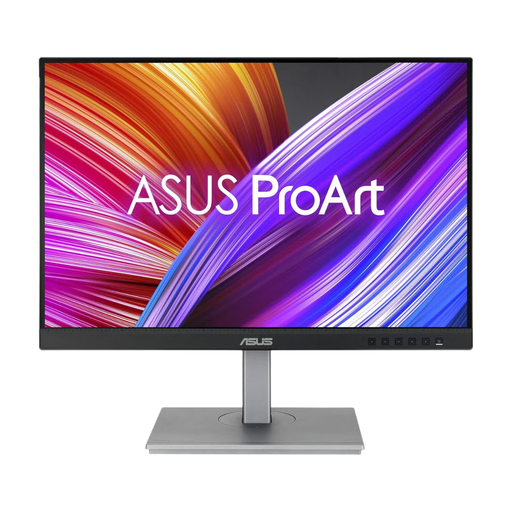 No image available
Consider this WUXGA model if extra vertical room for expense documents is a priority. Its product name specifies an IPS display; check the stand footprint and laptop connections for your desk.
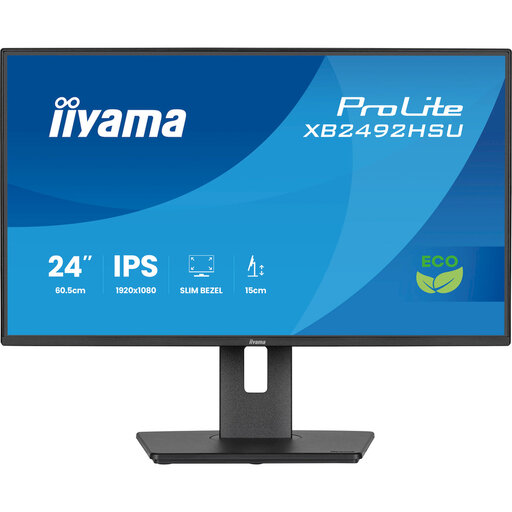 No image available
This Full HD model is an option for ordinary expense spreadsheets and receipts. Check the stand’s dimensions against the space left for paperwork and confirm the connections required by your computer.
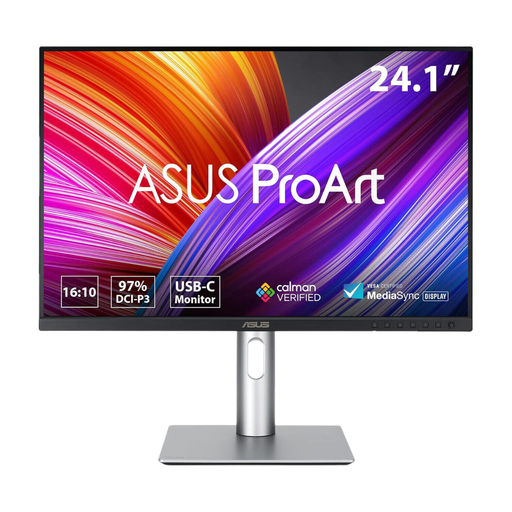 No image available
Consider this WUXGA IPS model when vertical room for documents matters. Compare its dimensions with the usable desk area, and confirm any intended USB-C display or charging setup with your laptop.
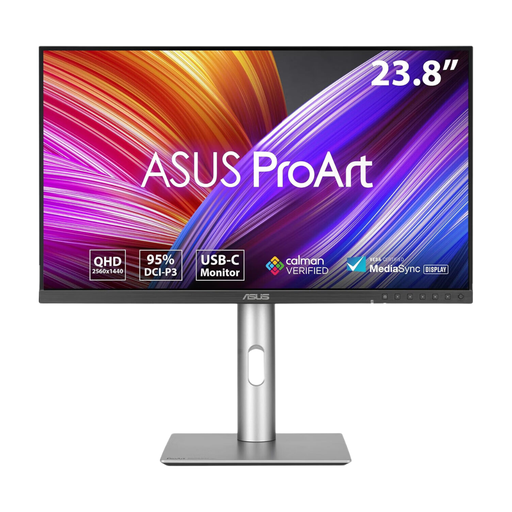 No image available
This QHD IPS model is worth considering for dense expense worksheets. Check the stand footprint before committing desk space and confirm that any planned USB-C display and charging arrangement suits the laptop.
 No image available
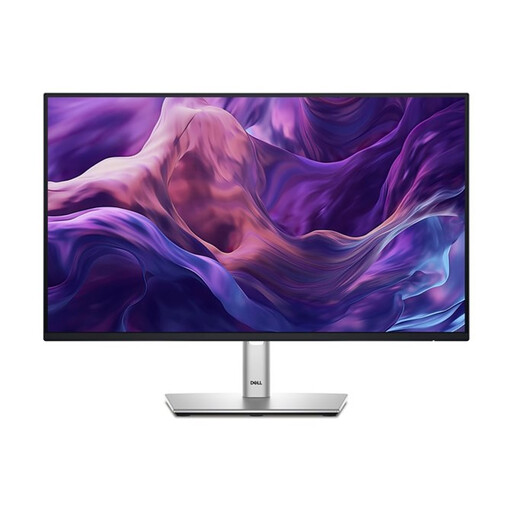
For ordinary spreadsheets on a shared or conventional workstation, this model offers a Full HD IPS display. Its listed connections include HDMI, DisplayPort and VGA; Dell also specifies height, tilt, swivel and pivot adjustment for the P2425H. Check its footprint and do not assume its USB-C port provides laptop video input or charging.
For employees who use display screen equipment daily as part of normal work for an hour or more continuously, the employer must assess the workstation and reduce identified risks, according to the Health and Safety Executive. The assessment covers the work and individual requirements, not just the monitor; that condition does not automatically describe every occasional volunteer.
The Health and Safety Executive advises placing the top of the screen at about eye level and the display about an arm’s length away, with the screen and keyboard directly in front of the user. Measure the usable desk depth before choosing between the supplied stand and a separately compatible arm.
No: a monitor with a matching HDMI or DisplayPort connection can serve ordinary expense spreadsheets and receipts. If you want video and laptop charging through USB-C, check both devices’ specifications; Dell’s P2425DE is a USB-C hub monitor offering up to 90 W power delivery, whereas the P2425H has a downstream data port offering up to 15 W.
Check the retailer’s current change-of-mind return terms and the manufacturer warranty for the exact monitor, separately from remedies for faulty, damaged or misdescribed goods. Joybuy’s Dell P2425H listing states 30-day free returns and a three-year manufacturer warranty; check the applicable conditions before ordering.