Parents buying a first online-gaming device
If you are choosing between a console, tablet and PC, consider how you will create a separate child account, set content boundaries and manage purchases and online communication.


Choose the console, tablet or PC ecosystem whose child account and parent controls your household can set up and maintain. A console keeps gaming controls within its own account system; a tablet also needs controls for wider app use; and a Windows PC may suit a household already using Microsoft family accounts. Whichever you choose, check the child’s age and account settings, the games’ own communication and billing options, and how you will discuss online contacts together.
If you are choosing between a console, tablet and PC, consider how you will create a separate child account, set content boundaries and manage purchases and online communication.
Check the permissions for messaging, voice chat and other interactions in the platform and games your child will use. Ofcom also advises parents to talk with children about who they play with and upsetting messages.
Look at approval requests or spending limits, then check which store or billing system processes purchases in each game. Google says Family Link purchase approvals apply to transactions using Google Play billing.
Consider it when: Gaming is the main activity and you want to manage access through the console’s family-account system.
Bear in mind: Controls differ between PlayStation, Xbox and Nintendo; Nintendo says Switch 2 console restrictions apply to everyone using that console.
Consider it when: The child will use games alongside other apps, so device and app access both matter.
Bear in mind: Purchase and communication settings may depend on the app, service and billing route, not just the tablet’s controls.
Consider it when: Your household wants to manage a child’s Windows and Xbox use through a Microsoft family group.
Bear in mind: Microsoft’s documented website and search filters concern Edge; check other browsers, game launchers and chat services separately.
| Priority | What to check | Your needs |
|---|---|---|
| Child account | Confirm how to create a child account, enter the child’s correct age and assign an adult to manage the family group. Check whether settings apply to the account or the whole device. | I want the child to use managed settings rather than my adult account, particularly if other family members share the device. |
| Online contact | Review messaging, voice-chat and privacy permissions in the platform and each game. Check whether a request can be approved by an adult. | Who can contact my child matters to me. I also want them to know they can tell me about an upsetting message or interaction, as Ofcom advises. |
| Purchases | Find out whether the child account uses approval requests, store funds or a spending limit. Check which billing system each game uses: Google says Family Link approvals cover Google Play billing. | Before games or in-app items can be bought, I want to know which transactions need my approval and which need separate settings. |
| Content and time | Check age or content restrictions and available playtime controls. For a shared Switch 2, Nintendo says console parental restrictions apply to every user. | I need boundaries that fit the child’s age and our routine without assuming that one shared-device setting can be tailored to each player. |
| Headset and chat | Check physical mute and volume controls if buying a headset. Set communication permissions in the child’s platform and games separately. | A convenient mute control would help at home, but I would not use it in place of account-level chat rules. |
Age, spending and communication settings are managed through accounts or family groups as well as device settings.
Before buying, check how to create a child account, who manages it and whether setup requires another device or app.
Google says Family Link purchase approvals apply to Google Play billing; Xbox describes approval for Microsoft Store content. A game using another billing route needs its own check.
Review the games your child will use, their payment methods and any separate in-game purchase settings.
Nintendo says Switch 2 console parental controls apply to everyone using the console.
Set shared-console restrictions with the youngest player in mind, then check which additional restrictions can be managed through individual Nintendo Accounts.
Muting a headset does not set the child’s platform or game-account communication permissions.
Configure the relevant account and game settings first; consider physical mute and volume controls as separate headset features.
These are account-control references for comparing setups, not an indication that every device or feature is available in the product options below.
A console ecosystem with child-family settings managed by an adult.
A Microsoft-account console route for households also considering Windows family management.
A Switch console route in which shared-device restrictions deserve particular attention.
An iPad route for households managing games alongside other device and app use.
A Family Link account route to examine when choosing an Android tablet or Chromebook.
These console and tablet options relate to two ways of setting up a child’s gaming device. Compare their hardware details separately from the child-account and game settings you will need to configure.
 No image available
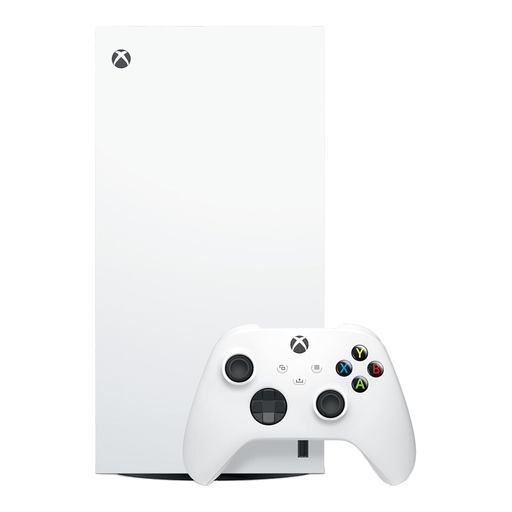
A console option for a household willing to set up a Microsoft child account. This 1TB digital edition has no optical drive, so check that digital game access suits your household. Microsoft documents family limits and Microsoft Store purchase approval; review communication and third-party game settings separately.
 No image available
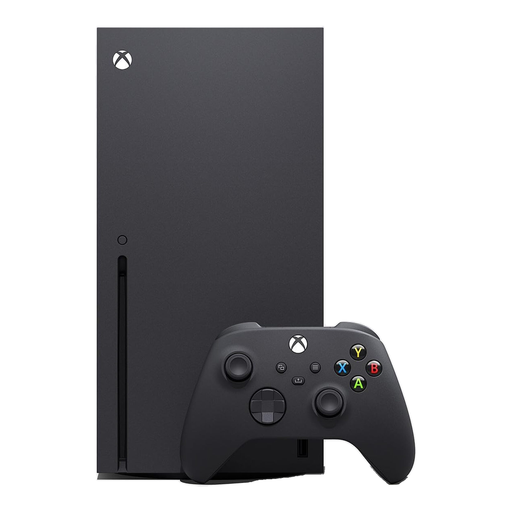
A console option if a disc drive matters alongside Microsoft family-account management. The listing specifies 1TB and a 4K UHD Blu-ray drive. Set up the child account and check communication permissions and billing within the games the child will use.
 No image available
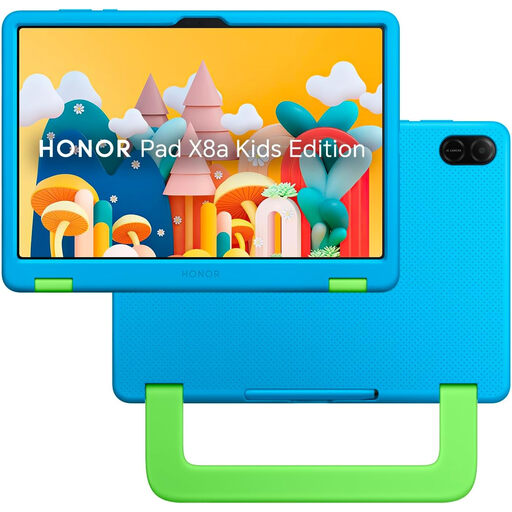
A tablet option for a child using games alongside other apps. The listing specifies an 11-inch display and 128GB storage, and describes screen-time and content controls. Before choosing it for online play, check the child-account setup, communication permissions and purchase-approval scope for the games you plan to use.
 No image available
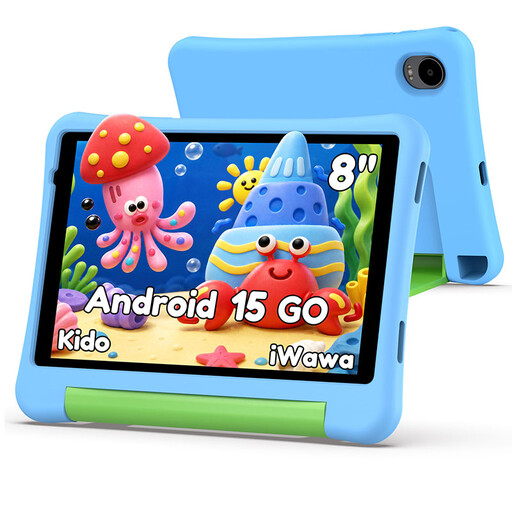
A smaller tablet option with a protective case. The listing describes a child lock for screen-time management and content filtering; check the account, chat and purchase settings needed for your child’s games. The title says no adapter is included, so check what charging equipment you will need.
Use a separate managed child account where the ecosystem offers one. Ofcom advises registering a child with their correct age so age-related service settings can apply; check how an adult manages the family group before buying a device.
No. Configure the supported account and game settings, then keep talking with your child about online contacts and upsetting experiences. Ofcom advises parents to discuss who children play with and encourage them to report strange messages.
Not necessarily. Microsoft Xbox describes approval for Microsoft Store content, PlayStation offers a child monthly spending limit for its store, and Google says Family Link approvals apply to Google Play billing. Check each game’s billing method and account settings.
A headset mute control does not replace platform or game-account communication permissions. Set those permissions in the child’s account and the games they use, then assess the headset’s physical controls as a separate accessory feature.