Choose a connected device around what the child will mainly do and how independently they will use it, rather than assuming one device or parental-control app covers every activity. A shared tablet may suit supervised media use; a personal phone makes more sense when independent communication matters, while a laptop needs careful account and browser setup and a console needs gaming-specific controls. Check the settings on the exact device and child account, and keep adult supervision alongside them.
Who is choosing?
Parents considering a first personal phone
These households are deciding whether a child needs their own communication access rather than occasional use of a shared screen. Ofcom reports a sharp rise in phone ownership between ages 10 and 11, making this a useful point to reassess the child's needs—not an age at which every child needs a phone.
Families choosing a shared device
A tablet, laptop or smart display may be used for video, reading, school-related tasks or casual games in a shared space. The choice depends on which activities need a keyboard or particular software, and how readily an adult can oversee use.
Households where gaming comes first
If online play is the main reason for a device, game access, player communication and purchases deserve attention before general-purpose features. Siblings sharing a console also need rules that work for everyone using it.
What matters when buying?
Decide on the main activity and whether the device will be shared or personal. Then check how the chosen device handles child accounts, controls and any differences between children using it.
| Concern |
What to check |
Who this matters to |
| Activity and independence |
Identify the main activity—media, communication, school-related work, gaming or voice use—and decide whether access should be shared or personal. |
If my child mainly watches videos with an adult nearby, I need a different arrangement from one that allows independent messaging. For around 29% of consumers, matching the device to the child's level of independence is the primary concern. |
| Accounts and controls |
Check the child-account requirements and whether the intended controls work on the exact device, apps and browser. |
I want to manage access without discovering that a filter works only under a particular sign-in or browser. Account and control setup comes first for around 29% of consumers. |
| Shared-device rules |
Find out whether restrictions apply to each child account or to the whole device, especially when siblings share a console. |
My children use the same device but need different boundaries, so I need to know which settings they will share. That is the primary concern for around 18% of consumers. |
| Gaming and communication |
Check game-age settings, player communication, purchase permissions and playtime controls separately. |
When gaming is the reason for buying, I want to understand who can contact my child and how game access is managed. Around 24% of consumers put those boundaries first. |
A smart speaker or display may suit shared-home voice activities, but it is a different choice from a device for independent browsing or messaging. For example, Google says parental controls on relevant Assistant devices require a child Google Account and Voice Match; check support for the device and service you intend to use.
Setup mistakes to avoid
-
Assuming a control works everywhere on the device
Microsoft says Family Safety web and search filtering depends on a supported browser and the child being signed in. Nintendo says Switch parental controls apply to the console rather than to each user. A setting's name alone does not establish what it covers.
Before choosing a device, check the account, browser and apps the child will actually use, and test the intended restrictions.
-
Letting a child use an adult account
Child-specific approvals, time settings and permissions in Apple, Google and PlayStation family tools are organised around child accounts or family members. An adult sign-in is not a substitute for setting those up.
Where the chosen ecosystem supports it, create a separate child account, add it to the family group and keep the adult account for management.
-
Treating a gaming profile as a complete set of rules
Game access, online communication, playtime and purchases can have separate settings. PlayStation offers child-member controls across these areas, while Nintendo's console-wide restrictions require particular care when children of different ages share a Switch.
Review each setting separately and try a restricted-game or purchase request before regular use.
-
Setting controls once and never revisiting them
UK government guidance says parental controls cannot address every online situation. New apps, devices and changes in a child's activities can alter what needs attention.
Revisit settings as use changes, and talk regularly with the child about what they encounter online.
Relevant brands and family tools
These tools are tied to particular accounts and devices; the brand name alone does not tell you which controls will apply to a child's setup.
Apple
Relevant to households using an iPhone, iPad or Mac with individual Apple Accounts in Family Sharing.
- Apple says parents or guardians can use Screen Time and manage purchases and content or privacy settings for a child account.
- The family group and individual accounts need setting up; available settings can vary by age and country.
Google
Relevant to supervised child Google Accounts on supported Android devices, Chromebooks and some Assistant devices.
- Google says Family Link can manage account settings, app approvals and certain Chrome and search settings.
- Features vary by device and service. Assistant controls on relevant devices also require a child account and Voice Match.
Microsoft
Relevant to families managing connected Windows, Xbox and Android use through a Microsoft family group.
- Microsoft Family Safety provides screen-time settings across connected devices.
- Web and search filtering needs a supported browser and child sign-in. Microsoft warns that administrator access can let a child change or break Family Safety settings.
Nintendo
Relevant when a Nintendo Switch or Switch 2 will be used mainly for gaming.
- Nintendo provides playtime and content or feature restrictions through console and app-based controls.
- Restrictions apply to the console, not separately to each user. Some settings require the parental-controls app.
PlayStation
Relevant to gaming households that want separate child family members.
- PlayStation provides child-member settings for areas including playtime, communication, privacy and spending.
- Check the console, app and region for the settings you need; some family features may be available only in the app.
Amazon
Relevant to supported Amazon Kids-enabled devices used for managed media, reading or voice activities.
- Amazon's UK Parent Dashboard describes activity review, daily limits and age-filter tools.
- Check which features apply to the exact device and child profile; the tools do not replace adult oversight.
Tablets for supervised use
These Joybuy tablets relate to shared or closely supervised media, games and learning apps. If the child mainly needs independent communication, keyboard-based work or a gaming-focused device, decide on that requirement before comparing tablets. Check each tablet's child-account and control options for the exact version you intend to use.
 No image available
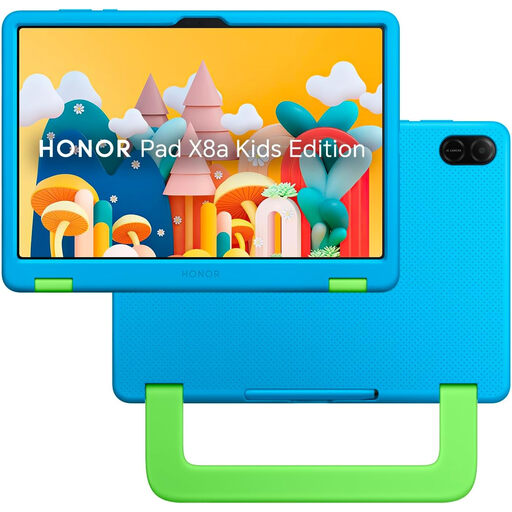
HONOR X8A Kids 11-inch Wi-Fi tablet, 128GB, Space Grey
Consider this tablet for supervised media or learning activities where an 11-inch screen is useful. The listing describes parent-configured child accounts and time and content settings; confirm how they work on this exact version before relying on them. Check the processor and battery specifications against the apps and use time you have in mind.
View on Joybuy
 No image available
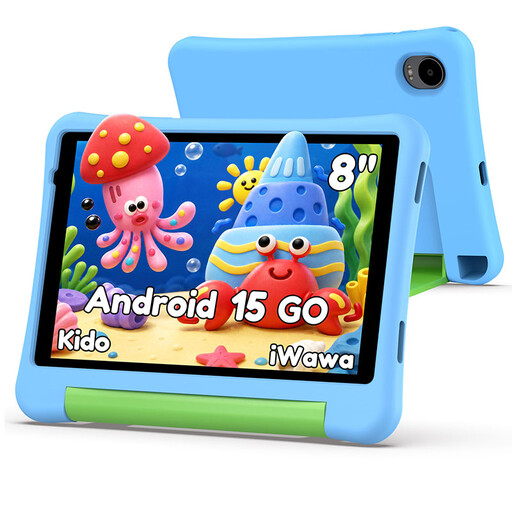
Alldocube Kido 8-inch Android 15 tablet with blue case
For supervised app or video use, this variant lists 3GB RAM, 32GB storage and a protective case. Its description claims a child lock, time management and content filtering; check the exact functions and account requirements before depending on them. A power adapter is not included, so check which compatible adapter is needed.
View on Joybuy
 No image available
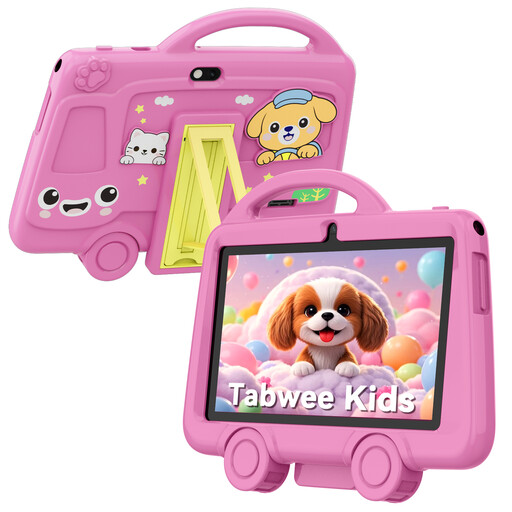
TABWEE K8 Kids 7-inch tablet, 2GB RAM and 32GB storage
Consider this variant for closely supervised videos, games or learning apps. It lists 2.4 GHz Wi-Fi and a 3000 mAh battery; the battery figure is a capacity, not a use-time claim. Confirm the child-account, filtering and time-limit options you need. The listing says it is unsuitable for children under three and requires adult supervision.
View on Joybuy
 No image available
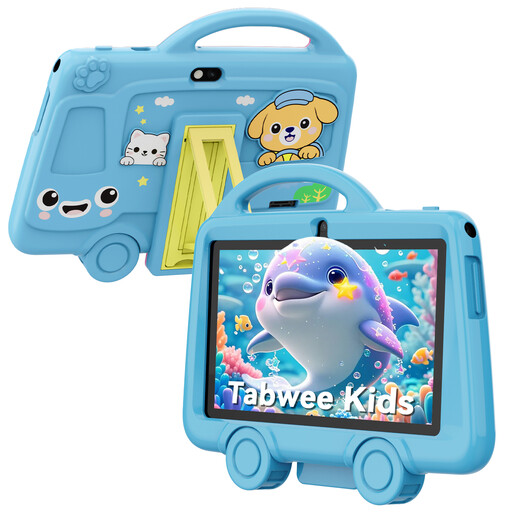
TABWEE K8 Kids 7-inch tablet, blue, 32GB storage
This blue variant is another option for closely supervised apps, videos or games. Its listing gives conflicting RAM figures, so confirm the specification for this exact variant before comparing it with the other K8 tablet. Also check the child-account and control options you require. The listing says it is unsuitable for children under three and requires adult supervision.
View on Joybuy
Common questions
Can parental controls replace adult supervision?
No. UK government guidance says controls can help manage aspects of a child's online use but cannot address everything. Test settings before handing over a device, then keep talking with the child about what they encounter online.
What should I set up before giving a child a phone, tablet or computer?
Set up a separate child account or profile where the ecosystem supports one, then check content access, purchases and time settings on the device the child will use. Apple Family Sharing, Google Family Link and Microsoft Family Safety each have account and device requirements, so test the particular controls your household needs.
Can siblings have different rules on one games console?
That depends on the console. Nintendo says Switch parental controls apply to the whole console, so shared restrictions should suit its youngest user. PlayStation supports separate child family members; check each child's account settings and the features available on your console.
Does Microsoft Family Safety filter websites in every browser?
No. Microsoft says its web and search filters require a supported browser while the child is signed in to their Microsoft account. Check which browsers the child can open before relying on filtering.


