Choose around the child’s main activity and the way your household will manage access. A tablet suits portable, touch-based use; a laptop or Chromebook-type device makes more sense for keyboard-led schoolwork; a desktop can serve a fixed shared space; and a console is a gaming-focused addition, not a substitute for a general learning device. Before handing any device over, set up the child’s account and test the controls that matter to you.
Who each setup may suit
Learning-first households
For children who regularly use school websites and type their work, check the required browser and software before choosing a keyboard-equipped computer. A supervised child account also needs to work on the device they will actually use.
Portable entertainment households
A tablet may suit a child who mainly watches videos, uses touch-based apps or plays games on a portable device. If the child will use it individually, check the account and controls on the exact tablet rather than assuming they work alike across devices.
Gaming-first shared households
A console can provide a dedicated gaming setup with family controls, but its account arrangements differ by platform. Keep any keyboard-led learning requirements in view when deciding whether the household also needs a computer.
What matters when choosing
Start with the activity the device must handle most often, then check the account setup and controls on the platform you intend to use. A protective case may help with the physical setup, but it does not replace a child account or supervision settings.
| Concern | What to check | Who this matters to |
|---|
| Portable entertainment |
Check for a separate child account and the app, content and time controls available on the exact device. |
If my child mainly uses touch-based apps and video, I want a portable device whose access I can manage individually; around 33% of consumers may put that need first. |
| Keyboard-led learning |
Confirm that required school sites and software work with the chosen keyboard, operating system and browser. |
When school tasks involve regular typing or particular websites, I need those tasks to work before choosing an entertainment device; roughly 27% of consumers may prioritise learning this way. |
| Shared household access |
Set up separate users and check guest access; on Windows, give the child a standard rather than administrator account. |
For a computer used by several people, I need each child’s restrictions to remain in place without restricting the adult account; around 20% of consumers may make shared access their primary concern. |
| Gaming controls |
Check the console’s child-account, content and playtime settings, including whether they apply per child or to the whole console. |
If gaming is the main purpose, I want the family settings to fit everyone who will play; approximately 20% of consumers may put gaming access first. |
Setup mistakes to avoid
-
Assuming parental controls are already working
Having controls available is not the same as having them switched on and set appropriately. UK government parental-control guidance advises checking that restrictions work before giving a child the device.
Create the child account, set the restrictions you need and test a blocked site, app or time limit before handover.
-
Leaving another way into a shared computer
Google warns that guest mode or extra Chromebook users may allow use without Family Link settings. Microsoft warns that a child with administrator status may change or break Family Safety settings.
Control guest and new-user access where applicable, protect the adult account and use a standard child account on Windows.
-
Expecting a console to cover schoolwork
A console offers a gaming route, while the child’s actual school tasks may call for a keyboard, school websites or computer software.
Check those tasks and their device requirements before deciding whether a console alone meets the household’s needs.
-
Expecting individual restrictions on a shared Nintendo console
Nintendo says Switch and Switch 2 parental controls apply to the console, not separately to each user. Everyone using that console encounters the same restrictions.
Choose a setting appropriate for shared use, or arrange access differently if household members need substantially different permissions.
Relevant platform brands
Apple
Relevant to an iPad setup using Family Sharing and a separate child Apple Account.
- Apple says Screen Time can manage apps, websites, communications, device time and content or privacy restrictions.
- Apple says some controls depend on the device, country or region, and child’s age. Check the options on the intended iPad.
Google
Relevant to Chromebook use with a supervised Google account and Family Link.
- Google says Family Link can manage Chrome website access and supervise app use on a child’s Chromebook.
- Google recommends controlling guest mode and sign-ins. A school-issued Chromebook may instead have settings governed by its education administrator.
Microsoft
Relevant to Windows laptops and desktops set up with Microsoft Family Safety accounts.
- Microsoft describes screen-time, activity and app or game management for connected family accounts and devices.
- Microsoft’s web filtering depends on a supported browser while signed in; a child with administrator rights may change Family Safety settings.
PlayStation
Relevant to PS5 or PS4 households choosing a gaming-focused device.
- PlayStation supports child family members and playtime controls; each child needs a separate child account for playtime settings.
- Sony advises using a console restriction passcode and restricting guest login and new-user creation to help protect the setup.
Nintendo
Relevant to shared Nintendo Switch or Switch 2 gaming with console-level parental controls.
- Nintendo says content restrictions and playtime settings are available, with some options requiring its parent app.
- Restrictions apply to the console rather than individual users. Linking the app requires an adult Nintendo Account and an internet connection.
Joybuy product choices
These tablets and desktop computers relate to portable entertainment and fixed household computing. Match the device to the child’s activities, then check its account options and the accessories needed for your setup.
 No image available
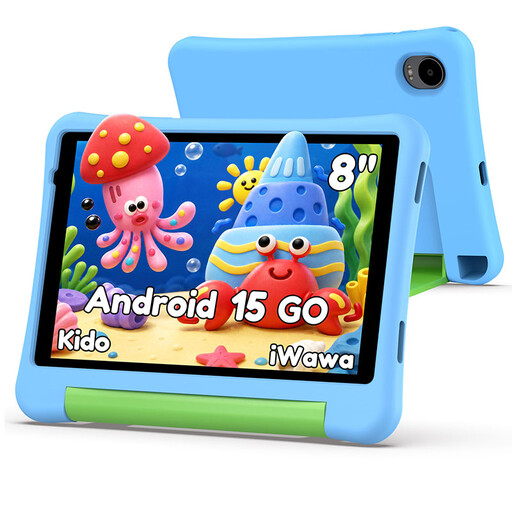
Alldocube Kido children’s tablet with blue protective case
A portable tablet to consider for a child’s apps and videos, provided its account and Child Lock settings meet your requirements.
The listing specifies an 8-inch display, Android 15, 3GB RAM, 32GB storage, a 5000mAh battery and a protective case. Its Child Lock functions and account requirements should be checked on the exact device. No adapter is included.
View on Joybuy
 No image available
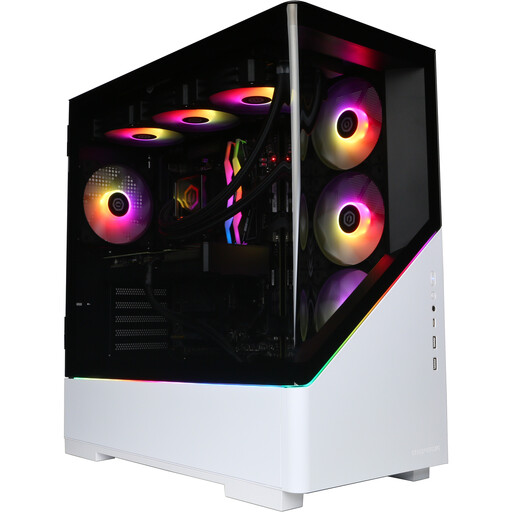
CyberPowerPC JOYB1013 gaming desktop, Ryzen 7 9800X3D, RTX 5080
A fixed Windows computer to consider where household computing and PC gaming will share one setup.
The listing specifies Windows 11 Home, 32GB DDR5 RAM, a 2TB NVMe SSD and NVIDIA GeForce RTX 5080 16GB graphics. The monitor, keyboard and mouse are not included. Set up a separate child account and check the browser restrictions you intend to use.
View on Joybuy
 No image available
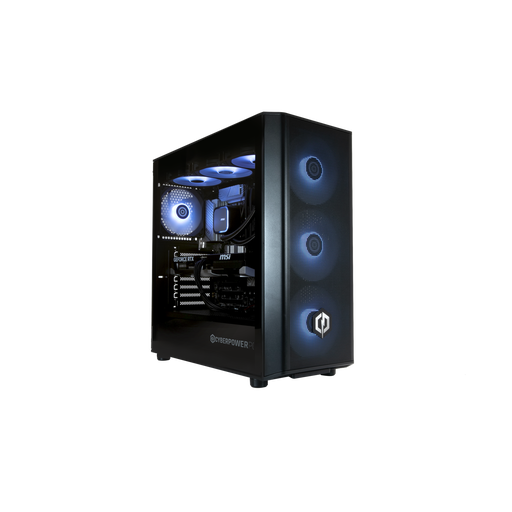
CyberPowerPC JOYB1010 gaming desktop, Core Ultra 7 265KF, RTX 5070
A fixed Windows computer to consider if the household wants both general computing and PC gaming.
The listing specifies Windows 11 Home, 32GB DDR5 RAM, a 1TB NVMe SSD and NVIDIA GeForce RTX 5070 12GB graphics. The monitor, keyboard and mouse are not included. Set up a separate child account and check the browser restrictions you intend to use.
View on Joybuy
 No image available
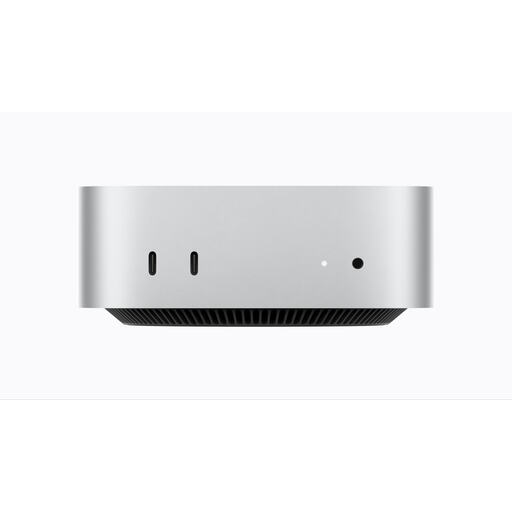
Apple Mac mini (2026), M6 chip, 16GB, 256GB SSD
A compact desktop to consider for a fixed household computer, subject to the school software and child-account setup you need.
The listing specifies an M6 chip with 12-core CPU and 12-core GPU, 16GB unified memory and a 256GB SSD. Check which display and peripherals are included and which child-account and supervision options apply to this macOS setup.
View on Joybuy
 No image available
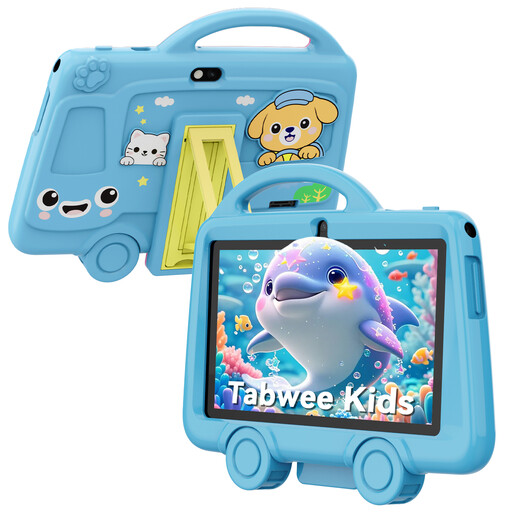
TABWEE K8 children’s tablet, 7-inch, blue
A portable tablet to consider for apps, games and videos once its supervision options meet the household’s needs.
The listing specifies a 7-inch display, 32GB storage, 2.4 GHz Wi-Fi and Bluetooth 4.2. Check the RAM configuration, operating system, child-account options and parental controls before relying on it for supervised online use.
View on Joybuy
Frequently asked questions
Should a child use a separate account?
Use a separate child account where the platform supports one and its controls depend on it. Apple advises giving a child their own Apple Account rather than sharing an adult’s; PlayStation requires a separate child account for each child whose playtime you want to manage.
What should I check before a child uses a Chromebook?
Confirm that school sites and apps work, sign in with the supervised child account and test the Family Link settings. Google recommends disabling guest mode and controlling other sign-ins on a parent-owned Chromebook; for a school-issued device, check which settings the school administrator manages.
Will Microsoft Family Safety filter every browser?
No: do not assume its web filters apply to every browser. Microsoft says filtering depends on a supported browser while signed in and identifies Edge for mature-site blocking. Check the browser the child will use and keep their Windows account at standard rather than administrator level.
What is needed to set playtime limits on a console?
The setup depends on the console. PlayStation requires a separate child account for each child’s playtime controls; Nintendo’s Switch and Switch 2 controls apply to the console as a whole, and linking its parent app requires an adult Nintendo Account and an internet connection.


