Families considering a first portable contact device
If the child needs to communicate while away from home, decide whether that need calls for a personal phone and how it will be managed outside the household Wi-Fi network.


Choose around the child’s main task: a phone for contact away from home, a tablet for touch-first activities, or a Chromebook or laptop for typing and longer schoolwork. Whichever route fits, check the child-account setup and test the household’s intended controls on the device; their coverage varies across accounts, apps, browsers and services.
If the child needs to communicate while away from home, decide whether that need calls for a personal phone and how it will be managed outside the household Wi-Fi network.
When regular typing, documents and browser-based work matter more than pocket portability, consider a Chromebook or laptop and check the accounts and software those tasks require.
If time limits, app access, purchases or activity visibility are central to the decision, choose a device whose child-account arrangements the household can set up and maintain.
Decide what the child needs to do most often, then check whether the account and supervision arrangements work for that device.
| Concern | What to check | Who this matters to |
|---|---|---|
| Contact away from home | Whether calls or messages are needed away from home; child-account controls on the chosen phone. | If I need my child to contact us while out, a portable device matters more than a larger screen. About 25% of consumers put portable communication first. |
| Touch-first activities | Screen size and storage for intended apps or downloaded media; whether a keyboard is needed. | For reading, video, creative apps or casual games mainly at home, I may not need a pocket-sized phone. Touch-first use is the primary need for about 19% of consumers. |
| Typing and longer work | Keyboard and browser requirements; compatibility with the child’s school and home accounts. | If my child regularly writes documents or works through browser-based lessons, I need a computer suited to those tasks. About 25% of consumers prioritise keyboard-based learning and creation. |
| Household supervision | Child-account compatibility and how app, browser, purchase and guest-user settings work on the device. | Before handing over a personal device, I need controls that our household can actually set up and review. Manageable supervision and boundaries come first for about 31% of consumers. |
Family-management features depend on account arrangements and compatible devices. Apple documents Family Sharing and a separate Child Account for its remote setup; Google and Microsoft also set account and device conditions for their tools.
Identify the adult organiser and check the child-account requirements before settling on a device.
A phone can go online away from home. Google also warns that, on a Chromebook, permitted guest mode or additional users can allow use without Family Link settings applying.
Test the intended settings on the child’s account and device, including browser and guest-user access, and revisit the arrangements together as use changes.
Household controls do not replace an online service’s own account and eligibility rules.
Check the current requirements and privacy settings of each service the child wants to use.
A case or screen protector needs to fit the exact device, including access to its buttons, ports and cameras.
Confirm accessory fit and check the retailer’s repair and replacement arrangements; keep the purchase record.
Relevant when considering an iPhone or iPad alongside Apple Family Sharing and a separate Child Account.
Relevant to households considering Android devices or Chromebooks with a supervised Google Account.
Relevant when considering a Windows laptop in a household using Microsoft accounts and Family Safety.
These tablets suit a touch-first route, while the Chromebooks are options for typing and browser-based work. For each device, check the household’s intended child-account and supervision setup before purchase.
 Image unavailable
An Android tablet to consider for touch-first apps and media at home. The listed configuration is Android 15, 3GB RAM, 32GB storage and a 5000mAh battery; a protective case is specified. The title mentions Child Lock, but check its functions and setup against your supervision needs. No adapter is included, so check charging arrangements.
 Image unavailable
Consider this Chromebook where typing and longer browser-based tasks are the main need. Its listed configuration includes a 14-inch WUXGA (1920 × 1200) screen, Intel Core i3-1315U, 8GB RAM and 256GB SSD. Check child-account compatibility and guest-user settings on this model before relying on Family Link.
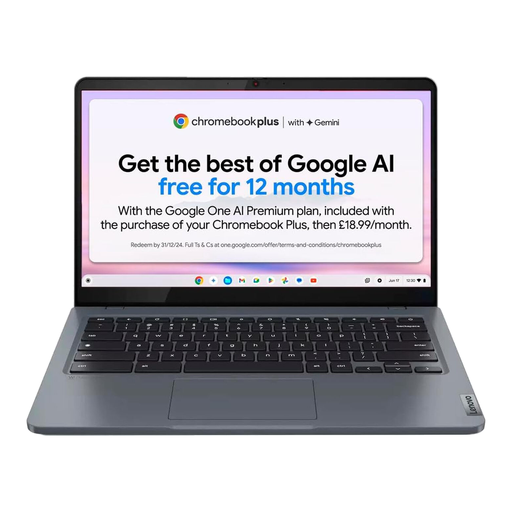 Image unavailable
A Chromebook option for regular typing and browser tasks. The listed variant has a 14-inch display, Intel Core i3 N305, 8GB RAM and 256GB eMMC storage. Confirm the child-account setup and guest or additional-user settings for this device.
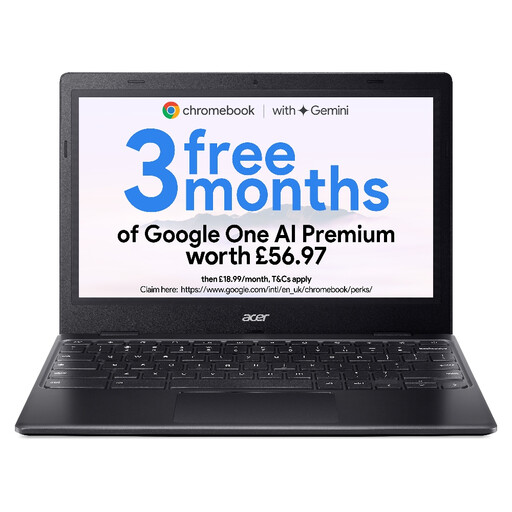 Image unavailable
Consider the 11.6-inch Chromebook format for browser-based tasks where a smaller laptop is preferred. The listed specifications include an HD (1366 × 768) screen, Intel Celeron N4500, 4GB RAM and 64GB eMMC storage. Confirm its weight and Wi-Fi specification before buying, as the listing details conflict; also check the child-account and guest-user setup.
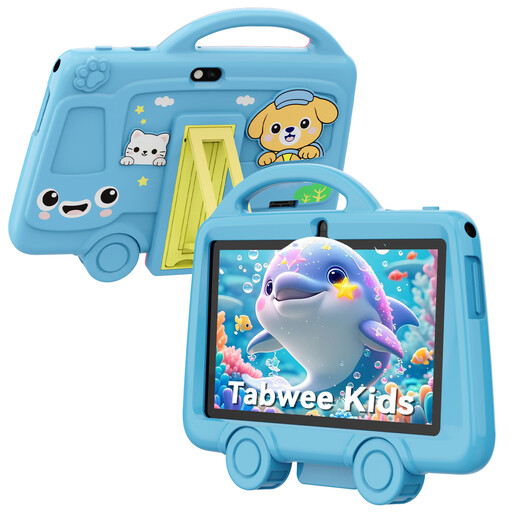 Image unavailable
A smaller touch-first tablet to consider for apps and media. The title lists 32GB storage, a 3000mAh battery and 2.4GHz Wi-Fi. Confirm the RAM before purchase because the listing gives both 2GB and 3GB, and check which child-account and supervision options work on the device.
Start with the task that would be hardest to meet otherwise: contact away from home points towards a phone, touch-first activities towards a tablet, and regular typing towards a Chromebook or laptop. Ofcom’s reporting on UK children’s online use shows that these device types are all relevant, but ownership figures do not decide what your child needs.
Set up the relevant child account and family group, choose the limits and permissions you intend to use, and test them on the actual device. Apple documents Family Sharing and a Child Account for its family setup; Google and Microsoft also specify account and device requirements for their supervision tools.
No. Device and family controls help manage household access, but each online service has its own account and eligibility rules. Check the current requirements and settings for the particular apps or platforms your child wants to use.
Review them when the child starts using a new app or service, changes device or account, or needs different boundaries as they grow. UK government parental-control guidance recommends checking the controls before handover and updating them as the child’s use changes.
Check that protection fits the exact model and leaves its ports, buttons and cameras usable. Keep the purchase record and check the retailer’s repair and replacement process. Faulty goods may carry statutory remedies distinct from cover for accidental damage; the Consumer Rights Act 2015 addresses repair or replacement where that right applies.