Choose a child-focused tablet if a younger child needs a bundled case, child profile and parent-led controls from the outset. A standard iPad or Android tablet makes more sense when required school apps or shared family use drive the choice, but you will need to set up the child account and arrange protection. Check the school’s apps before choosing an ecosystem, then test the controls before the child uses the device.
Who each route suits
Parents of a first independent tablet user
If the child will use the tablet independently, a separate profile, parent-led limits and a protective case may matter more to you than sharing an unrestricted household device. Amazon describes child profiles and Parent Dashboard controls for its Fire Kids range.
Families balancing school apps with entertainment
Check the school’s required services before choosing a tablet for lessons, videos and games. Google says its Classroom app is available on Android and iOS mobile devices, but the school’s accounts and tasks determine what else the child needs.
Households already using Apple or Android
A standard tablet can fit an existing family-account setup. Apple describes Ask to Buy and Screen Time through Family Sharing; Google describes app, time and content settings for supervised accounts. Either route still needs adult setup.
What matters when choosing
Child-focused Fire tablet
Consider it: For a younger child when the cited Amazon Kids bundle’s case, child profile and Parent Dashboard suit the household’s setup.
Bear in mind: Amazon says the included Kids+ period ends after one year and the subscription renews unless cancelled; its controls also do not filter every store or content context.
Standard Android tablet
Consider it: When Android apps or an existing Google household account are important, provided the chosen device supports the required supervised-account setup.
Bear in mind: Google says some system apps cannot have app time limits, so test the controls your child will actually use.
Standard iPad
Consider it: In an Apple household that wants Family Sharing, Ask to Buy and Screen Time on a tablet that may also be shared.
Bear in mind: A child account, suitable case and any keyboard or stylus are separate setup and accessory decisions.
| Concern |
What to check |
Who this matters to |
| Supervision and approvals |
Identify the child profile or supervised account you will use; test app and purchase approvals and time limits. |
If I am handing over a first independent tablet, I want to manage access and purchases without relying on the child to change settings. Around 29% of consumers put supervision first. |
| Schoolwork compatibility |
Ask the school for its required apps and sign-in method; check them against the exact tablet and operating-system version. |
When lessons involve assigned apps or documents, I need the school’s workflow to work before thinking about entertainment. Schoolwork is the main concern for around 29% of consumers. |
| Protection and storage |
Check the case or other protection included, the storage variant and whether the exact model supports expansion. |
If the tablet will travel between rooms and hold downloaded work or media, I care about protecting it and keeping enough space available. Around 21% of consumers prioritise protection and storage. |
| Shared-family use |
Decide whether the tablet will remain child-only; check family-account management and whether planned tasks need accessories. |
I may want a supervised child device now that other family members can use later, without losing the account controls I need today. That flexibility comes first for around 21% of consumers. |
Buying pitfalls
-
Assuming a child tablet is ready to hand over
Controls depend on the child using the intended profile and on adults setting them up. Amazon cautions that mature or adult-rated material can still appear in some Fire store and content contexts.
Before use, try an app approval, a purchase request, a content restriction and a time limit on the child’s profile.
-
Choosing the screen before checking school tasks
A tablet that handles video may still be awkward for the school’s accounts, documents or video meetings.
Get the school’s app list and check sign-in, document tasks and any accessory needs against the exact tablet.
-
Overlooking the bundle’s later commitments
A child-focused bundle and a standard tablet involve different accessory and service decisions.
Check subscription renewal terms and which case, screen protection or keyboard the intended use calls for.
Amazon says the Kids+ subscription included with its cited Fire HD 10 Kids Pro renews after the first year unless cancelled.
-
Using storage as a substitute for app compatibility
Extra space can hold downloaded files, but it will not make an unsuitable school app or account workflow work.
Confirm the required apps and child-account setup first. Then compare internal storage and, where relevant, expansion supported by the exact model.
Relevant brands to consider
Amazon
Amazon’s Fire HD Kids range is relevant when a younger child needs a child-oriented bundle rather than a standard household tablet.
- Amazon says its cited UK Fire HD 10 Kids bundle includes a child-proof case, one year of Kids+ and a two-year worry-free guarantee. Parent Dashboard offers daily and category limits, bedtime settings and age filters.
- Amazon says Kids+ renews after the included year unless cancelled. It also cautions that parental controls do not remove every mature or adult-rated item from all content and store contexts.
Apple
An iPad is a standard-tablet route for families who want to use Apple’s existing family-account tools.
- Apple describes Ask to Buy and Screen Time through Family Sharing. Its 11-inch iPad (A16) starts at 128GB.
- A child-focused case, any keyboard or stylus, and the child-account setup are separate decisions rather than parts of a kids-tablet bundle.
Samsung
Samsung is relevant to families considering a standard Android tablet alongside its child-oriented account services.
- Samsung describes Samsung Kids and Galaxy for Families as child-oriented environments. Samsung’s UK Galaxy Tab A11 has an 8.7-inch display, 64GB or 128GB options and microSD expansion up to 2TB.
- Check the child-account setup and arrange suitable physical protection for the particular tablet you choose.
Joybuy tablet choices
These choices include child-focused tablets and standard tablets for families considering supervised home learning and entertainment. Check school apps and account controls against the exact model before deciding.
 No image available
Alldocube Kido 8-inch tablet with blue protective case
Consider this child-focused model if having a protective case with the tablet matters to you.
Android 15; 3GB memory and 32GB storage. The product name states that no adapter is included, so check what compatible charging equipment you need.
Check required school apps and test the child-lock and content settings before use.
View on Joybuy
 No image available
HONOR X8A Kids 11-inch Wi-Fi, 128GB, Space Grey
Consider this child-oriented tablet if an 11-inch screen and 128GB of stated storage fit the child’s learning and media use.
Check the school’s apps, set up and test the parental controls, and confirm what physical protection you will use.
View on Joybuy
 No image available
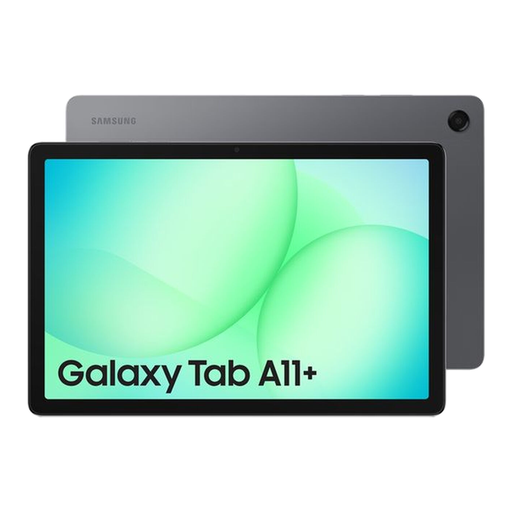
Samsung Galaxy Tab A11+ Wi-Fi, 8GB/256GB, Grey
Consider this standard tablet if the household wants a 256GB variant rather than a child-specific bundle.
The product name states 8GB memory and 256GB storage. Check the school’s apps, the available child-account controls and suitable protection for this model.
View on Joybuy
 No image available
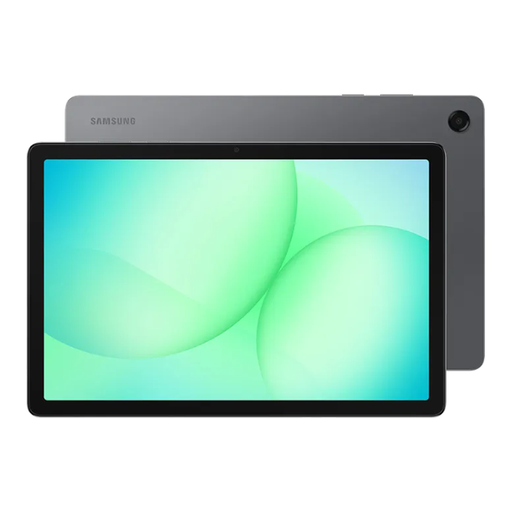
Samsung Galaxy Tab A11+ 11-inch Wi-Fi, 128GB, Grey
Consider this standard 11-inch tablet when a device for family use is more relevant than a child-specific bundle.
The product name states 128GB storage. Confirm the school’s app requirements, the supervised-account setup and the protection you intend to use.
View on Joybuy
 No image available
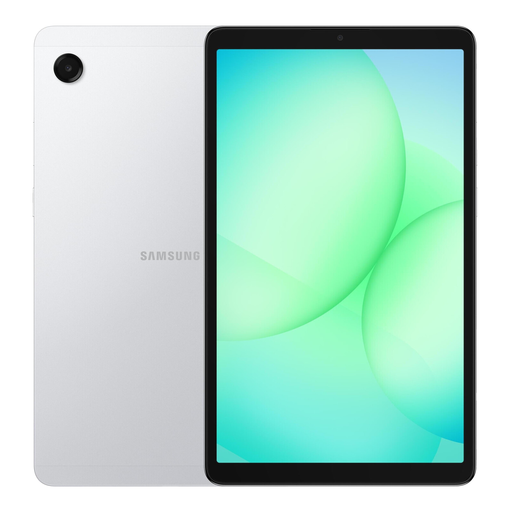
Samsung Galaxy Tab A11 X130 8.7-inch Wi-Fi, 4GB/64GB, Silver
Consider this standard 8.7-inch model if you prefer a smaller screen for the child’s home tasks and entertainment.
The product name states 4GB memory and 64GB storage. Check school-app compatibility and child-account controls, and choose suitable protection. It also states that a travel adapter is not included.
View on Joybuy
Frequently asked questions
Does a child need a child-specific tablet?
No: a standard iPad or Android tablet can be a suitable choice if it runs the required school apps and an adult sets up the child or supervised account. A child-focused bundle may reduce the separate decisions about a case and child-oriented setup, but its controls still need testing.
Can a standard Android tablet run Google Classroom?
Google says students can use the Classroom app on Android mobile devices. Ask the school about its account, document and video-meeting requirements, then check the exact tablet and operating-system version before buying.
What should I set up before my child uses the tablet?
Create the child or supervised account and test the app, purchase, content and time settings you plan to rely on. Keep checking what the child can access: Amazon cautions that its Fire parental controls do not remove every mature or adult-rated item from all store and content contexts.
Do UK product-security rules require a child-specific tablet?
No child-specific tablet requirement follows from the UK consumer connectable product-security regime described by GOV.UK. The regime took effect on 29 April 2024 and addresses duties concerning consumer connectable products; it is not a reason to assume that one tablet type has been certified or approved for your child.


