Choose the ecosystem that supports the games your child actually wants to play, then set up a separate child account and family group before online play begins. A console can keep many controls within one gaming ecosystem, while tablets and PCs offer broader flexibility but need account, operating-system, browser and game-platform settings to be checked separately. A headset can support household communication arrangements, but it does not replace account-level controls.
Who this is for
Parents of children who play online with friends or strangers
For households where messages, stranger contact, bullying or upsetting interactions are central concerns. Prioritise a child account and controls over who can communicate and interact, rather than choosing hardware alone. Ofcom, PlayStation, Xbox and Nintendo provide the relevant guidance.
Families choosing a child’s first main gaming device
For parents weighing up a console, tablet or PC and needing age-appropriate games, playtime rules and a manageable family-account setup. Ofcom, PlayStation, Nintendo, Apple, Google and Microsoft describe controls across these ecosystems.
Shared-device households with children of different ages
For families where siblings or adults share one console or PC. Check whether restrictions apply to an individual child account or the whole device, and do not give a child administrator access on a Windows PC. Nintendo and Microsoft highlight these limits.
What to check before buying
Games console
Choose it when: The child mainly plays PlayStation, Xbox or Nintendo Switch games and the household wants family tools within the console ecosystem.
Watch for: Individual games and services can have separate online features; Nintendo Switch console controls apply to everyone using that console.
Tablet
Choose it when: Gaming is mainly mobile or tablet-based and the household also needs controls for apps, browsing and general device use.
Watch for: Supervision depends on the child account and compatible device; Family Link does not supervise iPads, iPhones or non-Chromebook computers.
PC gaming setup
Choose it when: The child needs PC-only games, keyboard-and-mouse play, or games accessed through Steam and Windows.
Watch for: Controls are layered across Windows, browsers, game platforms and individual services, so each relevant account needs configuring.
Start with the games and services the child will use, then check how the relevant family account, communication controls and time rules work together. Ofcom reported in September 2026 that 91% of UK parents of gamers aged three to 17 put some rules in place for their children; this figure covers rules generally, not any one type of control.
| Priority |
What to check |
Your needs |
| Communication and privacy |
Check child-account membership, who can communicate or interact, and whether the game has its own chat settings. Review privacy settings before online play. |
I want to decide who can contact my child and to revisit settings as their games and friends change. |
| Age-appropriate access |
Register the correct date of birth. Check age ratings, content restrictions and whether game or app requests can be approved by a parent. |
I need the available games and features to reflect my child’s actual age, rather than relying on an adult account. |
| Playtime routines |
Look for daily or scheduled limits, per-game controls where useful, and a practical way to review or approve extra time. |
Our gaming rules need to fit school nights, shared-device use and family routines without becoming difficult to manage. |
| Control coverage |
Map the operating system, browser, game store, chat service and individual games used. On Windows, check supported-browser requirements and use a standard child account. |
I want to avoid assuming that one setting covers every browser, game platform or communication service my child uses. |
Common setup mistakes
-
Buying hardware before setting up the family account
Many child-specific restrictions depend on the account age and family relationship. Starting with an adult account can make age-related controls harder to manage.
Create the child account with the correct date of birth, add it to the appropriate family group, and test a content, communication and playtime rule before enabling online play.
-
Assuming one device setting covers every game and chat service
A PC setup can involve Windows, a browser, Steam and separate games or chat services. Microsoft web and search filtering requires supported browsers and signed-in accounts, while Steam controls apply to Steam features.
List the games and communication services your child uses, then configure controls at every relevant layer: operating-system account, browser, game platform and individual game where needed.
-
Giving a child administrator access on a Windows gaming PC
Microsoft warns that a child who is an administrator can change or break Family Safety settings.
Use a standard child account for everyday play and keep administrator credentials with a trusted adult.
-
Expecting separate Nintendo Switch console controls for each child
Nintendo states that Switch parental controls are set for the console, so the same restrictions apply to everyone who uses it.
For siblings of different ages, set the shared console for the youngest player and check Nintendo Account settings for separate account restrictions. Consider separate devices or another ecosystem if that does not suit the household.
Relevant brand ecosystems
Nintendo
A console route for children who specifically need Nintendo Switch or Nintendo Switch 2 games and whose household can work with console-level controls plus Nintendo Account family settings.
- Nintendo states that its parental-controls app can set playtime limits, show gameplay history, restrict age-rated software and limit player communication.
- Standard Switch parental controls apply to the console rather than each individual user, so shared households should account for the youngest player. eShop settings are managed separately in Nintendo Account settings.
PlayStation
A console route for families whose child mainly plays PlayStation games and whose parent or guardian is willing to create and manage a PlayStation family group.
- PlayStation states that PS Family supports child-specific controls for playtime, privacy, linked services, game and app access, online communication and monthly spending limits.
- Some family features may be available through the mobile app, so check that the supervising adult can use the required setup route.
Microsoft
Relevant for families using Xbox and/or a Windows gaming PC who value a shared Microsoft family-account approach across connected devices.
- Xbox family organisers can manage child privacy and online-safety settings, while Microsoft Family Safety can extend app and game time limits across connected Windows, Xbox and Android devices.
- Web filtering needs supported browsers and signed-in accounts, and a Windows administrator child account can undermine Family Safety settings.
Apple
An iPad route for households already using Apple Family Sharing and wanting general-device controls alongside gaming controls.
- Apple states that Screen Time can manage accessible apps and websites, communication, device use and content/privacy restrictions through Family Sharing.
- Not every parental control is available on every Apple device, so check the iPad model and software version before buying.
Google
An Android-tablet or Chromebook route for families who want Family Link supervision of a child’s Google account and eligible device.
- Google states that Family Link can manage app access, screen time and mature Google Play content on eligible supervised Android and Chromebook devices.
- Family Link cannot supervise iPhones, iPads or non-Chromebook computers, and purchase approval applies only to transactions using Google Play billing.
Joybuy product options
Joybuy product options for tablet and supervised Windows PC gaming routes. Set up the child account and relevant family controls before online play.
 No image available
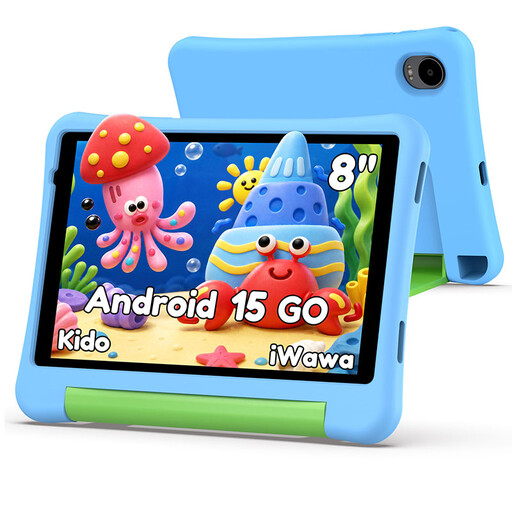
Alldocube Kido 8-inch Android 15 Children’s Tablet, 3GB+32GB
A child-focused tablet route for supervised gaming in shared spaces. The listing states an 8-inch display, Child Lock for content and screen-time management, protective case, Wi-Fi, 3.5 mm socket and 5000mAh battery. Check compatibility with a supervised child-account service and review controls in each game or chat service. No power adapter is included.
Joybuy
 No image available
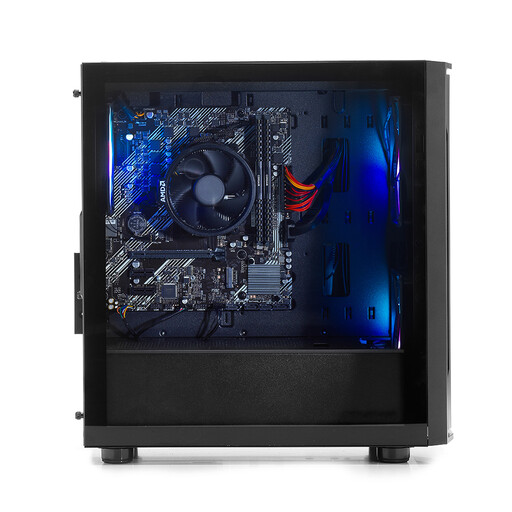
Stormforce PC AMD Ryzen 5 5500GT, 8GB RAM, 500GB NVMe SSD
A Windows 11 desktop for a fixed, supervised PC gaming area. The listing states an AMD Ryzen 5 5500GT processor, 8GB DDR4 RAM, 500GB NVMe SSD and integrated Radeon Vega 7 graphics. Configure a standard child account and relevant browser and game-platform controls; monitor, keyboard, mouse and headset inclusion should be checked.
Joybuy
 No image available
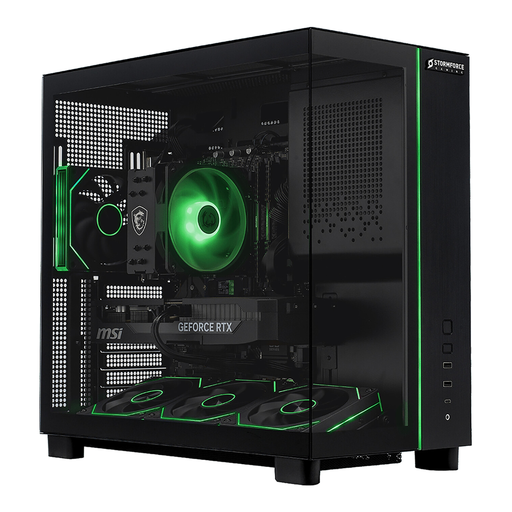
Stormforce Defiance AMD Ryzen 7, 32GB RAM, 2TB SSD
A Windows 11 desktop option for a permanent adult-supervised gaming station. The listing states 32GB RAM, 2TB NVMe storage and dedicated RTX graphics, with a stated 24kg tower format. Check the supplied graphics configuration because the title and detailed description differ, and configure controls across Windows, browsers and game services.
Joybuy
 No image available
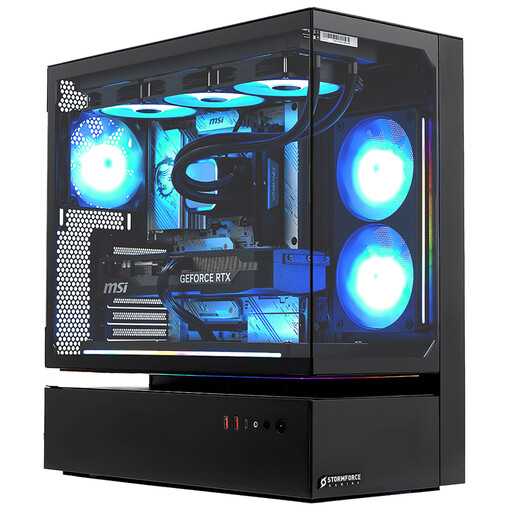
Stormforce Cyclone Intel Core i7, 32GB RAM, 2TB SSD, RTX 5080
A Windows 11 full-tower desktop for households setting up a dedicated gaming location. The listing states an Intel Core i7 processor, RTX 5080 graphics, 32GB RAM, 2TB SSD and a 22kg tower design. Keyboard, mouse and monitor are not included; use a standard child account and configure controls for every relevant service.
Joybuy
 No image available
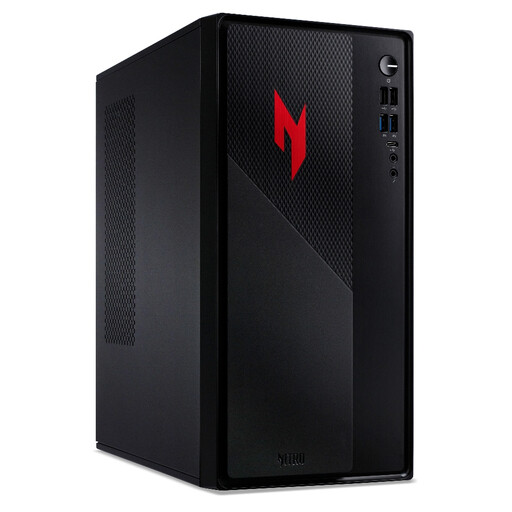
Acer Nitro N20 Intel Core i5-13420H, 16GB RAM, RTX 5060
A Windows 11 gaming device listing for families planning a supervised PC account. It states an Intel Core i5-13420H processor, 16GB RAM, 512GB SSD and GeForce RTX 5060 graphics. Confirm the form factor and display arrangement before buying, as the record describes both laptop and desktop use; configure family controls at each relevant layer.
Joybuy
Frequently asked questions
Why should my child use a separate account rather than an adult’s gaming account?
Use a separate child account within the relevant family group. Ofcom says that registering the correct age matters because platforms and services restrict some features, games and content for younger users; Apple also advises using a child’s own Apple Account rather than sharing another family member’s account.
Can a console’s parental controls manage online chat with other players?
Often, but the available controls depend on the ecosystem and the game. PlayStation lists online-communication controls in PS Family, Xbox privacy settings can determine who can communicate and interact with a child, and Nintendo Switch settings can limit communication between players. Check the game’s own communication features before allowing online play.
Can I use one set of rules across a Windows PC and Xbox?
Microsoft Family Safety can apply app and game limits across connected Windows, Xbox and Android devices. Web and search filtering has separate conditions: Microsoft states that it works through supported browsers while the family member is signed in to their Microsoft account.
Does a gaming headset provide parental controls?
No. A headset may make household communication arrangements easier, but communication, content, spending and time controls are set through family accounts, platforms and device settings rather than the headset itself.


