Parents choosing a first gaming device
If your child will play games with online features, compare the games available with the account, content, communication, purchase and time settings you can put in place.


Choose around the games your child will play and the controls your household can manage, rather than hardware specifications alone. A console offers gaming-focused family settings; a tablet, laptop or phone may also need controls for other apps and services. Whichever device you choose, set up a correctly aged child account and check communication, purchases and privacy inside each game as well as on the device.
If your child will play games with online features, compare the games available with the account, content, communication, purchase and time settings you can put in place.
Check whether restrictions follow the child’s account or affect everyone using the device. Nintendo UK says Switch parental controls apply to the console, not to each user.
Microsoft says app and game limits can extend across connected devices through Family Safety. Check which devices and services the child will use, and set up their family-group account.
Start with the intended games and the child’s account, then check where each control lives: on the device, in a family service, in the store or inside the game.
| Priority | What to check | Your needs |
|---|---|---|
| Games and device | Confirm that the intended games run on the console, tablet, computer or phone you are considering. Check whether online play uses another account or game service. | If my child mainly plays console games, a dedicated console may fit; for mobile games or PC titles, I need to check the corresponding device and its wider uses. |
| Child account | Check how to create a separate child account, register the correct age and add an adult family organiser. Ofcom says registered age affects restrictions on features, games and content for younger users. | I want controls attached to my child’s use, rather than relying on an adult account that the household shares. |
| Content and contact | Check age settings and PEGI information for each game, then inspect friends, chat, multiplayer and privacy settings in the platform account and game. Device controls may not cover every in-game interaction. | Who can contact my child matters as much as which games they can open. I need to review both sets of settings before online play. |
| Time and sharing | Compare schedules, play-time limits and activity information with the way your family shares devices. Nintendo UK says Switch restrictions apply console-wide; Google says Family Link app limits cannot be placed on system apps. | Our routine needs workable limits, but adults or siblings may also use the device. I need to know whom a limit will affect. |
| Purchases | Check store approval and spending settings separately from a game’s own purchase arrangements. Google says Family Link purchase approval applies to purchases processed through Google Play billing. | I want to know which requests I can approve and whether the child’s games use a different billing route. |
| Browsers and apps | For a laptop, tablet or phone, check controls for non-gaming apps and browsing too. Microsoft says its Family Safety web filters require supported Edge and Family Safety setups; confirm the browser and sign-in arrangement the child will use. | If the device is also for schoolwork, messaging or browsing, I need controls that suit those uses, not just the game launcher. |
Ofcom says platforms use a child’s registered age to restrict certain features, games and content. Using a shared adult account can defeat that age-based setup.
Before choosing a platform, check that you can create a separate child account and manage it through the required family group or companion app.
Controls have different boundaries: Nintendo’s companion app provides further Switch options, Microsoft web filtering has browser and sign-in conditions, and Google excludes system apps from Family Link app limits.
After setup, check the actual game, account, launcher and browser your child will use.
Google limits Family Link purchase approval to Google Play billing. Apple’s Ask to Buy and in-app purchase settings concern its own purchase routes; a game may require separate checks.
Set store restrictions, then inspect each game’s purchase and account settings before allowing online play.
Nintendo UK says Switch parental controls are set for the console rather than each user, so restrictions also affect adults and older siblings using it.
Set a shared console with its youngest player in mind, and decide whether console-wide restrictions suit everyone who uses it.
These are platform settings to investigate for the device you choose, not a list of devices available in the product section.
Switch and Switch 2 offer console parental controls, with further options through Nintendo’s companion app.
Microsoft family tools cover child settings on Xbox, with some app and game limits extending to connected Windows and Android devices.
Sony’s PlayStation Family app provides controls for a child family member using PS5 or PS4.
For iPad or iPhone, a Child Account in Family Sharing allows parents to manage device use through Screen Time.
Family Link provides supervised-account controls for supported Android devices and Chromebooks.
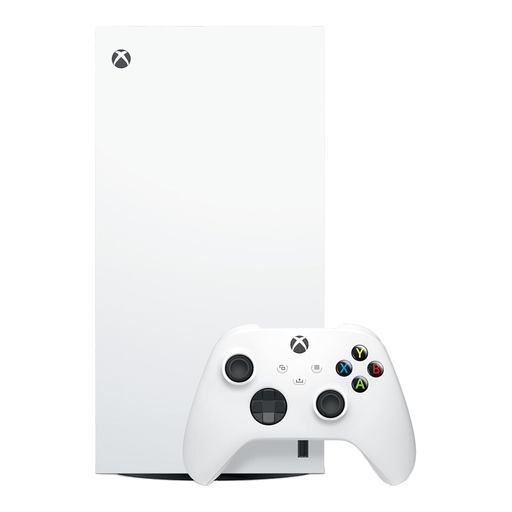
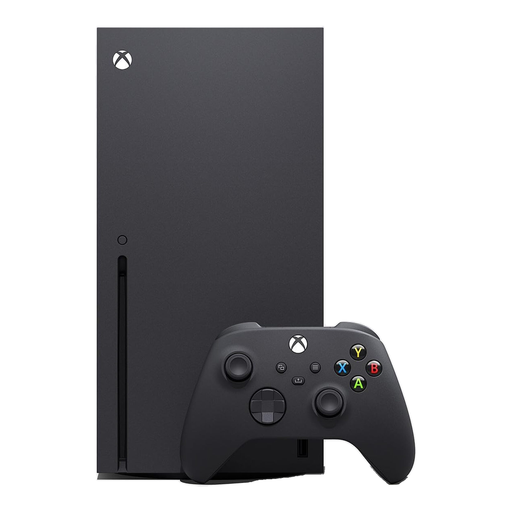
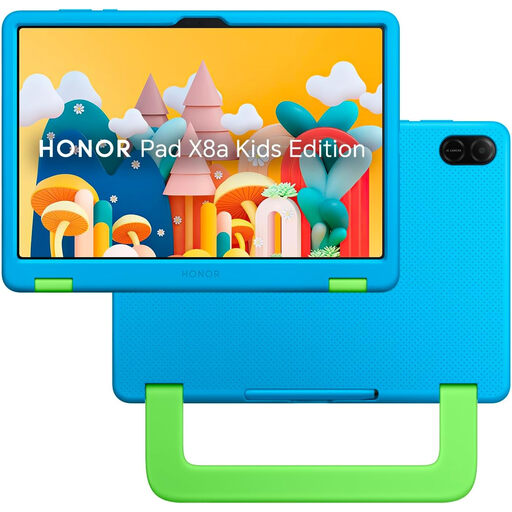
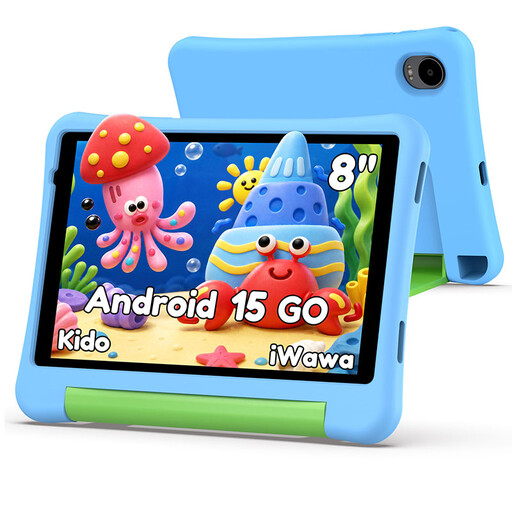
These Joybuy options cover two of the device routes discussed here: Xbox consoles for console gaming and child-oriented tablets for mobile games. Compare their account and game settings against your household’s needs before choosing.
 No image available
For a child playing Xbox console games, Microsoft’s family tools provide age-based content, communication, multiplayer and screen-time settings. Set up a child member of the Microsoft family group and check each game’s privacy and purchase settings separately.
 No image available
This Xbox console can be managed through a child account in a Microsoft family group. Microsoft lists age-based content, communication, multiplayer and screen-time settings; check the intended games’ own controls and confirm the console configuration if disc games matter to you.
 No image available
A tablet option for mobile games and apps. Its product description describes a Kids Mode and parent-managed time and content settings; before choosing it, confirm how those settings are set up and whether the intended games’ communication and purchases need separate controls.
 No image available
For supervised mobile-game use, the product description identifies a Child Lock; confirm its setup and check communication and purchase settings in each intended game. The listed configuration has a Unisoc T310, 3GB+32GB, 5G WiFi and a 5000mAh battery. It states that no adapter is included, so check that you have a suitable one.
Set up a separate child account in the platform’s family group where supported. Ofcom says the correct registered age matters because platforms restrict certain features, games and content for younger users; check the account arrangement before your child starts online play.
Console controls are a starting point, not a substitute for checking each game. Review the child’s friends, chat, multiplayer, privacy and purchase settings in the platform account and the games they will play.
Nintendo UK says Switch parental controls apply to the console, not to each user, so everyone using it faces the same console restrictions. Set those controls with the youngest player in mind and check separately which Nintendo Account family restrictions are available.
Do not assume it will. Apple offers Ask to Buy and in-app purchase restrictions through its family tools, while Google says Family Link approval applies only to purchases processed through Google Play billing. Check how each intended game handles purchases.
Use PEGI information to help choose age-appropriate games, then check online features separately. PEGI identifies controls for areas including chat, spending and play time; the device, platform account and game may each have settings to configure.