Choose the console, tablet or computer setup whose child-account controls address your main concern, rather than assuming any device controls every online game. Before your child plays, set up an account with their correct age and check communication, content, play-time and purchase settings separately; the controls that apply can depend on the game, device, browser or payment method.
Who this setup is for
Parents focused on online contact
If your child uses multiplayer games or chat, you may want to manage who can contact them and revisit those settings as features change. Ofcom identifies strangers and bullying among parents’ concerns about children gaming online.
Parents managing digital purchases
If your child can download games or make in-game purchases, check the approval process and the payment methods they can use. Microsoft, Apple and Google describe different limits to their purchase-approval controls.
Families using more than one device
If play moves between a console, tablet and computer, check which limits follow the child’s account and which must be set on each device. Ofcom notes that devices offer different parental controls.
What to check before choosing
For a child who mainly plays on one console, start with that console’s family settings. For app-based tablet gaming or play across a PC and other devices, check the relevant child account and each service your child will use; treat home-network controls as an additional layer, not a substitute for game and account settings.
| Concern |
What to check |
Who this matters to |
| Online contact |
Check chat, friend requests and multiplayer permissions for the child’s account and intended games. On Nintendo Switch 2, check GameChat separately from other communication restrictions. |
If my child plays with others online, I want to know who can contact them without blocking every social feature they use. About 31% of consumers would put communication controls first. |
| Content and account access |
Use an account with the child’s correct age; check whether content restrictions apply to that account, a particular device or everyone using a shared console. |
When we share a device, I need the child’s access settings to reflect their age rather than an adult’s account. Content and account boundaries would be the primary need for about 25% of consumers. |
| Purchase controls |
Check approval settings alongside gift cards, stored balances and the payment route used for in-game purchases. |
If my child can open a game store, I want to understand which transactions require my approval. Roughly 19% of consumers would prioritise purchase controls. |
| Play time across devices |
Check whether limits apply per console, app or signed-in account, and whether the intended browser is covered. |
When play moves between devices, I need a routine that still works with the accounts my child actually uses. Play-time and multi-device management would come first for about 25% of consumers. |
Setup mistakes to avoid
-
Using an adult account for the child
An adult account or inaccurate registered age can prevent child-account restrictions from working as intended. Ofcom advises parents to check that their child is registered with the correct age.
Create a separate child account, add it to the relevant family group and test its settings before your child goes online.
-
Assuming one filter covers every activity
Content, communication, play-time and purchase controls can sit in separate settings. Nintendo, for example, manages Switch 2 GameChat separately from general communication restrictions; Microsoft says Xbox purchase approval does not cover gift cards or account currency.
Test the child’s access to the intended games, chat features and store, including any stored balance.
-
Treating shared-console limits as per-child settings
Nintendo says Switch 2 parental controls apply to the console rather than to each individual user, so the same console-level restrictions affect everyone using it.
If children need different boundaries, check the available account-level settings as well as the restrictions on the shared console.
-
Expecting a network tool to manage in-game controls
A home-network setting is a different layer from a child’s platform account, game chat permissions and store approvals. Check the tool’s stated coverage instead of assuming it manages those settings.
Configure the console, tablet or computer’s child-account controls separately, then assess whether a network tool adds anything useful for your household.
Platforms and brands to consider
PlayStation
A console route for families managing a child’s gaming through PlayStation family controls.
- Sony Interactive Entertainment lists child settings for games and apps, online communication, spending and play time.
- Sony says some family features may be available only through the PlayStation Family app; check how you will manage the settings you need.
Xbox
A console route that can also suit households using Microsoft family accounts on connected devices.
- Microsoft describes Xbox family settings for content, screen time, social communication and multiplayer.
- Xbox purchase approval does not require approval for spending with gift cards or Microsoft-account currency.
Nintendo
A Switch console route with console, app and Nintendo Account controls to consider together.
- Nintendo describes controls for play time, communication and eShop-related restrictions.
- On Switch 2, console parental controls apply to every user, and GameChat settings must be managed separately.
Apple
An iPad route for families using a child Apple Account with Family Sharing.
- Apple says Screen Time can manage apps, websites, communication and device use, while Ask to Buy covers eligible downloads and in-app purchases.
- The described family setup requires a separate child account, and available controls can vary by device.
Google
An Android-tablet or Chromebook route for families using a supervised Google Account.
- Google describes Family Link controls for apps and screen time, alongside Google Play content and purchase settings.
- Google Play content restrictions are device-specific, and purchase approval covers purchases through Google Play’s billing system.
Joybuy products for console and tablet setups
These Xbox consoles and children’s tablets represent two ways to set up gaming at home. Choose the device for the games your child intends to use, then check its child-account controls rather than relying on the hardware name alone.
 No image available
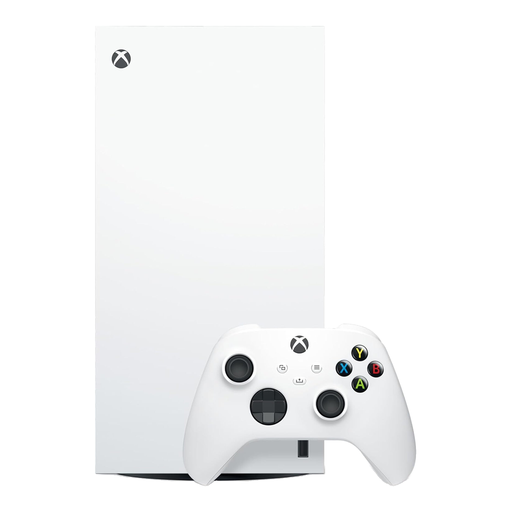
Xbox Series X 1TB Digital Edition — White
Consider this 1TB Digital Edition if your child will game in an Xbox family setup. Microsoft describes content, screen-time, communication and multiplayer settings for Xbox child accounts; check the intended games separately, and remember that purchase approval does not cover gift cards or Microsoft-account currency.
View on Joybuy
 No image available
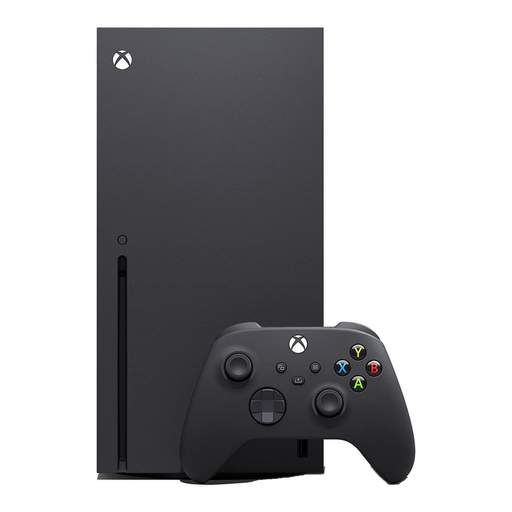
Xbox Series X 1TB Console — Black
This 1TB Xbox Series X is another console option for a child using an Xbox family account. Set content, communication and play-time controls for that account, and check payment methods as well as purchase approval because Xbox excludes gift-card and Microsoft-account currency spending from approval.
View on Joybuy
 No image available
HONOR X8A Kids 11-inch WiFi 128GB — Space Grey
For a child playing games through tablet apps, this 11-inch WiFi model has 128GB in the listed configuration. Its product description refers to child-account setup and parent-approved apps; check how communication restrictions and purchase approval work for the apps and account you plan to use.
View on Joybuy
 No image available
Alldocube Kido 8-inch Android 15, 3GB+32GB — Blue Case
This children’s tablet is listed with Android 15, Child Lock, 3GB+32GB and a blue protective case. Check exactly what Child Lock controls in the games your child will use, particularly chat and purchases. The listed bundle does not include an adapter, so check the charging arrangement.
View on Joybuy
Common questions
Should my child use my adult gaming account?
Use a separate child account for the family-control setups described here. Ofcom advises registering children with their correct age, and Apple specifies a child’s own Apple Account for its Family Sharing setup. Configure the relevant controls on that account before play begins.
Will one parental-control setting cover chat, games and purchases?
No single setting should be assumed to cover all three. Nintendo manages Switch 2 GameChat separately from other communication restrictions, while Google says its purchase approvals cover purchases through Google Play’s billing system. Check each activity in the child’s actual account and games.
Do Xbox purchase approvals cover gift cards?
No. Microsoft says Xbox purchase approval is not needed when a child spends gift cards or Microsoft-account currency. Review stored balances and payment arrangements alongside the approval setting.
Will Microsoft Family Safety filter every browser on a gaming PC?
Not automatically. Microsoft says its web and search filters work with Microsoft Edge when the family member is signed in; other browsers can be blocked while filtering is active but may be manually unblocked. Test the browser and account your child will actually use.


