Choose the device that supports the games and people your child expects to play with, and that your household can manage through a separate child account. PlayStation, Xbox and Nintendo offer different family-management setups; an existing tablet or PC may also fit if the intended games are there. Before online play, check the child’s account details, purchase and communication permissions, and each game’s settings.
Who this decision affects
Parents setting up a first online account
A separate child account and the correct date of birth matter before online play begins. Ofcom advises using a child’s correct age because services may use it to restrict features, games or content; check how the chosen platform links that account to a parent.
Families managing playtime and purchases
If you want to set a routine and oversee digital-store activity, compare the controls you would actually use. PlayStation, Xbox, Nintendo and Apple provide family-management tools, but their account requirements and control settings differ.
Parents concerned about online chat
Check communication and multiplayer permissions for the child’s account, then review the intended games separately. Ofcom reports that children who game online may play with people they have not met in person.
What to check before choosing
Start with the child’s intended games and play group, then check whether your household can set up and maintain the account controls that matter most.
PlayStation
Consider it when: The child intends to play on PlayStation and you want to manage playtime, age restrictions, spending limits and social settings through the PS Family app.
Keep in mind: Set up the child in PlayStation family management and review communication settings within individual games.
Xbox
Consider it when: The child intends to play on Xbox, particularly if your family already manages connected Windows, Xbox or eligible Android devices through Microsoft accounts.
Keep in mind: Cross-device app and game limits require connected devices; Microsoft web filtering also depends on supported browsers and sign-in.
Nintendo Switch or Switch 2
Consider it when: Portable and TV play both matter, and you want app-managed playtime limits and activity information.
Keep in mind: Nintendo says console restrictions apply to the console rather than one user. Its eShop purchase restrictions require a parent or guardian account in a Nintendo Account family group.
Tablet or PC
Consider it when: The intended games and play group are already on a tablet or PC, and your household can manage that device’s accounts and other apps.
Keep in mind: Apple family controls require Family Sharing and a separate child Apple Account; Microsoft controls depend on the connected devices and, for web filtering, browser and sign-in conditions.
| Concern |
What to check |
Who this matters to |
| Account and communication controls |
Confirm that you can create a child account with the correct date of birth and manage age, multiplayer and communication settings. |
I want to decide who can contact my child without giving them an unrestricted adult account. Around 29% of consumers would put these controls first. |
| Purchases and playtime |
Compare purchase approval, spending limits or purchase restrictions, alongside the playtime controls available to a parent. |
Keeping digital purchases and gaming hours within our family routine is my main concern; roughly 29% of consumers would make that their priority. |
| Games and friends |
Check where the intended games and regular play group are, then review those games’ chat and multiplayer settings. |
If my child cannot play the intended games with their usual group, the device may not fit. About 24% of consumers would prioritise that match. |
| Existing devices and accounts |
Check whether your Apple or Microsoft family setup covers the intended device and which account, browser or connection conditions apply. |
I would rather build on the devices and family accounts we already manage if the intended games are available there. Around 18% of consumers would put that fit first. |
Common buying mistakes
-
Buying before checking the intended games and play group
A console may not suit the child’s intended play if the relevant games or regular group are on another platform.
Ask which games the child expects to play and which devices their friends or siblings use before choosing a device.
-
Letting a child use an adult account for convenience
Age-related settings and parent-managed controls can depend on the account’s date of birth and place in a family group.
Create or link a separate child account with the correct date of birth before setting up purchases or online communication.
-
Assuming one control covers every game and browser
Controls have feature-specific conditions. Microsoft documents browser and sign-in requirements for web filtering, while Nintendo provides separate settings for Switch 2 GameChat.
Check the active account and test the browser, multiplayer and chat features the child will actually use.
-
Treating a game’s PEGI rating as the only check
An age rating helps with game-content decisions but does not set the child’s communication, spending or playtime permissions.
Check the rating, then configure the child account and review each game’s online features separately.
Platform brands to consider
PlayStation
A console route for families who want to manage a child’s PlayStation use through the PS Family app.
- PlayStation says parents can manage playtime, child-store spending limits, age restrictions and social features through its family tools.
- The child needs the appropriate family-account setup; individual game settings still need checking.
Xbox
A console route worth considering when the household already uses Microsoft family accounts across connected devices.
- Xbox documents screen-time, age-based content, communication and multiplayer settings. Microsoft also documents app and game limits across connected Windows, Xbox and eligible Android devices.
- Cross-device controls depend on the family and device setup; Microsoft web filtering has supported-browser and sign-in conditions.
Nintendo
A Switch and Switch 2 route for families considering portable and TV play with app-managed console controls.
- Nintendo documents daily play limits and activity information through its parental-controls app, alongside settings for Switch 2 GameChat.
- Nintendo says console restrictions apply to the console rather than an individual user; eShop purchase restrictions need the appropriate family-group setup.
Joybuy console choices
These consoles represent the PlayStation, Xbox and Nintendo routes. Choose between them according to the child’s intended games and the family-account setup you can manage; a tablet or PC remains a separate option if that is where the child plans to play.
 No image available
Sony PlayStation 5 Slim Disc Edition Console
Consider this console if the child’s intended play is on PlayStation and your household can manage a separate child account.
This is the Slim Disc Edition. PlayStation’s family controls require account setup, and online permissions should also be checked within each intended game.
Joybuy
 No image available
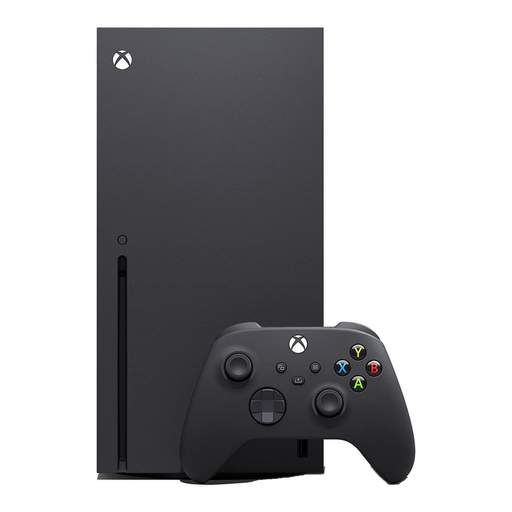
Xbox Series X 1TB Black Console
Consider this console if the child intends to play on Xbox and your household can set up a Microsoft child account.
The listed capacity is 1TB. Xbox family settings cover screen time, content, communication and multiplayer; cross-device limits depend on the child’s connected devices.
Joybuy
 No image available
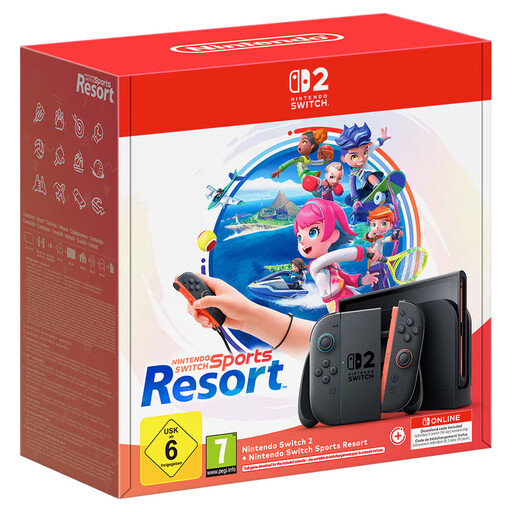
Nintendo Switch 2 Console + Nintendo Switch Sports Resort
Consider this listed console bundle if the child’s intended games are on Nintendo Switch 2 and portable as well as TV play matters.
Nintendo’s parental-control restrictions apply to the console rather than one user. Check the family-group setup for eShop restrictions and the account requirements for the online features the child intends to use.
Joybuy
Questions parents ask
Should my child have a separate account?
Yes, use a child or supervised account where the chosen platform provides one, rather than sharing an unrestricted adult account. Ofcom advises registering children with their correct age because services may use it to restrict features, games or content; check the platform’s family-group setup before online play.
How do purchase controls differ between platforms?
Choose the type of control you want rather than assuming every platform handles purchases alike. PlayStation documents monthly child-store spending limits, Xbox documents organiser purchase approval, Nintendo documents eShop purchase restrictions for the appropriate family setup, and Apple provides Ask to Buy for eligible purchases.
Can a gaming headset control who talks to my child?
A headset is not a substitute for setting communication permissions on the child’s account. Check the platform’s social or chat controls and the settings of each game or service the child will use.
Could a tablet or PC make more sense than a console?
A tablet or PC may fit if the child’s intended games and play group are there and your household can manage the relevant accounts and apps. Apple Family Sharing and Microsoft Family Safety provide different controls, so check the child-account, connected-device and browser conditions that apply to your setup.


