Choose the tablet’s operating system and child-account setup before comparing screen sizes: iPads, Android tablets and Fire tablets offer different ways to manage apps and use. Check the school’s actual apps, logins and video-call requirements against the tablet you intend to buy, then compare battery life, screen quality and ease of use for the child’s mix of learning and media.
Who is this for?
Parents matching a school’s digital setup
If schoolwork is the main reason for buying, start with the school’s apps, browser services, accounts and call tools. The Department for Education advises schools to assess devices according to how they will be used.
Households managing a child’s access
A separate child account or profile, app approvals and screen-time rules may shape the choice. Apple, Google and Amazon describe different setups and limits, so check which controls work with the accounts your household uses.
Families sharing learning and media time
When one tablet will handle calls, reading, streaming and games, everyday usability matters alongside school access. Which? assesses battery life, screen quality, speed and ease of use in its tablet testing.
What matters when choosing?
Settle school access and household controls before weighing up the screen and other specifications. A protective case is an accessory decision, not an alternative to a suitable tablet.
iPad
Consider it when: You want to manage a child’s Screen Time from a parent or guardian’s Apple device.
Account setup: Apple’s documented remote setup requires Family Sharing and individual Apple Accounts, including a Child Account; newer controls also depend on compatible current software across the family group.
Android tablet
Consider it when: Your household uses Google services and wants to assess Family Link for a supervised child account.
Account limits: Google says Family Link cannot manage Google Workspace for Education accounts. Samsung’s additional child-account controls require an applicable Galaxy device running One UI 6.1 or later.
Amazon Fire tablet
Consider it when: An Amazon Kids profile and controls for everyday child-oriented media use suit the household.
Schoolwork check: Amazon’s profile controls do not establish whether the school’s apps, websites or logins will work. Amazon directs parents of children under 13 to use a Child Profile.
| Concern | What to check | Who this matters to |
|---|
| Schoolwork and calls |
Ask the school about required apps, browser tools, account logins and video calls; check them against the exact tablet. |
If assigned work or calls will drive the purchase, I need those services to work before considering extras. Around 29% of consumers put schoolwork and call access first. |
| Child accounts and controls |
Check the child-profile setup, app and purchase approvals, and which device or account can manage them. |
When a child will use the tablet independently, I want manageable access without assuming one account’s controls cover another. For around 29% of consumers, child accounts and controls are the primary concern. |
| Media and responsiveness |
Compare exact-model battery, screen and speed results under a consistent test method. |
If streaming and games will share time with learning, interruptions or sluggish use would matter to me. Around 21% of consumers prioritise everyday media performance. |
| Shared use and protection |
Check the intended profile arrangement and whether a case fits the exact tablet and leaves needed ports and cameras accessible. |
With more than one child using the device, I need workable account separation and protection that fits. Shared-use practicality comes first for around 21% of consumers. |
Mistakes to avoid
-
Buying before checking the school’s requirements
A tablet that plays videos may still be unsuitable for a school’s apps, managed account, document workflow or calls. Google says Family Link does not manage Google Workspace for Education accounts.
Ask the school which services and account types the child must use, then check those requirements against the exact tablet and operating system.
-
Assuming parental controls work automatically
Apple’s child setup requires Family Sharing and a Child Account; Google and Fire controls have different account and profile arrangements.
Plan the child’s profile, app approvals and screen-time settings before use, and keep the parent’s account credentials separate.
-
Using price as a shortcut for quality
Which? tests tablet battery life, screen performance, speed and ease of use rather than treating price as a measure of those qualities.
Compare results for the exact models under consideration and focus on the child’s regular tasks.
-
Overlooking the privacy side of monitoring
The Information Commissioner’s Office notes that parental controls can affect a child’s privacy and access to information, particularly when monitoring or tracking is involved.
Explain which controls are on in an age-appropriate way and revisit the arrangement as the child grows.
Brands to consider for this setup
Apple
An iPad may suit a household that wants to manage a Child Account through Family Sharing and Screen Time.
- Apple documents controls for apps, content, communications and usage time.
- Its remote child setup needs individual Apple Accounts and Family Sharing; check software compatibility for the controls you intend to use.
Samsung
A Galaxy Tab is an Android route for families considering Google services alongside Samsung’s family features.
- Samsung describes family settings for web use, age-rated apps and games, downloads, purchases and screen time.
- Samsung says its child-account parental controls can be managed and applied only on Galaxy devices running One UI 6.1 or later; check the exact model.
Amazon
Fire tablets offer an Amazon Kids profile route for households focused on child-oriented everyday use.
- Amazon describes Parent Dashboard controls for time limits, content categories, pauses and bedtimes.
- Those controls do not establish compatibility with a school’s apps or managed accounts; check each required service before choosing a Fire tablet for schoolwork.
Joybuy tablet options
These Android tablets are child-oriented options for learning and everyday media use. Check school-service compatibility and the child-account controls you need for the exact model before choosing either one.
 No image available
Alldocube Kido 8-inch tablet with blue protective case
An Android tablet to consider for a child’s learning apps and media, provided the required school services work on it.
The title specifies Android 15, 3GB memory, 32GB storage, a 5000mAh battery and a protective case. It labels a Child Lock feature without defining its controls, so check the settings you need. No adapter is included.
View on Joybuy
 No image available
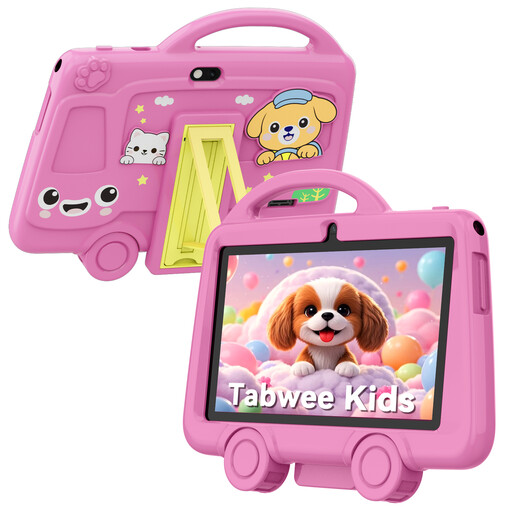
TABWEE K8 Kids 7-inch tablet, 2GB RAM and 32GB storage
A child-oriented tablet to assess for learning and media use if its screen size and required school services suit the intended tasks.
The title specifies a 3000mAh battery, 2.4GHz Wi-Fi, a 2MP front camera and a weight of 285 grams. Check the intended schoolwork on its 7-inch screen and confirm the child-account controls you need before buying.
View on Joybuy
Common questions
Will any tablet work for my child’s schoolwork?
Not necessarily: compatibility depends on the school’s apps, browser tools, login method and any device-management rules. Ask the school for its requirements and check them against the exact tablet; Department for Education guidance says devices should be assessed according to their educational use.
Can Family Link manage a school Google account?
No. Google says Family Link cannot manage Google Workspace for Education accounts. Check the child’s school-account arrangements separately from any supervised personal Google Account.
What do I need to manage an iPad’s Screen Time from my device?
Apple says you need Family Sharing and individual Apple Accounts, including a Child Account for the child. Check that the family’s devices have the relevant software versions for the controls you plan to use.
Does a case offered with one child-focused tablet come with others?
No such inclusion should be assumed. Check the exact tablet and bundle for the supplied accessories, and make sure any separate case fits that model.


