
24/7 Customer Support

Free returns

Same-day & Next-day Delivery

Quality Guaranteed

Unlock Your Welcome Offers: FREE Delivery | Up to 80% OFF | Free 30-day JoyPlus trial
Download the APP
Choosing a first tablet for your child can feel like navigating a minefield of technical jargon and exaggerated marketing claims. As a parent in the UK, you want a device that is safe, educational and can withstand the inevitable tumbles of daily life. However, many fall into common traps that lead to disappointment and wasted money.
Before you buy, be aware of these frequent pitfalls:
educational tablet can be a double-edged sword. Often, these are filled with low-quality apps, games riddled with advertisements, or "lite" versions that require expensive subscriptions to unlock their full potential, turning a one-off purchase into an ongoing expense.safe tablet for children requires granular controls that allow you to manage screen time, filter content and approve apps individually.To make an informed decision, focus on the practical features that directly impact safety, usability and longevity. Here are the non-negotiable parameters to check.
This is the most critical feature of any kids tablet with parental controls. A comprehensive system should allow you to:
True durability is about more than just a bright durable kids tablet case. A well-designed children's tablet considers the realities of use.
You do not need a top-of-the-range processor for a child's first tablet. Focus on the specifications that deliver a smooth and frustration-free experience for their needs.
8 inch tablet for kids often hits the sweet spot. It's large enough for watching videos and playing games comfortably but small enough for easy handling and travel.We have analysed the market to find tablets that align with these practical principles. Instead of a single "best" option, we match products to different needs and age groups.
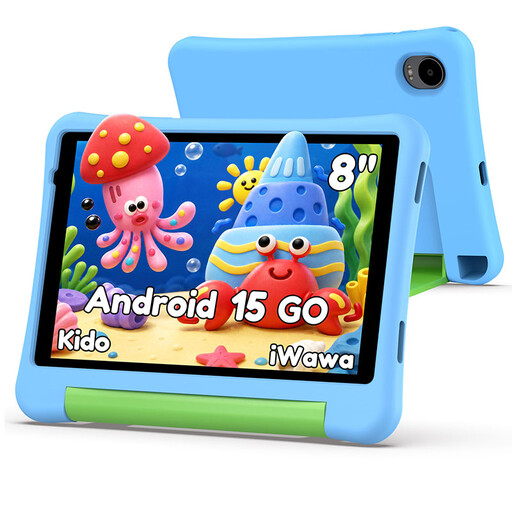
Why This Fits Their Persona: This device is purpose-built as a first children's android tablet. It prioritises safety and durability over raw power, making it an ideal, contained environment for a young child's introduction to digital media in the UK. It's also available with a pink case.
It features a dedicated Child Lock software suite for robust parental control and includes a purpose-built case with a raised bezel, directly addressing the common pitfalls of weak controls and poor protection.
An all-in-one solution. The combination of an 8-inch screen, a 5000mAh battery and the included protective case removes the guesswork for parents looking for a reliable first device.
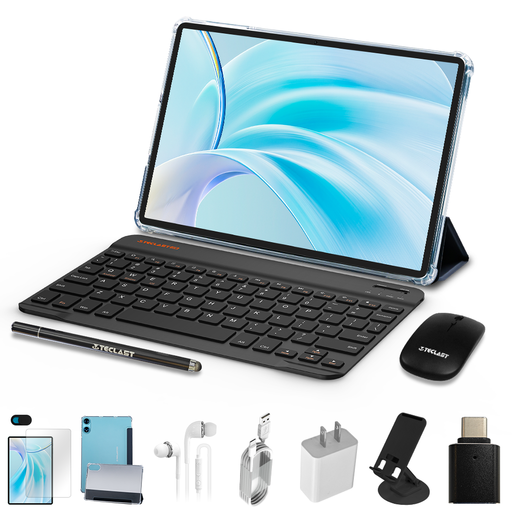
Why This Fits Their Persona: As children approach their pre-teen years, their needs evolve towards schoolwork and more demanding media. This 11-inch tablet bundle provides a larger screen and a keyboard, making it a versatile tool for homework, research and entertainment.
While not a dedicated kids' device, its standard Android 15 OS is fully compatible with powerful parental control apps like Google Family Link. The included case and keyboard provide immediate value and protection.
Excellent value as a complete bundle. The large 11-inch display and 7000mAh battery are great for media, while the included keyboard transforms it into a capable homework station.
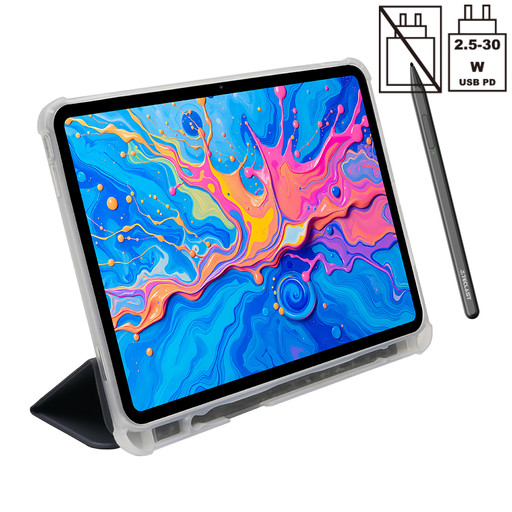
Why This Fits Their Persona: For the creative teen focused on digital drawing, animation or advanced note-taking. This tablet offers specialised features that support artistic pursuits, moving beyond a simple media consumption device.
This is a specialised tool, not a toy. It bypasses the "kid-tablet" category to offer features like a pressure-sensitive stylus, which are genuinely useful for creative work, rather than gimmicky "educational" software.
The combination of a large 12.7-inch 2K display and a stylus with 4096-level pressure sensitivity provides an excellent entry point for digital art, a feature set not typically found at this price point.
Finding the right tablet is the first step. The second is ensuring it's protected for the long haul. A high-quality case is essential, especially for devices not originally built for children.
We have compiled a complete, real-time list of products that fully satisfy these strict selection criteria and UK safety regulations.
Start by creating a separate user profile for your child within the tablet's settings. Use the built-in parental control app or download a reputable third-party one like Google Family Link. From there, you can set daily time limits, define "bedtime" hours when the device is locked and manually approve or block the specific apps your child can access. It is good practice to review these settings every few months as your child's needs change.
With proper care, a well-chosen children's tablet should remain useful for 2-4 years. The main factors that limit its lifespan are typically battery degradation and the processor eventually struggling with newer, more demanding apps. Investing in a durable kids tablet case from day one is the single most effective way to extend its physical life by protecting it from drops and bumps.
Yes, many excellent, subscription-free options are available on the Google Play Store. Look for apps from trusted, non-profit educational sources like BBC CBeebies, PBS Kids and Khan Academy Kids. Before downloading any new app, always check its store page for "in-app purchases" to avoid any unexpected costs.