What should you decide before buying?
For a home online-gaming set-up, settle the device route and account arrangements together, then choose accessories for that device. The household’s primary concern determines which checks deserve attention first.
Games console
Consider it when: The family wants console play and can use the chosen platform’s child-account and family-management tools.
Allow for: Xbox, PlayStation and Nintendo use different arrangements, and some communication features need separate settings.
Gaming PC
Consider it when: The child needs PC gaming and the household is prepared to configure a separate Windows child account.
Allow for: Microsoft warns that a child with Windows administrator access can change or break Family Safety settings; games and launchers may have their own social controls.
Gaming tablet
Consider it when: Portable play and the household’s existing iPad or Android family set-up are the priorities.
Allow for: Apple and Google describe different app and device controls; check the intended games and the tablet’s supported settings.
| Concern |
What to check |
Who this matters to |
| Chat and child accounts |
Check separate child-account options and the intended platform’s messaging, multiplayer and voice settings. |
If my child will talk or play with others online, I want an account I can manage without sharing my own login. For around 36% of consumers, communication and account control would come first. |
| Shared-device management |
Check profiles for regular users and how sign-ins affect reporting; on a Windows PC, use a standard child account. |
When siblings share a device, I need limits and activity information to follow the right child. Shared-use management would be the primary concern for around 29% of consumers. |
| Device route |
Match console, PC or portable play to the intended games, then check the relevant account and family-control tools. |
If play needs to move between rooms, or a particular game needs a PC, I would settle the device route before choosing extras. Around 21% of consumers would put that fit first. |
| Accessories and play space |
After choosing the device, check controller and headset compatibility and whether voice chat will be used. |
With the main device chosen, I need accessories that suit our shared space and intended conversations. For around 14% of consumers, accessory and play-space fit would be the leading concern. |
Joybuy products for PC and tablet routes
These Windows desktops and Android tablet are options to consider after deciding how the child will sign in and which games they intend to use. Check each game’s requirements and communication settings; the hardware itself does not establish a family account arrangement.
 No image available
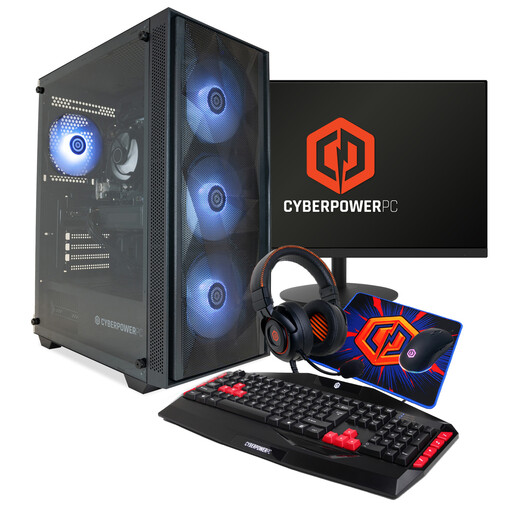
CyberPowerPC JOYB1004 gaming PC bundle
Consider this Windows PC route if the household wants a desktop listed with a monitor, keyboard, mouse, headset and mousepad; check the supplied bundle configuration before buying.
AMD Ryzen 5 7500F, NVIDIA GeForce RTX 5060 8GB, 16GB DDR5, 1TB NVMe SSD and Windows 11 Home.
Set up a separate child account and review the intended games’ communication settings.
View on Joybuy
 No image available
CyberPowerPC JOYB1013 white gaming desktop PC
Consider this Windows desktop if the household is assembling a PC set-up with separately supplied display and accessories.
AMD Ryzen 7 9800X3D, NVIDIA GeForce RTX 5080 16GB, 32GB DDR5, 2TB NVMe SSD and Windows 11 Home.
Monitor, keyboard, mouse, headset and mousepad are not included. Configure a child account and check each intended game’s communication options.
View on Joybuy
 No image available
CyberPowerPC JOYB1010 black gaming desktop PC
This is another Windows desktop option for a household providing its own display and accessories.
Intel Core Ultra 7 265KF, NVIDIA GeForce RTX 5070 12GB, 32GB DDR5, 1TB NVMe SSD and Windows 11 Home.
Monitor, keyboard, mouse, headset and mousepad are not included. Set up a separate child account and check the intended games’ communication settings.
View on Joybuy
 No image available
Stormforce Defiance Ryzen 7 5700X gaming PC
Consider this Windows desktop for the PC route, checking the supplied configuration and the child’s intended games before choosing it.
AMD Ryzen 7 5700X, 32GB RAM, 2TB SSD, RTX5070 and Windows 11.
Confirm which monitor and peripherals will be supplied. Configure a child account and review game-specific communication settings.
View on Joybuy
 No image available
Alldocube Kido 8-inch tablet with blue case
Consider this portable Android route only after checking that the child’s intended online games and family-management arrangements work on the tablet.
8-inch display, Android 15, Unisoc T310, 3GB RAM, 32GB storage and a blue protective case. The product name lists a child lock but does not establish which settings it manages.
No adapter is listed as included. Check the available account and communication controls before relying on them.
View on Joybuy
Questions families ask
Does a PEGI age rating cover online chat?
No. PEGI ratings address the age suitability of game content, while PEGI warns that user-generated content and other players’ behaviour can differ from the rated content. Check the age label and descriptors, then review the platform’s and game’s communication settings separately.
Should siblings have separate accounts on a shared Xbox or Windows PC?
Separate accounts help keep each child’s settings and activity associated with the right sign-in. Microsoft Support says activity is reported while a member is signed in; on a Windows PC, use a standard child account rather than giving the child administrator access.
Do Switch parental controls set up Switch 2 GameChat automatically?
No. Nintendo says Switch 2 GameChat settings must be adjusted separately, and a parent or guardian must approve its use for a player under 16.
What should I set up before a child plays online on PlayStation?
Set up a family manager and a separate child account, then configure the relevant playtime, spending and messaging settings. Sony describes the PlayStation Family app as a way to manage those areas from a mobile device; check the child’s games for additional social settings.
Which PEGI age ratings are legally enforceable for physical games in the UK?
The Games Rating Authority says physical games rated PEGI 12, 16 or 18 cannot be sold or rented to someone below the stated age in the UK. That sale-and-rental rule does not assess whether a particular game’s online interactions suit a child.


