Parents choosing a first home-use device
For families deciding whether supervised games, video, reading, creative apps and learning are better served by a Wi-Fi tablet or a shared computer before independent mobile communication is needed.


Choose the device route around the child’s main activity and the supervision arrangement your household can maintain: a tablet suits supervised home use, a smartphone suits independent contact away from home, and a Chromebook or laptop suits typing and school-style web work. Set up an individual child account before handover, and use device, app, home Wi-Fi and network settings together rather than relying on one control.
For families deciding whether supervised games, video, reading, creative apps and learning are better served by a Wi-Fi tablet or a shared computer before independent mobile communication is needed.
For carers whose main reason is calls, messages and contact while a child is away from home, and who need to coordinate device settings, mobile-plan filters, home Wi-Fi controls and app settings.
For households comparing a Chromebook or Windows laptop where typing, browser-based work, school accounts, user separation and future supervision matter more than pocketability.
Start with what the child needs to do independently, then confirm the account and supervision setup before choosing a device.
| Priority | What to check | Your needs |
|---|---|---|
| First use | Decide whether the main task is family contact away from home, home entertainment, video, reading, creative apps or schoolwork. Check whether Wi-Fi-only access is enough. | I want the device to fit what my child will actually do first, rather than choosing by age alone. |
| Family account | Confirm the child account, family group and parent device needed for Apple Family Sharing, Google Family Link or Microsoft Family Safety. Check platform compatibility before purchase. | I need a supervision system that works with the devices and accounts already used at home. |
| Layered controls | Review device settings, app permissions, purchase settings, home Wi-Fi controls and, for a phone, mobile-plan filters. On a Chromebook, check guest mode and additional-user settings. | I want the child’s account and everyday browsing route to be covered, without assuming one setting controls every app or network. |
| Ownership and charging | Check the exact case and protection options for the model. Use a compatible charger from a reputable retailer, retain proof of purchase and compare cover before paying for an extended warranty. | I want a practical setup for a portable device that may be shared, carried between rooms or kept for several years. |
The available controls depend on the operating system, an individual child account, a family group and compatible parent devices. A device can be a poor fit if the household cannot use the supervision route it planned.
Before purchase, choose between Apple Family Sharing and Screen Time, Google Family Link, or Microsoft Family Safety, then check the parent device, child device, account and software requirements.
Device controls, mobile-network filters, home Wi-Fi controls and settings inside apps or services address different access paths. EE and O2 both advise that more than one layer may need attention.
Set up the relevant layers for the chosen route, review permissions and purchase settings, and agree how the child can report, block and discuss upsetting content.
Google says that a child may use a Chromebook without Family Link settings applying if guest mode or additional users are allowed.
For a supervised Chromebook, make the parent the owner account, disable guest mode, control who can add users and check how a school account changes available services.
Electrical Safety First advises buying USB chargers from reputable retailers. GOV.UK notes that an extended warranty is optional and statutory rights may apply when goods are faulty.
Use a reputable, compatible charger and retain purchase records. Compare warranty exclusions and existing cover with the manufacturer warranty, statutory rights and likely replacement needs.
A charger, case, repair arrangement or replacement plan can affect the practical cost of keeping a child’s device in use.
Relevant when the family is choosing an iPhone, iPad or Mac and can use Apple Family Sharing with individual Apple Accounts.
Relevant when the household is considering Android tablets or phones, a Pixel Tablet or a Chromebook and wants Family Link supervision.
Relevant when the child needs a Windows computer or uses Xbox, Microsoft Edge or Microsoft Store services within a Microsoft family group.
Joybuy options for supervised home tablets and family-managed Windows laptops for this first-device decision.
 No image available
A Wi-Fi tablet route for home-based learning, video, games and supervised online activity.
11-inch Wi-Fi model with 128GB storage.
Check whether its parental-control system works with the Apple, Google or Microsoft supervision arrangement your household intends to use. Wi-Fi-only use does not provide independent contact away from home without separate connectivity.
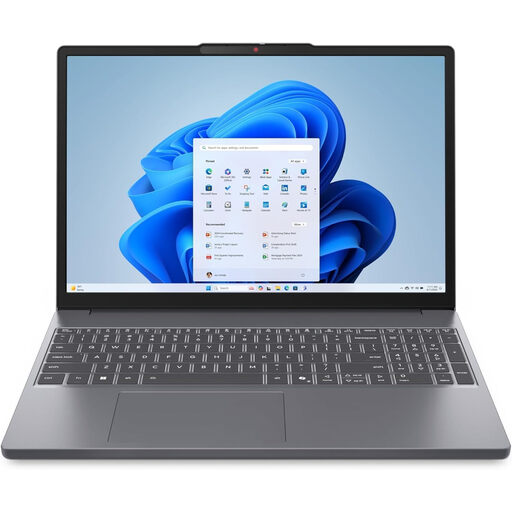 No image available
A Windows laptop option for longer typing, browser-based work and shared household study use.
AMD Ryzen 5 7535HS, 24GB DDR5 RAM, 512GB PCIe SSD, Windows 11 Home and Wi-Fi 6.
Confirm school-account, software and browser requirements before purchase. Microsoft describes kid-friendly website filtering for Edge on Windows, so use the intended browser and family settings consistently.
 No image available
A compact Wi-Fi tablet for supervised games, video, reading and learning at home.
Android 15, 8-inch display, 3GB RAM, 32GB storage, 5000mAh battery, dual speakers and included blue protective case.
No power adapter is included; check a compatible UK charger from a reputable retailer. Also confirm how the child lock works, whether a separate child account is available and whether Family Link is compatible.
 No image available
A compact Windows option for typing, web research and school-style tasks in a family-managed setup.
Snapdragon X, 16GB RAM, 512GB SSD and Windows 11 Home.
Check that required school applications, peripherals and management tools support this Snapdragon-based Windows configuration. A child user account and Microsoft family-group setup still need to be configured.
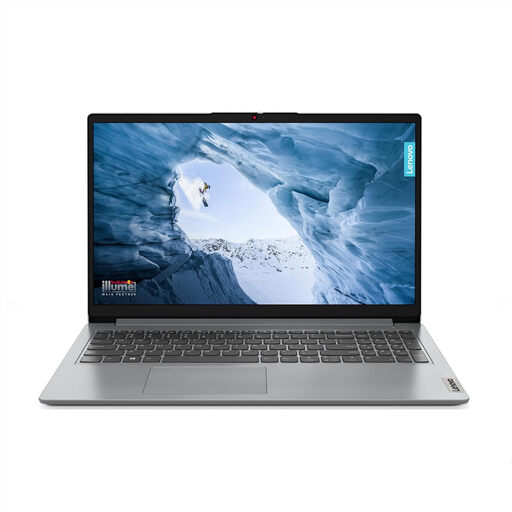 No image available
A Windows laptop route for schoolwork, typing and browser-based activity in a shared household.
AMD Ryzen 3 7320U, 8GB RAM, 128GB SSD and Windows 11 Home in S Mode.
Windows 11 Home in S Mode may affect software installation outside the Microsoft Store. Check school software needs and expected file storage, then set up a separate child account and the planned browser controls.
Yes. Apple says a child should have their own Apple Account rather than sharing one with a family member, and a separate supervised Google account is the basis for Family Link management. This allows child-specific app, content, purchase and time settings.
Yes, with parent or guardian involvement. Apple states that a child under 13 in the UK cannot create an Apple Account without parent or guardian help and consent, and must be part of a Family Sharing group.
No. EE says controls may be needed on the mobile plan and home Wi-Fi as well as the device, while O2 notes that settings also need managing within sites, social networks, apps and games. Review each layer for the child’s actual setup.
No. Google states that Family Link cannot supervise iPhones, iPads or computers other than Chromebooks. Check the child device is compatible before making Family Link the household’s main supervision route.
Not automatically. GOV.UK says extended warranties are optional and that statutory rights may include a refund, repair or replacement when goods are faulty. Compare the cover, standard manufacturer warranty, existing insurance and likely replacement needs before deciding.