What should you check before choosing?
Decide how much access the child needs on the handset, then check account controls, connection methods and SIM settings as separate parts of the setup.
| Priority | What to check | Your needs |
|---|
| Everyday contact |
Check calling and texting on the exact handset and intended SIM. MoneySavingExpert advises checking a feature phone’s actual internet and app capabilities rather than relying on its category name. |
Calls and texts may be enough for now; I would rather check a basic handset than introduce apps the child does not need. |
| Smartphone controls |
For an iPhone, check Apple’s child Apple Account, Family Sharing, device updates and available Screen Time controls. For Android, check the child Google Account and Family Link compatibility; Google says screen-time limits require Android 7 or later and system apps cannot have app limits. |
If apps are needed, I can set up a separate child account and revisit permissions as the child’s use changes. |
| Internet connections |
Check the mobile-network filter alongside device, app and home-Wi-Fi settings. EE and Vodafone say their mobile content filters do not cover Wi-Fi; O2 directs families to router or broadband settings for Wi-Fi. |
My child may connect away from home, so I do not want a SIM filter to be the only control I consider. |
| Charges and purchases |
Check which out-of-plan charges the SIM provider can restrict and what its cap excludes. Google says Family Link purchase approvals cover Google Play billing, not purchases through other billing systems; Vodafone lists exclusions from Spend Manager. |
I want to manage mobile extras and app purchases separately rather than assume one setting covers both. |
| Reused handset |
Back up the previous user’s information and factory-reset the phone, as MoneySavingExpert advises. Confirm the exact handset works with the intended SIM and can run the child-account controls you plan to use. |
There is an older phone available, but I need to separate its former owner’s account and check it fits this setup before handing it over. |
| Ongoing setup |
Review settings within relevant apps as well as on the device and connection. O2 advises that parental controls are not fail-safe and cannot govern what a child sees on someone else’s device. |
I can check settings again when apps, software or the way the phone connects changes. |
Which control providers are relevant?
These device-platform and UK network examples show controls to compare; each has limits that matter to a first-phone setup.
Apple
An iPhone route for families able to use Family Sharing and a separate child Apple Account, including on a suitable hand-me-down.
- Apple says Screen Time can manage accessible apps, websites, communications, device-use timing and content or privacy restrictions.
- Apple says its newer control experience depends on relevant Family Sharing devices being updated, and some controls are not available on every Apple device.
Google / Android
An Android route built around a supervised child Google Account and Family Link.
- Google says Family Link can manage screen time on compatible devices and approvals for purchases using Google Play billing.
- Google says screen-time limits require Android 7 or later, system apps cannot have app limits and Google Play approvals do not cover other billing systems.
EE
A UK mobile-network route with Content Lock and controls for selected billable services.
- EE describes content settings and Set Up Safe controls for eligible spending caps and selected additional charges.
- EE says its mobile content controls do not apply on Wi-Fi or roaming and lists further technical exceptions. Its spend cap is unavailable on mobile plans started before 1 October 2018.
Vodafone
A UK mobile-network route with a content bar and a separately configurable Spend Manager.
- Vodafone says Spend Manager can limit listed out-of-plan calls, texts, data and services.
- Vodafone says its content bar works on its mobile network, not Wi-Fi, and identifies cases in which it may not block content. Spend Manager excludes listed charge types.
O2
A UK network route with settings for age-restricted content on PAYG or an adult-held Pay Monthly account.
- O2 says websites classified as 18+ are filtered by default and describes account routes for managing the setting, including an optional PAYG PIN after age verification.
- O2 says its network protections do not control Wi-Fi and do not work with a VPN or handset encryption. O2 requires Pay Monthly customers to be over 18.
Joybuy basic-phone options
These handsets represent the basic-phone route for families considering calls and texts before smartphone apps. Check each model’s online functions and compatibility with the intended SIM; choosing a handset does not settle the separate question of network and account controls.
 No image available
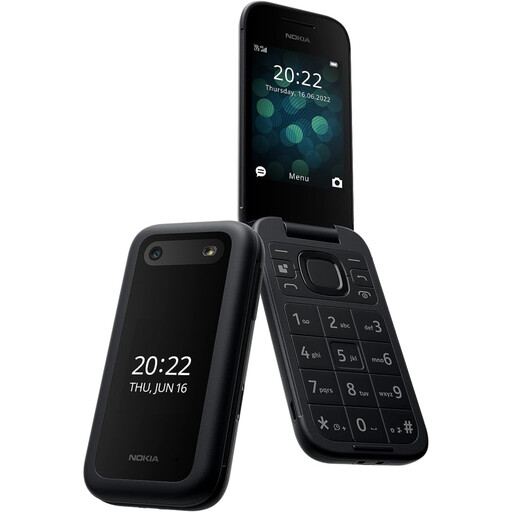
Nokia 2660 TA-1469
Consider this feature-phone route when calls and texts are the priority. Check the exact model’s browser, apps and messaging functions, as well as network and SIM compatibility, before choosing it for a child.
View on Joybuy
 No image available
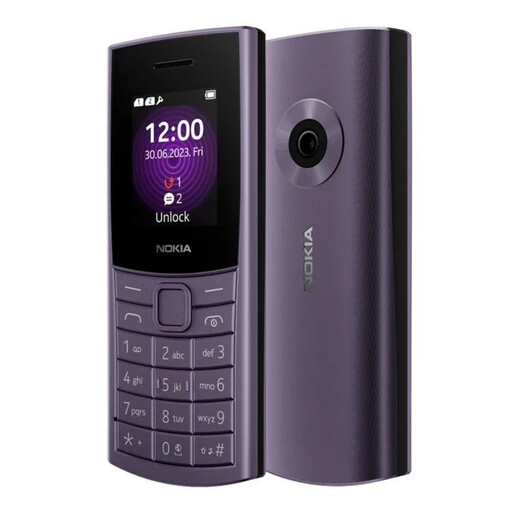
Nokia 110 4G TA-1543 DS Purple
This is a feature-phone option for a calls-and-texts-first setup. Confirm its browser and app capabilities and whether this exact variant works with the intended SIM and UK network.
View on Joybuy
 No image available
Nokia 3210 4G TA-1618 DS Grunge Black
For a basic-phone setup, confirm this exact variant’s browser, app and Wi-Fi capabilities before deciding how to manage online access. Check its compatibility with the intended UK network and SIM too.
View on Joybuy
 No image available
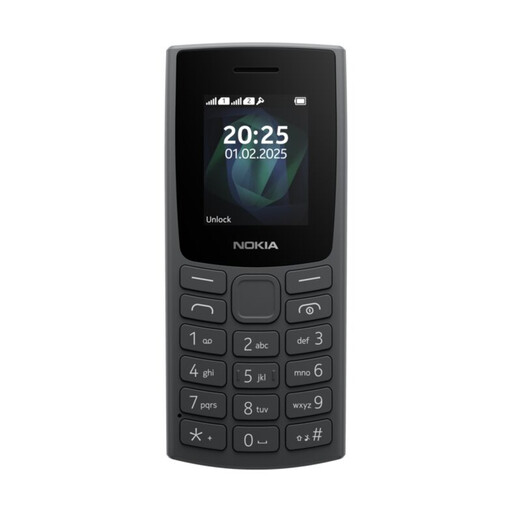
Nokia 105 TA-1557 DS Charcoal
Consider this handset if the child mainly needs calls and texts. Check its exact online functions, required SIM size and compatibility with the intended UK network before ordering.
View on Joybuy
Questions about first phones and SIMs
Does a basic phone rule out internet access?
No. MoneySavingExpert notes that feature-phone capabilities vary, so check the exact handset’s browser, messaging, apps and connectivity before treating it as a calls-and-texts-only device.
How do iPhone and Android child controls differ?
Apple’s route uses Family Sharing, a separate child Apple Account and Screen Time; Google’s uses a supervised child Google Account and Family Link. Apple and Google describe different device requirements and control limits: for example, Google says Android screen-time limits require Android 7 or later, while Apple says some controls are unavailable on certain Apple devices.
Will a SIM content filter work on public Wi-Fi?
Do not rely on it there. EE and Vodafone say their mobile content filters apply on their respective mobile networks rather than Wi-Fi, while O2 directs families to separate router or broadband settings for Wi-Fi. Check device and app controls as separate layers.
Will a SIM spend cap stop every unexpected charge?
No. EE describes controls for selected charges subject to plan eligibility, while Vodafone lists charge types excluded from Spend Manager. Check the chosen provider’s exclusions and configure app-store purchase approvals separately; Google says Family Link approvals apply only to Google Play billing.
Can the family finish setting up controls and leave them unchanged?
Controls need revisiting when apps, software or connection arrangements change. O2 says they are not fail-safe and cannot control content on someone else’s device, so discuss online use with the child as well as reviewing the relevant settings.


