Choose a tablet whose child account and controls the responsible adult can set up and manage, then check the intended apps and protection for that exact device. Amazon Fire Kids offers a child-oriented bundle; an iPad fits a household prepared to use Apple Family Sharing and Screen Time; and Android or Samsung is an option for a household using Google Family Link, with Samsung-specific tools dependent on supported software. For mainly supervised use at home, consider whether household Wi-Fi covers the need before choosing cellular connectivity.
Who is the tablet for?
Whether the device belongs to the child or is shared changes which account the adult needs to manage.
Parents setting up a dedicated tablet
A separate child account makes it possible to check the platform’s app approvals, content settings and time limits before handing over the device. Apple, Google, Samsung and Amazon use different account and control arrangements.
Families sharing an adult-owned tablet
Check whether the device supports a separate child account or profile and how the adult switches between users. Apple requires individual Apple Accounts for its Family Sharing setup; Google and Samsung document supervised or child-account routes on supported devices.
Households planning games, video or calls
List the services the child will actually use, then check their availability and restrictions under the child’s account. For calls, also check the intended app, camera and connection rather than choosing by screen size alone.
What should you check before choosing?
Start with the adult-managed account and required services. Then choose a device, connection and case that work together.
Amazon Fire Kids
Consider it when: The household wants a child-oriented bundle. Amazon UK lists a case, one year of Amazon Kids+ and a two-year worry-free guarantee with Fire HD 10 Kids; it lists Kids for ages 3–7 and Kids Pro for ages 6–12.
Check first: Confirm the required apps, communication services, content and subscription terms within the Amazon Kids setup.
Apple iPad
Consider it when: The adult can manage a separate child Apple Account through Family Sharing and set up Screen Time.
Check first: Apple’s family-account setup is necessary for these controls; choose protection for the exact iPad model separately.
Android or Samsung
Consider it when: The household plans to manage a supervised Google account with Family Link and, on a supported Galaxy device, use Samsung’s child-account tools.
Check first: Samsung UK says its Galaxy child-account parental controls require One UI 6.1 or later; confirm the exact tablet’s software and accessory fit.
| Priority | What to check | Your needs |
|---|
| Child account and controls |
Identify the adult account that manages the child’s account. Check app and purchase approvals, content settings and time limits on the exact device. |
I need to adjust the child’s access without handing over my unrestricted account. |
| Apps and services |
Check each planned game, video, communication or learning service in the chosen app store and child setup. Review any included content subscription’s terms. |
The tablet needs to run the services we plan to allow, under the child’s settings rather than only an adult profile. |
| Protection and faults |
Match the case to the full model and generation; check what protection is included. Keep proof of purchase and read any guarantee terms. |
I want a case that fits the device’s buttons, cameras and charging port, and a clear way to deal with a fault. |
| Connection and supervision |
Decide whether home Wi-Fi covers the planned use. For direct access away from Wi-Fi, check cellular hardware and the adult’s network arrangement. |
Most use may happen at home; if the tablet travels, I need to decide who manages its connection and access. |
Which setup mistakes are easy to make?
-
Choosing the tablet before its child account
App approvals and content settings depend on the platform’s family or child-account arrangement. The adult must be able to maintain that setup.
Decide who will administer the account, then check the intended services and restrictions on the device you plan to buy.
-
Assuming controls cover every result and interaction
Amazon says parental controls on an adult Fire profile do not remove mature or adult-rated content from store search results. Controls also need to be configured for the way the child uses the device.
Use an appropriate child profile, review its content and app settings, and keep adult supervision in the plan.
-
Choosing cellular without an away-from-home need
A cellular connection does not replace child-account controls. For mainly supervised home use, check whether household Wi-Fi is sufficient.
Choose a cellular-capable model only if direct connectivity away from Wi-Fi is needed and an adult will manage it.
Direct mobile connectivity also calls for a network-provider or data-plan arrangement.
-
Choosing a case by screen size alone
A similarly sized case may not fit the tablet’s buttons, cameras, speakers or charging port. An included case is not proof that the tablet itself is drop-proof.
Check the full model and generation against the case listing, then inspect the fit after delivery.
How do the tablet ecosystems differ?
Apple
Apple’s iPad route uses a separate child Apple Account, Family Sharing and Screen Time for adult-managed settings.
- Apple Support says each family member needs their own Apple Account for the Family Sharing setup.
- Choose a case for the exact iPad generation; cellular capability is a separate connectivity decision.
Samsung
Supported Galaxy tablets can combine Google account supervision with Samsung’s child-account or Samsung Kids options.
- Samsung documents child-account settings for websites, age-rated apps and games, downloads and purchases.
- Samsung UK says its Galaxy child-account parental controls require One UI 6.1 or later; check the exact device and software.
Amazon Fire
Amazon’s Fire Kids route centres on Amazon Kids and an included protective case rather than a separately assembled tablet-and-case setup.
- Amazon UK lists a case, one year of Amazon Kids+ and a two-year worry-free guarantee with Fire HD 10 Kids.
- Check desired apps, content and subscription terms. Amazon says adult-profile controls do not remove all mature or adult-rated store-search results.
Joybuy tablet options
These child-oriented tablets offer different screen sizes, listed accessories and home-connectivity features. Before choosing one, check how its child controls work with the apps your household intends to use.
 No image available
HONOR X8A Kids 11-inch Wi-Fi, 128GB, Space Grey
For a household planning home Wi-Fi use, the listing specifies an 11-inch Full HD display, 128GB storage and front and rear cameras. Check how its parent and child accounts work with the intended apps, and whether an exact-fit case is included.
View on Joybuy
 No image available
Alldocube Kido 8-inch Android 15, 3GB + 32GB, blue case
The listing includes a protective case and describes a Child Lock feature for content and screen-time settings. It specifies Wi-Fi, front and rear cameras and no adapter; check the child-account process, intended apps and a suitable adapter before purchase.
View on Joybuy
 No image available
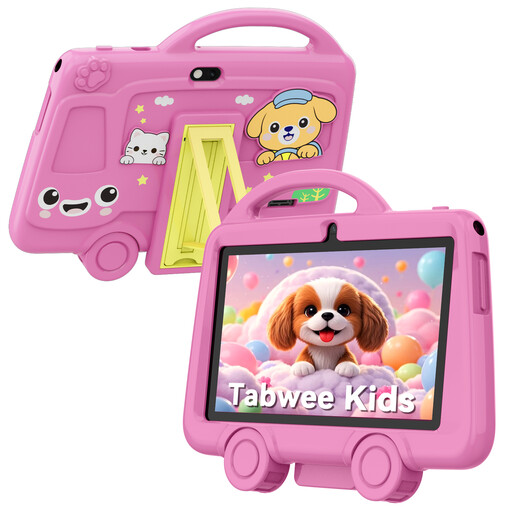
TABWEE K8 Kids 7-inch, 2GB RAM + 32GB
For use with household Wi-Fi, the listing specifies 2.4 GHz Wi-Fi, a protective case, cameras and a 3.5 mm headphone jack. Check its child-account controls, operating system and intended apps. The listing warns that it is unsuitable for children under 3 because of small parts and calls for adult supervision.
View on Joybuy
 No image available
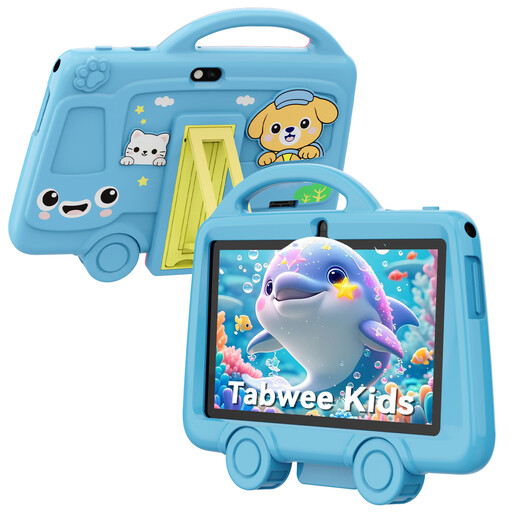
TABWEE K8 Kids 7-inch, 32GB, blue
This blue variant lists 2.4 GHz Wi-Fi, a protective case, cameras and a 3.5 mm headphone jack for a home setup. Its title says 3GB RAM while its specifications say 2GB, so confirm the supplied variant. Also check child controls and intended apps; the listing warns against use by children under 3 because of small parts and calls for adult supervision.
View on Joybuy
Questions about a child’s first tablet
Should a child use my adult account on a shared tablet?
Use a separate child account or profile where the platform supports one. Apple says its Family Sharing controls require individual Apple Accounts; Google documents Family Link settings for a supervised child’s Android device. Check how the shared tablet switches between adult and child use.
Can I approve apps and purchases before the child gets them?
That depends on the child-account setup. Google documents family-group content restrictions, and Samsung documents download and purchase controls on supported Galaxy devices. Check the approval steps for the intended app store and exact tablet before handing it over.
Is Wi-Fi-only enough for a first tablet used at home?
Wi-Fi-only suits primarily home-based use if the household connection covers the planned services. Consider cellular hardware when direct access away from Wi-Fi is needed and an adult will manage the network arrangement; Apple describes a data-plan or provider arrangement for Wi-Fi + Cellular iPads.
What protection should I choose with the tablet?
Choose a case made for the exact tablet model and generation, and consider screen protection for the household’s handling pattern. Amazon lists a case with Fire HD 10 Kids; for other tablets, check what the particular package includes rather than relying on screen size alone.


