A child-focused tablet can suit a household that wants a dedicated child profile and an included case; a standard Android tablet or iPad can suit parents prepared to set up and manage the relevant child account. Choose by checking the apps and communication your child needs, how account and purchase controls work on that platform, and whether protection or subscriptions are included. Amazon, Apple and Google each describe controls with platform-specific setup and limits, so no device setting replaces checking how the tablet is used.
Who this guide is for
Parents setting up a child’s own tablet
You need a child account or profile and a way to manage apps, time and purchases before the tablet becomes part of your child’s regular routine. GOV.UK guidance advises checking that parental controls are switched on and set appropriately.
Households sharing a tablet
You need to decide which account the child will use and whether the tablet’s child-facing settings work for your household. Apple advises a separate Child Account, while Samsung describes Samsung Kids for shared or adult Samsung devices.
Parents weighing communication and spending
You want to check which communication apps your child can use and what purchase approvals cover. Google and Apple document controls with specific platform scopes and exceptions.
What to prioritise when choosing
For UK households choosing a child’s first or newly dedicated connected tablet, the decision often turns on account management, shared use, communication, spending and protection.
| Concern |
What to check when buying |
Who this matters to |
| Account-based supervision |
Check that the intended device supports your chosen child account or profile, and test its content and time settings. |
If I want my child to have manageable access on their own tablet, I would check the account setup before handing it over; around 31% of consumers put supervision and age-appropriate access first. |
| Sharing a household tablet |
Verify which child account or environment is available on that exact device rather than relying on an adult sign-in. |
If my child will use a tablet already shared at home, I need to know how they can access it without taking over an adult’s account; around 25% of consumers prioritise separate access on a shared device. |
| Communication and apps |
Check that the required apps are available on the chosen platform, then review their communication and contact settings. |
If communication is the main reason for the tablet, I want to confirm the intended apps and interactions will work for our household; around 19% of consumers put communication and app availability first. |
| Spending and downloads |
Check purchase settings in the child account, how each intended app handles payment, and which payment methods are saved. |
If I am concerned about unintended downloads or charges, I need to understand which purchases the platform’s approval settings cover; around 13% of consumers prioritise spending and download approval. |
| Protection and continuing costs |
Check the box contents, exact-model accessory fit and any subscription renewal terms. |
If I want to protect the tablet and understand ongoing commitments, I would compare included accessories and subscription terms; around 12% of consumers put protection and continuing cost first. |
Buying pitfalls to avoid
-
Treating a children’s-tablet label as a complete safety setup
A child-focused label does not mean that the child’s account and controls are already set up for your household.
Set up and test the child-facing experience before handing over any tablet, and keep talking with your child about their online use.
-
Assuming apps and purchase controls work identically across platforms
App availability and account settings differ by platform. Google says its Play purchase approvals apply to purchases made through Google Play billing, rather than every possible payment.
Check your essential apps, communication route and payment method on the exact platform before buying.
If a required app is unavailable in the chosen ecosystem, you may need to consider a different device or service.
-
Overlooking what happens after a bundled content period
An included subscription period does not establish what continued access will cost.
Read the current renewal and cancellation terms and compare them with the content your household actually needs.
The cited Amazon Fire HD 8 Kids 2024 bundle includes one year of Kids+, which auto-renews at the applicable rate.
-
Choosing a case by screen size alone
Screen size alone does not confirm that an accessory fits a particular tablet model and generation.
Match any separately bought protection to the full model name and generation, and check what is included in the box.
A separate case or screen protector may be needed for a standard tablet; the cited Fire HD 8 Kids bundle includes a case.
Relevant tablet brands
Amazon
Amazon’s Fire Kids route combines a child profile with a case in the cited UK 2024 bundle.
- Amazon describes Parent Dashboard settings for content and time, and one year of Kids+ in that bundle.
- The subscription auto-renews at the applicable rate. Check whether the apps your child needs are available in the Fire ecosystem; Amazon states that Google Play is not supported on Fire tablets.
Apple
Apple’s iPad is a standard-tablet route for households prepared to set up a separate Child Account through Family Sharing.
- Apple documents Screen Time parental controls and Ask to Buy for eligible requests.
- The controls depend on the relevant account and family setup. Check the exact iPad configuration and arrange suitable protection separately.
Samsung
Samsung offers standard Android tablets and documents Samsung Kids for shared or adult Samsung devices.
- Samsung describes app, contact and PIN settings in Samsung Kids.
- Confirm that the feature is available and how it is set up on the particular tablet; the described settings do not establish an identical experience across every model.
Lenovo
Lenovo describes Google Kids Space and Family Link as a child-account approach for the UK Tab M8 Gen 4 2024.
- Lenovo describes content discovery and parent-managed limits for that model.
- This is a model-specific description, not evidence that the same features are available on every Lenovo tablet.
Tablet options on Joybuy
These Joybuy options cover child-focused tablets and standard Android tablets for households comparing account setup, communication needs and included protection.
 No image available
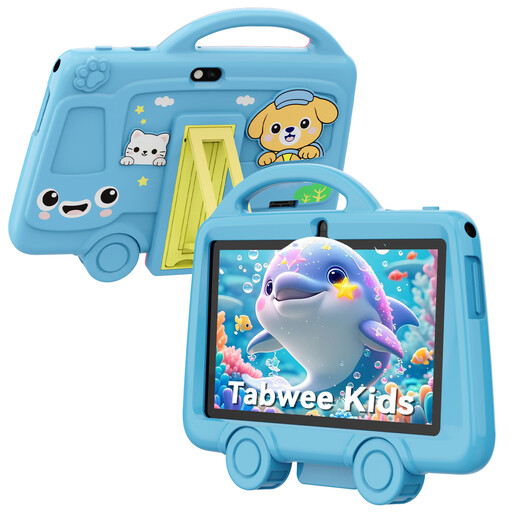
TABWEE K8 Kids’ Tablet, 7-inch, 3 GB RAM, 32 GB, blue
A child-focused option to consider if you want the stated headphone jack and front camera.
The product title lists a 3000 mAh battery, 2.4 GHz Wi-Fi, Bluetooth 4.2, a 2 MP front camera, a 5 MP rear camera and a 3.5 mm headphone jack. The product description warns of small parts, says it is not suitable for children under 3 and recommends adult supervision.
View on Joybuy
 No image available
HONOR X8A Kids, 11-inch Wi-Fi, 128 GB, Space Grey
Consider this child-focused option if you want to compare a larger stated screen size with the listed parent-management features.
The product description lists time limits, content filtering and activity monitoring. It recommends use from age 3 with parental guidance.
View on Joybuy
 No image available
Samsung Galaxy Tab A11, Wi-Fi, 64 GB
A standard Android tablet to consider if you are prepared to check and set up a child account on the exact device.
The product description lists an 8.7-inch display, 4 GB RAM, a 5 MP front camera and a 3.5 mm headphone jack. It states that a travel adapter is not included.
View on Joybuy
 No image available
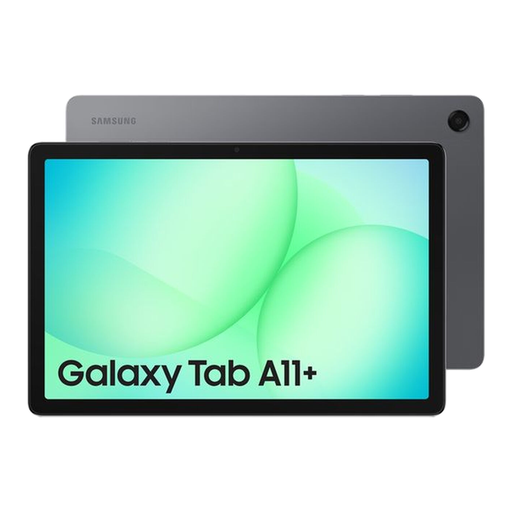
Samsung Galaxy Tab A11+, Wi-Fi, 8 GB RAM, 256 GB, Grey
A standard Android option to consider if your household is comfortable managing a child account and wants the stated storage configuration.
The product information identifies Wi-Fi, Android and a 5 MP front camera. Check the child-account settings and app availability for this exact model before relying on them.
View on Joybuy
 No image available
Alldocube Kido, 8-inch, 3 GB RAM, 32 GB, blue case
A child-focused option to consider if you want the listing’s stated child-lock and case details.
The product information lists Android 15, a 5000 mAh battery, two speakers, a 3.5 mm socket, a 2 MP front camera and a 5 MP rear camera. It describes a child lock with screen-time and content-filter settings, and states that an adapter is not included.
View on Joybuy
Frequently asked questions
Can you set controls once and assume the tablet is ready for a child?
No. GOV.UK guidance advises checking that controls are switched on, set appropriately and working before the child uses the device, then revisiting them as their use changes. The guidance also says controls cannot fix everything.
Will Google Family Link supervise an iPad?
Google says most Family Link device-supervision tools do not work on iPhones and iPads. For an iPad, assess Apple’s own Child Account and Screen Time arrangement instead.
Do purchase approvals stop every in-app payment?
No single approval setting is described as covering every payment. Google limits its purchase approvals to purchases through Google Play billing. Apple’s Ask to Buy applies to eligible requests, with exceptions including a child redownloading their own purchase or installing an update. Check payment arrangements in the apps your child will use.
What should you do before passing on a shared tablet?
Set up and test the platform’s child account or child environment rather than assuming an adult sign-in provides suitable child settings. Apple advises that a child have their own Apple Account, while Samsung describes Samsung Kids for shared or adult Samsung devices.
What continuing costs should you check with a Fire HD 8 Kids bundle?
Check the current subscription renewal and cancellation terms before relying on continued access to bundled content. The cited Amazon Fire HD 8 Kids 2024 bundle includes one year of Kids+ that auto-renews at the applicable rate; those terms apply to that bundle.


