Choose the account and app ecosystem first: check that your child’s essential learning, entertainment and communication apps work with the intended child account, then compare the controls you will actually set up. Android with Family Link, iPad with Family Sharing and Screen Time, and a Fire Kids tablet with a child profile involve different setup and app-store conditions. Parental controls can help manage access, but they do not replace checking settings or talking with your child.
Who is choosing a child’s first tablet?
Parents setting up a first child account
You need workable approval, time-limit and privacy settings before your child starts using a dedicated tablet. Google and Apple’s support guidance shows why account and software setup matter alongside the device.
Families with essential child-use apps
You need the learning or communication apps your child relies on to work in their account and app store. Check the exact device and account rather than assuming an adult’s app access will carry over.
Families prioritising protection and bundle terms
You want to compare how a child will handle the tablet, whether a suitable case is included, and what content or ongoing terms come with the bundle.
What should you prioritise when choosing?
Android with Google Family Link
Consider it: When your child’s required apps are available for their Google Account and you can manage that account.
Trade-off: Google says purchase approval applies to purchases through Google Play billing, not every possible payment.
iPad with Family Sharing and Screen Time
Consider it: When the required apps work with your child’s Apple Account and you are prepared to set up the family controls.
Trade-off: Apple lists exceptions to Ask to Buy, and some Screen Time features depend on the software versions used across family devices.
Fire Kids with a child profile
Consider it: When a managed child profile and a child-focused bundle suit the household’s setup.
Trade-off: App availability, included accessories and subscription terms can depend on the exact model and bundle.
| Concern |
What to check when buying |
Who this matters to |
| Child account and screen time |
Check account setup, parent-device compatibility and whether the controls work on the exact tablet and software. |
If I want to approve access and set usable time limits, I need the account and controls to work together; around 25% of consumers put account and time management first. |
| Essential apps |
Check app-store availability and whether each app’s needed features work in the child’s account. |
I need particular learning or communication apps to work for my child, not just appear in an adult account; around 25% of consumers prioritise essential apps. |
| Web content and privacy |
Review web filters, app permissions and in-app content, then test the settings. UK Government guidance notes that parental controls cannot fix everything. |
If I want to manage what my child can access while respecting their privacy, I need to check more than download approvals; around 20% of consumers put content and privacy first. |
| Handling and protection |
Compare screen size, case fit and what the exact bundle includes. |
I want a tablet my child can handle and a case that fits the chosen model; around 15% of consumers prioritise physical usability and protection. |
| Ongoing costs |
Check subscription duration, renewal and cancellation terms, as well as any accessories or apps you will need separately. |
I want to avoid an unwanted recurring charge or a second purchase for an item I expected to be included; around 15% of consumers put ongoing costs first. |
Pitfalls to avoid
-
Assuming every tablet runs the apps your child needs
An app that works on an adult’s device may not be available through the child’s app store or account, which can undermine the intended learning or communication use.
List essential apps and check their availability and child-account features on the exact tablet before choosing.
-
Treating parental controls as a guarantee of safe content
Controls can help manage access, but they do not govern every website, app permission or interaction.
Test the settings, review permitted apps and keep talking with your child about online activity. UK Government guidance recommends treating controls as helpful rather than complete protection.
Relevant brands to consider
Apple
An iPad route for families prepared to use a child Apple Account, Family Sharing and Screen Time.
- Apple Support explains the family setup and Ask to Buy workflow, including eligible purchase and download requests.
- Apple lists exceptions to Ask to Buy. Its iPad 11-inch (A16) standard box contents list an iPad and USB-C cable, not a protective case.
Samsung
Galaxy tablets offer a general-purpose Android route; Samsung Kids is a separate child environment to check on the exact device.
- Samsung says Samsung Kids can limit playtime and restrict access to specified apps and contacts.
- Samsung says its separate Galaxy child-account controls require One UI 6.1 or higher, so check the exact model and software.
Lenovo
The Lenovo Tab M8 Gen 4 is a compact Android example described for use with Google Kids Space and Family Link.
- Lenovo’s UK product information lists an 8-inch display and those child-use services for this model.
- Lenovo notes that specifications can vary by region; check the exact variant and its software before purchase.
Joybuy tablets for a child’s first-device decision
The listings below include general-purpose and child-labelled tablets. Check app availability, the exact parental-control setup and included protection on each model before choosing.
 No image available
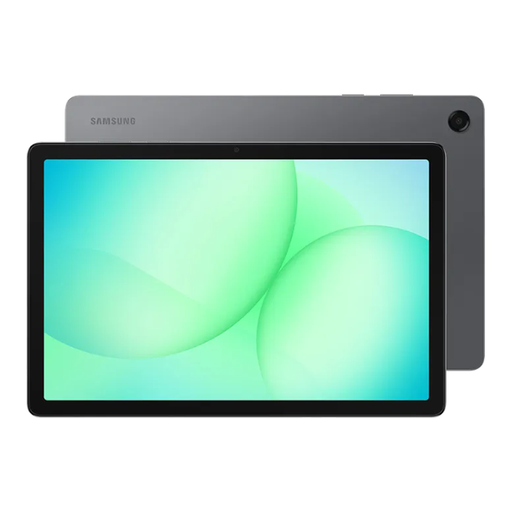
Samsung Galaxy Tab A11+ 11-inch, 128 GB, Wi-Fi, Grey
For a household considering an 11-inch Android tablet; check that the apps and parental-control setup you need work on this exact model.
The listing describes a 5 MP front camera and a weight of 477 g. Its listed in-box contents do not include a protective case.
View on Joybuy
 No image available
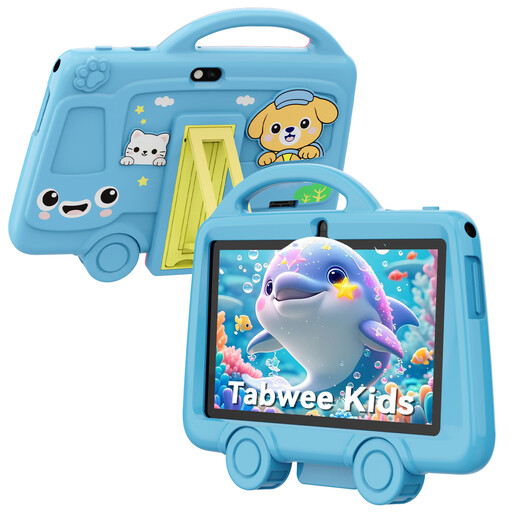
TABWEE K8 Kids’ Tablet, 7-inch, 3 GB RAM, 32 GB storage
For a child-use tablet where a supplied case is relevant; check app availability and the intended adult-supervision arrangement.
The listing specifies a 7-inch screen, 3 GB RAM, 32 GB storage and a 3,000 mAh battery. The description says it is not suitable for children under 3 and should be used under adult supervision.
View on Joybuy
 No image available
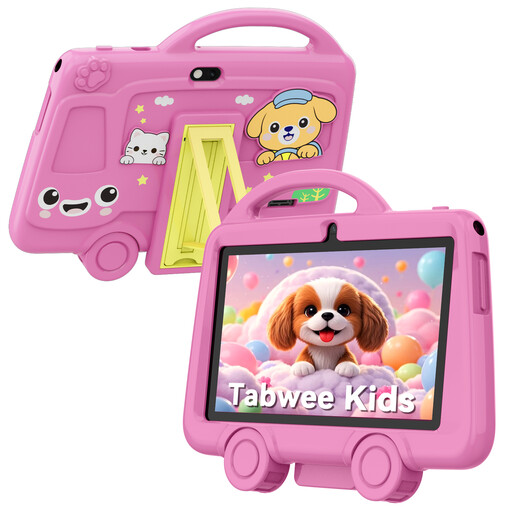
TABWEE K8 Kids’ Tablet, 7-inch, 2 GB RAM, 32 GB storage
For a child-use tablet where a supplied case is relevant; check app availability and the intended adult-supervision arrangement.
The listing specifies a 7-inch screen, 2 GB RAM, 32 GB storage and a 3,000 mAh battery. The description says it is not suitable for children under 3 and should be used under adult supervision.
View on Joybuy
 No image available
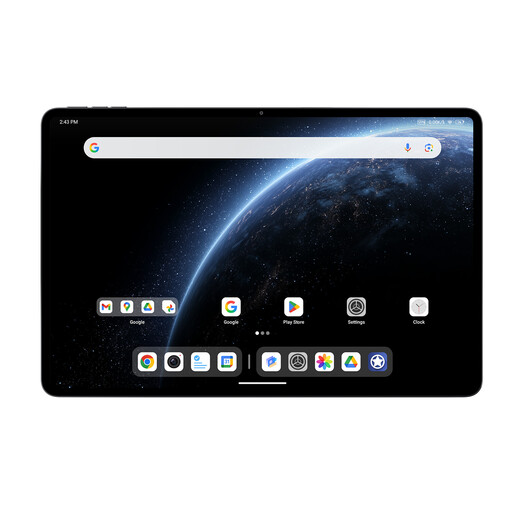
Alldocube Ultra Pad, 12.95-inch, 12 GB RAM, 256 GB storage
For a household considering a large-screen tablet for supervised entertainment or learning; check whether its size and app setup suit the child.
The title lists a 12.95-inch display, 12 GB RAM, 256 GB storage and a 15,000 mAh battery. A charger is not included.
View on Joybuy
 No image available
Alldocube Kido Children’s Tablet, 8-inch, Android 15, 3 GB RAM, 32 GB storage
For a child-use tablet where a case and listed screen-time and content settings are relevant; check that required apps work on the device.
The product description says Child Lock can manage screen time and filter content. The title lists an 8-inch screen and a blue protective case; an AC adapter is not included.
View on Joybuy
Frequently asked questions
Does a UK child under 13 need a parent-managed account?
For Google and Apple services, a child under 13 needs parent involvement in account setup. Google describes parent-managed child accounts through Family Link; Apple Support says a UK child under 13 needs parental help and consent to create an Apple Account and must be in Family Sharing. These are account conditions for those services, not a universal UK legal age for owning a tablet.
Will approving downloads prevent every purchase or unsuitable app?
No. Google says Family Link purchase approval applies to purchases made through Google Play billing, while Apple lists actions that do not trigger an Ask to Buy request. Check the specific app, account settings and purchase options rather than assuming one approval setting covers everything.
What should I do before my child starts using the tablet?
Set up the child’s account or profile, configure the intended app, web and time controls, and test the settings before handing over the device. UK Government guidance recommends reviewing controls as a child grows and talking with them about online safety.
Does UK online-safety law mean a tablet’s parental controls guarantee safe use?
No. The UK Government describes Online Safety Act duties for relevant online service providers, including social media and search services; those duties do not certify that a purchased tablet is risk-free. Government guidance also says parental controls cannot fix everything, so check settings and keep talking with your child.


