Parents choosing a device for use at home
If the first regular activities are reading, video, learning apps or calls at home, consider whether a touch-based device meets those needs before choosing a phone for use outside the home.


Choose a child’s first internet device around what they will regularly do with it: a tablet fits touch-based use at home, a phone fits communication and access away from home, and a Chromebook or Windows laptop fits sustained typing and schoolwork. Before choosing a model, check how the child’s own account, browser and user permissions will work with the family controls you intend to use; those controls are not interchangeable across platforms.
If the first regular activities are reading, video, learning apps or calls at home, consider whether a touch-based device meets those needs before choosing a phone for use outside the home.
If the child needs to type longer assignments or use browser-based schoolwork, check keyboard access, required school services and whether a school account changes how supervision works.
If app requests, screen-time settings or browser controls matter to you, choose a device you can set up with the child’s own account and your household’s Apple, Google or Microsoft family arrangement.
Start with the child’s regular activities, then check the account and access settings needed to supervise the device you choose.
| Priority | What to check | Your needs |
|---|---|---|
| Main activity | Compare touch-based apps and video, communication away from home, and sustained typing or browser-based work. Check the input method needed for regular school tasks. | Most use will be at home for reading and apps, so a tablet may suit us. If longer written work is central, I need a keyboard-capable device instead. |
| Portable communication | Decide whether the child needs a device away from home for communication, rather than choosing a phone solely because it is small. Check the intended account setup on that phone. | I want the child to be able to communicate while away from home; a device used mainly in the house would serve a different need. |
| Child account | Check who will manage a separate child account and which family settings apply to the chosen platform. Apple advises against sharing an adult Apple Account because personal data can become mixed. | I want the child’s use and account kept separate from mine, with family settings I can set up and maintain. |
| Access settings | For a supervised Chromebook, check guest mode and who can sign in; Google says guest or added-user access may operate without Family Link settings. For Windows, Microsoft warns that administrator access can undermine Family Safety settings, and describes its web filtering for Microsoft Edge. | Controls need to apply when my child actually signs in and browses, not just appear in the family account settings. |
| School requirements | Check required software, browser-based tasks, keyboard use and school-account rules before choosing a Chromebook or Windows laptop. A school-managed account may have settings controlled by the school. | My child needs to complete the work their school assigns, using the account and applications it requires. |
Family settings depend on the relevant child account and platform arrangement. Sharing an adult login can also mix personal information on Apple services, according to Apple.
Decide which adult will manage the account, then check the child-account setup for the operating system before choosing a model.
Google warns that Chromebook guest or additional-user access may not have Family Link settings. Microsoft warns that a child with administrator access can change or break Family Safety settings.
Test sign-in, guest access, available browsers and user permissions with the child’s account before relying on the controls.
A phone addresses portable communication, while longer written assignments and browser-based school tasks may call for a keyboard-capable Chromebook or laptop.
List the child’s three most regular activities and check which device type lets them complete those tasks.
Camera openings, ports, buttons and dimensions can differ between device variants, affecting whether a case fits.
Confirm the exact model and generation before selecting a case.
Relevant when considering an iPad, iPhone or Mac that the household will set up with Apple Family Sharing.
Relevant when considering a supervised Google Account on a Chromebook or compatible Android device.
Relevant when considering a Windows laptop using a child account in a Microsoft family group.
These tablets suit consideration for touch-based use at home; the Chromebook is an option to examine for keyboard-based schoolwork. Check each model’s child-account setup against the supervision you intend to use.
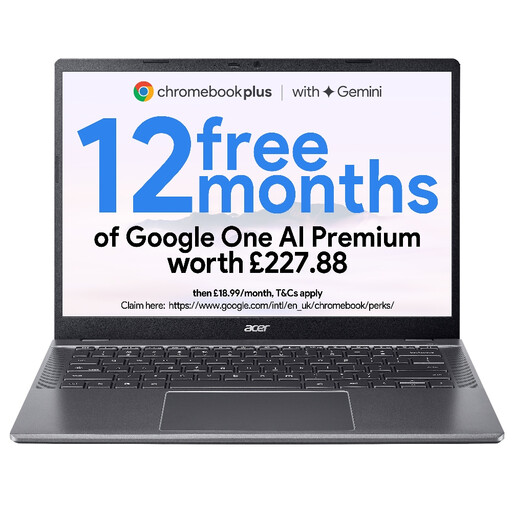 Image unavailable
Consider this Chromebook for typing and browser-based schoolwork. Confirm the exact variant and its specifications before buying, as the listing gives conflicting model and specification details. Google says Family Link supervision on a Chromebook also depends on the child’s account and sign-in settings, including guest access.
 Image unavailable
This touch-based tablet is an option for apps and video at home. The listing describes an 11-inch display, 4GB RAM and 128GB storage. Check which child account and parental-control functions work on this exact model before relying on them.
 Image unavailable
This smaller touch-based tablet is an option for use at home. The listing states a 5000mAh battery, an included case and no adapter. Check what its child lock does and whether the intended supervised account works on this model.
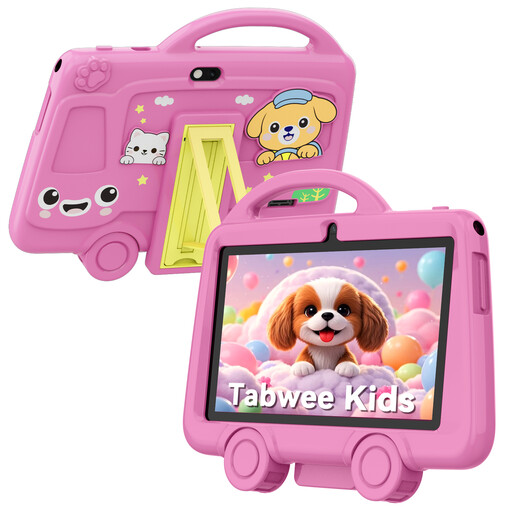 Image unavailable
Consider this compact tablet for touch-based use. The listing describes 2.4 GHz Wi-Fi and an included protective case; it also says the device is not suitable for children under 3 and calls for adult supervision. Confirm its operating system and compatibility with your intended parental-control setup.
Apple advises giving each family member their own Apple Account, because sharing one can mix personal data between them. If you plan to use Apple’s family controls, set up a separate Child Account in Family Sharing.
Yes, with a supported Chromebook and a supervised child account. Google warns that guest mode or additional users may allow the Chromebook to be used without Family Link settings, so check who can sign in.
No. Google says a child may use another browser where Family Link settings for Chrome do not apply. Check the browsers and profiles the child can access rather than assuming Chrome settings cover the whole laptop.
Use the child’s account in a Microsoft family group and keep it as a standard rather than administrator user. Microsoft warns that administrator privileges can undermine Family Safety settings; its described web filtering uses Microsoft Edge.