Choose a multi-device keyboard if you switch between separately paired test devices; two displays connected to one computer do not, by themselves, call for device switching. If desk space is tighter, consider a compact layout while checking access to the keys you use repeatedly; a Mac-focused keyboard makes sense only when its system requirements fit your workstation. Whichever keyboard you choose, test the menu itself for usable controls, visible focus and a way to leave the expanded menu.
Who needs which setup?
The important distinction is whether your second screen belongs to the same computer or to another device that needs its own keyboard connection.
Multi-device menu testers
If you alternate between a computer and another paired test device, direct host switching may be useful. Logitech documents switching among up to three computers for MX Keys for Business, while Keychron documents three Bluetooth pairings for K3 Max; check compatibility with your actual devices.
Testers with limited desk space
If two displays leave little room for a keyboard and mouse, a compact layout is worth considering without giving up practical access to navigation keys. Keychron describes the K3 Max as a 75% keyboard with arrow keys and a wired connection option.
Apple-silicon Mac testers
If testing centres on a compatible Apple-silicon Mac, you may prefer a British-English Mac layout and Touch ID integration over frequent host switching. Apple specifies macOS 15.1 or later for its Magic Keyboard with Touch ID model covered here.
What matters when choosing?
Establish whether you need to change paired hosts, then weigh desk space and key access against the requirements of your main test computer.
| Concern |
What to check |
Who this matters to |
| Switching test devices |
Check how many hosts can be paired, how you switch between them and whether each host supports the required connection. |
If I move between a computer and a separately paired test device, I want to change hosts without setting up the keyboard again. About 42% of consumers put device switching first. |
| Desk space and key access |
Check the keyboard width, arrow-key arrangement and access to Tab, Shift+Tab, Enter, Space and Escape. |
With two displays on my desk, I need room to work without making repeated menu-navigation checks awkward. Around 33% of consumers prioritise desk space and access to those keys. |
| Mac compatibility |
Check the exact Mac model, macOS version and keyboard-layout variant before choosing Mac-specific features. |
If my testing stays mainly on an Apple-silicon Mac, I care more about a familiar British-English Mac layout than switching between different systems. Roughly 25% of consumers place that Mac-specific fit first. |
Mistakes to avoid
-
Treating the keyboard as a test result
A suitable keyboard cannot show whether the mobile menu has a visible focus indicator, a sensible focus order or a keyboard trap. Digital Defra advises manually checking keyboard navigation and visible focus.
Open and close the actual menu, move through its controls in both directions, activate them as appropriate and confirm that you can leave the expanded menu.
-
Choosing a compact layout by size alone
A smaller board can make frequently used controls less convenient to reach. The DWP Accessibility Manual identifies Tab, Shift+Tab and Enter among the inputs used in keyboard checks.
Inspect the exact layout for direct arrow-key access and practical access to the other keys in your test routine.
-
Assuming every wireless keyboard switches hosts the same way
Pairing capacity and connection methods differ between models. A second display attached to one computer also creates no need to switch paired hosts.
Match the keyboard’s switching method, connection requirements and supported systems to the devices on which you will test.
-
Overlooking Mac-specific requirements
Apple specifies an Apple-silicon Mac running macOS 15.1 or later for the British-English Magic Keyboard with Touch ID covered here. Touch ID does not establish whether a menu can be operated by keyboard.
Confirm the host Mac and software version before choosing that model, and test the menu interaction separately.
Relevant brands for reference
Logitech
Its MX Keys for Business may suit a workstation that changes between paired computers and has room for a full-size keyboard.
- Logitech specifies Easy-Switch keys for up to three computers, a UK QWERTY option, arrow keys and a numeric keypad for MX Keys for Business.
- That model is 430.2 mm wide. Check available desk space, Bluetooth compatibility and whether receiver use requires a suitable USB-A port.
Keychron
Its K3 Max is a compact option to examine when desk space, connection choice and remappable keys matter.
- Keychron specifies a 75% layout, wired, Bluetooth and 2.4 GHz connections, pairing with three Bluetooth devices and QMK/VIA remapping for the K3 Max.
- The compact layout has no dedicated number pad. Check the exact UK-ISO variant, switch choice and availability before ordering.
Apple
Its British-English Magic Keyboard with Touch ID is relevant to a test workstation built around a compatible Apple-silicon Mac.
- Apple specifies wireless use, recharging and USB-C charging for this model.
- Apple requires an Apple-silicon Mac running macOS 15.1 or later. Check whether that Mac-focused setup matches every host in your testing workflow.
Keyboards to consider on Joybuy
These keyboards offer full-size, split-layout and compact options for a two-screen desk. Before choosing one for testing across separate devices, check its host compatibility, switching controls and access to the keys your menu checks require.
 Image unavailable
Targus EcoSmart Full Size Wireless Keyboard (UK)
Consider this UK-version full-size keyboard if a conventional board fits beside your two displays.
Check its desk footprint, connection requirements and access to the navigation keys you use for menu testing.
View on Joybuy
 Image unavailable
Hyper HyperSpace Next Bluetooth Wireless Keyboard (UK), White
This UK-version keyboard is worth considering if you want a Bluetooth option at a two-screen workstation.
If you intend to move between test hosts, confirm the exact connection options and switching controls, as well as the navigation-key layout.
View on Joybuy
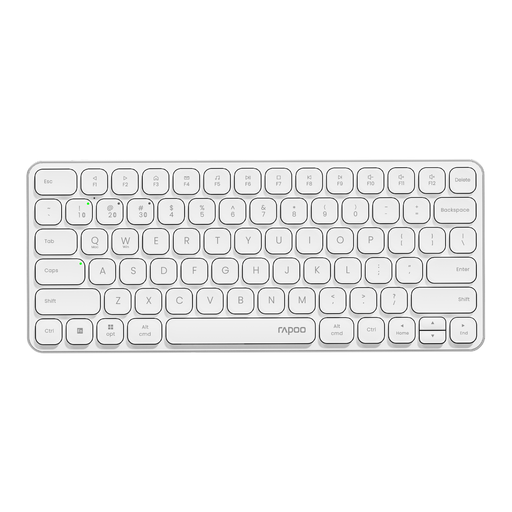 Image unavailable
Rapoo E9050L 75% Membrane Keyboard, US QWERTY, White
Consider the 75% layout if keyboard space is limited and a US QWERTY arrangement suits your work.
The title specifies 78 keys, 2.4 GHz and Bluetooth 5.0/4.0 connections, and support for four devices. Check direct access to the keys used in your menu tests.
View on Joybuy
 Image unavailable
HP 960 Ergonomic Split Layout Wireless Keyboard with Padded Wrist Rest
Consider its split layout if that key arrangement suits the way you repeat menu checks at your desk.
Check the space needed for the keyboard and the arrangement of its navigation keys, then confirm compatibility with your intended test hosts.
View on Joybuy
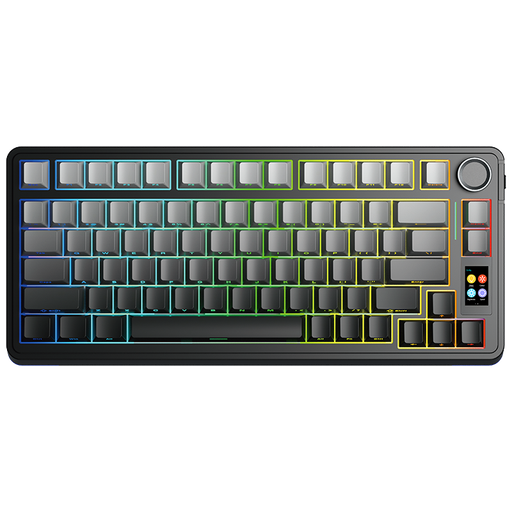 Image unavailable
AULA S75 Pro 75% Wireless Mechanical Keyboard, Star Vektor Switches
The 75% layout makes this a compact option to examine when two displays leave limited keyboard space.
The title identifies hot-swappable switches, a display and a knob. Before relying on it across test devices, check its connection modes, switching method, host compatibility and access to navigation keys.
View on Joybuy
Common questions
Do two screens mean I need a multi-device keyboard?
No. If both displays connect to one computer, the keyboard need not switch hosts just because there are two screens. Look for device switching when you actually move between separately paired computers or test devices; otherwise focus on layout and access to navigation keys.
Which keys should I use to check an expanded mobile menu?
For PC or Mac browser testing, the DWP Accessibility Manual advises using Tab and Shift+Tab to move through interactive items and Enter to activate links or buttons. Use other controls, including Space, arrow keys or Escape, where the menu interaction calls for them, and check that you can leave the expanded menu without trapping focus.
Does buying a keyboard show that my mobile menu is accessible?
No. The keyboard provides an input method, not a result for the menu. Digital Defra’s accessibility-testing guidance calls for manual checks of keyboard navigation and visible focus; test the actual controls, focus order and ability to leave the menu in the relevant website or app.


