Choose a laptop with documented support for two simultaneous external displays, rather than relying on the number of video ports. Lenovo documents more than two external displays for the ThinkPad E14 Gen 6 (Intel) family, while Apple specifies two for the M5 MacBook Air; the better fit depends on your software, monitors and preferred way of connecting them. Check the exact configuration, display resolutions and any dock before buying.
Who needs this setup?
Two-screen spreadsheet planners
If you want a savings spreadsheet on one external monitor and banking, a calculator or notes on another, look for support for two independent external displays. Two physical video ports alone do not establish that capability.
Fixed-desk Windows users
A Windows desk setup may use direct display connections or a compatible dock. Microsoft Support explains how to arrange connected monitors in Windows; check the laptop and dock specifications separately before choosing the hardware.
Portable macOS planners
If you carry your laptop but connect two monitors at home, the M5 MacBook Air is a route to consider: Apple states that it supports two external displays. Confirm that your essential spreadsheet, banking and other planning tools work as needed on macOS.
What should you check before buying?
Confirm the laptop’s simultaneous display support first. Then work out how your existing monitors will connect and whether the operating system suits the tools you use to plan your savings target.
| Concern |
What to check |
Who this matters to |
| Two external displays |
Check the exact model’s documented simultaneous external-display count, including the resolutions and refresh rates you intend to use. A port count is not a display-support specification. |
If I keep my savings spreadsheet on one monitor and banking or notes on another, I need both to show separate windows. Around 46% of consumers put confirmed two-screen support first. |
| Desk connections |
Compare your monitors’ inputs with the laptop’s video outputs. For a dock, check its dual-display mode, host connection and charging compatibility. |
At a fixed desk, I want a workable connection for both monitors without buying equipment I do not need. Around 27% of consumers prioritise a straightforward desk setup. |
| Portability and software |
Check the operating system required by your essential apps and services, alongside the laptop’s screen size and display-connection method. |
When I move away from the desk, I still need my planning tools to work on the laptop. Roughly 27% of consumers give portability and operating-system fit priority. |
Common setup mistakes
-
Treating port count as proof of two-screen support
HDMI and USB-C sockets do not, by themselves, establish that an exact laptop configuration can drive two independent external monitors at your intended settings.
Check the model’s official display specifications against both monitors before ordering. Lenovo documents support for the built-in screen plus up to three external monitors for the ThinkPad E14 Gen 6 (Intel) family; confirm that the documentation applies to the configuration you choose.
Buying adapters cannot resolve a limit in the laptop’s own display capability.
-
Choosing a dock by connector shape
Dock display modes depend on the supported host connection and monitor arrangement. A USB-C connector alone does not establish that a dock will deliver the display or charging setup you expect.
Match the laptop’s host port, the dock’s stated dual-display mode, both monitor inputs and the laptop’s charging requirements. Dell specifies dual 4K at 60 Hz for its SD25TB4 dock under supported conditions; that specification does not establish compatibility with every laptop.
A dock can also mean additional cables and a power supply to accommodate at the desk.
-
Forgetting the cables and operating system
Apple specifies two external displays for the M5 MacBook Air, but its display connections use Thunderbolt 4/USB-C. Existing HDMI or DisplayPort monitors may need suitable cables, adapters or a compatible dock.
List your monitor inputs and check that your essential planning software works on macOS or Windows before settling on a laptop. On Windows, select an extended desktop if you want different windows on each screen.
-
Assuming the supplied power arrangement suits your sockets
For a laptop or dock intended for use with UK mains sockets, the supplied charger and plug arrangement matter alongside the display connections.
Check the listing’s charger, plug and product information with the seller, particularly when considering an imported model.
Relevant brands to consider
These specific laptop lines illustrate different ways to approach the same two-monitor desk; the exact model and configuration still determine what you can connect.
Lenovo
The ThinkPad E14 Gen 6 (Intel) is a Windows option for a desk where documented support for multiple external monitors matters.
- Lenovo’s PSREF lists HDMI, USB-C with DisplayPort 1.4 and Thunderbolt 4, and states support for up to four independent displays, including the built-in screen.
- This is family-level documentation. Check the exact machine type and configuration against the two monitors you plan to use.
Apple
The M5 MacBook Air is a macOS option for someone who also wants to use the laptop away from a two-monitor desk.
- Apple’s UK technical specifications state support for up to two external displays and list two Thunderbolt 4 USB-C ports.
- Check your software and monitor connections; HDMI or DisplayPort monitors may require suitable cables, adapters or a dock.
ASUS
The Zenbook 14 OLED UX3405 is a 14-inch Windows alternative to investigate if its connections suit your desk.
- ASUS lists two Thunderbolt 4 USB-C ports and HDMI 2.1 (TMDS) for the UX3405 line.
- Confirm simultaneous support for your two external monitors in the exact UX3405 configuration’s documentation; the listed ports alone do not settle that question.
MacBook Air options on Joybuy
These M5 MacBook Air configurations suit consideration if you want macOS for savings planning and intend to connect two external displays. Apple documents that display capability for the model family; check your software, monitors and cables before choosing a configuration.
 No image available
Apple 13-inch MacBook Air M5, 24GB, 1TB SSD, Midnight
For a portable macOS planning setup with two external monitors: Apple states that the M5 MacBook Air supports up to two external displays. This listing specifies a 10-core CPU, 10-core GPU, 24GB memory and 1TB SSD. Check your required software and the connections needed for your monitors or dock.
View on Joybuy
 No image available
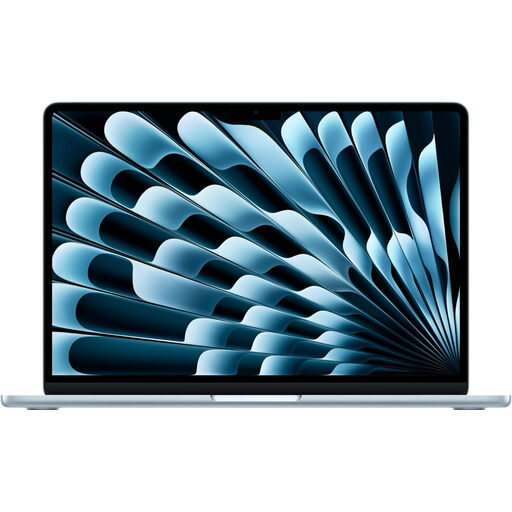
Apple 13-inch MacBook Air M5, 16GB, 1TB SSD, Sky Blue
For planning on macOS at home and away from the desk: Apple states that the M5 MacBook Air supports up to two external displays. This listing specifies a 10-core CPU, 10-core GPU, 16GB memory and 1TB SSD. Confirm that your essential apps and intended monitor connections suit this setup.
View on Joybuy
 No image available
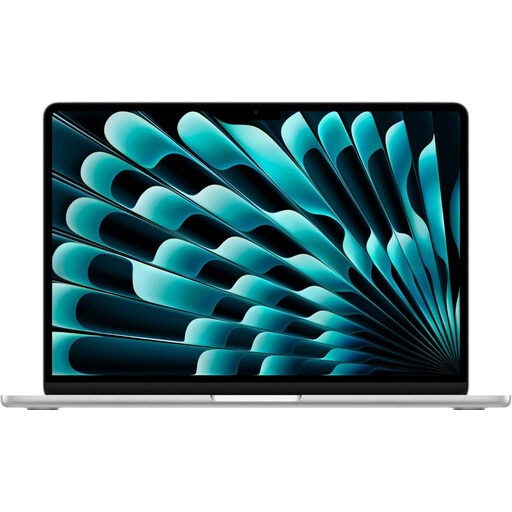
Apple 15-inch MacBook Air M5, 16GB, 1TB SSD, Silver
For someone who also wants a 15-inch built-in screen when working away from the two-monitor desk: Apple states that the M5 MacBook Air supports up to two external displays. The listing title specifies a 10-core CPU, 10-core GPU, 16GB memory and 1TB SSD; confirm the supplied memory and storage configuration before ordering. Check software and monitor-connection compatibility as well.
View on Joybuy
Frequently asked questions
Will two video ports let me run two external monitors?
Not necessarily: check the exact laptop’s documented simultaneous external-display count and the resolution and refresh-rate combination you need. After connecting monitors in Windows, Microsoft Support explains how to detect and arrange them in Display settings.
Do I need a dock for a two-monitor savings-planning desk?
Not if the laptop supports both displays through suitable direct outputs and you are happy to connect them separately. A dock can simplify regular connections at a fixed desk, but check its display mode, laptop host compatibility and charging requirements before buying one.
How do I put different windows on each screen in Windows?
Use an extended desktop rather than duplicating the same image. Microsoft Support advises arranging the numbered displays in Windows display settings to match their physical positions; use Detect if a connected monitor does not appear.
What should I check about the charger for use with UK sockets?
Check that the supplied charger and plug arrangement are intended for the sockets where you will use the laptop or dock. Ask the seller to confirm the supplied equipment and product information when a listing’s power arrangement is unclear, particularly for an imported model.


