Start with the exact tablet model: choose a stylus the manufacturer lists as compatible, then decide whether your lettering needs pressure-sensitive strokes or simply a pen for writing and drawing. App and brush settings affect the marks you can make, while shortcut controls are most useful if you change tools often. At a standing desk, a stable tablet position and workable writing angle matter separately from the pen.
Who this is for
iPad card-lettering creators
If you already use an iPad for editable wording or brush-style card designs, identify its exact model before choosing an Apple Pencil. Tool controls are a secondary consideration unless you regularly switch brushes or settings.
Galaxy Tab brush-lettering users
If you want strokes that respond to writing pressure, check both the intended S Pen accessory and your Galaxy Tab series. Samsung specifies compatibility by accessory; the S Pen name alone does not establish a match.
Standing-desk card makers
If you letter cards while standing, think about where the tablet will sit as well as how the pen feels to use. A stable support, manageable reflections and room for your writing hand can affect the setup throughout the task.
What matters when choosing
Check tablet compatibility first, then choose the stroke behaviour your card design calls for. Arrange the standing-desk setup before deciding whether pen shortcuts would make a meaningful difference to your workflow.
| Concern |
What to check |
Who this matters to |
| Tablet compatibility |
Match the complete tablet model and generation to the pen maker’s compatibility list. Check any operating-system or pairing requirements. |
I need the pen to work with the tablet I own before its drawing features matter. Around 46% of consumers put exact compatibility first. |
| Variable lettering strokes |
Check pen pressure support and whether your lettering app and chosen brush use it. Consider tilt only if the brush maps it to an effect you want. |
For brush-style card lettering, I want thin and thick strokes that I can control, rather than relying on a pressure-level count alone. Roughly 36% of consumers prioritise this expressive-stroke need. |
| Standing-desk workflow |
Try a stable writing angle with space for your hand and card reference. Check shortcut controls or pen storage if you often pause or change tools. |
When I letter at a standing desk, I need to reach the tablet comfortably without reflections or tool changes breaking my flow. About 18% of consumers put this workflow need first. |
Buying pitfalls
-
Choosing by tablet brand rather than model
Apple lists compatible iPads separately for different Pencil generations, while Samsung names supported Galaxy Tab series for individual S Pen accessories. A shared brand name does not establish that a particular pen will work.
Find your tablet’s complete model, then check the manufacturer’s current list for the pen you intend to order.
Some first-generation Apple Pencil and iPad combinations also require a USB-C to Apple Pencil Adapter for pairing and charging.
-
Relying on a pressure-level number alone
A pressure-sensitive pen does not determine the finished stroke by itself. Wacom explains that software and settings affect how pressure works in practice.
Check that your lettering app and brush respond to pressure in the way your design needs before choosing a pen for its advertised pressure levels.
-
Buying tool controls to solve an awkward desk setup
Shortcuts cannot change an unstable writing angle, screen reflections or poor reach. The Health and Safety Executive identifies fatigue and discomfort among the potential issues associated with poorly arranged display-screen work.
Set up stable tablet support and enough hand space first. Then consider controls such as squeeze or double-tap if you frequently switch tools.
A separate tablet support or adjustment to the desk arrangement may still be needed.
Relevant brands to consider
Apple
Apple Pencil is an iPad-specific range with different compatibility lists for its pen generations.
- Apple describes precision, tilt input and palm rejection across the range; Apple Pencil Pro adds controls including squeeze for compatible iPads.
- Check the exact iPad model before selecting a generation. Apple Pencil Pro also requires a supported iPad and iPadOS 17.5 or later.
Samsung
Samsung’s S Pen accessories serve specified Galaxy Tab families for handwriting and drawing.
- Samsung states that Tab S Pen offers 4,096 pressure levels, a feature to consider alongside the lettering app and brush.
- Compatibility belongs to the particular accessory and tablet series, not every product carrying the S Pen name.
Wacom
Wacom pen tablets and pen displays are a separate route for card lettering within a computer-based creative workflow.
- Wacom describes pressure-sensitive input using its battery-free EMR pen technology.
- A pen tablet is not a replacement stylus for an iPad or Galaxy Tab. Check the computer, driver and creative-software setup.
Joybuy product choices for card lettering
These choices are pens to consider for tablet lettering, chiefly Apple Pencil variants for compatible iPads, plus a touchscreen pen for simpler writing or sketching. Use your tablet model and intended brush style to narrow the list; the product order is not a compatibility ranking.
 No image available
Apple Pencil Pro (2024) for iPad Air/iPad Pro
For lettering on a compatible iPad, consider Apple Pencil Pro if you frequently change drawing tools: Apple describes a squeeze control that opens a tool palette.
Check your exact iPad model and the iPadOS 17.5-or-later requirement before ordering. A suitable app and brush remain necessary for the pressure-responsive strokes you want.
View on Joybuy
 No image available
Apple Pencil (2nd Generation)
For drawing card lettering on an iPad listed as compatible with this generation, this is a pen option to compare with the brush controls you need.
Check your complete iPad model against Apple’s compatibility list and confirm how your intended app and brush handle pressure-variable strokes.
View on Joybuy
 No image available
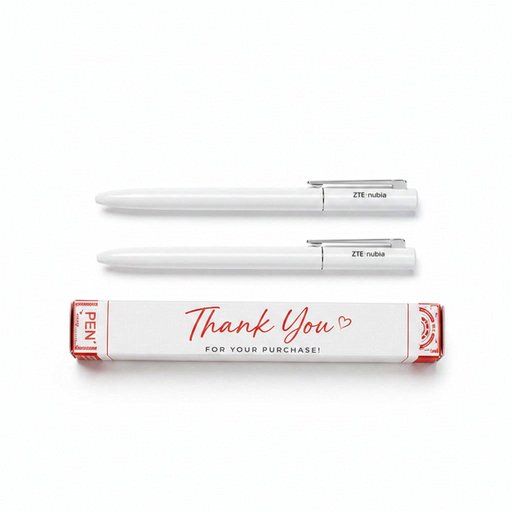
ZTE Nubia Pen White – Free Gift Only
For straightforward writing or sketching on a touchscreen tablet, check whether this pen produces the marks you want in your lettering app.
The item is designated Free Gift Only, so confirm how it is supplied before planning to use it. If your design depends on pressure-variable strokes, check the pen’s behaviour with your tablet and brush.
View on Joybuy
 No image available
Apple Pencil (USB-C)
For greeting-card lettering on a compatible iPad, consider this USB-C variant if its input suits the marks you plan to make.
Check your exact iPad model and the pairing and charging arrangement. If thin-to-thick brush strokes are central to your design, confirm pen, app and brush pressure support before choosing it.
View on Joybuy
Common questions
Will any active stylus work with my tablet?
No: match the exact tablet model to the particular pen before ordering. Apple publishes separate iPad compatibility lists for Pencil generations, and Samsung specifies Galaxy Tab series for individual S Pen accessories.
Do I need pressure sensitivity to letter a greeting card?
Choose pressure sensitivity if you want brush strokes that change as you press harder or lighter; it matters less for fixed-width writing. Wacom notes that the result depends on software and settings, so check your lettering app and brush as well as the pen.
Will a stylus alone make standing-desk lettering comfortable?
No: the tablet’s support, writing angle, reflections and available hand space also affect the setup. Arrange those before relying on pen storage or tool shortcuts to make longer lettering sessions easier to manage.
Does a safety marking tell me whether a stylus fits my tablet?
No: check the pen maker’s model-specific compatibility guidance instead. For any mains charger supplied with a pen, follow its safety instructions; a marking is not a substitute for checking which tablet and pen work together.


