Choose a desktop around your named simulator and any CAD work you run alongside it, rather than its gaming label. For NI Multisim, confirm the requirements of your exact Windows edition; if your work also involves resource-heavy Autodesk Fusion projects, use Autodesk’s recommended configuration for that workload as a reference. At a standing desk, check the computer’s placement and cable travel as well as the monitor, keyboard and mouse positions.
Who this applies to
Circuit-simulation-focused users
You mainly work with schematics and circuit simulations rather than running substantial 3D CAD or rendering jobs alongside them. NI identifies Windows as the operating-system environment for Multisim; check the requirements of the edition you intend to use.
Electronics and CAD workflow users
You combine electronics work with PCB design, CAD, larger assemblies or several demanding applications. Autodesk publishes separate requirements for basic and resource-heavy Fusion work, so the latter workflow calls for a different hardware check from circuit simulation alone.
Standing-desk workstation users
You need the PC to fit an adjustable desk used for extended screen work. The Health and Safety Executive’s guidance considers the whole workstation, including equipment and furniture, rather than the computer alone.
What to check before buying
Start with the simulator and the applications you will run together. Then decide whether a smaller case or an expandable tower fits your space and upgrade plans; either choice still needs a workable display and cable setup.
| Concern |
Buying checks |
Who this matters to |
| Software compatibility |
Check the named simulator’s current operating-system requirements and whether your intended licence covers the work. |
If my main task is running a particular simulator, I need its edition and licence to work on the PC I choose. Around 25% of consumers put that compatibility need first. |
| Capacity for combined work |
For resource-heavy Fusion work, compare the configuration with Autodesk’s recommended CPU, memory and graphics requirements. |
When I move between circuit design, CAD and larger projects, I need a configuration suited to those applications running together. For around 42% of consumers, that combined workload is the primary concern. |
| Standing-desk setup |
Check case clearance, ventilation and cable travel, plus independently adjustable screen and input-device positions. |
I need the desk to move without straining cables or compromising where I place the screen and controls. That physical setup comes first for around 33% of consumers. |
Buying pitfalls
-
Using an old software minimum as a new-PC target
An older NI Circuit Design Suite document lists 1 GB of memory and 2 GB of free storage. Those minimums do not describe the hardware recommended for a resource-heavy Fusion and CAD workflow.
Check the current requirements for your simulator, then account for the other applications and project sizes you expect to use.
-
Choosing a tower before finding its place
A case that fits beside the desk while seated may interfere with desk travel, ventilation space or cable routing when the desk rises. The Health and Safety Executive advises considering the whole workstation.
Check the proposed PC position at the desk’s lowest and highest settings, including clearance and cable slack.
-
Planning the PC but not the display and controls
A fixed screen or awkward keyboard position can make the standing setup difficult to adjust. Health and Safety Executive guidance advises a screen top at eye level, with the screen about an arm’s length away.
Plan positions for the monitor, keyboard and mouse, then recheck them when you change desk height.
-
Assuming a personal-use licence covers paid work
Autodesk limits Fusion for personal use to eligible personal, non-commercial projects and applies feature restrictions.
Check the current licence terms before choosing a desktop around Fusion for employment or commercial projects.
Relevant brands to consider
Dell
Dell’s Precision fixed-workstation range includes compact, small, tower and rack-oriented formats.
- The range offers different physical formats to consider when matching a PC to available space.
- Check the exact configuration’s dimensions, ports, expansion options and suitability for your simulator; a range name does not establish those details.
HP
HP’s Z desktop range includes mini, small-form-factor and tower workstations relevant to workflows that extend into CAD and modelling.
- Different case formats let you compare physical fit alongside configuration.
- HP’s published maximum configurations vary by model; check the memory, graphics, ports and expansion available on the version you would order.
Lenovo
Lenovo positions its ThinkStation P Series desktops for professional workflows, with tower options to consider where expansion matters.
- The range provides workstation configurations to compare against an intended engineering workload.
- Confirm the exact model’s processor, memory capacity, graphics, dimensions and support terms rather than treating the range as a single specification.
Desktop choices on Joybuy
These Windows desktop towers are choices to consider if your circuit simulator supports their operating system. Their stated configurations also give you hardware to assess for work beyond basic simulation, but a gaming graphics card alone does not establish CAD suitability. Check each case’s fit with your standing desk.
 No image available
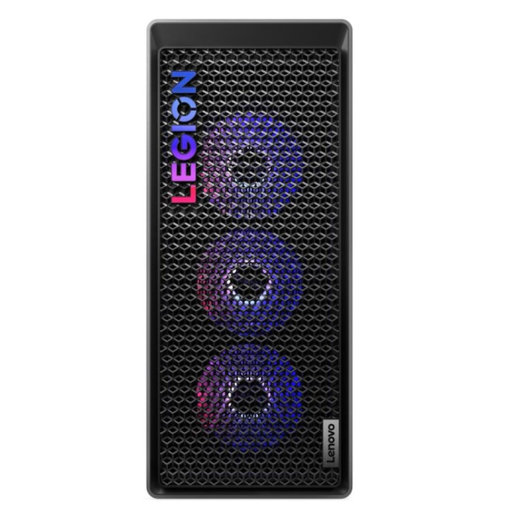
Lenovo Legion T7 34IAS10 gaming tower
Consider this Windows tower if its case fits your setup and your named simulator supports Windows 11 Home.
- Intel Core Ultra 7 265K, 32 GB RAM and 1 TB SSD.
- RTX 5070 Ti graphics; check whether your other applications call for this configuration.
- Check placement, ventilation and cable routing throughout the desk’s travel.
View on Joybuy
 No image available
CyberPowerPC JOYB1013 Ryzen 7 9800X3D / RTX 5080, white
This Windows tower is worth assessing if your workflow includes applications beyond circuit simulation and you have room for a separate display setup.
- AMD Ryzen 7 9800X3D, 32 GB DDR5 and 2 TB NVMe SSD.
- RTX 5080 graphics with 16 GB graphics memory; Windows 11 Home.
- Monitor, keyboard and mouse are not included. Check case clearance, airflow and cable slack before ordering.
View on Joybuy
 No image available
CyberPowerPC JOYB1010 Core Ultra 7 265KF / RTX 5070, black
Consider this Windows tower where your named software supports Windows 11 Home and its configuration matches the other work you plan to run.
- Intel Core Ultra 7 265KF, 32 GB DDR5 and 1 TB NVMe SSD.
- RTX 5070 graphics with 12 GB graphics memory.
- Monitor, keyboard and mouse are not included. Check tower placement and cable travel at both desk heights.
View on Joybuy
 No image available
Stormforce Defiance Ryzen 7 5700X desktop
This Windows desktop is an option to assess against your simulator’s requirements and the space available around your standing desk.
- 32 GB RAM, 2 TB SSD, RTX 5070 graphics and Windows 11.
- If graphics-heavy CAD is part of your work, check the graphics-memory specification for this exact configuration.
- Confirm case dimensions and weight before deciding where it will sit.
View on Joybuy
Frequently asked questions
Do I need a high-end graphics card for circuit simulation?
Not automatically: start with the requirements of your named simulator. If you also do professional, resource-heavy work in Autodesk Fusion, its recommended Windows specification includes 8 GB or more of dedicated graphics memory; that is a Fusion-specific reference, not a requirement for every circuit simulator.
When should I consider 32 GB of RAM?
Consider 32 GB or more when circuit work is combined with resource-heavy Fusion CAD projects or other demanding applications. Autodesk lists that capacity in its recommended Windows specification for professional Fusion workflows; check your exact simulator before applying it to a simpler task.
What changes when the computer is used at a standing desk?
Plan the display and input-device positions as well as the PC’s location. The Health and Safety Executive advises placing the screen top at eye level and the screen about an arm’s length away; check that cables have slack throughout the desk’s movement.
Can Fusion for personal use cover commercial circuit-design work?
Autodesk describes Fusion for personal use as intended for eligible personal, non-commercial projects and applies feature restrictions. If the work is for an employer or a paid project, check the current licence terms and the electronics features you need before choosing a PC around it.


