Windows PCB and simulation users
If your course or work requires Altium Designer or NI Multisim, establish Windows compatibility before comparing laptop configurations. Altium’s recommended setup also accounts for PCB work and external displays.


Choose the laptop around the software you must run: Altium Designer’s documented requirements and NI’s Multisim installation guidance point to Windows, while Analog Devices offers LTspice for both Windows and macOS. For more demanding Altium work, its recommended 32 GB RAM, SSD and display setup provide a starting point; for LTspice-focused work, check the processor, memory and storage against your circuits. At a standing desk, plan the screen, input devices and connections as part of the purchase.
If your course or work requires Altium Designer or NI Multisim, establish Windows compatibility before comparing laptop configurations. Altium’s recommended setup also accounts for PCB work and external displays.
If LTspice is your main tool, Analog Devices’ guidance makes processor performance, memory and SSD storage useful checks. Its macOS version gives you another operating-system option, provided your other required applications also work there.
If you carry the laptop as well as using it at a standing desk, consider its weight alongside connections for your planned display and peripherals. The Health and Safety Executive advises considering the whole display-screen workstation, not just the laptop.
Choose when: Altium and substantial PCB work make its recommended memory, graphics and display requirements relevant to your workflow.
Check: A workstation family name does not establish the RAM, graphics or ports on the particular configuration you buy.
Choose when: Windows-dependent tools are required, but your LTspice or Multisim workflow does not call for a workstation configuration.
Check: Minimum software requirements alone do not establish how a laptop will handle your larger circuits or simultaneous applications.
Choose when: Your required workflow centres on LTspice and every companion application has a confirmed macOS option.
Check: Analog Devices offers LTspice for macOS, but Altium’s documented requirements and NI’s Multisim installation guidance are Windows-based.
| Concern | Buying check | Who it matters to |
|---|---|---|
| Software and simulation capacity | Confirm the operating system for every required tool; compare RAM, processor and SSD with the software vendor’s guidance and your workload. | I need my simulator and PCB tools to run together without choosing an incompatible operating system; around 50% of consumers put software compatibility and simulation capacity first. |
| Standing-desk workspace | Check the exact laptop’s display outputs and charging arrangement against your monitor and dock; plan separate input devices if raising the screen. | My schematics, waveforms and documentation need a workable arrangement at the desk, with connections for the equipment I intend to use; roughly 30% of consumers prioritise workspace expansion. |
| Portability | Check the exact configuration’s weight and charger, as well as how it reconnects to desk peripherals. | When I move between work locations, carrying the laptop and setting it up again matter to me; around 20% of consumers place portability first. |
A processor label cannot establish whether the laptop fits your software or has enough memory and storage for your work. Analog Devices recommends considering CPU performance, 16–32 GB RAM and an SSD for more complex LTspice use; Altium’s recommended configuration also includes 32 GB RAM and an SSD.
List your simulator, PCB tools and applications you run together, then compare the full configuration with their requirements.
The connector shape alone does not establish display output or charging capability. A compatible dock, power supply or display cable may also be needed for the arrangement you plan.
Match the exact laptop ports and charging requirements to your monitor and dock before ordering accessories.
Screen position, keyboard and mouse position, furniture and working conditions all affect the setup. The Health and Safety Executive advises assessing the whole display-screen workstation.
Plan where the display and input devices will sit at standing height, and consider separate peripherals if you raise the laptop screen.
LTspice is available for macOS, but that does not establish compatibility with a course or project that also requires Altium Designer or NI Multisim.
Confirm every required application, operating-system version and approved alternative with your course or project team before choosing a Mac.
Lenovo’s ThinkPad P16s range is relevant when comparing 16-inch Windows mobile-workstation configurations for engineering work.
HP’s ZBook Power G11 range is relevant if you are comparing configurable Windows mobile workstations for a desk with external equipment.
Dell’s Pro Precision and Pro Max ranges provide Windows workstation options to examine for engineering applications.
These laptops offer configurations to consider for circuit simulation and a standing-desk setup. Check each one against your required operating system, software and external-display arrangement; the selection includes models with different memory and portability considerations.
 No image available
Consider this Windows laptop if your software and simultaneous work call for its listed memory and storage; confirm the external displays your planned dock or monitor setup can use.
16-inch 4K OLED touchscreen; AMD Ryzen AI 9 HX 370; NVIDIA GeForce RTX 5080 16 GB; 64 GB RAM; 2 TB SSD; Windows 11 Home.
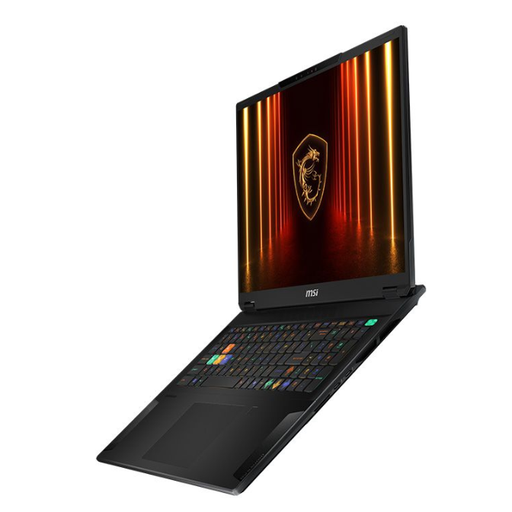 No image available
Consider this 18-inch model if a larger built-in screen suits your work away from the desk; confirm its operating system and external-display support for your required tools and monitor arrangement.
Intel Core Ultra 9; 32 GB RAM; 2 TB SSD; NVIDIA GeForce RTX 4070.
 No image available
Consider this Windows configuration if 64 GB RAM and local SSD storage fit your workflow; check its weight for regular travel and its support for your intended external displays.
16-inch model; Intel Core Ultra 9; 64 GB RAM; 2 TB SSD; NVIDIA GeForce RTX 5090; Windows 11 Home.
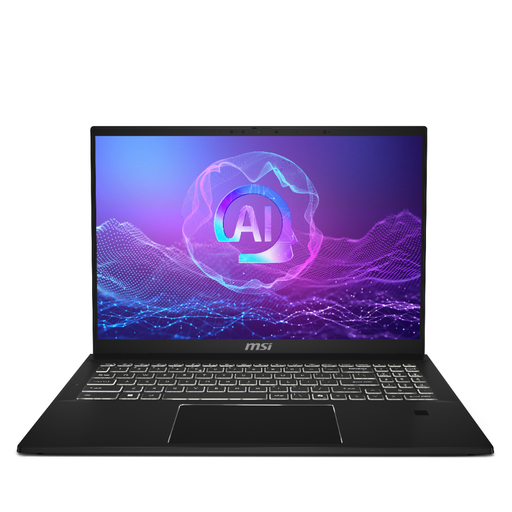 No image available
Consider this 16-inch configuration if its memory and storage fit your simulation work; verify the operating system required by your software and the ports needed at your desk.
QHD+ 165 Hz display; Intel Core Ultra 7 255H; Intel Arc; 32 GB LPDDR5 RAM; 1 TB SSD.
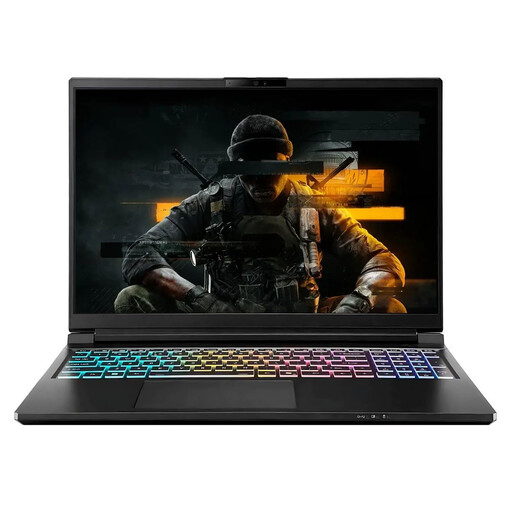 No image available
Consider this model if its listed memory and storage suit your files and applications, but establish the operating system before choosing it for Windows-dependent software. Check the display connections against your desk setup too.
32 GB RAM; 4 TB storage as listed in the product name.
Not for every circuit or simulator. Altium Designer recommends 32 GB RAM, while Analog Devices suggests about 16–32 GB for performance-oriented LTspice use; weigh those recommendations against your circuit size and the other applications you keep open.
A Mac can be an option for an LTspice-centred workflow because Analog Devices offers a macOS version. Check every other required tool first: Altium Designer’s documented requirements and NI’s Multisim installation guidance are Windows-based.
No: consider the screen, keyboard, mouse, furniture and how you work together. Health and Safety Executive guidance covers assessment of the whole display-screen workstation; if you raise the laptop screen, separate input devices may help you arrange the setup.
Check the exact laptop’s video-capable ports, supported display arrangement and charging requirements against your monitor and dock. A USB-C-shaped connector alone does not establish what display or power functions it provides.