Map-and-interface space seekers
If you keep maps, build menus and resource panels visible while playing, screen space and readable detail also matter when you return to spreadsheets or other desk work.


For city-building on a typical home-office desk, a 27-inch QHD IPS monitor is a sensible starting point: it gives you room for maps and menus without the graphics demand of 4K, which RTINGS identifies as the more demanding resolution. Consider 32-inch 4K if fine detail matters most and your desk and PC can accommodate it; consider OLED for mixed-genre gaming if you are prepared to manage persistent game and desktop interfaces.
If you keep maps, build menus and resource panels visible while playing, screen space and readable detail also matter when you return to spreadsheets or other desk work.
You want QHD detail for games and work but need to weigh a larger 4K screen against desk space and the graphics performance your PC can deliver. RTINGS describes 1440p as less demanding on a graphics card than 4K.
You play faster games as well as city-builders and are considering OLED for contrast and response performance. Persistent toolbars and desktop elements make the panel-care arrangements worth checking before you choose one.
If one monitor must serve both city-building and home-office work, start with the map detail and desk position you need, then check whether your PC and connections can deliver the resolution and refresh mode you want.
| Concern | What to check | Who this matters to |
|---|---|---|
| Map and interface space | Compare native resolution and screen size; check that the screen fits your desk. | If I keep a dense map and several management panels open, I want enough usable space without making the interface awkward to read. Around 40% of consumers would put map and interface space first. |
| PC and connection fit | Check game performance at native resolution and the GPU, port and cable requirements for your intended refresh mode. | When I also play other PC games, I want the monitor's resolution and refresh options to work with my equipment. For around 30% of consumers, that compatibility is the primary concern. |
| Desk comfort | Check desk depth and the supplied stand's adjustment range, or mounting requirements if you plan to use an arm. | A screen I use for work as well as play needs to sit comfortably within reach and view. Workstation positioning comes first for around 20% of consumers. |
| Contrast and motion | Compare panel type and native refresh; for OLED, review panel-care features and warranty terms. | If city-building is only part of my gaming, I may give more weight to contrast and fast-motion performance while accepting panel-care routines. Around 10% of consumers would make those image characteristics their main priority. |
At comparable settings, 4K asks the graphics card to render more pixels than QHD. RTINGS describes 1440p as a less demanding middle ground between Full HD and 4K.
Check performance for the games and resolution you intend to use before choosing a 4K monitor.
If performance falls short, you may need to lower game settings or consider a graphics-card change.
LG lists the 27GS75QN-B at a native 180Hz; its optional 200Hz mode has specific connection requirements.
If 200Hz matters to you, check that your graphics card supports DisplayPort 1.4 and that you have a DisplayPort 1.4 cable.
Static game panels and desktop elements make burn-in risk relevant. ASUS describes the OLED Care Pro features on its PG27AQWP-W as ways to reduce that risk, not eliminate it.
Decide whether OLED's display characteristics matter to your wider gaming use, and review the specific monitor's care features and warranty terms.
The UK Health and Safety Executive advises checking whether a home workstation allows a comfortable, sustainable posture. Screen size alone cannot establish that.
Measure your desk and check viewing position and stand adjustment before choosing a larger display; assess your workstation where your work arrangements require it.
A separate monitor arm may be needed if the supplied stand cannot provide the position you require.
The G2724D illustrates a 27-inch QHD IPS option for a shared gaming and home-office desk.
The UltraGear 27GS75QN-B is a 27-inch QHD IPS example for buyers considering higher-refresh gaming alongside desk use.
The 32-inch Odyssey G70D illustrates a larger 4K IPS route for detailed maps and desktop work.
The ROG Swift OLED PG27AQWP-W illustrates a QHD OLED option for players who also value fast-paced games.
These Joybuy monitors offer different ways to prioritise QHD detail, a wider view or 4K resolution for city-building and desk use. Check the size, PC requirements and, where relevant, OLED care against your own setup.
 No image available
Consider this model if you want a 27-inch QHD screen for maps and also play games where a higher refresh rate matters.
The product title specifies an OLED panel, 240Hz refresh rate and quoted 0.03ms response time. For persistent city-building menus and desktop use, check its panel-care features and warranty terms before buying.
 No image available
Consider the wider format if you want room to arrange game panels or work windows, provided it fits your desk and viewing position.
The product title specifies a 34-inch VA panel, WQHD resolution and 240Hz refresh rate. Check that your PC and chosen connection support the mode you intend to use.
 No image available
This is a larger-screen option if fine map detail matters and your desk and PC can accommodate 4K gaming.
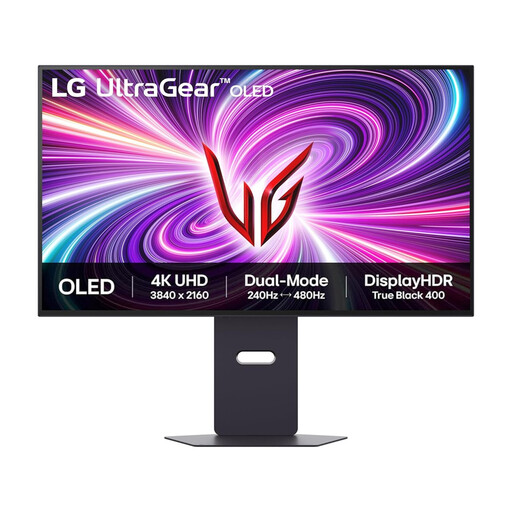
The product title specifies a 4K 240Hz mode and a Full HD 480Hz mode, a quoted 0.03ms response time and 7W stereo speakers. Check which connection supports your intended mode, along with the OLED care features and warranty terms for static interfaces.
 No image available
Consider this conventional 27-inch QHD format if map detail matters but a larger screen would be harder to position on your desk.
The product title specifies 2560 × 1440 resolution and a 220Hz refresh rate. Check stand or mounting adjustment if positioning flexibility matters, and confirm that your PC and chosen input can deliver the mode you want.
 No image available
Consider this larger 4K format if detailed maps and a desk connection for another device matter to you, subject to desk fit and PC performance.
The product title specifies 3840 × 2160 resolution, 165Hz, a quoted 0.03ms GtG response time, a USB hub and USB-C with 65W power delivery. If adaptive sync or laptop charging is essential, check compatibility with your devices; also review OLED care features and warranty terms for static interfaces.
They can apply to home work, depending on your employment and display screen use. The UK Health and Safety Executive advises employers to assess whether the rules apply and, where required, whether the workstation allows a comfortable, sustainable posture; the rules do not prescribe one monitor size for everyone.
No. LG specifies a native 180Hz refresh rate for the 27GS75QN-B and says its optional 200Hz overclocked mode requires a DisplayPort 1.4-capable graphics card and DisplayPort 1.4 cable.
Not automatically, but persistent menus make panel care an important part of the choice. ASUS describes the care features on its PG27AQWP-W as reducing burn-in risk, not removing it; review the particular monitor's care controls and warranty terms alongside your other gaming needs.
No. The UK Health and Safety Executive advises checking whether the whole workstation supports a comfortable, sustainable posture. Measure desk depth and check viewing position and stand or arm adjustment before deciding whether a 32-inch monitor fits your setup.