Choose a 27-inch QHD monitor if room for dense city maps and management panels matters most, provided your desk and computer can accommodate it. A 23.8-inch Full HD screen is a more compact choice when space or rendering demands take priority; a curved QHD model is an option if you prefer its shape and can position it comfortably. In a shared bedroom, check glare, brightness, stand adjustment and headphone connections alongside the gaming specifications.
Who is this for?
Map-and-interface detail seekers
If you regularly manage dense road networks, overlays and toolbars, start by deciding whether a 27-inch QHD display fits your desk and computer. AOC UK lists 2560 × 1440 resolution for both its flat Q27G4X and curved CQ27G4X.
Shared-bedroom late players
When someone nearby is studying or resting, plan for headphones and a screen position that limits glare. Brightness settings and breaks matter too; a manufacturer-listed low-blue-light feature should not stand in for a sensible late-night routine.
Small-desk or modest-PC players
If a 27-inch screen crowds the desk, or Full HD is a better match for your computer, a smaller display is worth considering. LG UK lists its 24GS60F-B as a 23.8-inch Full HD monitor.
What matters when choosing?
For city-building in a shared bedroom, settle the resolution and physical fit first, then check how the screen, stand and audio connections will work around the other person in the room.
| Concern |
What to check |
Who this matters to |
| Readable maps and controls |
Compare 2560 × 1440 QHD with 1920 × 1080 Full HD, and check that your device can run the game at your chosen resolution. |
If I keep several maps and management panels open, I want enough pixels to arrange them without making refresh rate my only criterion. Around 36% of consumers put map and interface detail first. |
| Low-disruption bedroom use |
Check brightness controls, screen reflections and a workable headphone connection; position the display with the room lighting in mind. |
When someone else needs to rest, I want to play without relying on audible speakers or shining the screen towards them. Roughly 36% of consumers prioritise low-disruption use. |
| Compact fit and Full HD |
Measure desk width and depth, then check stand adjustment and whether Full HD suits your computer. |
On a crowded desk, I would rather have a screen I can position comfortably than extra display area I cannot accommodate. About 28% of consumers make compact fit or manageable Full HD operation their primary concern. |
Buying pitfalls
-
Choosing by refresh rate alone
A 180Hz specification does not add space for a city-building interface: AOC UK lists a 180Hz QHD Q27G4X, while LG UK lists a 180Hz Full HD 24GS60F-B.
Choose resolution and screen size for your maps and desk first. Then check which refresh rate your computer, connection and chosen settings can use.
-
Assuming built-in speakers are suitable for the room
Speakers can make sound audible to someone sharing the bedroom, and not every monitor has them. BenQ lists speakers on the GW2790; Dell lists no built-in speakers on the S2722DGM.
Check the exact model's audio connections and plan for headphones when quiet play matters.
-
Overlooking the stand and desk dimensions
A larger screen needs room to sit and be positioned. The Health and Safety Executive advises arranging screens and lighting to avoid reflections and glare when using display screen equipment.
Measure the desk and check the stand's adjustment range or compatibility with the mount you intend to use.
If a supplied stand cannot reach a comfortable height, positioning the screen may require a separate riser or compatible arm.
-
Treating low-blue-light features as a complete late-night plan
BenQ lists flicker-free and hardware low-blue-light features for the GW2790, but those specifications do not establish that prolonged late-night play will leave sleep unaffected.
Set brightness for the room, limit glare and take breaks during extended sessions; consider when you stop playing if sleep timing matters.
Brands to consider for these monitor choices
AOC
AOC UK provides both flat and curved 27-inch QHD examples: the Q27G4X and CQ27G4X.
- AOC UK lists 2560 × 1440 resolution, 180Hz and Adaptive Sync for these models; the CQ27G4X also has a 1500R curve and height adjustment.
- The flat Fast IPS and curved Fast VA designs are different choices. Check which screen shape and stand arrangement suit your desk.
LG
LG UK lists the 23.8-inch 24GS60F-B and 27-inch 27GS60F-B as Full HD gaming-monitor examples.
- The listed models have IPS panels and 180Hz refresh rates; the smaller 24GS60F-B offers a compact-screen route.
- Full HD provides fewer pixels than QHD for maps and panels. Check the stand arrangement if screen height matters.
BenQ
The GW2790 is a 27-inch Full HD option for mixed home use and city-building play.
- BenQ lists a 100Hz IPS panel, 2W × 2 speakers, flicker-free technology and a hardware low-blue-light feature.
- Its Full HD resolution offers fewer pixels than QHD, while built-in speakers may be unsuitable when someone else needs quiet. The listed comfort features do not establish sleep or health benefits.
Dell
Dell's S2722DGM is a specification reference for a curved 27-inch QHD gaming monitor.
- Dell lists 2560 × 1440 resolution, up to 165Hz via DisplayPort, 100 mm height adjustment and a headphone output.
- Dell lists no built-in speakers. Check whether its curved format fits the desk and your viewing preference.
Joybuy product choices
These displays offer ways to prioritise map detail at QHD resolution, with different screen sizes and refresh rates. For shared-bedroom use, assess each screen's fit, reflections and audio connections separately.
 No image available
Samsung Odyssey G6 S27DG612 27-inch QHD OLED
Consider this for a 27-inch QHD setup centred on city-map and interface detail. Its title specifies 240Hz and 0.03ms; check that your device supports the display mode you intend to use. Confirm the audio connection if wired headphones are part of your shared-room setup.
View on Joybuy
 No image available
ASUS ProArt PA278CFRV IPS QHD 100Hz
Consider this QHD model when interface space matters more to you than choosing a higher listed refresh rate. The product title specifies an IPS panel and 100Hz. Check the exact variant's speaker and headphone connections before planning quiet play.
View on Joybuy
 No image available
ASUS ProArt PA278CV IPS WQHD
This IPS WQHD model is another option when room for city-building interfaces is the priority. Check whether its listed 75Hz refresh rate suits your use, and confirm the audio connections if you need to play through headphones.
View on Joybuy
 No image available
HKC G27H2DPro 27-inch QHD Fast IPS
Consider this for a 27-inch QHD city-map setup. Its title specifies 2560 × 1440 resolution and 220Hz. Check how its glossy finish will reflect the room's lighting, and confirm the stand and audio connections for your intended position.
View on Joybuy
 No image available
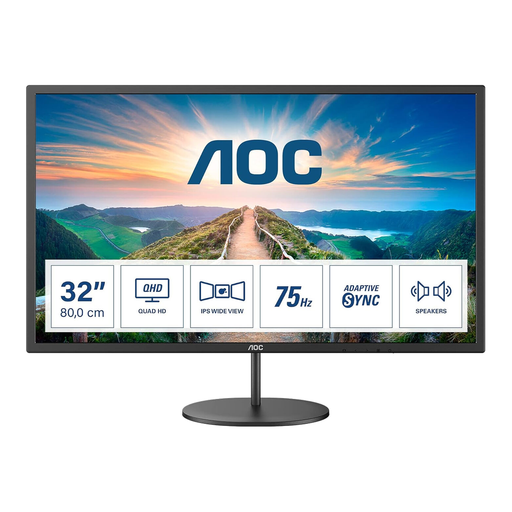
AOC Q32V4 31.5-inch IPS monitor
Consider this larger display only if the desk can accommodate a 31.5-inch screen at a comfortable distance. Its product title lists Adaptive Sync and built-in speakers; check the exact resolution, stand setup and headphone connection before relying on it for your shared-bedroom arrangement.
View on Joybuy
Common questions
Is QHD worth choosing for city-building games?
A 27-inch QHD monitor is worth considering if dense maps and management panels are your priority and your computer can run the game at 2560 × 1440. It provides more pixels than Full HD for arranging an interface; choose a smaller Full HD screen instead if desk fit or your computer's rendering demands matter more.
Do I need a 180Hz monitor for city-building games?
No particular refresh rate is required to choose a monitor for city-building games. AOC UK lists both QHD and LG UK lists Full HD examples at 180Hz, so check resolution, screen fit and the refresh rate your connected device can actually use rather than treating that figure as a substitute for the other decisions.
Would a curved monitor work better on a shared-bedroom desk?
A curved screen is a preference, not a requirement for city-building games. If you are considering a model such as AOC's 27-inch CQ27G4X, measure the available desk space and check whether its 1500R curve and height-adjustable stand suit where you will sit.
How can I avoid disturbing someone who shares the bedroom?
Plan for headphones, set the screen brightness to suit the room and position the monitor to limit reflections and light towards the other person. The Health and Safety Executive advises adjusting screens and lighting to avoid glare and taking breaks or changing activity during extended display-screen use; a low-blue-light feature does not replace those practical choices.


