Staff scanning routine letter batches
For several one-sided A4 letters at a time, an ADF reduces page-by-page handling. Compare feeder capacity with a typical batch and check that the letters can be fed safely.


For recurring batches of appointment letters, choose an A4 multifunction printer with an automatic document feeder (ADF), then check whether it scans both sides if letters contain information on the reverse. Mono output can suit text-only work, while colour output matters if the classroom also prints or copies colour documents; whichever route you choose, scanned files need a destination and access process approved by the school.
For several one-sided A4 letters at a time, an ADF reduces page-by-page handling. Compare feeder capacity with a typical batch and check that the letters can be fed safely.
If information appears on both sides, check for automatic two-sided scanning, not just two-sided printing. Colour printing and copying are separate requirements to establish before choosing a model.
Where colour documents are a recurring part of the workload, compare the exact model’s consumable approach and paper capacity alongside its scanning workflow. Manufacturer-stated yields are not a guarantee of output in the classroom.
Start with the letters themselves: batch size and whether both sides need scanning determine the feeder requirements. Then choose the print technology and an approved way to store or send files.
Choose when: Letters and routine printing are predominantly black text, and colour copies are unnecessary.
Trade-off: Mono models cannot produce colour prints or copies; check the exact model’s scanning features separately.
Choose when: Colour output matters and letter batches are mostly one-sided.
Trade-off: Epson describes the WorkForce Pro WF-4820DWF as offering single scanning, so its automatic two-sided printing should not be mistaken for two-sided scanning.
Choose when: Colour output and automatic scanning of both sides are required; HP lists both features for the Color LaserJet Pro MFP 3302fdw.
Trade-off: For that HP model, check whether its cartridge restrictions fit the school’s consumables policy.
Choose when: Regular colour printing makes ink replenishment an important consideration alongside ADF scanning.
Trade-off: Canon specifies simplex colour scanning for the MAXIFY GX4050; do not assume a refillable-tank model will scan two-sided letters automatically.
| Concern | What to check | Who this matters to |
|---|---|---|
| Multi-page scanning | Match ADF capacity and supported paper to typical letter batches; check for two-sided scanning where needed. | When I have a stack of letters to file, I want to avoid placing every sheet by hand. Around 42% of consumers put batch-scan handling first. |
| Scan destination and access | Confirm approved accounts, recipients and file access before using email, cloud or network destinations. | If letters contain personal data, I need scans to reach the right people without becoming broadly accessible. Roughly 33% of consumers place this workflow first. |
| Colour and ongoing use | Decide whether colour prints or copies are needed, then compare consumables against expected use. | When I also produce colour classroom documents, the printer has to suit that recurring work. About 25% of consumers make colour and consumables fit their primary concern. |
A flatbed requires each sheet to be placed individually, which adds handling when several letters need filing.
For recurring batches, check ADF capacity and the supported paper condition and size. Use the flatbed for originals that should not go through a feeder.
Epson describes single scanning on the WorkForce Pro WF-4820DWF, whereas HP lists two-sided scanning on the Color LaserJet Pro MFP 3302fdw. The printing specification does not answer the scanning question.
If letters have information on both sides, look for explicit two-sided or duplex scanning in the exact model’s specifications.
Scan-to-email or cloud capability does not establish who can open a file or whether its recipient and retention arrangements suit the school. The Information Commissioner’s Office advises appropriate technical and organisational measures for personal-data security.
Agree approved accounts, recipient checks, permissions and retention with the school’s data-protection lead before enabling the workflow.
Printer technologies differ in colour capability, consumables and scanning features. A manufacturer’s ink-yield figure does not establish how many pages a classroom will obtain.
Consider expected mono and colour printing together with batch size, two-sided scanning needs and the school’s consumables policy.
Brother’s MFC-L2800DW illustrates a mono laser route for text-led administration.
Epson’s WorkForce Pro WF-4820DWF illustrates a colour business-inkjet route for modest A4 batches.
HP’s Color LaserJet Pro MFP 3302fdw illustrates a colour laser route with automatic two-sided scanning.
Canon’s MAXIFY GX4050 illustrates a refillable-tank colour route where printing and ADF scanning are both needed.
These multifunction models are relevant to classroom letter scanning. Check each exact model’s feeder, two-sided scanning and file-destination specifications against the school’s workflow before choosing.
 No image available
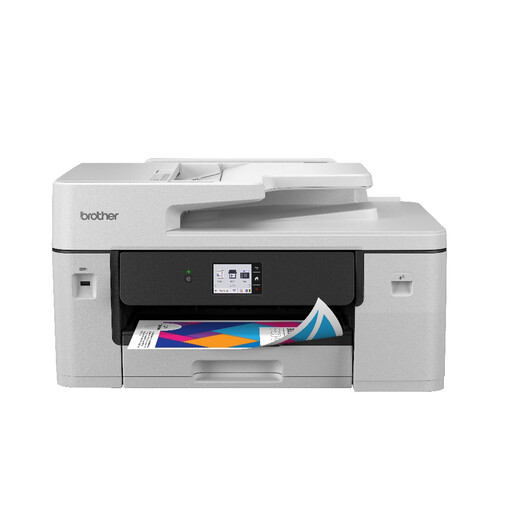
Consider this inkjet model if letter scanning must sit alongside everyday printing. For two-sided letters, confirm automatic duplex scanning separately from any two-sided printing feature.
 No image available
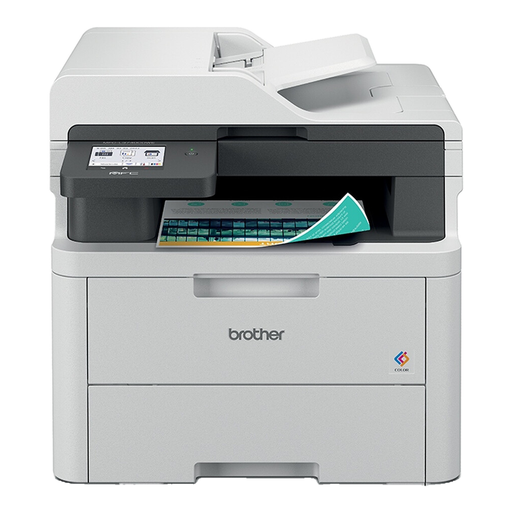
This colour model is relevant when the classroom also needs colour documents. Check its automatic scanning method if appointment letters have information on both sides, and agree an approved file destination before use.
 No image available
For recurring letter batches, compare this model’s feeder capacity with the number of pages staff normally scan. Confirm its two-sided scanning method and permitted scan destinations for the school’s files.
 No image available
This A4 Wi-Fi model is a choice to examine when printing and scanning share a small classroom workspace. Check the feeder and two-sided scanning specifications against typical letters, as well as the approved way to transfer files.
If the letters contain personal data, use a scanning process with security measures appropriate to the risk. The Information Commissioner’s Office advises appropriate technical and organisational measures; confirm approved destinations, account access, recipient checks and retention with the school’s data-protection lead.
A Scan-to-cloud feature is suitable only if the school approves the service and its access and handling arrangements for the personal data involved. Check who can reach the files and how recipients and retention are controlled before enabling it.
The Department for Education points schools towards its approved buying options, but that guidance does not establish a single retailer for every printer purchase. Check the school or trust’s procurement rules before ordering.
Ask the school or trust which electrical-equipment disposal route it uses rather than putting the printer in ordinary rubbish. Before it leaves the school, check whether stored addresses, scans or network settings need to be cleared under the school’s process.