Shared-desk slide editors
If colleagues or students also use the desk, the keyboard needs to leave workable space for a mouse, papers and any other device used while editing.


Choose a compact keyboard if mouse and paper space are tight, but check that it retains the navigation keys and shortcuts you use to edit slides. Multi-device switching is worth considering when you regularly move between a classroom computer and another device; otherwise, a simpler connection may mean less setup. For regular workplace use, consider the keyboard as part of the whole shared workstation rather than an ergonomic solution on its own.
If colleagues or students also use the desk, the keyboard needs to leave workable space for a mouse, papers and any other device used while editing.
People moving between a classroom computer and a laptop, tablet or phone may value a clear way to switch devices without setting up the keyboard again each time.
People regularly editing slide text, notes, tables or numbers need to balance a smaller footprint against the keys and shortcuts their work requires.
Start with the space available beside the mouse and the keys you actually use. Then check how the keyboard will connect to the classroom device and whether its layout suits sustained editing.
| Concern | What to check | Who this matters to |
|---|---|---|
| Desk and mouse space | Compare the keyboard’s width with the usable desk space; check whether its number pad, navigation keys or device cradle earn their place. | When papers and a mouse already crowd my shared desk, I need room to edit without giving up essential keys; around 29% of consumers put desk space first. |
| Switching devices | Check the supported connection methods and switching controls, then confirm the classroom computer permits pairing or receiver use. | If I move between a classroom computer and another device, changing where I type needs to be straightforward. Around 29% of consumers make that workflow their primary concern. |
| Sustained, less disruptive typing | Check key arrangement and feel, your working position at the desk, and whether any shortcut customisation requires permitted software. | Long sessions revising slides and notes make typing feel and disturbance to nearby people important to me; around 24% of consumers chiefly prioritise this need. |
| UK layout and connection | Confirm the exact physical layout variant and a connection method allowed on the intended school device. | Before I can use a keyboard in a managed classroom, its layout and connection need to work with that computer. This is the first concern for around 18% of consumers. |
A smaller keyboard can free mouse space, but losing a number pad or familiar navigation keys may interrupt slide and table edits.
List the keys and shortcuts you use, then compare the exact layout with a larger option before deciding.
Switching is useful only when each intended device can connect. A managed computer may restrict Bluetooth pairing, software installation or USB receiver use.
Check available ports and device permissions before choosing a connection method; consider whether a cable is needed.
Keyboard choice does not settle screen position, seating or the other conditions of a shared workstation. The Health and Safety Executive’s display screen equipment guidance addresses workstation risks for applicable workers.
Position the keyboard as part of the whole desk setup and follow the employer’s assessment process where it applies.
A keyboard family may include more than one layout. Keychron lists UK-ISO variants, while Apple offers a British English Magic Keyboard variant.
Confirm the selected variant’s layout name rather than relying on the product family or picture alone.
Relevant product lines include compact productivity keyboards and models intended for switching devices.
Relevant for a UK-ISO option with a choice of connection methods.
Relevant to a Windows-oriented setup where a full-size keyboard and number pad are useful.
Relevant to Mac-based work where a British English layout and number pad are priorities.
These keyboards cover compact layouts and a full-size option for shared-desk slide editing. Compare each model’s layout and connection options with the desk and classroom computer you will use.
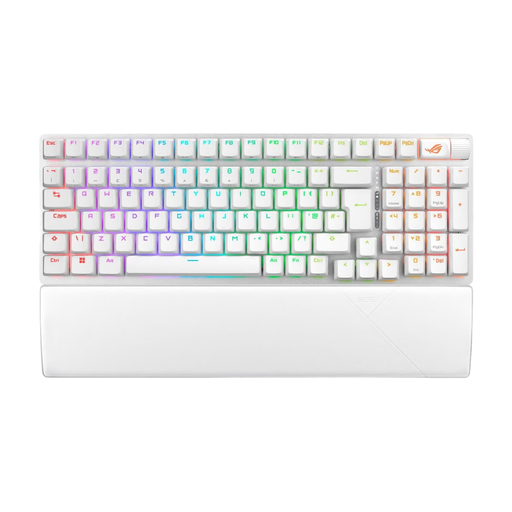 Image unavailable
Consider this UK-layout model if you want to assess a smaller-footprint keyboard while keeping your slide-editing keys in mind.
The listed variant is white and wireless. Confirm the switch variant and the connection method permitted by your classroom device.
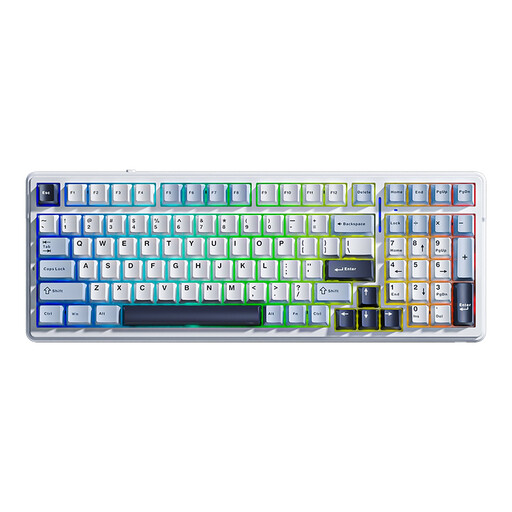 Image unavailable
Consider this model if connection choice matters and a US QWERTY layout is acceptable for your slide work.
Its title lists wired, Bluetooth and 2.4G modes. Check its physical footprint, key arrangement and permitted connection method before buying.
 Image unavailable
A full-size layout is worth considering if you often enter figures alongside slide text and have room for the mouse.
This is a UK-labelled wireless model. Measure the usable desk space for its full-size format and check which wireless connection the school computer allows.
 Image unavailable
Consider this UK-labelled model if a smaller keyboard is a priority but you still need to check specific slide-navigation keys.
Compare its footprint and complete key arrangement with your desk and shortcuts. Confirm that the classroom device permits your intended wireless connection.
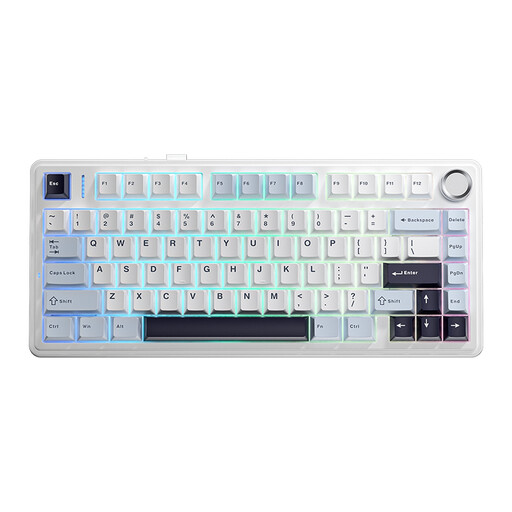 Image unavailable
The 75% layout may suit a desk where keyboard space is limited, provided its US QWERTY layout and available keys fit your editing workflow.
The title lists wired, Bluetooth and 2.4G modes, RGB backlighting and PBT keycaps. Check its dimensions and navigation-key arrangement, and do not assume the sound described in its name indicates measured quietness.
No. It can leave more room for the mouse, but missing number-pad or navigation keys may make your particular slide edits less convenient. Compare the keys you use and assess the keyboard’s position as part of the whole workstation.
Choose a method the actual computer permits. Check Bluetooth pairing rules, an available compatible port for any receiver, or an accessible port for a cable before selecting a keyboard; Keychron lists all three connection options for its B1 Pro, but device permissions still matter.
No. The Health and Safety Executive says display screen equipment rules apply to workers who use it daily for continuous periods of an hour or more. Where that applies, consider the keyboard with the screen, chair and desk through the employer’s workstation assessment process.
Use a suitable reuse or electrical-equipment collection route where one is available. UK government guidance describes recovery, reuse and recycling under the Waste Electrical and Electronic Equipment Regulations 2013, as amended.