For a household changing phones or computers, choose cloud backup when recovery without the old device and account-based setup matter most; keep a removable copy when you also want locally held photos and documents. Using both gives you two separate ways to recover important files, but only if you check what each backup includes, whether the replacement device can read it and whether the copy can be restored.
Who needs which backup?
Households replacing a phone or computer
Check how the backup will reach the replacement device before you erase or hand over the old one. The included data, account access and stage of device setup can all affect the restore route; Apple Support and Android Help describe different transfer and restore conditions for their devices.
Families storing photos across devices
Check whether a family plan gives each person a separate allowance or draws on shared capacity, and how private files remain. Apple, Google and Microsoft describe different sharing arrangements, so a household should also check membership and account eligibility for its chosen service.
Households preserving irreplaceable files
Keep a copy somewhere other than the device holding the originals. The National Cyber Security Centre identifies cloud storage and removable media as backup locations; a disconnected drive can provide a locally held copy alongside a cloud backup.
What should you check before choosing?
Cloud storage
Choose it when: You need an account-based backup that can help with recovery even if the old device is missing.
Allow for: Internet access, account access, storage limits and any continuing subscription terms.
External drive
Choose it when: You want a locally held copy of files or a computer-based backup.
Allow for: Compatible connections, manual backup checks and secure storage between sessions.
USB flash drive
Choose it when: You only need to copy a defined selection of files.
Allow for: Manual copying and the risk of mistaking selected files for a complete device backup.
Cloud and removable storage
Choose both when: Important photos and documents warrant both a remote recovery route and a separate local copy.
Allow for: Maintaining and checking two backup arrangements rather than assuming either copy is complete.
| Concern | What to check | Who this matters to |
|---|
| Recovery and transfer |
Check what the backup contains and how it can be restored to the replacement device before erasing the old one. |
If my phone is lost or replaced, I need to get usable data onto the new one, not just know that a copy exists. Around 34% of consumers would put recovery and transfer first. |
| Family storage and privacy |
Check member limits, individual or shared allowances, file privacy and what happens when storage fills or a plan ends. |
With several people storing photos, I need to understand whose space is being used without exposing everyone's files. Around 33% of consumers would prioritise family storage and privacy. |
| Capacity and local copies |
Allow space for the files you intend to keep, then check the drive's connector and compatibility with each intended device. |
For a sizeable photo or video archive, I want a separate copy I can move and open on the devices I use. Roughly 25% of consumers would make capacity and local control their primary concern. |
| Limited manual backup |
Define which files to copy, confirm that the removable medium can hold and open them, and store it securely afterwards. |
If only a small set of documents matters, I may prefer a deliberate manual copy to a whole-device arrangement. Around 8% of consumers would put this limited need first. |
Backup mistakes to avoid
-
Assuming synchronised files are a complete device backup
Backup methods do not necessarily include the same data. Apple Support describes differences between iCloud and computer backups, while Android Help notes that some apps cannot back up or restore all settings and data.
Review the included categories and backup date before replacing a device. Open files from the separate copy or try an appropriate restore where possible.
-
Leaving the only removable copy connected
A drive left attached is less separate from problems affecting the computer. The National Cyber Security Centre advises disconnecting USB sticks and external hard drives when a backup is not being made.
Safely eject the medium after backing up, store it securely and reconnect it for regular backups and readability checks.
-
Choosing capacity from a headline allowance alone
Photos, videos and other services may use the same cloud allowance. Microsoft Support says that exceeding a OneDrive storage quota prevents new uploads, edits and synchronisation.
Check current usage, what counts towards the allowance and how much room the household needs for further files before choosing capacity.
-
Erasing the old device before checking the new copy
A transfer is not finished simply because setup has started. The Information Commissioner's Office also warns that an old or non-working device may still contain accessible personal information.
Confirm that the replacement device has the required files and account access before following the manufacturer's erasure process and the ICO's disposal guidance.
Relevant brands for reference
Apple
Relevant to households backing up an iPhone or iPad through iCloud or a computer.
- Apple Support says iCloud+ can be shared with up to five other family members while separate Apple Accounts keep personal information private.
- Apple's temporary iCloud storage for moving to a new device has eligibility and restore-time conditions; check those conditions rather than treating it as permanent storage.
Google
Relevant to households using Android backup, Google Photos, Drive or Google One.
- Google One Help says family members cannot access one another's files without permission.
- Google One family members must live in the manager's country, and Google Workspace accounts are ineligible. Android restore content can vary by phone and version.
Microsoft
Relevant to households using OneDrive and Microsoft 365 Family for files and photos.
- Microsoft Support lists 1 TB per person for up to six people on Microsoft 365 Family.
- Microsoft says exceeding the storage quota stops new OneDrive uploads, edits and synchronisation. Check capacity and the terms of any plan change.
Samsung
Relevant to households considering a portable SSD for a separate local copy.
- Samsung lists model-specific connections and protection features for its portable SSDs, which can be checked against the intended use.
- Samsung's stated T7 transfer speeds depend on compatible host hardware and cables; check the exact model and device rather than assuming the rated speed or compatibility applies.
Removable storage for household backups
These drives and removable media are options for keeping local copies of household files. Check the intended devices and restore method separately: copying photos or documents to storage does not by itself establish a complete phone or computer backup.
 No image available
Western Digital My Passport 2TB portable external hard drive, black
Consider this for a separate computer-based copy of household photos and documents.
Check the connection and any operating-system requirements for your computer, then confirm that the files or backup you make can be opened or restored.
View on Joybuy
 No image available
Samsung MU-PG4T0B 4 TB USB Type-C SSD, black
Consider this for a locally held copy of a sizeable household file collection.
The product name specifies USB 3.2 Gen 2x2. Check your host port and intended operating systems, and verify the backup and restore path before relying on the copy.
View on Joybuy
 No image available
Samsung T7 Shield 1 TB portable SSD, blue
Consider this for a portable local copy that you intend to use with compatible devices.
The product name specifies USB 3.2 Gen 2. Check the connector, operating system and file format for each device, and test access to the files you copy.
View on Joybuy
 No image available
Western Digital Elements 4TB portable external hard drive, black
Consider this for keeping a large collection of photos, videos and documents on a separate drive.
The product name specifies USB 3.0. Check whether your intended devices can use the drive's format, particularly if files must move between operating systems, and test the resulting copy.
View on Joybuy
 No image available
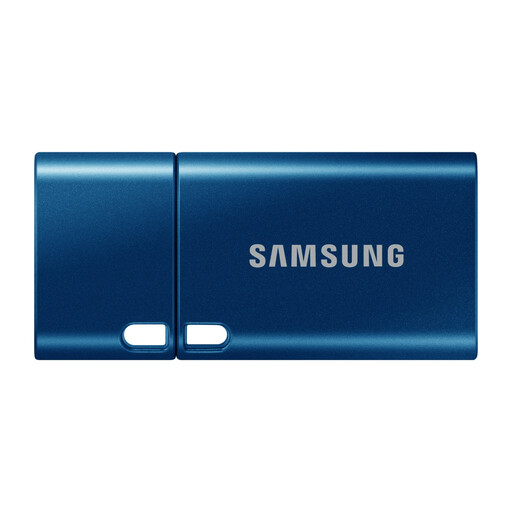
Samsung MUF-512DA 512 GB USB Type-C flash drive, blue
Consider this for manually copying a selected set of documents or photos rather than assuming whole-device backup.
The product name specifies USB 3.2 Gen 1 (3.1 Gen 1). Confirm that the intended devices support its USB Type-C connection and can read the copied files.
View on Joybuy
Common questions
When should I disconnect a backup drive or USB stick?
Disconnect it when a backup is not being made. The National Cyber Security Centre advises this for USB sticks and external hard drives; safely eject the medium after copying, then store it separately and securely.
Can a cloud backup help if my old phone is missing?
Yes, if a suitable backup was completed and the replacement phone supports its restore route. Apple Support says an iCloud backup can be used for a new iPhone or iPad without the previous device nearby; Android Help says restore availability and content vary by phone and Android version.
Can relatives see my files on a family cloud plan?
Joining an Apple iCloud+ or Google One family-sharing arrangement does not automatically give relatives access to your private files. Apple describes separate accounts and private information, while Google says other family members need permission to access files; check settings before sharing an album, folder or link deliberately.
What should I do before selling or recycling the old device?
Confirm that the files and accounts you need are usable on the replacement device, then properly delete personal information from the old one. The Information Commissioner's Office warns that even a non-working device may retain accessible data; follow guidance appropriate to the device and its storage medium.


