Cloud backup suits a household that wants account-linked recovery when replacing a device, provided the service covers the files and settings that matter. An external drive gives computer files a separate local copy; for irreplaceable photos and documents, consider both routes, keep the local copy disconnected when it is not needed, and test that you can restore your files. A synchronised photo library alone may not protect against deletion across devices.
Who needs a backup plan?
The files you need to recover—and the device you will recover them to—should shape the backup route.
Households replacing or resetting a device
Check that photos, documents, contacts and important settings can be retrieved before moving to a new phone or computer, resetting the old one, or disposing of it. Apple and Google document device-backup options, but coverage varies by app and setting.
Families keeping irreplaceable files
Photos and personal records need a recoverable copy away from the original device. The National Cyber Security Centre advises storing important backup data in a separate safe location; check that you can open or restore your copy before relying on it.
Households using several kinds of device
A mix of phones and computers calls for a folder-by-folder and device-by-device check. An account-linked service, external drive or network-attached storage (NAS) may cover different parts of the household’s files.
What should you check before choosing?
Start with what must be recoverable, then check how each copy is made, stored and restored. Cloud services, removable storage and NAS can also be combined rather than treated as mutually exclusive choices.
| Priority | What to check | Your needs |
|---|
| Recovery |
Check which folders, photos, app data and settings are copied. Confirm when the last backup completed and try restoring a small file before a device reset or replacement. |
I need to retrieve my important files if this phone or computer is lost, damaged or replaced—not just see that backup is switched on. |
| Sync and deletion |
Find out whether the service keeps a distinct backup or synchronises the current library. Check its deletion and earlier-version options before removing files. |
If I delete a photo to free space, I want to know whether another recoverable copy remains. Apple Support and Google Photos Help both describe deletions that can carry across synchronised devices. |
| Storage location |
Keep a copy separate from the original device. For a local drive, consider where it will be stored and whether it remains connected; for NAS, check whether an off-site destination has been configured. |
My photos and records should not depend on one device, account or location. The National Cyber Security Centre has documented ransomware incidents affecting connected backup storage. |
| Access and privacy |
Review cloud sharing permissions and account recovery. Use a unique strong password and multi-factor authentication where offered; protect removable media containing sensitive files. |
I want to keep personal files private without losing access to the account or the physical copy I need for recovery. |
| Capacity and compatibility |
Compare the files you intend to copy with the available storage. Check the device connection, file system and any required backup software, as well as the service’s current storage allowance and plan terms. |
A selected set of documents may fit on removable media, while my full photo library may need a different capacity. I also need the copy to work with the device I will use to retrieve it. |
Backup mistakes to avoid
-
Assuming photos on another device are independently backed up
Apple Support and Google Photos Help explain that deleting a synchronised photo can also remove it from other devices using the service.
Before deleting photos or resetting a device, establish whether you have a distinct recoverable copy, then check that you can open it.
-
Buying storage before checking backup coverage
A drive cannot recover a folder that was never copied. Microsoft says File History makes regular copies of libraries, while other folders may need to be added; Google notes that not all Android apps restore all settings and data.
List the folders and app data that matter, check the chosen backup settings and perform a small restore test.
-
Leaving the only local copy connected beside the computer
The National Cyber Security Centre has documented ransomware affecting connected USB and network backup storage. A copy kept only beside the original device also shares its location.
Disconnect removable backup storage when it is not needed, and consider a separate copy in another location or an appropriately secured cloud account.
-
Relying on a cloud allowance without checking capacity
A backup cannot cover the intended file set if the available storage is insufficient. Coverage and retention also depend on the chosen service and its settings.
Compare the storage allowance with your files, check which data types are included, and confirm the last completed backup before migration or reset.
Services and storage brands to consider
These references describe different backup tools and service behaviours; a brand name alone does not establish that every household file is covered.
Apple
Apple-device households can use account-linked iCloud services or an encrypted local iPhone backup to a computer.
- Apple Support says iCloud Backup copies information not already synchronised to iCloud; check iCloud Photos separately.
- Apple Support says a photo deleted in iCloud Photos is deleted on other devices using it. Keep a distinct copy of irreplaceable media.
Google
Google provides Android device backup and separate Google Photos backup through a Google Account.
- Google describes device-data restoration to the original phone or some other Android phones.
- Google says not all apps back up or restore all settings and data; deleting backed-up Google Photos items can also remove them from devices with backup turned on.
Microsoft
Windows households can consider OneDrive folder backup alongside File History copies to an external drive or network location.
- Microsoft says OneDrive can back up selected standard folders; File History makes regular copies of libraries and can recover earlier versions.
- Check that the File History destination is available and add other folders when needed.
Synology
Synology offers NAS tools for households prepared to configure and maintain dedicated storage.
- Synology says Hyper Backup can send compatible NAS backup tasks to destinations including attached storage, another NAS and cloud services.
- A NAS needs configuration for household-device backups and does not become an off-site copy without a separate destination.
Joybuy storage options
These options cover local copies on external drives or USB flash storage, plus a NAS for a household willing to manage network storage. Choose a device only after checking that it fits your files, connections and recovery plan.
 No image available
Western Digital My Passport 2TB portable hard drive, black
For a separate local copy of computer files, this portable hard drive offers 2TB of storage. Check its backup software’s folder coverage and restore process, and confirm the setup needed for your computer before relying on it.
View on Joybuy
 No image available
Samsung T7 Shield 1TB USB 3.2 Gen. 2 SSD, blue
This portable SSD is an option for keeping or transferring a selected 1TB set of files. Check the intended device’s connection and file-system compatibility, and arrange a backup and restore workflow if you need more than manual copies.
View on Joybuy
 No image available
Western Digital Elements Port. 4TB USB 3.0 drive, black
The stated 4TB capacity may suit a larger selected library of photos and documents kept on a separate drive. Check the file-system requirements for your computer, particularly if you intend to use a Mac, and decide how copies will be updated and restored.
View on Joybuy
 No image available
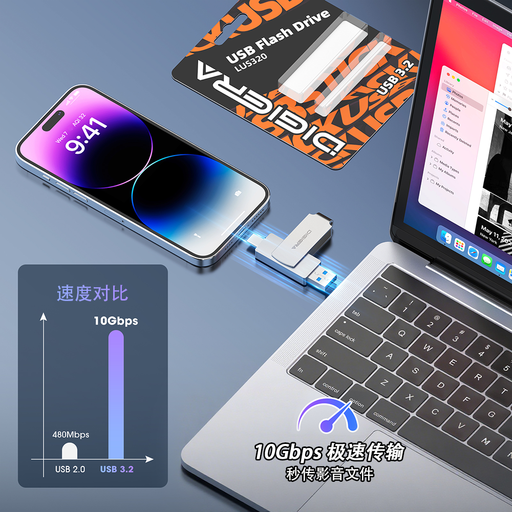
DigiEra LUS320 128GB USB-A and USB-C flash drive
This dual-connector drive is an option for copying a selected set of files or moving them between compatible devices. Its 128GB capacity is not a check on whether your whole library will fit; confirm the intended phone or tablet’s connector and file-system support.
View on Joybuy
 No image available
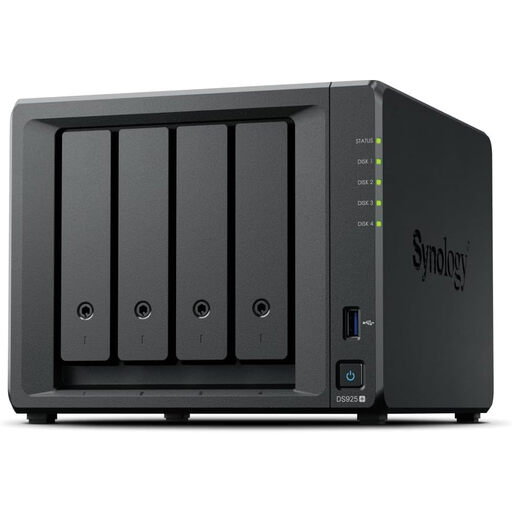
Synology DiskStation DS925+ 4-bay NAS
This four-bay NAS is a local network-storage option for a household prepared to configure and maintain it. Check which compatible drives are supplied, the resulting usable capacity and how each household device will back up and restore files. A separate destination must be configured if you also need an off-site copy.
View on Joybuy
Backup questions
Is cloud synchronisation an independent backup?
Not necessarily. Apple distinguishes data synchronised to iCloud from data in iCloud Backup, and Apple Support and Google Photos Help describe photo deletions that can carry across devices. Keep another recoverable copy of files you cannot replace.
What should I do before resetting or selling a device?
Confirm that the intended backup has completed and test that important files can be opened or restored before resetting it. Then use the appropriate process to remove personal data before sale or disposal, as advised by the Information Commissioner’s Office.
Will an external drive protect files from ransomware?
A separate drive can provide a recovery copy, but one left connected may also be exposed. The National Cyber Security Centre has documented ransomware affecting connected backup storage; keep a backup disconnected when it is not in use and check that you can restore from it.
How can I protect files in a cloud account?
Review folder and sharing-link access, use a unique strong password, and enable multi-factor authentication where offered. The Information Commissioner’s Office also advises checking whether a provider’s security and availability suit the files you plan to store.


