What to check before backing up
Start by deciding what must be restored, then check coverage, capacity and the route you would use if the original device became unavailable.
| Priority |
What to check |
Your needs |
| Separate backup from synchronisation |
Check which items are synchronised, which are in device backup, and whether deleted files can be restored from a separate copy. |
I want to know that a reset, loss or deletion will not remove the only recoverable version of my photos, files and settings. |
| Coverage on a replacement device |
Confirm the replacement device and operating-system support; check critical apps, authentication details and backup completion before handing over the old device. |
I need more than visible photos: the replacement device should have the files and settings that matter for everyday use. |
| Capacity and original quality |
Compare used library size with storage capacity; check cloud quality settings, connector type and host USB support for a local drive. |
I want enough room for my existing library and need to keep captured resolution where files may be edited, archived or printed. |
| Recovery route |
Enable automatic backup, open selected copied files or run a documented restore check, and disconnect removable media after use. |
I need a recent copy after loss, accidental deletion, malware or breakage, with another route available if one copy is affected. |
Joybuy product options
These Joybuy options are portable external drives for creating a separate local copy of photos, videos and documents before a device change.
 Image unavailable
Samsung MU-PG4T0B 4 TB USB Type-C SSD
A local-copy option for a sizeable photo or video library before repair, handover or replacement.
Listed specifications include 4 TB capacity, USB 3.2 Gen 2x2, USB-C and USB-A cable options, password authentication and AES-256 hardware encryption. Confirm that the source device supports the required USB connection; disconnect the drive after checking the backup.
Joybuy
 Image unavailable
Western Digital My Passport 2 TB Portable Drive
Suitable for regular computer-based copies of photos and documents where scheduled local backup is useful.
The listing states 2 TB storage, Acronis True Image for Western Digital scheduling, password setup and AES-256 hardware encryption. It is described as pre-formatted for Windows 10+; macOS read/write use requires the stated driver, and the Micro-B-to-USB-A connection should match your computer.
Joybuy
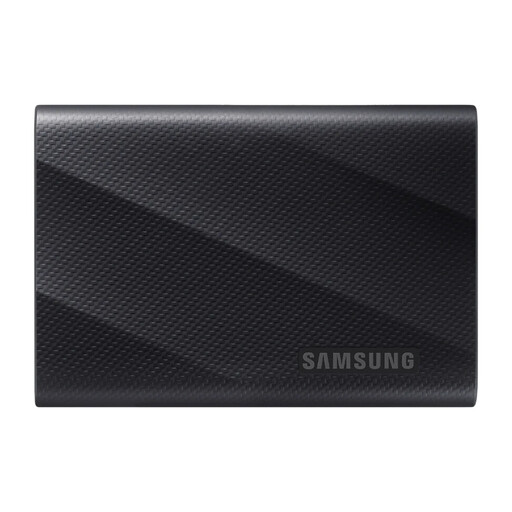 Image unavailable
Samsung MU-PG1T0B 1 TB USB Type-C SSD
A portable local-storage option for compatible-device transfers before a phone or computer change.
The listing specifies 1 TB capacity, USB 3.2 Gen 2x2, password protection, AES-256 hardware encryption, and USB-C-to-C and USB-C-to-A cables. Compare capacity with current used storage and check host-port and cable support for the claimed USB mode.
Joybuy
 Image unavailable
Samsung MU-PG2T0B 2 TB USB Type-C SSD
A separate local-copy route for a substantial personal media library carried between compatible USB-C devices.
The listing specifies 2 TB capacity, USB 3.2 Gen 2x2, password authentication, AES-256 hardware encryption and a USB-C-to-USB-C cable. Check whether a USB-A cable or adapter is needed, and verify host support for maximum transfer performance.
Joybuy
 Image unavailable
Western Digital Elements 4 TB Portable Drive
A high-capacity manual-copy option for photos, videos and documents before replacement or repair.
The listing states 4 TB capacity, USB 3.2 Gen 1 or USB 3.0 connectivity and an included USB-A cable. It is described as automatically recognised by Windows 10+; other systems may require reformatting, so confirm the operating system and Micro-B connection first.
Joybuy
Frequently asked questions
How can you tell whether a backup is usable before changing devices?
Check that the intended folders or data categories have completed backing up, then restore or open a small selection of important photos and documents from the backup location. The National Cyber Security Centre advises checking that you know how to restore files, not merely making a copy.
Are iCloud Photos included in an iPhone’s daily iCloud Backup?
Not when iCloud Photos is enabled. Apple Support says photos, videos and face information are synchronised to iCloud automatically and are not included in the daily iCloud Backup; check that the iCloud Photos library is accessible and consider an additional copy for irreplaceable content.
Will Android backup restore every app and setting onto a replacement phone?
Do not assume so. Google Help says restoration varies by phone and Android version, and that not all apps can back up or restore all settings and data. Confirm critical apps, files and authentication details before erasing or handing over the old phone.
Should an external backup drive stay connected to the computer all the time?
For a separate recovery copy, disconnect it after the backup has completed and been checked. The National Cyber Security Centre advises that an external hard drive or USB stick holding a backup should not be permanently connected because accessible data can be affected during ransomware incidents.
When is a USB flash drive enough instead of an external SSD or hard drive?
A flash drive can suit selected essential files and quick transfers between devices with compatible connectors. For a large photo or video library or a full local backup, compare the library size with drive capacity and consider a larger external drive; a flash drive is compact but can be easier to lose and is not automatically a complete backup.


