Photo and document keepers
You want recoverable copies of personal files if your computer or a nearby backup is lost. The Information Commissioner’s Office notes that cloud storage can keep copies of important files outside your home.


Choose cloud storage if you want selected files available off-site and across devices; choose an external HDD or portable SSD if you want a local copy and can reconnect and protect the drive. If losing the computer and a nearby drive is a concern, keep separately managed local and cloud copies: syncing alone does not guarantee an independent, indefinitely recoverable backup, as the Information Commissioner’s Office explains.
You want recoverable copies of personal files if your computer or a nearby backup is lost. The Information Commissioner’s Office notes that cloud storage can keep copies of important files outside your home.
You have a substantial collection and prefer a local drive, but need to check its capacity, format and how you will maintain a repeatable backup routine. Apple’s Time Machine guidance recommends a destination with at least twice the storage capacity of the Mac for that use.
You copy files often or between places and may value a portable SSD, provided your computer’s connection supports the performance you expect. Samsung’s stated T7 speeds depend on the host, cables and UASP support.
Start with the files you need to recover, then check storage capacity, your computer’s connections and backup software, and whether you need a copy away from home.
| Concern | What to check when buying | Who this matters to |
|---|---|---|
| Recovery after loss | Keep copies in separate locations where needed, and check that you can restore files from each one. | If I could lose both my computer and a nearby drive, I want another copy stored elsewhere. About 33% of consumers put recovery after loss first. |
| Capacity and ongoing cost | Check the size of the files you want to protect, room for growth, the cloud allowance or drive capacity, and any continuing plan charge. | If my photo and document collection is growing, I want enough space without overlooking a recurring cloud plan. About 27% of consumers put capacity and ongoing cost first. |
| Windows or Mac setup | Check the computer’s ports, the backup software and the drive format before transferring files or accepting an erase prompt. Apple says a Windows-formatted disk may need erasing and reformatting for Time Machine. | If I want backups to work with my computer and software, I need to confirm the connections and setup before choosing a drive. About 20% of consumers put compatible, straightforward setup first. |
| Frequent file transfers | Check the exact SSD variant, supplied cable and computer support; a manufacturer’s rated maximum is not a guarantee of your backup speed. | If I copy large files often, I want a drive and connection that suit that routine. About 20% of consumers put frequent file transfers first. |
Syncing can keep selected files available, but deletion and recovery depend on the service’s terms. Microsoft states that personal OneDrive accounts can restore files or folders deleted within the last 30 days.
Check the service’s deletion and version-recovery rules, and keep a separately managed copy of files you cannot afford to lose.
Files deleted outside the service’s recovery terms may no longer be recoverable through that route.
A connected drive can be affected by an incident involving the computer, so it may not provide a separate recovery route in every situation. UK National Cyber Security Centre guidance suggests considering both online and storage-device backups.
Secure and disconnect a removable backup after use; consider a separate off-site copy if a shared-location incident matters to you.
Maintaining separate copies means managing both the drive and, if used, the cloud account or plan.
Apple says a Windows-formatted disk may need to be erased and reformatted before it can be used as a Time Machine destination, which permanently removes its existing contents.
Check what is on the disk and copy anything you need elsewhere before accepting an erase or reformat prompt.
Microsoft documents selected-folder cloud backup through OneDrive on Windows, as well as File History using an external drive or network location.
Apple documents iCloud Drive for selected files and Time Machine for local Mac backups; these are distinct storage routes.
Expansion Portable is an external HDD line to consider for a local copy when the exact model’s capacity and connection suit your computer.
Samsung’s Portable SSD T7 includes variants such as the specified Titan Grey 1 TB model, MU-PC1T0T/WW.
These Joybuy choices are local external HDDs and portable SSDs for keeping computer files on a separate drive. Check that capacity, connections and any stated operating-system conditions fit your setup.
 No image available
A portable local-storage option for a larger collection or frequent file transfers, if its capacity and connection suit your computer.
4 TB; USB Type-C 3.2 Gen 2; sequential speeds up to 1,050 MB/s read and 1,000 MB/s write, as stated in the listing; USB-C-to-C and USB-C-to-A cables are described as included.
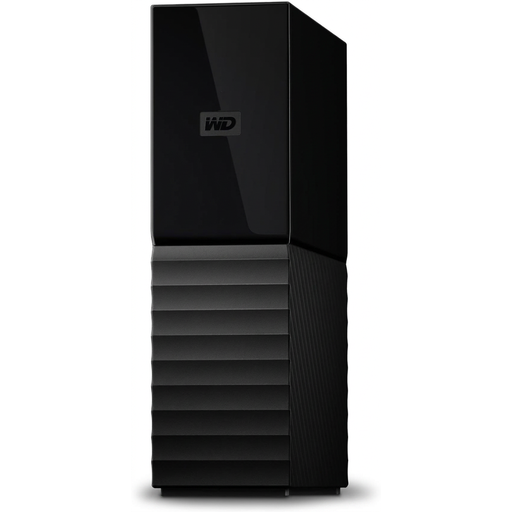 No image available
A desktop local-storage option for a large file collection if you have space for the drive and access to a power socket.
22 TB; USB 3.0; password protection and hardware encryption are stated in the product title. The listing describes an included AC adapter.
 No image available
A portable local copy for personal files if the 2 TB capacity fits your collection.
2 TB; read speeds up to 800 MB/s and up to 2-metre drop protection are stated in the listing.
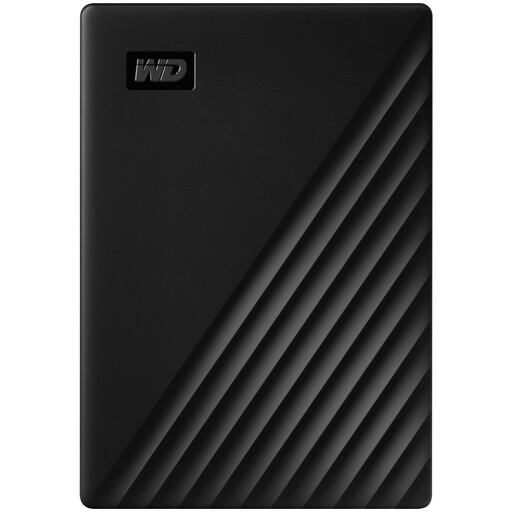 No image available
A portable local backup option for a larger collection if you are comfortable with its stated Mac setup requirement.
4 TB; USB 3.2 Gen 1; 256-bit AES hardware encryption is specified in the listing. It is described as pre-formatted for Windows; macOS use requires a downloadable compatibility driver.
 No image available
A portable local copy for a sizeable file collection if its capacity and Mac setup suit your computer.
4 TB; USB 3.0; the listing describes plug-and-play transfers and an included USB-A cable. Reformatting may be required for Mac use.
No; Microsoft describes selecting which Desktop, Documents, Pictures, Videos and Music folders to sync to OneDrive. Check separately for important files stored outside those selected folders.
No; Apple says Time Machine cannot back up to a disk formatted for Windows. The disk may need to be erased and reformatted, permanently removing its existing data, so check its contents before proceeding. Apple prefers APFS or APFS Encrypted for a Time Machine backup disk.
Check that the intended folders are included and the backup completes, then test restoring a file. UK National Cyber Security Centre guidance also advises keeping a storage-device backup secure and disconnecting it when not in use.
Not necessarily; syncing and recovery are different functions, and deletion or version recovery depends on the service’s terms. Check the recovery window and keep a separately managed copy if you need another route to recover important files.
The Information Commissioner’s Office lists personal, family or household affairs among the exemptions from its data-protection fee. This applies to the stated personal-household use and does not determine obligations for organisational records or every other situation.