Choose cloud storage if automatic backup and access from a replacement device matter most; check the storage quota and how you would regain access to the account. An external drive suits a local archive or regular file transfers, but you must update it yourself. For files you cannot replace, use a cloud copy alongside a separate removable copy, disconnecting the drive between backup sessions.
Who needs which approach?
People protecting or replacing a phone
If a phone is lost, broken or replaced, you need a way to retrieve recent photos, contacts and important files. Check what the cloud service backs up automatically and how you would sign in without the original phone.
Households with growing photo and video libraries
A large archive needs room to grow and a copy separate from the device holding the originals. A periodically updated external drive can provide that copy, provided someone maintains the routine.
People moving files between devices
If you regularly move folders between computers, check the drive’s connector, cable and file-system compatibility before choosing between a portable SSD and HDD. The connection on the receiving device matters too.
What matters when choosing?
The National Cyber Security Centre advises keeping important data in a separate safe location. Choose how you will recover the files first, then decide whether cloud convenience, a removable archive or both fit your routine.
Cloud storage
Consider it when: You want recent files backed up automatically and available after replacing a phone or computer.
Accept that: Uploads depend on available account storage, and recovery depends on retaining access to the account.
Removable storage
Consider it when: You want a local archive on an HDD, frequent transfers on an SSD, or a small selected copy on a USB flash drive.
Accept that: You must make and check each copy, then keep the device separate from the originals.
Cloud and a removable copy
Consider it when: Family photos or important documents need both recent automatic uploads and a separately stored copy.
Accept that: Two copies require a routine for checking uploads, updating the drive and testing a restore.
| Concern |
What to check |
Who this matters to |
| Recovery after loss or deletion |
Try restoring a file; check any recovery limits and where a separate copy will be kept. |
If I lose a device or delete a file, I need a copy I can actually retrieve. Around 31% of consumers put that recovery need first. |
| Automatic backup and account access |
Check which files each device backs up and how you would recover account access without your phone. |
I want recent phone files available on a replacement device without relying on a manual copy; roughly 31% of consumers primarily need that continuity. |
| Capacity as the library grows |
Compare your current files with available space, including any quota shared with other account services. |
As my photo and video collection grows, I need room for the archive and future backups. For around 23% of consumers, capacity is the main concern. |
| Transfers and compatibility |
Match the drive’s connector, cable and file system to every device you intend to use. |
When I move large folders between devices, a drive that connects to each one matters more than a headline speed; roughly 15% of consumers prioritise these transfers. |
Backup mistakes to avoid
-
Treating a synced account as the only backup
Changes or deletions can reach a connected copy. The National Cyber Security Centre also notes that an incident can affect connected backup locations.
Keep another copy of irreplaceable files, disconnect a removable drive between updates and try restoring a small folder.
-
Choosing cloud storage without checking the shared quota
Google says its account storage is shared across Drive, Gmail and Photos; a full quota can stop new uploads and photo backups. Check all services using the account, not just the photo library.
Allow room for future files and confirm what happens to backups when the account reaches its limit.
-
Assuming a USB-C connector settles compatibility
USB-C identifies a connector shape, not the drive’s transfer standard or whether your device can use its file system.
Check the exact drive, supplied cable, host port and supported devices. If reformatting is needed, move any files you need to keep before doing it.
-
Owning a drive but not updating it
A removable copy cannot recover files added after its last successful backup.
Set a regular reminder, disconnect the drive after copying and occasionally check that files can be opened from the backup.
Relevant brands and services
Apple
iCloud is relevant when photos, files and device backups are primarily on an iPhone, iPad or Mac.
- Apple lists 5 GB of included iCloud storage and iCloud+ tiers from 50 GB to 12 TB.
- Check the space used by every backup and photo library; a full allocation can prevent new backups or uploads.
Google
Google Photos and Drive are relevant to Android users and households wanting photos available on signed-in devices.
- Google documents automatic photo and video backup to a Google Account on supported devices.
- Its included allowance of up to 15 GB is shared across Drive, Gmail and Photos, so check total account use.
Microsoft
OneDrive is relevant to people keeping files and photos across Windows devices and Microsoft accounts.
- Microsoft describes file version history and, for eligible Microsoft 365 subscribers, whole-OneDrive restoration for actions within the last 30 days.
- Recovery features have eligibility and time limits; check them rather than treating account storage as a permanent record of every file version.
Western Digital
Western Digital’s portable HDD range is relevant to periodic local copies of photo, video and document archives.
- Western Digital lists WD Elements USB-C portable HDD variants from 1 TB to 6 TB.
- Those specifications apply to that model line; check the exact drive’s format, port and operating-system requirements.
Samsung
Samsung’s portable SSDs are relevant when a removable copy is also used to transfer files regularly.
- Samsung identifies USB 3.2 Gen 2 and variant-specific physical-protection features for the T7 Shield.
- Do not apply T7 Shield features to a standard T7 or another variant; compare complete model names and connections.
External drives on Joybuy
These HDDs and SSDs are options for making a removable local copy or transferring personal files. None replaces the need to update that copy and check that it can be restored.
 Image unavailable
Samsung Portable SSD T7 2 TB, blue
Consider this removable SSD for a local copy you also want to carry between devices. The name specifies USB 3.2 Gen 2; check the file system and compatibility with each device before relying on it for transfers or restores.
View on Joybuy
 Image unavailable
Western Digital My Passport Ultra for Mac 5 TB, silver
Consider this portable HDD for a substantial local archive used with a Mac. If you also need to use it with Windows, check the required driver and your exact setup before choosing it; schedule and test your backups.
View on Joybuy
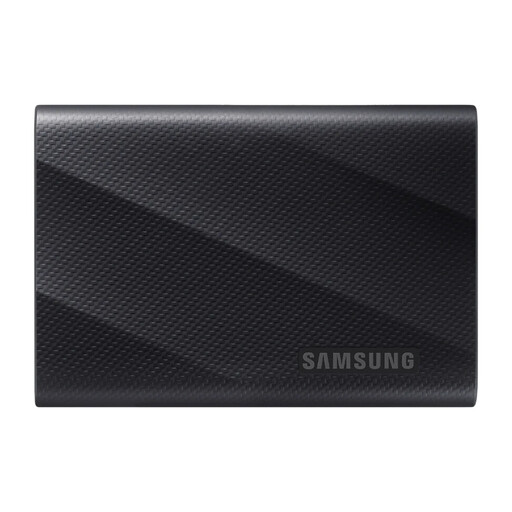 Image unavailable
Samsung MU-PG1T0B 1 TB USB Type-C SSD, black
Consider this portable SSD if you repeatedly move large folders as well as keeping a local copy. Its name specifies USB 3.2 Gen 2x2; check whether your host supports that interface and can use the drive’s file system.
View on Joybuy
 Image unavailable
SanDisk Portable SSD 2 TB
Consider this SSD for a removable copy of a photo or video collection. Check its connector, file system and compatibility with the devices you intend to use, then plan how often you will update the copy.
View on Joybuy
 Image unavailable
Western Digital Elements portable HDD 4 TB, black
Consider this portable HDD for a periodically updated local archive. Its name specifies USB 3.0; check the file format and your computer’s compatibility, particularly if you intend to use it with a Mac.
View on Joybuy
Common questions
How much cloud storage do I need for personal backups?
Choose enough space for the files and device backups you intend to keep, with room for growth. Check everything that shares the account quota: Google includes Drive, Gmail and Photos in its allowance, while Apple and Microsoft also count multiple kinds of stored content towards their respective allocations.
Can cloud storage restore a file I deleted by mistake?
It may, if the file is still within the service’s applicable recovery period or version history. Microsoft says OneDrive can restore older file versions and that eligible Microsoft 365 subscribers can use whole-OneDrive restoration for actions within the last 30 days; check the feature and limits of the service you use.
What if I lose the phone used to sign in to my cloud backup?
Set up account recovery before the phone is lost, alongside two-factor or two-step verification. Keep recovery contact details current and store any backup codes somewhere accessible without that phone; Google provides backup-code options for this situation.


