Households keeping important photos and documents
A separate copy gives you a route to recover files if the original device is lost, damaged or inaccessible.


Choose cloud backup if automatic copying and restoring after device loss are your priorities; choose removable storage if you want a separate copy you can keep under your physical control. For important photos and documents, using both routes avoids relying on a single copy: check what each backup includes, disconnect removable storage when it is not being updated, and practise restoring files.
A backup is a copy kept somewhere separate from the original files, as the National Cyber Security Centre explains.
A separate copy gives you a route to recover files if the original device is lost, damaged or inaccessible.
iPhone, iPad and Android users need to check which photos, device settings and app data their chosen backup can restore to the intended device.
A removable copy may suit a photo, video or document archive, provided the drive has enough capacity and works with the computer used to back up and restore it.
Decide what must be recoverable, then check how each route makes, protects and restores that copy. Cloud storage, external hard drives, portable SSDs and USB flash drives meet different parts of that task.
| Priority | What to check | Your needs |
|---|---|---|
| A separate copy | Choose a cloud account or removable medium separate from the original device. If using a drive, plan where to keep it between backups. | If my device is lost or stops working, I need another copy of the files that matter. The National Cyber Security Centre identifies cloud and removable media as backup locations. |
| Recent backups | Check which files an automatic backup includes and when it runs. Microsoft says File History can make regular copies to an external drive or network location; phone backup settings need checking separately. | I would rather not rely on remembering every manual copy, especially when photos or documents change often. |
| Capacity and connections | Measure the files you intend to copy and allow for growth. Match the exact drive variant, connector, cable and operating-system requirements to both your backup and restore devices. | My whole selected archive needs to fit, and I must be able to connect the drive when I need the files back. |
| Account access | For cloud backup, check the provider’s recovery process and enable 2-step verification. Confirm whether important content is in the device backup or synchronised separately. | If I lose my phone, I still need a way into the account holding its backup. The National Cyber Security Centre notes that cloud services have different recovery processes. |
| Restoring files | Restore a sample of important files and check that they open. Consider a removable copy that can be disconnected after updating it. | I need a copy I can actually use after an incident, not just a backup setting that appears to be on. The National Cyber Security Centre advises regular restore testing and warns that connected backup drives can be affected by ransomware. |
What a device backup contains can differ from content synchronised through the same account. Google also warns that not every Android app can back up or restore all its settings and data.
List the photos, folders and app data you need, check where each is kept, and try restoring a sample.
The National Cyber Security Centre reports ransomware incidents in which connected USB and network backup drives were encrypted along with the original data.
Keep a separate copy and disconnect removable backup storage after updating it when practical.
A drive that cannot connect to your device, or cannot hold the selected archive, will not meet your backup plan. Stated maximum transfer speeds also depend on connection conditions.
Measure your files, allow for growth and check the exact model’s ports, cable and operating-system support before buying.
Access to a cloud-held copy depends on regaining access to its account if a device or sign-in method is lost.
Enable 2-step verification and keep the provider’s recovery arrangements somewhere you can reach without the original device.
These references help identify backup methods and product lines; they do not indicate that every item from a brand has the same features.
Apple Support describes iCloud and computer backups as alternative routes for iPhone and iPad.
Google’s Android guidance covers backing up phone content, data and settings to a Google Account.
Microsoft File History is a Windows option for regular backups to an external drive or network location.
The WD Elements Portable hard-drive line is one example to consider for a removable archive.
Samsung’s T7 Shield is an example of a portable SSD for local file copies.
Kingston’s DataTraveler Duo is a flash-storage example for a selected set of files.
These portable SSDs and USB flash storage are options for making a removable copy of selected photos and documents. Check the size of your backup set, device compatibility and how you will make and restore copies; choosing a drive does not set up automatic backup by itself.
 No image available
Consider this removable drive if your selected photo and document archive needs 4 TB of stated capacity. Its name specifies USB Type-C and USB 3.2 Gen 2x2; check your host connection and plan how you will make regular copies and test a restore.
 No image available
A 2 TB removable copy may suit a selected personal archive if it fits with room for growth. The product name specifies USB Type-C and USB 3.2 Gen 2; confirm compatibility with your device and arrange regular backups and restore checks.
 No image available
For a selected local copy, check whether its stated 1 TB capacity covers your files and expected growth. The product name specifies USB Type-C and USB 3.2 Gen 2; confirm the exact host and cable requirements, then test your restore process.
 No image available
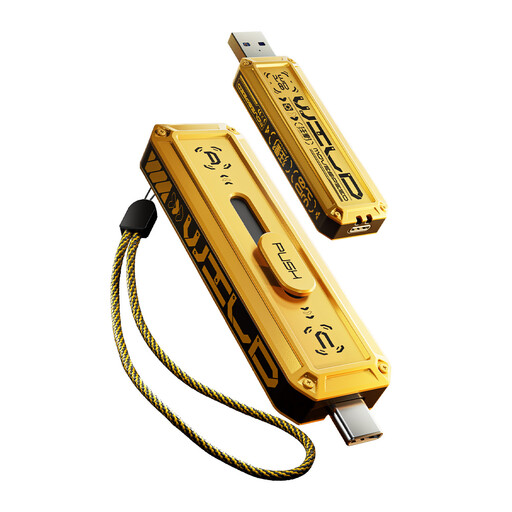
Use a flash drive for a deliberately selected backup set rather than assuming it copies every device file. This model’s name specifies 1TB and USB-A and USB-C connections; check its requirements against each intended device and test that the copied files open.
 No image available
This portable SSD is an option for a separate 2TB copy if that capacity fits your selected archive. Confirm its connector and operating-system compatibility with the device you will use, and decide how you will update and restore the copy.
No. Check synchronised content and device-backup contents separately: Apple distinguishes between its backup methods, and Google says not all Android apps can back up or restore every setting and item of data. Confirm where your important photos, files and app data are kept before relying on a restore.
Measure the files you intend to copy, then allow for growth and any previous versions you plan to retain. A curated document set and a large photo or video library can call for different capacities; check the capacity of the exact drive variant rather than assuming a storage type will fit.
Disconnecting a removable copy when it is not being updated can reduce its exposure to an incident affecting the original files. The National Cyber Security Centre reports ransomware incidents involving connected USB and network backup drives; keep a separate copy and check that you can restore it.
Set up 2-step verification and learn the provider’s account-recovery process before you need the backup. The National Cyber Security Centre says recovery processes differ between cloud services, so keep the information needed to regain access somewhere reachable without the lost device.
Test it regularly by restoring selected important files and checking that they open; also learn the wider restore procedure before an emergency. That follows the National Cyber Security Centre’s advice to test backups and know how to restore files before having to do it for real.