Choose automatic cloud backup when restoring a phone or accessing files across devices is the priority; choose a compatible external drive when you want a separate local copy, particularly for a large library or limited internet access. A USB drive can serve selected files or a one-off transfer, while NAS suits households willing to configure and maintain shared storage. Whichever route you choose, check what it actually backs up, how restoration works and whether your devices and capacity fit the plan.
Who needs which backup?
Start with the event you need to recover from: a device change, the loss of a growing library, or a computer failure. That determines whether account-based restoration, a separate local copy or both should lead your choice.
People changing or resetting a phone
If the old iPhone or Android phone will not be available during setup, check which photos, settings and eligible app data can be restored through the account you intend to use. A manually copied folder does not provide the same device-setup workflow.
Households with growing photo and video libraries
Library size makes available capacity and the time needed to upload or retrieve files important. Check your current storage use before choosing a cloud plan, external drive or both.
Mac and Windows users wanting a local copy
An external drive or supported network location can hold a copy separate from the computer’s internal storage. Apple documents automatic Mac backup with Time Machine, while Microsoft documents File History for an external drive or network location; in either case, check which folders the chosen workflow covers.
What matters when choosing?
Decide what must come back after a loss or device change, then check the backup workflow and storage destination against that need.
| Concern |
What to check |
Who this matters to |
| Phone recovery |
Check that the relevant iCloud or Google backup is enabled, what synchronises separately and which replacement devices can use the backup. |
If my phone is lost or reset, I need its recoverable data ready during replacement setup rather than relying on files I remembered to copy. About 31% of consumers would put automatic recovery first. |
| Library capacity |
Measure current photo and video storage use; allow for growth and check how the cloud service counts stored media or how much local capacity your backup needs. |
As family videos accumulate, I need room for the library and a workable way to retrieve it when needed. Capacity and local-copy access would be the primary concern for about 31% of consumers. |
| Portable copying |
Confirm the host device’s port, cable and file-transfer support; do not assume an advertised maximum drive speed applies to every connection. |
When moving large files between compatible devices with limited connectivity, I want a physical copy I can carry. About 23% of consumers would prioritise portable copying. |
| Selected-file transfer |
Identify the folders to copy and confirm connector compatibility and sufficient usable storage. |
For a small set of documents or a one-off computer move, I need a straightforward way to transfer those particular files, not a full-device restore. That would be the leading need for about 15% of consumers. |
The National Cyber Security Centre advises keeping important data in a separate safe location. For a replacement device, also check the platform’s restoration steps before you lose access to the original: a copy of files and a restorable device backup are not necessarily the same thing.
Backup mistakes to avoid
-
Assuming photo sync is part of a full phone backup
Apple Support explains that iCloud Photos synchronises separately from iCloud Backup. Restoring the device backup therefore does not, by itself, describe how those synchronised photos return.
List the photos, messages, documents, settings and app data you need, then check where each is stored and how to access or restore it.
-
Choosing capacity before checking the library
Google Photos Help says both Original quality and Storage saver backups count towards Google Account storage; the setting also affects how images are retained.
Check current use, the backup-quality setting and likely growth before selecting cloud or drive capacity. Include any backup history you intend to keep.
-
Treating a removable drive as an automatic backup
A USB stick or external drive contains only what has actually been copied to it. If copying is manual, newer files can be missed; a drive kept with the original device can also be lost alongside it.
Set up a supported computer-backup routine where appropriate, and keep irreplaceable material in another separate location.
-
Expecting every item to move with a new device
Google Help identifies data that does not copy during Android setup, including downloaded files such as PDFs. Apple Support says restoring an already-set-up iPhone from an iCloud backup requires erasing it first.
Before wiping or handing over the old device, review the relevant transfer and restore steps, sign in to the intended account and confirm access to important files.
Relevant brands and tools
These services and product lines address different parts of a backup plan; a brand name alone does not establish which data will be recoverable.
Apple
iCloud Backup, iCloud Photos and Time Machine are relevant to iPhone, iPad and Mac households.
- Apple Support describes iCloud Backup for eligible data not regularly synchronised to iCloud, and Time Machine for automatic Mac backups to supported storage.
- iCloud Photos synchronises separately from the daily device backup. Check the coverage and restoration steps for each service you use.
Google
Google Backup and Google Photos address Android account-based recovery and photo or video backup.
- Google Help says backed-up Android information can be restored to the original phone or some other Android phones.
- Not every item copies during device setup, and both Google Photos backup-quality options count towards Google Account storage.
Microsoft
Windows Backup, OneDrive folder backup and File History offer distinct routes for Windows PC data.
- Microsoft Support documents File History with an external drive or network location and OneDrive backup for supported PC folders.
- These tools have different coverage. Confirm the folders and settings you expect to recover rather than treating them as interchangeable.
Samsung
Samsung portable SSDs are a local-storage option for compatible devices.
- Samsung’s published T7 specifications describe a portable connection for local file copies.
- Samsung’s stated transfer speeds depend on the host, cable and connection conditions. A drive also needs a copying or backup routine.
Synology
Synology NAS and Hyper Backup are relevant to households prepared to manage shared network storage.
- Synology documents Hyper Backup destinations that include local and USB-attached storage.
- A NAS needs configuration, maintenance and its own backup plan; storing files on it does not automatically create a separate off-site copy.
External drives to consider
These Joybuy selections are external hard drives and portable SSDs for local copies of personal files. Choose a compatible backup workflow separately if you need scheduled copying or device restoration.
 No image available
Western Digital My Passport Ultra for Mac 5TB, Silver
Consider this portable external hard drive for a Mac library that needs a local copy. Its stated capacity is 5TB; check which folders your chosen backup workflow covers and how you would restore them.
If you also intend to use it with Windows, confirm the required HFS+ driver and your intended file workflow before buying.
View on Joybuy
 No image available
Western Digital My Passport 2TB, Black
This portable external hard drive offers a 2TB local destination for photos and documents. Check whether that capacity accommodates your current files and the copies you plan to retain.
If scheduled backups matter, confirm the software’s supported folders, schedule and restoration process; the drive alone does not establish those steps.
View on Joybuy
 No image available
Samsung Portable SSD T7 2 TB, Blue
For a portable local copy of a sizeable file library, this T7 variant provides 2 TB of stated storage and a USB Type-C 3.2 Gen 2 connection. Confirm that the intended computer or mobile device supports the connection and file workflow.
Storing files on the SSD is distinct from configuring an automatic, restorable device backup.
View on Joybuy
 No image available
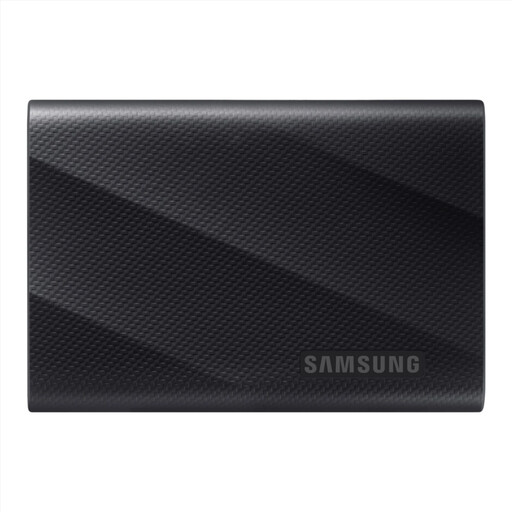
Samsung MU-PG2T0B 2 TB USB-C SSD, Black
This 2 TB portable SSD is an option for local file copies where the intended host supports its USB 3.2 Gen 2x2 connection. Check that support if connection capability is important to your choice.
Also confirm how your device will copy files to the drive and how you would retrieve them after a device change.
View on Joybuy
 No image available
Samsung T7 Shield 1 TB, Blue
Consider this portable SSD for a local file copy if 1 TB accommodates the data you need to keep. Its stated connection is USB 3.2 Gen 2; check your device’s port and intended copying workflow.
For a growing photo and video library, measure current use before relying on this capacity for future copies.
View on Joybuy
Backup questions
Can photo sync replace a phone backup?
Not for every restoration need. Apple Support says iCloud Photos synchronises separately from iCloud Backup, which holds eligible data not regularly synchronised to iCloud. Check both services, and where important documents and app data are stored, before relying on a replacement-phone restore.
Can I restore an Android backup to a replacement phone?
Google Help says backed-up Android information can be restored to the original phone or some other Android phones. Check the replacement device’s setup requirements and what was backed up; Google’s personal-device guidance does not cover certain managed work-device configurations.
Can an external drive back up Mac or Windows files automatically?
Yes, when you configure a supported workflow. Apple Support documents automatic Mac backups with Time Machine, and Microsoft Support documents File History using an external drive or network location. Keep the destination available for backups and check that the folders you need are included.
What should I check before using NAS for Mac backup?
For network Time Machine backups, Apple Support says the NAS must support Time Machine over SMB or AFP. Confirm support for the exact NAS and software version, then arrange a separate backup of the NAS itself rather than treating its storage as the only copy.


