For irreplaceable family files, use cloud storage for off-site access alongside a separate local copy that is disconnected when not being updated. A cloud service can make photos available across devices, but synchronisation may also carry deletions across them; a drive kept only at home cannot protect against a fire, flood or theft there. Choose the service around your devices and account-recovery needs, then check the local drive’s capacity, compatibility and access controls.
Who needs a backup plan?
Families with phone photo libraries
If most photos and videos start on a phone, automatic uploads can make them accessible on other signed-in devices. Keep a separate copy as well: Apple says deleting an image from iCloud Photos deletes it everywhere iCloud Photos is used.
Households with important records and media
Family documents, photos and videos need a copy away from the original device. The National Cyber Security Centre describes a backup as a copy kept in a separate safe location, such as online storage or removable media.
People carrying sensitive files
A removable drive can provide a local transfer copy. If it could be lost or stolen, check the exact model’s password-encryption setup, keep its access details safe and maintain another copy elsewhere.
What should you check before choosing?
Start with where an independent copy will live, then check how you will access and restore it. Cloud storage and a local drive can serve different parts of the same plan.
| Priority | What to check | Your needs |
|---|
| Separate recovery copy |
Keep a copy apart from the original device. Check that you can open restored files; disconnect a local backup between planned updates. |
If my phone or computer is lost or damaged, I need photos and documents I can retrieve from another location. |
| Access across devices |
Check supported devices, automatic upload settings and whether edits or deletions synchronise. Apple says iCloud Photos deletions carry across devices using the service. |
I want to see current photos on my phone and computer without making a synchronised library my only copy. |
| Account and file access |
Review private and shared permissions, sign-in protection and account-recovery options before uploading sensitive files. |
Family members may need access to selected files, but I want other documents kept private and a way back into the account if I lose my usual device. |
| Capacity and renewal |
Compare the library size with available storage and room for growth. Google says a full account stops new Google Photos backups; check subscription renewal and cancellation settings. |
My photo and video library will grow, so I need uploads to keep working without overlooking a storage limit. |
| Local-drive fit |
Check the exact drive’s capacity, device and port compatibility, encryption setup and any formatting requirement. Confirm the connection needed for any stated transfer speed. |
I need a local copy that fits my files and works with the devices I will actually use to make and restore it. |
| Data location |
Read the selected cloud provider’s current privacy and transfer policy if processing location matters to you. Google says information may be processed outside the country where you live. |
Before storing sensitive personal files online, I want to understand where the provider may process them. |
Backup mistakes to avoid
-
Counting synchronisation as a separate backup
Apple says deleting a photo in iCloud Photos deletes it across devices using the service, and the photo library is not duplicated in iCloud Backup.
Keep another independently managed copy of irreplaceable photos and check that you can restore from it.
-
Leaving the only local copy connected
The National Cyber Security Centre reports incidents in which ransomware affected original files and connected USB or network backup drives.
After a planned backup, safely disconnect the drive and store it separately from the device holding the originals.
-
Overlooking a shared cloud quota
Google storage is shared across services including Drive, Gmail and Photos. Google says a full account stops new photo and video backups, and storage subscriptions renew automatically by default.
Compare your library with the available capacity, allow room for growth and review renewal and cancellation settings.
-
Assuming every portable drive has the same security and connections
Encryption, formatting requirements and the hardware needed for stated speeds depend on the exact model. Samsung says some operating systems may require its Portable SSD T7 to be reformatted.
Check the full model, password setup, device connection and file system before moving files; retain another copy during the transfer.
Relevant storage services and devices
Apple iCloud
A photo-synchronisation route for households using Apple devices, with iCloud for Windows also available.
- Apple says iCloud Photos makes the library available across devices using the service.
- Deletions synchronise, and Apple says iCloud Photos is not duplicated in iCloud Backup.
- Apple says Advanced Data Protection extends end-to-end encryption to Photos; arrange its required recovery method before enabling it.
Google One / Google Photos
A cloud-photo and file-storage route for people accessing a Google Account on different devices.
- Google says enabled photo backup saves photos and videos to the account for access on signed-in devices.
- Storage is shared across Google services, and a full account stops new photo and video backups.
- Google says storage subscriptions renew automatically by default and information may be processed outside your country.
Microsoft OneDrive
A cloud-file route for households that want Windows folders such as Desktop, Documents and Pictures available on other devices.
- Microsoft says OneDrive can back up those Windows folders for access across devices.
- Check the account’s recovery options and the applicable limits before relying on file restoration after deletion or unwanted changes.
Samsung Portable SSD
A portable local-copy route; features and connections must be checked against the particular drive model.
- Samsung says its Portable SSD T7 supports an AES 256-bit encrypted password.
- Samsung says the T7’s stated maximum speeds require a compatible USB 3.2 Gen 2 host and cable with UASP enabled; some operating systems may require reformatting.
- A local drive still needs a separately stored copy to cover loss of the drive or an incident at home.
Portable SSDs for a local copy
These Samsung portable SSDs are options for keeping a separate local copy of family photos and files. Check each model’s fit with your devices and its access-control setup; none replaces an off-site copy on its own.
 No image available
Samsung MU-PG4T0B 4 TB USB-C SSD
The stated 4 TB capacity gives you a figure to compare with a large family photo and video library. The name specifies USB Type-C and USB 3.2 Gen 2x2; check your device connection and the exact model’s password setup before storing sensitive files.
View on Joybuy
 No image available
Samsung MU-PE1T0S 1 TB USB-C SSD
Compare the stated 1 TB capacity with the files you intend to copy and allow for growth. The name specifies USB Type-C and USB 3.2 Gen 2; confirm compatibility with the device you will use for backups and restores.
View on Joybuy
 No image available
Samsung MU-PG2T0B 2 TB USB-C SSD
The stated 2 TB capacity is a useful starting point for sizing a separate photo and file copy. Its name specifies USB Type-C and USB 3.2 Gen 2x2; check the connection on your own devices and confirm the exact model’s encryption setup if carrying sensitive documents.
View on Joybuy
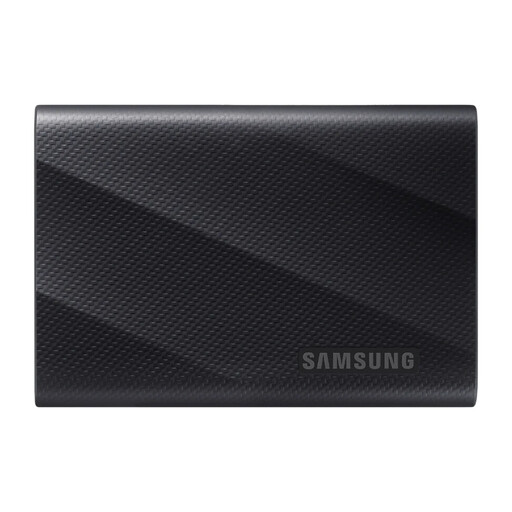 No image available
Samsung MU-PG1T0B 1 TB USB-C SSD
Check whether the stated 1 TB capacity covers your current library and future additions. The name specifies USB Type-C and USB 3.2 Gen 2x2; verify device compatibility and password setup before relying on it for a sensitive local copy.
View on Joybuy
Backup questions answered
Is cloud photo syncing a backup on its own?
Not if it is your only copy. Apple says iCloud Photos synchronises deletions across devices and is not duplicated in iCloud Backup, so keep an independently managed copy of photos you cannot replace.
What should I check when storing sensitive documents on a drive?
Check password encryption on the exact model, set it up before transferring files and retain another copy elsewhere. Samsung says its Portable SSD T7 supports an AES 256-bit encrypted password, but that statement should not be assumed to apply to every Samsung drive.
How should I protect a cloud backup account?
Use a unique strong password, limit sharing to the intended people and enable a second sign-in step. Set up and safely retain the account’s recovery options before you lose access to your usual phone or computer.
What if my Google storage fills up?
Google says a full account cannot back up new photos or videos to Google Photos. Check the storage used across Google services, make room or review the available capacity before relying on continued automatic uploads.
How can I tell whether my backup will work?
Periodically restore a small selection of photos and documents and check that they open. For a local copy, reconnect the drive for planned updates and disconnect it afterwards; the National Cyber Security Centre warns that permanently connected backup drives can be affected in the same ransomware incident as the originals.


