Choose cloud backup if access across devices and routine copying matter most, provided your internet connection and storage allocation cover the files you need. An external drive gives you a local copy when uploads are impractical; for especially important coursework, documents or family media, using both gives you two recovery routes, provided you check that each copy can be restored and disconnect a removable backup when it is not in use.
Who needs a backup?
Students protecting coursework
If essays and project files live on a laptop or tablet, check that the folders you use are included and that you can retrieve a file before a deadline. The National Cyber Security Centre advises keeping important data in a separate location; Microsoft describes regular copies through File History.
Households preserving photos and videos
A growing media collection calls for enough space for the files you intend to protect and a way to recover them if the original device is lost or damaged. Consider whether uploading the whole collection is practical or whether a local copy would be easier to maintain.
People using several devices
If files move between a phone, computer and tablet, access to selected folders across devices may matter alongside recovery. Microsoft describes cross-device access for configured OneDrive folders; check which folders have finished syncing and retain a separate recovery copy for important files.
What matters when choosing?
Decide which files must be recoverable, then check capacity and device compatibility before setting up a routine you can maintain. Cloud, removable storage and a combination of the two all depend on selecting the right files and confirming that a copy can be opened.
| Concern | What to check | Who this matters to |
|---|
| Recoverability |
Keep a copy separate from the original device and try restoring a file. Disconnect a removable backup after use. |
If a device is lost or files are deleted, I need a copy I can actually retrieve. Around 31% of consumers would put recoverability first. |
| Capacity and uploads |
Compare the size of the files you want to protect with the available storage; consider whether uploading them is practical. |
For a large photo or video collection, I need room for the whole intended copy without relying on uploads I cannot complete. Roughly 25% of consumers would prioritise that capacity need. |
| Device compatibility |
Check the port, cable and backup-tool requirements. For SD or microSD, check the host device's supported standard. |
If my Mac, computer or camera cannot use the storage as intended, its capacity will not solve my backup problem. About 19% of consumers would make compatibility their primary concern. |
| Routine and access |
Confirm which folders are included and when copying runs; check account access or whether a local destination must be connected. |
I use files on more than one device and need a copying routine I can keep up. Around 25% of consumers would put routine and cross-device access first. |
Backup mistakes to avoid
-
Leaving an external backup permanently connected
The National Cyber Security Centre advises against leaving a backup device permanently connected to a computer, because an incident affecting the computer could also affect the connected copy.
After a completed backup, disconnect the removable drive and store it safely. Make sure you know how to restore a file from it.
-
Assuming important folders are already covered
A cloud account or spare drive does not, by itself, establish that coursework, photos and documents are being copied.
Identify the folders and devices to protect, configure their backup, then open a copied file from the destination to check the result.
-
Reformatting the only copy on a drive
Apple says a Windows-formatted disk cannot be used directly as a Time Machine backup disk and may need reformatting. Reformatting can permanently remove its existing contents.
Copy those contents to another location and check the copy before changing the disk format.
-
Treating every SD card as interchangeable
The SD Association distinguishes card capacity families and speed classes. A card's physical fit alone does not establish that a device supports it or that it suits video recording.
Check the device manual for the supported SD or microSD standard and the speed class required for your task.
Relevant brands and software
Microsoft
Relevant to Windows users considering a local File History destination or OneDrive folder backup.
- Microsoft describes File History as making regular copies to an external drive or network location, while configured OneDrive folders can be reached across devices.
- Check which folders each tool covers, the available cloud storage and whether your chosen local destination is configured.
Apple
Relevant to Mac users considering Time Machine with an external drive or compatible network destination.
- Apple says Time Machine can back up to external storage connected through a compatible Mac port.
- A Windows-formatted disk cannot be used directly for Time Machine and may need reformatting; protect its existing contents before making that change.
Seagate
Relevant when considering an external HDD or SSD for a local copy of personal files.
- Seagate lists external HDD, SSD and desktop-drive formats, and describes scheduled backup features for its One Touch line.
- Check the particular model's capacity, connector and software against the device and folders you intend to back up.
Local storage options on Joybuy
These drives and removable-storage devices are options for making a local copy of coursework, documents or household media. Choose by the files you need to hold and the devices you will connect; for files that are especially important, also plan a separate recovery route.
 No image available
Western Digital My Passport portable external hard drive, 2TB, black
Consider this 2TB portable drive if you need a local destination for coursework or household files.
Check its connection and any driver requirements for your computer, configure the folders to copy and try restoring a file.
View on Joybuy
No image available
Western Digital My Passport Ultra for Mac portable external hard drive, 5TB, silver
The 5TB capacity makes this a local-storage option to consider for a sizeable collection of files and media.
Before using it for a backup, check its connection and software against your computer, confirm the folders covered and try restoring a file.
View on Joybuy
 No image available
Samsung MU-PE1T0S 1TB USB Type-C external SSD, black
Consider this portable 1TB SSD for a local copy of selected files if your device supports the intended connection.
Its name specifies USB Type-C 3.2 Gen 2 (3.1 Gen 2); check your device and file-format requirements, then set up and test your backup workflow.
View on Joybuy
 No image available
Western Digital Elements Port. 4TB external hard drive, black
This 4TB portable drive is an option for keeping a local copy of a larger file collection.
Its name specifies USB 3.0. If your backup tool requires reformatting, copy and check any existing drive contents elsewhere first; then test a file restore.
View on Joybuy
 No image available
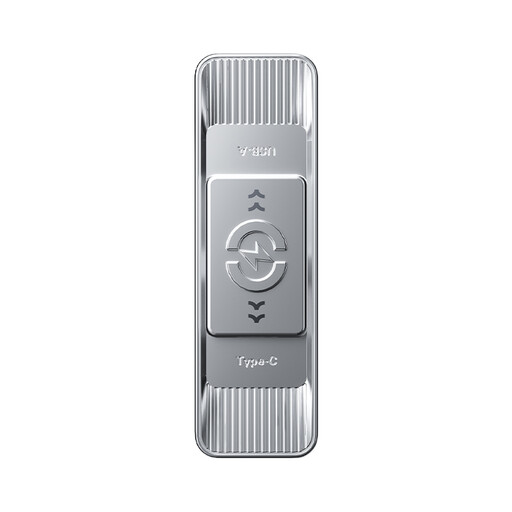
MOVESPEED YSUSP05-512GSR 512GB USB 3.2 Gen 1 and Type-C flash drive, silver
Consider this 512GB flash drive for an additional copy of selected files when your devices support its connectors.
Check the intended phone or computer's file-transfer requirements and test that you can retrieve a copied file. Keep another recovery route for important files.
View on Joybuy
Common questions
Should I back up coursework and photos to the cloud or an external drive?
Choose by how you need to recover and access the files: cloud backup suits selected files you want across devices when internet access and storage capacity are adequate, while an external drive provides a local copy without relying on an upload. If the files are especially important, maintain both copies and test restoring from each.
Will an external drive work with my Mac or Windows PC?
Check the drive's connection and the backup tool you intend to use, not just whether its plug fits. Apple says a Windows-formatted disk cannot be used directly for Time Machine and may need reformatting; copy existing contents elsewhere first. Microsoft says Windows File History can use a configured external drive or network location.
Can an SD card be my only copy of important files?
Keep another separate recovery copy for important files rather than relying on one SD card. If you use a card as an additional copy, check the host device's supported SD or microSD standard; the SD Association also distinguishes speed classes relevant to recording tasks such as video.
Does UK GDPR apply when I back up my own household files?
The Information Commissioner's Office says the UK GDPR does not apply to processing by individuals purely for personal or household activities. That household exception does not automatically cover files or systems controlled by an employer or university, so follow the relevant organisation's rules for those files.


