What to check before choosing
Start with the files you cannot replace, then check backup coverage, restoration and account access before deciding whether cloud storage, removable media or a combination fits your household.
| Priority |
What to check |
Your needs |
| Separate recovery copy |
Keep the copy apart from the original device; check that files can be restored; avoid leaving every copy connected to the same computer. |
I want photos and documents to remain recoverable if a phone, computer or original files become unavailable. |
| Backup coverage |
Inspect included data types, folders and media libraries; check the latest successful backup status; review restoration steps for each device. |
I need to know whether my photos, documents, app data and settings are genuinely covered rather than assuming automatic backup includes everything. |
| Account protection |
Enable 2-step verification; keep account-recovery methods current; check who can access the recovery email and cloud account. |
I want the household to be able to sign in and restore data after an incident without making the cloud account easy to take over. |
| Capacity and service terms |
Measure the files to be protected and allow for growth; check current capacity, renewal and cancellation conditions; make sure there is a workable export or second-copy plan. |
I need enough room for the files that matter and another accessible copy before changing, cancelling or losing access to a subscription. |
Joybuy backup storage options
These Joybuy product options cover local removable storage for household photos, documents and personal files, including external hard drives, portable SSDs and USB storage.
 Image unavailable
Western Digital My Passport Ultra 5TB Portable External Hard Drive
A local removable-copy option for larger household photo and document libraries.
Stated 5TB capacity, USB-C connectivity, a USB-A adapter and password-enabled 256-bit AES encryption. The listing states that it is pre-formatted for Windows and requires reformatting for macOS; check the file system and measure the files you intend to protect.
Joybuy
 Image unavailable
Samsung Portable SSD T7 4TB Grey
Consider this portable SSD for periodic local copies of larger photo and video collections between compatible devices.
The listing states USB 3.2 Gen 2, up to 1,050/1,000 MB/s read/write, AES 256-bit hardware encryption and USB-C-to-C and USB-C-to-A cables. Check ports, backup software and recovery steps before relying on it.
Joybuy
 Image unavailable
Samsung Portable SSD T7 2TB Grey
A portable second-copy option for photos and documents where 2TB suits the selected backup set.
The listing states USB 3.2 Gen 2, up to 1,050/1,000 MB/s transfer figures, optional AES 256-bit password protection, Windows, macOS and Android compatibility, plus USB-C-to-C and USB-C-to-A cables. Check available capacity and device ports.
Joybuy
 Image unavailable
Samsung MU-PE1T0S 1TB Portable SSD Black
A compact local backup drive for households that regularly carry a separate copy between compatible Macs, PCs or Android devices.
The listing states 1TB capacity, USB 3.2 Gen 2, up to 1,050/1,000 MB/s transfers, IP65 protection and up to 3-metre drop resistance. It also says not to submerge the drive; check capacity, backup workflow and restoration before use.
Joybuy
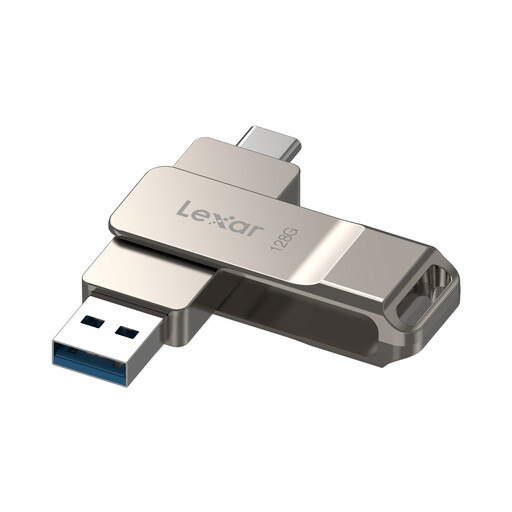 Image unavailable
Lexar D40E 128GB Dual USB Type-C Jump Drive
A small manual option for selected essential documents or a limited photo set rather than a full household media library.
The listing states 128GB storage, USB-A and USB-C connectors, USB 3.2 Gen 1, up to 100MB/s read speed and software-based password-protected encryption. Android use requires USB OTG support; keep the drive updated and stored separately.
Joybuy
Frequently asked questions
How much backup capacity should I buy?
Measure the photos, videos, documents and device data you actually intend to protect, then allow room for growth and, where useful, more than one backup generation. Check the usable capacity of the drive or service and whether the selected backup scope will fit; the National Cyber Security Centre notes that backup solutions can cover selected files or the entire contents of a phone or computer.
Is cloud photo sync the same as a complete device backup?
No, not necessarily. Apple states that iCloud Photos synchronises separately from daily iCloud Backup, while Google distinguishes Android device backup from Google Photos and warns that not all apps can back up or restore all settings and data. Check the included-data list before assuming photos, messages, documents, app data and settings are all recoverable.
How can I protect a cloud backup against account takeover?
Turn on 2-step verification for the cloud-storage account and its recovery email, then confirm that recovery methods are current and accessible to the household member responsible for restoration. The National Cyber Security Centre recommends 2-step verification for important accounts, including cloud storage, because it adds a check beyond the password.
Can deleted or overwritten OneDrive files be restored?
Microsoft states that Microsoft 365 subscribers can use Restore your OneDrive to undo actions on files and folders within the last 30 days. Microsoft also states that files permanently deleted from the OneDrive Recycle Bin cannot be recovered, so treat the feature as a limited recovery tool rather than an indefinite archive.
What should I check before subscribing to cloud storage in the UK?
Check the provider's current capacity, auto-renewal date, cancellation procedure, account-inactivity policy, suspension consequences, deletion or retention rules and how long it may take to export your data. Competition and Markets Authority consumer guidance advises users to watch for renewal and price-change notices, check restrictions and allow time to move or back up data before leaving a service.


