Choose a file-sync service if everyday access and sharing matter most, but keep an independent recovery copy: changes and deletions can spread between synced devices. A backup service suits computer recovery, while an external drive or network-attached storage (NAS) gives you a local destination that still needs protection from incidents at home. For irreplaceable photos and files, combine a local copy with one stored separately off-site, then check how you would restore both.
Who needs which kind of backup?
Households protecting irreplaceable memories
If the priority is getting photos, documents and computer files back after deletion, malware or a lost device, access to the latest synced file is not enough. The National Cyber Security Centre advises keeping important data in a separate safe location.
Cross-device sharers
For people moving between phones, tablets and computers, a cloud library can make current files easier to reach and share. They still need to understand which edits and deletions carry across their signed-in devices.
Local-control home archivists
An external drive or NAS can provide a local place for household files, provided someone manages backups and checks that files can be restored. A second copy beyond the home matters if theft or damage there could affect the local one.
What matters when choosing a backup?
For photos and computer files spread across household devices, decide whether the immediate job is access to current files, recovery of earlier files or both. A drive, NAS and cloud account do not perform the same job merely because each holds a copy.
Cloud backup subscription
Choose it when: the main task is backing up a computer with an ongoing service and a defined way to retrieve previous files.
Keep in mind: a computer-backup service need not work as a shared photo library or retain files removed from the protected computer; check its deletion and retention terms.
Cloud file sync
Choose it when: household members chiefly want their current photos and files on signed-in devices and need to share selected content.
Keep in mind: Apple and Google both document circumstances in which deleting a synced photo removes it from other enrolled devices; retain an independent recovery copy.
External backup drive
Choose it when: you want a directly attached, locally managed destination for a computer backup.
Keep in mind: a drive left connected can be affected by an incident on the computer, and a drive kept at home cannot by itself cover an incident affecting the home.
Network-attached storage
Choose it when: several devices need a central in-home storage destination and someone can manage its accounts, disks and backups.
Keep in mind: Synology states that RAID is not a backup; a NAS still needs a separate recovery copy.
Local and cloud copies
Choose it when: irreplaceable household files need both a local recovery path and a copy beyond the home.
Keep in mind: two destinations mean two restore processes to set up and test; do not leave every copy exposed to the same changes.
| Concern |
What to check |
Who this matters to |
| Independent recovery |
Check whether an earlier file can be restored and whether a separate copy remains available after deletion, malware or device loss. |
If family photos cannot be recreated, I need a copy that survives more than a mistake in the live library. Around 37% of consumers would put independent recovery first. |
| Access and sharing |
Check support for each household device and how accounts, shared folders and deletion work. |
When I switch between a phone, tablet and computer, I want current files within reach without carrying a drive. For around 27% of consumers, access and sharing would be the primary need. |
| Local control |
Check drive compatibility, backup automation and how encryption passwords or recovery keys will be kept. |
If I prefer to manage a copy at home rather than depend on a storage subscription, I can take responsibility for connecting and checking the drive. Local control would come first for around 18% of consumers. |
| Capacity and organisation |
Total the files to retain across devices, then allow for growth and any backup versions; check usable space, not just the capacity shown in a product name. |
With files scattered across several devices, I need enough room and a clear way to know what is backed up. Around 18% of consumers would prioritise capacity and household organisation. |
Backup mistakes to avoid
-
Treating sync as the only backup
Apple says deleting an iCloud Photos item on one device removes it from other devices signed into the same Apple Account. Google describes similar deletion behaviour for backed-up photos on devices with backup turned on.
Keep a separate copy of files you cannot recreate, and try restoring a sample file before relying on a service's recovery options.
-
Leaving the only local backup connected
The National Cyber Security Centre reports incidents in which ransomware affected both original files and connected USB or network backups.
Disconnect or rotate a local backup when it is not being updated, and keep a separate off-site copy for incidents affecting the home.
-
Assuming NAS RAID completes the backup plan
Synology says RAID is not a backup. Drive fault tolerance does not create an independent copy after an unwanted change or an incident affecting the NAS.
Plan a separate backup destination for NAS data and check that its restore process works.
-
Overlooking drive setup and recovery credentials
Apple says a disk formatted for Windows cannot be used for Time Machine without addressing its format, and an encrypted Time Machine backup requires its password to restore. Microsoft limits BitLocker Drive Encryption to specified Windows editions.
Check the computers, drive format and encryption method before use. Keep the password or recovery key somewhere you can retrieve it when the original computer is unavailable.
Reformatting a drive can erase files already on it; losing an encryption password can leave a backup inaccessible.
Brands and services to consider
These names illustrate different backup and access workflows, not interchangeable ways to protect every household device.
Apple
For households using iCloud Photos across Apple devices and Time Machine to back up a Mac.
- Apple documents Time Machine backups to suitable external storage, with optional encryption.
- iCloud Photos deletions carry across devices signed into the same Apple Account. Check Time Machine drive compatibility and keep its encryption password available for restoration.
Google
For households using Google Photos or Google Drive to reach photos and files from signed-in devices.
- Google Photos supports automatic saving of photos and videos to a Google Account when backup is turned on.
- Google says deleting backed-up Photos items can also remove them from devices with backup turned on. Check which devices and accounts are enrolled, and retain a separate recovery copy.
Microsoft
For Windows-centred households considering OneDrive for synced files and a separate local backup workflow.
- Microsoft says eligible Microsoft 365 subscribers can use Restore your OneDrive to undo activity from the previous 30 days.
- Eligibility for that recovery feature matters. Microsoft says BitLocker Drive Encryption is available on Windows Pro, Enterprise and Education, not Windows Home.
Synology
For households prepared to manage a NAS as central local storage for files and backups.
- Synology describes snapshot restoration on supported, configured systems.
- Synology explicitly says RAID is not a backup. Check snapshot compatibility and arrange a separate copy of NAS data.
Backblaze
An example of a computer-backup service rather than a general shared household file library.
- Backblaze describes its Computer Backup product as making a copy of data on the licensed computer.
- It is not an off-site archive for files removed from that computer. Check the service's applicable devices, deletion behaviour, revision retention and restore method before subscribing.
Joybuy drives and NAS for local storage
These portable drives offer local storage destinations, while the Synology NAS is a central network-storage option. For any of them, choose backup software and a separate-copy arrangement that match the files you need to recover; a storage device alone does not establish that recovery plan.
 No image available
Western Digital My Passport Ultra for Mac, 5TB, Silver
A local-drive option for a household backing up files from a Mac.
Portable external hard drive with 5TB capacity. Check the format and setup needed for every computer that will use it, along with the backup software's restore and version-history options.
View on Joybuy
 No image available
Western Digital My Passport, 2TB, Black
A portable local destination for household computer files.
External hard drive with 2TB capacity. If the household uses a Mac, confirm the required setup before use; check how the chosen backup workflow restores deleted or earlier files.
View on Joybuy
 No image available
Samsung T7 Shield, 1 TB, Blue
A portable local-storage option if the files you intend to keep fit within its capacity.
External SSD with a USB 3.2 Gen.2 connection. Confirm compatibility with the intended devices and set up a backup and restore workflow rather than treating a copied folder as a complete recovery plan.
View on Joybuy
 No image available
SanDisk Portable SSD, 2TB
A portable destination for a local copy of household photos and files.
External SSD with 2TB capacity. Compare that capacity with the files and versions you plan to retain, and check the backup workflow and encryption options needed for your devices.
View on Joybuy
 No image available
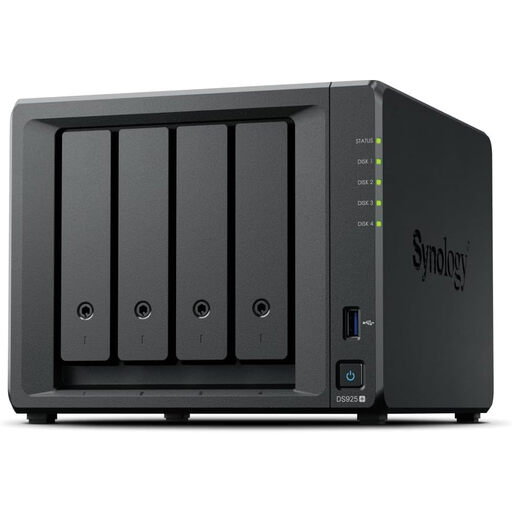
Synology DiskStation DS925+ 4-Bay NAS
A central local-storage option for a household willing to manage a NAS and back up its contents separately.
Four drive bays. Confirm which drives are compatible, whether drives are supplied, the resulting usable capacity and how snapshots and restores will be configured. Synology states that RAID is not a backup.
View on Joybuy
Questions about household backups
Is a cloud photo library a backup on its own?
Not if it is your only recovery copy. Apple says an iCloud Photos deletion carries across devices signed into the same Apple Account, and Google describes deletion across devices with Photos backup turned on. Keep an independent copy of irreplaceable photos and check how to restore it.
How much storage should we allow for household backups?
Start with the files each device needs to retain, account for duplicates and allow room for future photos, videos and earlier versions. For Mac Time Machine specifically, Apple recommends a backup disk with at least twice the Mac's storage capacity; that is not a capacity rule for every cloud plan or NAS.
Does a two-drive NAS mean our files are backed up?
No. Synology states that RAID is not a backup: a multi-drive arrangement still needs a separate copy for recovery after unwanted changes or an incident affecting the NAS. Check the restore process for that separate copy as well as any snapshots you configure.
What should we check before encrypting a backup drive?
Check that encryption works with the computer and backup method you will actually use, and keep the restoration password or recovery key accessible. Apple requires the password to restore an encrypted Time Machine backup; Microsoft says BitLocker Drive Encryption is available on Windows Pro, Enterprise and Education, not Windows Home.


