A 23.8–24-inch Full HD IPS monitor is a practical starting point for building and checking a club timetable on a student-room desk. Prioritise a stand you can position comfortably; consider a taller 16:10 screen, QHD or USB-C laptop docking when your documents or laptop setup give you a reason to use them, and check the exact model and connections before buying.
Who this setup suits
Small-desk timetable organisers
If your work centres on weekly grids, spreadsheet cells, emails and club messages, a compact second screen may be more useful than features aimed at gaming. LG and BenQ list 23.8-inch Full HD IPS models that illustrate this format; check the stand footprint against the space available beside your laptop and papers.
Long-session planners needing screen adjustment
When you spend longer periods resolving clashes or updating rotas, consider how the screen will sit relative to your chair and desk. The Health and Safety Executive advises placing the top of a screen at eye level and the screen about an arm’s length away; an adjustable stand can help you achieve that position.
Laptop-first organisers seeking fewer cables
If your laptop is the main computer, a USB-C monitor may simplify the desk setup when both devices support the required video and charging functions. Check the laptop’s port capabilities and power requirements rather than assuming that any USB-C socket provides one-cable docking.
What matters when choosing
For a club timetable in a student room, start with the space available on the desk, then decide how much screen adjustment and laptop connectivity your routine requires.
| Concern |
What to check |
Who this matters to |
| Readable grids on a small desk |
Check screen size and resolution, then measure the space needed for the stand, laptop and papers. |
If I need dates, times and notes visible without crowding my desk, I want a compact screen that keeps the timetable readable; around 45% of consumers put this need first. |
| Screen placement |
Check stand height and tilt, or whether a compatible VESA mount would work in your room. |
For longer planning sessions, I need the screen positioned comfortably with my existing chair and desk; roughly 33% of consumers make adjustability their primary concern. |
| Laptop connection |
Confirm the laptop’s USB-C video support, the monitor port’s function and whether its charging capability meets the laptop’s requirements. |
When I move my laptop on and off the desk, I would rather reconnect fewer cables; about 22% of consumers prioritise laptop connectivity above the other concerns. |
Mistakes to avoid
-
Assuming similar Dell P2425 names mean the same package
Dell’s P2425H listing includes a without-stand configuration and describes its downstream USB-C port as data-only, with up to 15W power delivery. Dell describes the P2425E as a different, 16:10 USB-C hub model with up to 90W power delivery.
Match the full model suffix and listing configuration, then check the included stand, cables, video inputs and USB-C port function.
Depending on the configuration and your setup, you may need a separate stand or riser, cable, adapter or charger.
-
Treating eye-comfort labels as a substitute for positioning
Manufacturer feature labels do not establish how a monitor will sit on your particular desk. The Health and Safety Executive’s workstation guidance emphasises screen height and viewing distance.
Check whether the supplied stand lets you position the screen appropriately; if not, consider a compatible mounting option that your desk and room permit.
-
Choosing QHD or a USB-C hub without a use for it
Extra resolution is most relevant when your work includes dense grids or several documents. USB-C docking is useful only when the laptop and monitor support the necessary video and charging functions.
Decide whether those tasks are part of your routine, and confirm laptop compatibility before choosing a docking monitor.
Relevant brands to consider
Dell
Dell’s UK P2425H, P2425E and P2425D specifications illustrate Full HD, 16:10 USB-C hub and QHD options for document work.
- Dell lists height, tilt, swivel and pivot adjustment for the P2425H and P2425D.
- The models are not interchangeable: P2425H’s listed downstream USB-C port is data-only, while P2425E offers up to 90W power delivery. Check the exact suffix and stand configuration.
LG
LG’s 24MS550-B is a 23.8-inch Full HD IPS model with a height- and tilt-adjustable stand.
- LG lists a 100Hz refresh rate alongside Reader Mode and Flicker Safe features.
- Those feature names do not establish a health outcome. Check the exact inputs and stand dimensions for your desk.
BenQ
BenQ’s GW2490 illustrates a 23.8-inch Full HD IPS setup with two HDMI inputs, speakers and 100 × 100 mm VESA mounting.
- The listed connections and mounting pattern offer options for arranging a conventional desk setup.
- BenQ lists tilt adjustment but not stand-height adjustment for the GW2490; check whether you would need a riser or compatible mount.
Joybuy monitor choices
These monitors offer Full HD, WUXGA or QHD options to consider for timetable and document work. Choose by the screen format, desk arrangement and connections you need rather than treating the list as a single setup for every room.
 No image available
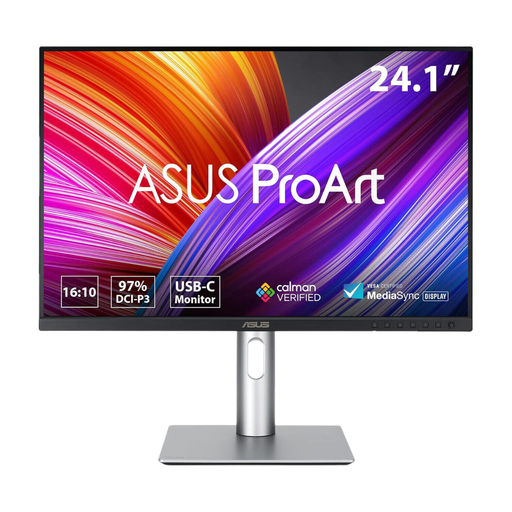
ASUS ProArt PA248CRV IPS WUXGA
Consider this IPS WUXGA model if a taller document workspace is a priority for timetable editing.
If you plan to connect and charge a laptop through the monitor, check both devices’ USB-C functions and confirm which display cables are included.
View on Joybuy
 No image available
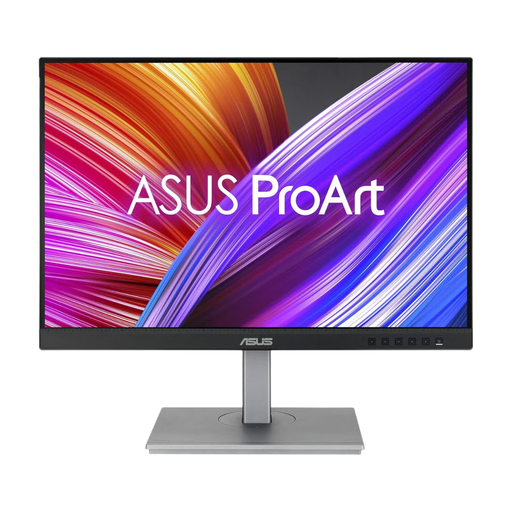
ASUS ProArt PA248CNV IPS WUXGA
This IPS WUXGA model is worth considering when extra vertical room for grids and documents matters to you.
For a laptop-led desk setup, confirm the monitor’s exact connections, your laptop’s video and charging support, and the cables supplied.
View on Joybuy
 No image available
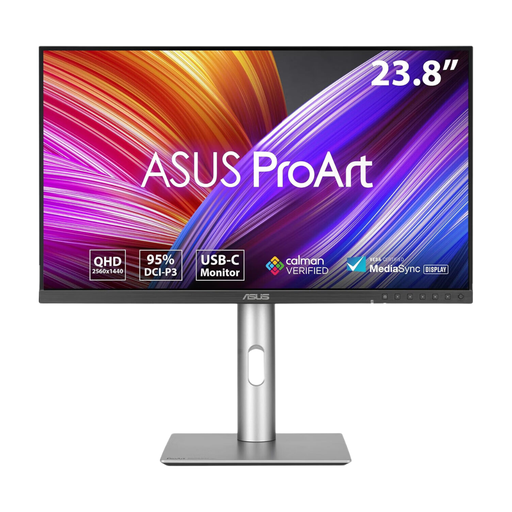
ASUS ProArt PA24ACRV IPS QHD
Consider this IPS QHD model if dense timetable grids or several documents make resolution an important part of your choice.
Check whether you are comfortable with your computer’s display scaling and verify laptop connection requirements before buying.
View on Joybuy
 No image available
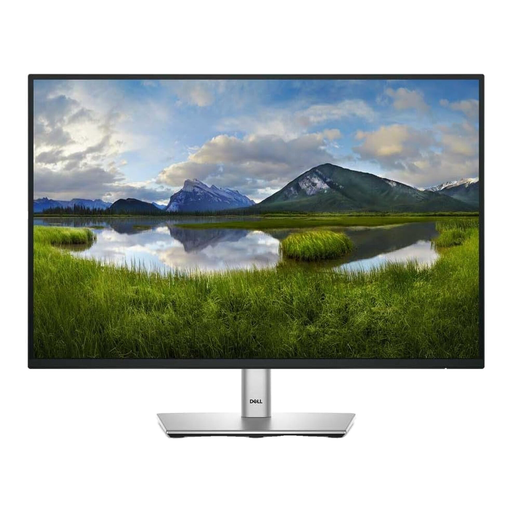
Dell P2425 61 cm (24.0-inch) monitor
Consider this 24.0-inch model if its screen and stand configuration fit the space you have for timetable work.
Confirm the exact refresh rate, video inputs and USB-C function for this P2425 listing before deciding how it will connect to your laptop.
View on Joybuy
 No image available
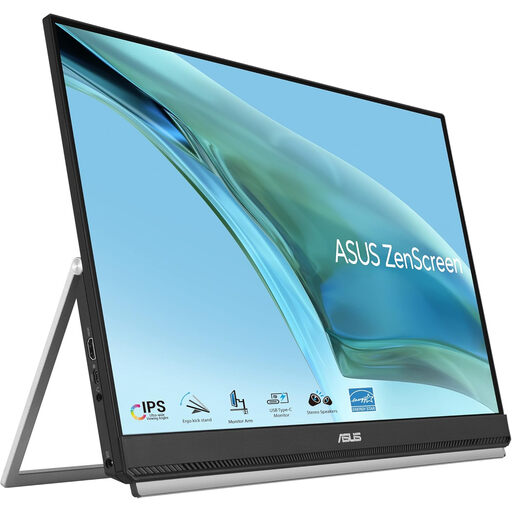
ASUS ZenScreen MB249C IPS USB-C
Consider this IPS model if the way you position a screen in a small room matters as much as the timetable itself.
Check which mounting accessories are supplied and whether your device supports the USB-C video function you intend to use.
View on Joybuy
Common questions
Should I choose Full HD, 16:10 WUXGA or QHD for a club timetable?
Start with Full HD for a straightforward compact screen; consider 16:10 WUXGA if vertical room for documents matters more, or QHD if you regularly work with dense grids and are willing to adjust display scaling. Dell’s P2425H, P2425E and P2425D specifications illustrate 1920 × 1080, 1920 × 1200 and 2560 × 1440 respectively; check the specification of the model you actually choose.
How should I position a monitor on a student-room desk?
Place the screen directly in front of you and check that its stand or mount lets you reach a comfortable height and distance. The Health and Safety Executive’s workstation guidance suggests keeping the top of the screen level with your eyes and the screen about an arm’s length away; it is practical positioning guidance, not a student-specific purchasing rule.
Will any USB-C monitor show my laptop screen and charge it through one cable?
No: the monitor port, laptop and cable must support the required video and charging functions. Dell describes P2425E as offering up to 90W power delivery, whereas its P2425H specification describes a data-only downstream USB-C port with up to 15W power delivery. Check the exact port descriptions and your laptop’s requirements before relying on a one-cable setup.


